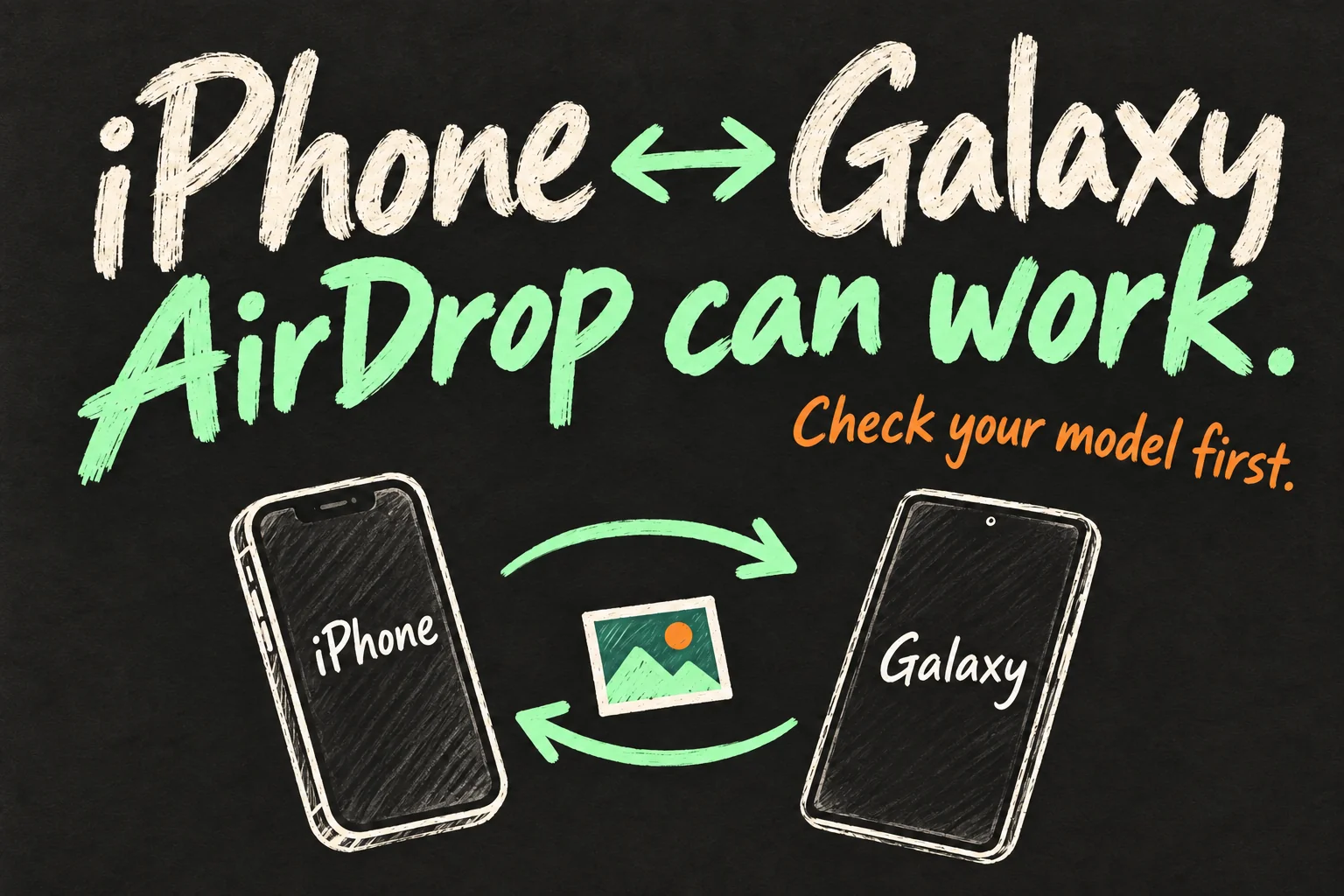
iPhone to Samsung AirDrop is possible on supported Galaxy phones through Quick Share. The Galaxy uses Quick Share, while the iPhone uses its built-in AirDrop menu. You do not install an Apple AirDrop app on Android. If your Galaxy does not support the direct connection, a QR download, LocalSend or a cloud link may be the better route.
The first check is your Galaxy model and its software, not whether both phones have Bluetooth. This guide explains both directions, where the files go and which method to use when you want to keep the original file rather than send a compressed chat attachment.
Checked 17 October 2026. Based on current Apple, Google, Samsung and LocalSend documentation; not a claim of hands-on transfer testing. Menus and availability can vary by device, software and market.
iPhone to Samsung AirDrop: choose your method first
| Method | Best use | What you need |
|---|---|---|
| Direct AirDrop ↔ Quick Share | Two nearby, compatible phones | Supported Galaxy hardware/software; Wi-Fi and Bluetooth; temporary receiving visibility |
| Quick Share QR or download link | Galaxy sender; direct sharing unavailable | A QR/link option on the Galaxy and internet access on both phones; service limits apply |
| LocalSend | Repeat transfers between mixed devices nearby | The app on both phones and the same local network; no account |
| Cloud file link | Sending to someone elsewhere | An uploader account, available cloud storage and internet; recipient access depends on link settings |
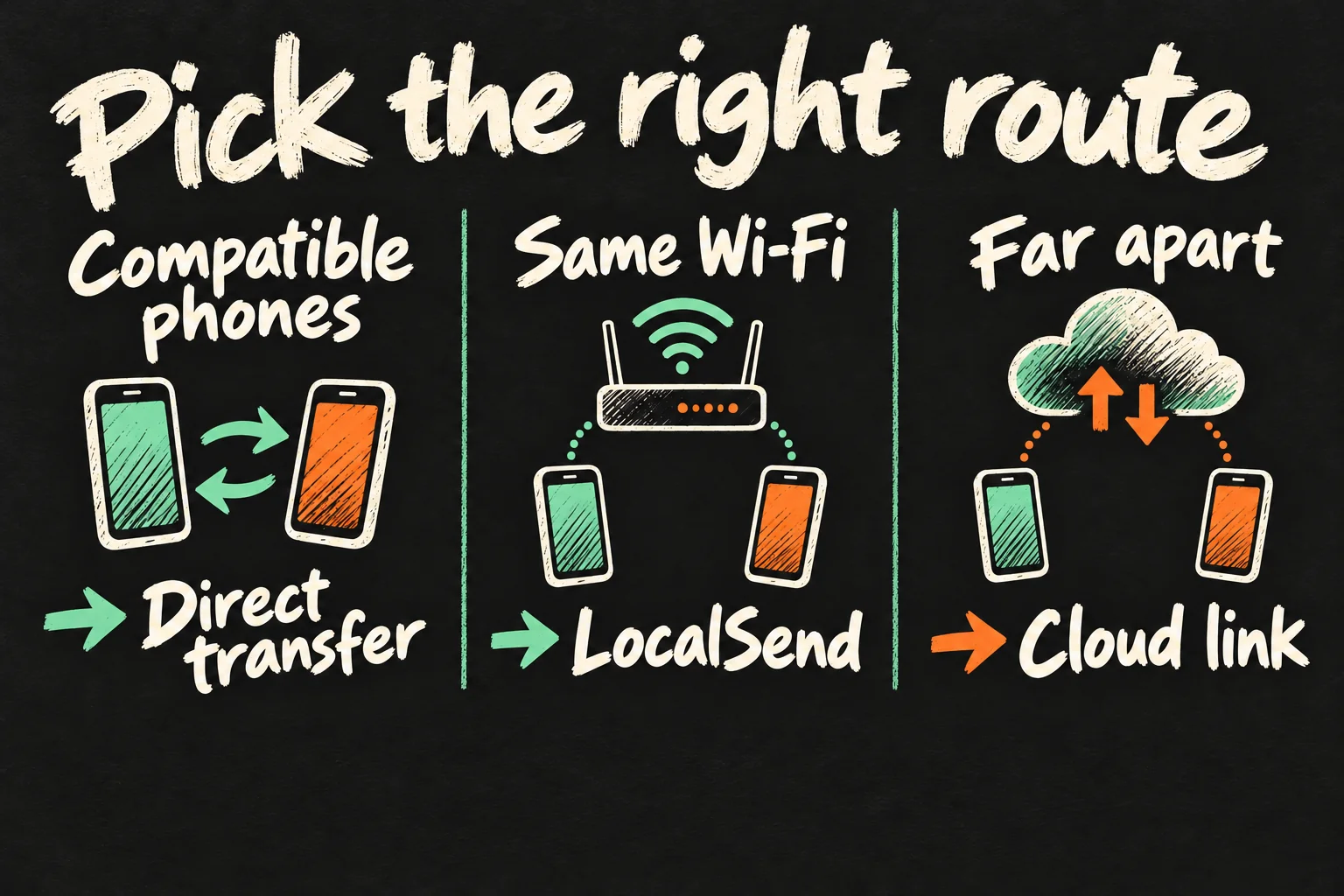
My starting recommendation is the direct method when your phone supports it. Use LocalSend for regular exchanges on a trusted home network. Choose a cloud file link when the other person is elsewhere. A QR code is a way to open a transfer, not proof that the data travels locally.
Which Galaxy phones support AirDrop?
Google’s current compatibility page lists Galaxy S26, S26+ and S26 Ultra; S25, S25+ and S25 Ultra, plus S25 Edge; and S24, S24+ and S24 Ultra. It also lists Z Fold7, Z Flip7, Z Fold6, Z Flip6, Z Fold6 Special Edition and Z TriFold. This is the published list checked for this article, not a promise that every Galaxy has the feature.
Samsung Australia separately documents the feature for Australian Galaxy S26 variants. Its instructions identify iPhone 8 or later as compatible Apple hardware. For an older Galaxy, an FE model or an A-series phone, do not infer support merely from the presence of ordinary Quick Share. Check your exact model and the Share with Apple devices setting after updating.
Samsung’s support documentation specifies Quick Share version 13.8.51.27 or later and Google Play services 26.11.xx or later for Apple sharing. These are documented minimum versions, not a workaround that makes unsupported hardware compatible. Update Android/One UI, Quick Share and Google Play services through their normal update channels.
Account requirements also deserve care: Samsung’s general Quick Share guide lists a Samsung account among its prerequisites. Do not describe every Galaxy transfer as account-free. The iPhone recipient uses AirDrop rather than signing into the sender’s Samsung account, and the two people do not need a shared account.
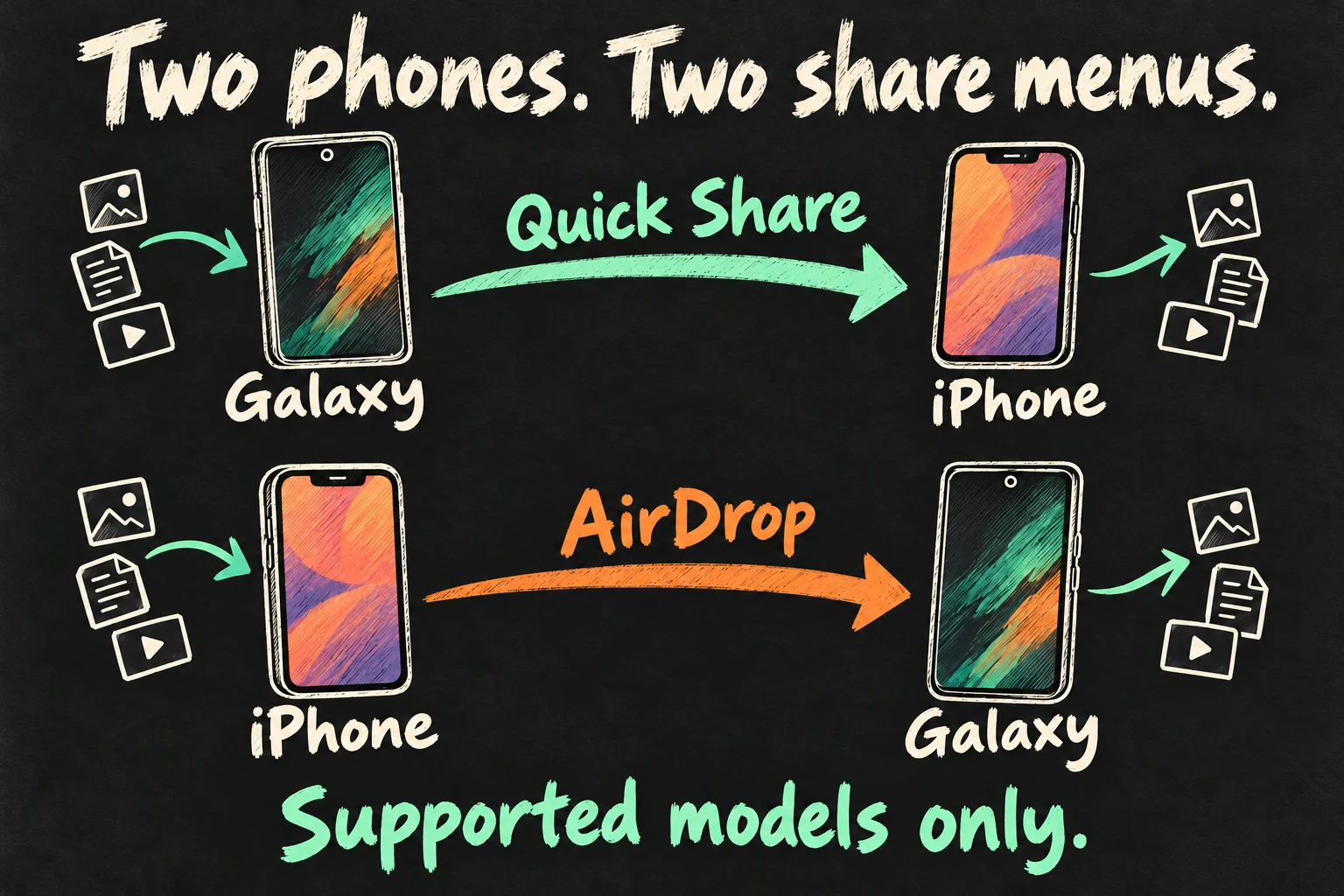
Method 1: send Samsung to iPhone with Quick Share
For a compatible Galaxy, start with the receiving iPhone. Keep the phones nearby and unlocked, and enable Wi-Fi and Bluetooth. Disconnect Personal Hotspot before trying a direct transfer.
- On the Galaxy, open Settings → Connected devices → Quick Share and enable Share with Apple devices. If the menu differs, search Settings for Quick Share.
- On the iPhone, open Settings → General → AirDrop → Everyone for 10 Minutes.
- On the Galaxy, select the photo, video or document in Gallery or My Files, then choose Share → Quick Share.
- Select the nearby iPhone. Check the device name with its owner so you choose the right recipient.
- On the iPhone, accept the incoming AirDrop request. Let the transfer finish before checking the received file.
Quick Share to iPhone uses the iPhone’s native receiving prompt on supported hardware. It is different from uploading a file and asking the recipient to scan a download link. When the transfer is finished, return visibility to a more restricted setting instead of leaving either phone open to strangers.
Send iPhone to Samsung using the AirDrop menu
- On the Galaxy, enable Share with Apple devices and set Who can share with you → Everyone (10 minutes only), or keep the supported receiving screen open.
- On the iPhone, open Photos or Files and select what you want to send.
- Tap Share → AirDrop, then choose the Galaxy from nearby devices.
- Accept the incoming request on the Galaxy. Wait for completion, then open the file in Gallery or My Files as appropriate.
The important detail is the direction: the iPhone sends with AirDrop; the Galaxy sends with Quick Share. Looking for a Quick Share button in the iPhone share sheet is the wrong starting point for the native method.
Method 2: Quick Share QR or link when direct sharing is unavailable
If your Galaxy’s sharing panel offers a QR code or download link, select the file, open Quick Share and choose that option. The iPhone user scans the code with Camera, opens the resulting page and downloads the file. Samsung also documents a link option that can be copied into a message.
This route needs internet access. It may upload content to a transfer service, so a big video can use data for both uploading and downloading. Read the transfer screen’s current file-size allowance and expiry before relying on it. Samsung’s QR/link service and Google’s QR fallback should not be treated as having identical limits.
Google’s own Quick Share fallback documentation describes encrypted files available on Google servers for 24 hours, with a 10GB sharing allowance to Apple devices per 24 hours. Those are the documented Google-flow limits, not a blanket allowance for every Galaxy QR screen. The receiving iPhone does not need to install the Android sender’s app just to open the download page.
This is a Samsung to iPhone fallback when offered by the sender’s software. It does not automatically give an unsupported Galaxy a reverse AirDrop receiving function.
Method 3: LocalSend for regular nearby transfers
LocalSend is a free, open-source option available for iPhone and Android. Its standard app-to-app transfer uses the local network and requires no account or cloud upload. It is useful when both people are happy to install an app and regularly exchange files.
- Install the official LocalSend app on both phones and open it.
- Connect both phones to the same trusted local Wi-Fi network. Allow the permissions needed for local networking and the photos/files you select.
- On the sender, choose the files in LocalSend and select the receiving device.
- Accept on the receiving phone and check the destination in the app. Save or export photos to the photo library if needed.
If they cannot discover each other, confirm they are on the same network and that iPhone local-network permission is enabled. Guest networks may isolate clients even when both devices display the same Wi-Fi name. For a quick exchange, using a different trusted network or a cloud link is usually more practical than changing a shared network’s security settings.
Method 4: use a cloud file link when you are apart
For remote sharing, upload the actual file to a service such as Google Drive and grant the recipient viewing/downloading access. Copy the file link and send it through your normal messaging app. The uploader needs an account and enough storage; the recipient’s sign-in requirement depends on the permission you select.
Google Drive supports Anyone with the link access without a Google sign-in, although work or school policies can restrict sharing. Use access limited to a named person for private content. Avoid granting editing permission when the person only needs to download a video. Once they have saved it, remove access if the link no longer needs to remain available.
Will photos and videos keep their original quality?
Samsung says Quick Share can preserve original file quality across supported Android and Apple devices. For an important transfer, choose the original file rather than a screenshot, a chat preview or an already-compressed download. A file-sharing method cannot recover detail that was removed before you selected the file.
For LocalSend or a cloud upload, send the actual photo/video file and have the recipient download it, rather than save a reduced preview. Then compare the filename, file size and, for video, resolution and duration. This is a useful practical check, although file size alone does not prove that every metadata field is identical.
A successful transfer also does not guarantee playback compatibility. HEIC photos or HEVC videos may arrive intact yet behave differently in a recipient’s app. If necessary, send a separately labelled JPEG or MP4 compatibility copy and keep the original. Do not replace your only original while troubleshooting.
If the other phone does not appear, check in this order
- Compatibility: confirm the Galaxy model and Apple-sharing option. Ordinary Quick Share support alone is insufficient.
- Updates: install normal system, Quick Share and Google Play services updates. Samsung Australia notes that a Google Play services update can take up to a day for the policy to take effect.
- Visibility: refresh Everyone for 10 Minutes on the receiving phone and keep its screen unlocked.
- Wireless conflicts: stop Personal/Mobile Hotspot and temporarily stop active casting, DeX or other Wi-Fi sharing sessions, as Samsung documents conflicts with these.
- Small-file check: try one ordinary photo. If the model is unsupported or discovery still fails, change method rather than repeatedly searching for the same missing device.
If you are moving your whole digital life to a different platform, individual file sharing is only one part of the job. Our Samsung-to-iPhone switching guide covers the wider adjustment; sending photos does not migrate apps, accounts or your complete message history.
Frequently asked questions
Can every Samsung phone AirDrop to an iPhone?
No. Direct interoperability is limited to supported models and software. Use the published compatibility list and your device’s settings rather than assuming all Galaxy phones qualify.
Do I need the same Wi-Fi router for native AirDrop and Quick Share?
The native method is a nearby direct transfer; it is not the same as LocalSend’s shared local-network requirement. Keep Wi-Fi and Bluetooth enabled and follow your device’s prompts. A QR web download instead requires internet access.
Can iPhone to Samsung AirDrop transfer a whole phone?
No. It is for selected shareable content. Use the relevant platform’s migration tools for a new-phone setup, and check what those tools support before erasing the old phone.
Where did the received file go?
Check the receiving app first. Native photos may appear in the photo library, documents in Files/My Files, and browser downloads in the download location. Google notes that QR-delivered videos download as files, so do not assume every video appears automatically in Photos.
Sources and reading notes
Primary references checked 17 October 2026: Google Android, Quick Share with iPhone compatibility page and Android Help; Samsung Australia, sharing content with Apple devices, updated 10 August 2026; Samsung UK and Gulf Quick Share support guides; Apple Support Australia, AirDrop, updated 5 October 2026; LocalSend official site and project documentation; Google Drive Help, file-sharing permissions.
Compatibility lists and transfer-service limits can change. The recommendations above distinguish native nearby transfer, internet downloads and local-network apps. Illustrations are original AI-generated explanatory sketches, not screenshots or official product photographs.
Prefer reading about Apple in Korean?
 Apple-worldApple news, tips and buying guides in Korean.blog.naver.com/apple-world ↗