AirPods pairing mode makes your earbuds discoverable to a laptop: look for a flashing white status light, then select them in Bluetooth settings. The important catch is that newer cases use a front double-tap, while older cases have a rear setup button.
You can connect AirPods to a laptop running Windows as well as a Mac. If they are already listed but sound still comes from the speakers, skip repeated pairing and check the audio output instead. Work through these five checks in order.
In 3 Points
Put the right model into AirPods pairing mode
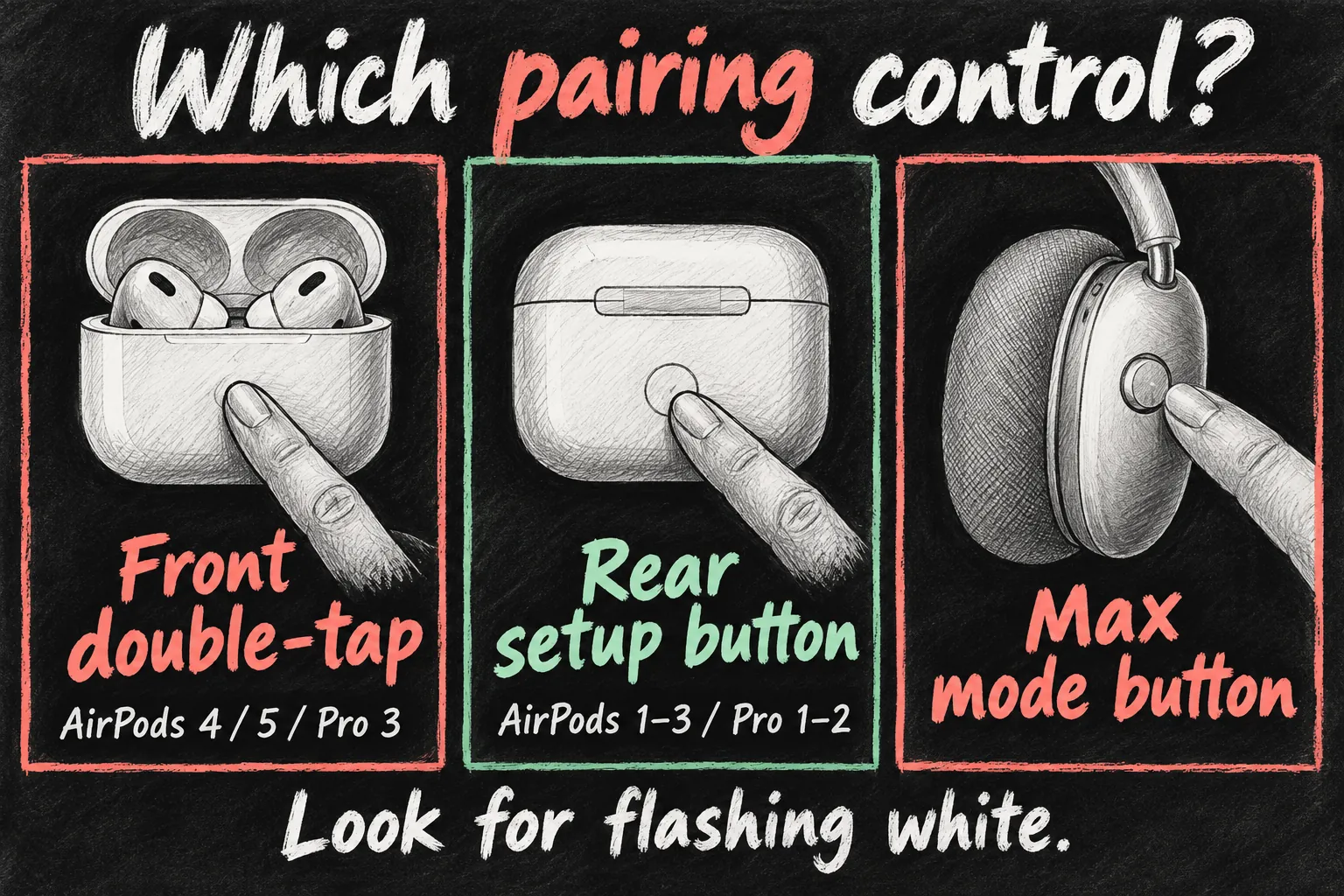
For in-ear AirPods, leave both earbuds in the charging case and open its lid. Keep the case near the laptop. Charge the earbuds and case first if they are low, then use the matching control below.
| Model | Pairing control | What to watch for |
|---|---|---|
| AirPods 4, AirPods 5 and AirPods Pro 3 | Double-tap the front of the open case | Status light flashing white |
| AirPods 1, 2, 3 and AirPods Pro 1 or 2 | Hold the rear setup button | Status light flashing white |
| AirPods Max | Hold the listening mode button | Status light flashing white |
The front-tap cases do not need an imaginary rear button. Pairing is also different from a full reset: stop at the normal pairing indication rather than repeatedly holding buttons or tapping through a reset sequence. If your model is uncertain, check its name in the paired iPhone’s Bluetooth settings first.
Connect AirPods to a laptop with Windows 11
- Open Start → Settings → Bluetooth & devices and turn Bluetooth on. The laptop must have a working Bluetooth adapter.
- Choose Add device → Bluetooth, or use the Bluetooth device picker in Quick Settings on newer Windows builds.
- With the AirPods in pairing mode nearby, select their device name and complete any onscreen prompts.
- Play a short audio clip. Select the AirPods as the sound output if the laptop continues using its speakers.
You do not need an iPhone-style setup animation on Windows. Apple supports listening and talking over standard Bluetooth, but Siri is not available on a non-Apple device. Do not expect the same Apple Account integration and automatic switching as an all-Apple setup.
Older Windows 10 menus use Settings → Devices → Bluetooth & other devices → Add Bluetooth or other device. This is a menu reference for an existing computer, not a recommendation to stay on an unsupported Windows installation.
Connect the AirPods to your Mac
If the AirPods were set up with your iPhone and the Mac uses the same Apple Account, put them in your ears and check Control Centre → Sound. Select the AirPods if they already appear; there is no benefit in pairing them again unnecessarily.
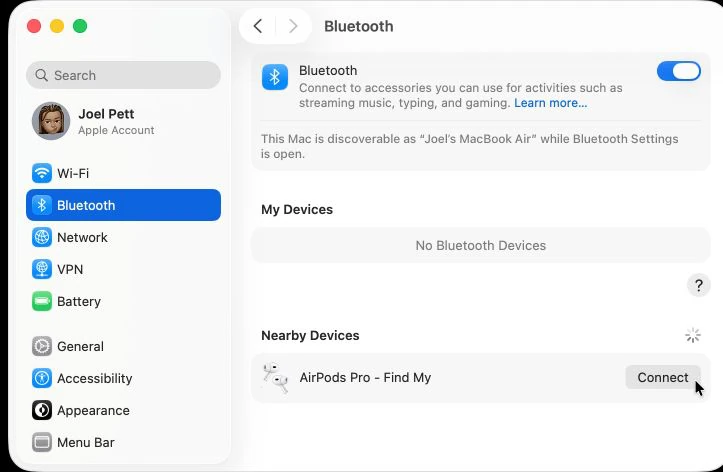
Otherwise, open System Settings → Bluetooth, turn Bluetooth on, put the earbuds into pairing mode and choose Connect beside them under Nearby Devices. If audio still plays from the Mac, return to Control Centre → Sound and select the AirPods as output.
If the laptop connects, then loses the audio
Check whether the AirPods switched back to another Apple device. Select them again in the laptop’s sound output and pause audio on the other device before retesting. For a meeting, check the call app’s microphone setting separately: choosing AirPods for listening does not prove that the app selected the same microphone. Try the laptop microphone as a comparison before forgetting devices or resetting the earbuds.
Fix AirPods not connecting by matching the symptom
| What you see | Try this first | What the result tells you |
|---|---|---|
| Nothing appears in the laptop list | Check flashing white, charge and Bluetooth; bring the case closer | Discoverability or Bluetooth needs attention |
| AirPods are listed but will not connect | Remove that laptop’s saved Bluetooth entry and pair again | A stale pairing record may be involved |
| They work with your phone, but no Bluetooth accessory works on the PC | Run Windows Bluetooth troubleshooting and check updates | Investigate the laptop before resetting the earbuds |
| They connect but stay silent | Check output device, volume and app audio settings | The connection may already be working |
On Windows, Microsoft recommends the Get Help Bluetooth troubleshooter, removing and re-adding an affected device, checking its charge and checking Windows Update. If Bluetooth itself is missing, consult the laptop maker’s official support for the exact model rather than installing a random driver package.
For an Apple device, Apple’s sequence starts with current software, both earbuds charging, Bluetooth on and an audio test. Close the case for 15 seconds, reopen it and try the normal pairing route before considering a reset. These checks narrow down the fault; they are not a guarantee that every hardware problem can be fixed at home.

Check audio and microphone settings before a reset
A successful connection does not guarantee a meeting app chose the right devices. Open the app’s audio settings, select the AirPods for playback and choose the intended microphone. Make a test call or recording before joining an important meeting. If music works but calls do not, this is a more useful test than repeatedly deleting the Bluetooth entry.
If the basic checks fail, use Apple’s reset instructions for your exact model. Older rear-button cases use an approximately 15-second hold after the preparatory steps; AirPods 4, AirPods 5 and Pro 3 use a timed series of front double-taps. Those are different procedures. A reset is a later troubleshooting step, not the normal way to connect every morning.
Bluetooth connectivity is also separate from file transfer between devices. If you are setting up a Windows workflow, our iPhone-to-PC photo transfer guide covers moving photos without assuming AirDrop is available on Windows.

FAQ
Why are AirPods not connecting after I open the case?
Opening the lid is only part of the process for a previously used pair. Use the correct model’s control and wait for flashing white, then select them on the laptop.
Do I need a special Windows AirPods app?
Not for basic Bluetooth listening and talking. Start with the built-in connection route and test it before paying for optional software.
Should I reset AirPods every time I switch laptops?
No. Use a saved device’s Connect option when available. Reserve a reset for a persistent fault after checking charge, Bluetooth and audio routing.
Sources and Reading Notes
Checked 25 October 2026. Apple Support: Set up AirPods with your Mac and other Bluetooth devices; Set up AirPods Max; If your AirPods or AirPods Pro won’t connect; How to reset your AirPods and AirPods Pro. Microsoft Support: Pair a Bluetooth device in Windows; Troubleshoot Bluetooth not connecting in Windows. This is a documented setup guide, not a microphone-quality or connection-speed test. Menu names vary by software build.
Revision check, 1 November 2026: Apple Support, Set up AirPods with your Mac and other Bluetooth devices.