If you see Messages syncing with iCloud paused, start by connecting the iPhone to power and reliable Wi-Fi, then check available iCloud storage and any account prompts in Settings. The status alone does not prove your conversations have been lost, and resetting the phone is not the first useful step.
It helps to identify what is actually missing: entire conversations on another device, or just photos and links in a conversation’s search results? The latter can be indexing after a transfer or update. Here is a five-check sequence that keeps those problems separate.
In 3 Points
Understand Messages syncing with iCloud paused
Messages in iCloud keeps message history up to date between eligible Apple devices. It is different from a fresh whole-device backup. When this syncing feature is enabled, deleting a conversation on one connected device also deletes it from the others using the feature.
First note the exact wording and where it appears. A generic pause in Messages, an iCloud account-maintenance notice and an iCloud Data Not Syncing badge do not all call for the same action. Avoid copying a Photos-specific Sync Now instruction into a Messages problem without checking the correct screen.
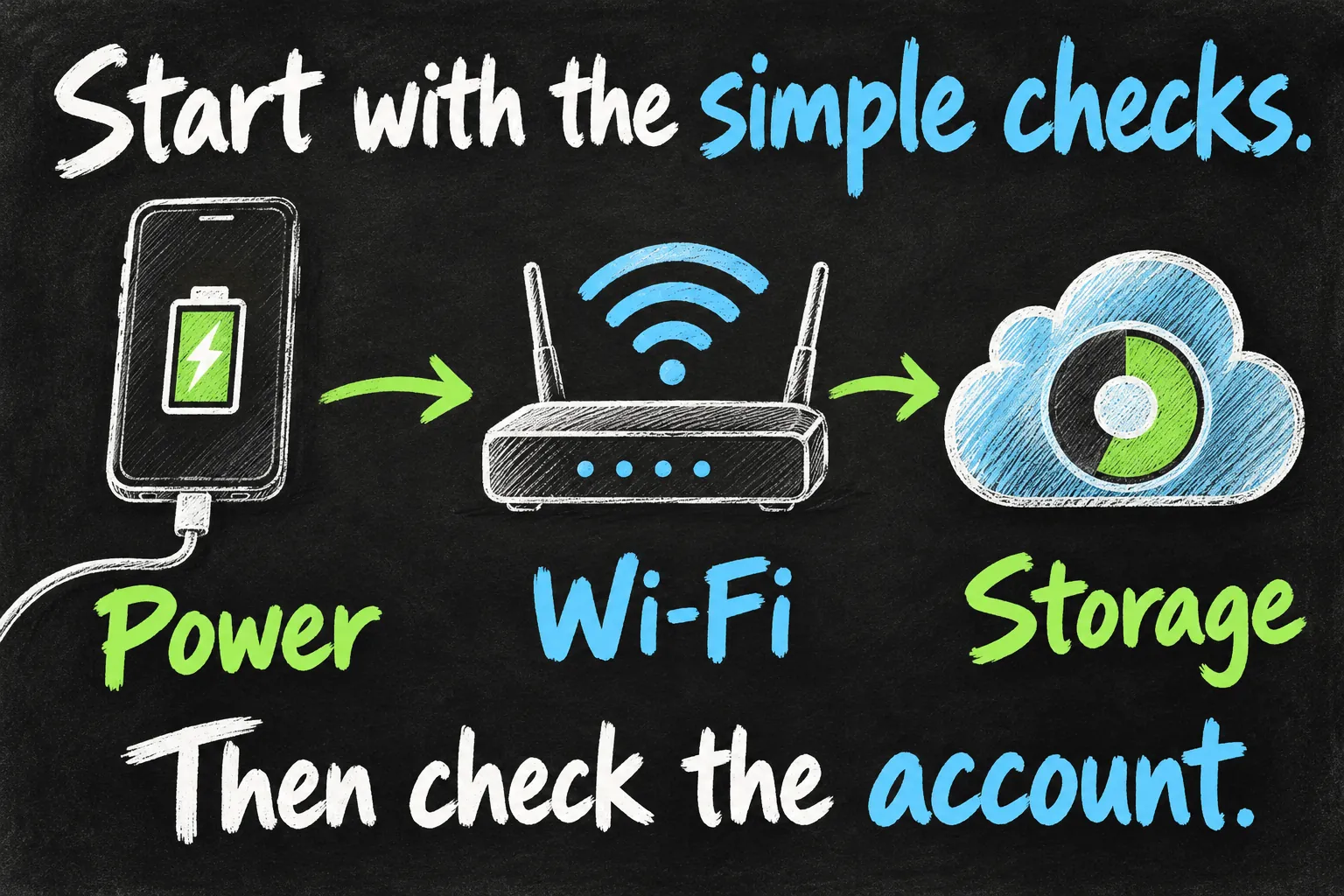
Check power and Wi-Fi before changing accounts
Connect to a dependable Wi-Fi network and a charger, then give the phone an uninterrupted opportunity to work. If it is hot, let it return to a normal temperature. Temporarily turn off Low Power Mode when practical; Apple documents that this mode limits background activity, although its presence alone does not diagnose every Messages pause.
- On an iPhone 15 or later, check Settings → Battery → Power Mode → Low Power Mode. Earlier models may show the Low Power Mode switch directly under Battery.
- Open a webpage to confirm that the Wi-Fi connection actually reaches the internet. A connected Wi-Fi icon alone is not a complete connectivity test.
- Return to Settings → your name → iCloud → Messages or Messages in iCloud. If Sync Now is available, try it once and allow time rather than repeatedly toggling the feature.
Check iCloud storage and account approval
Open Settings → your name → iCloud and inspect the available space. Message attachments use the cloud allowance too. If it is full, review genuinely unnecessary data or increase capacity; repeatedly pressing Sync Now does not create space. If storage is the issue, follow our guide to clearing iCloud storage on iPhone before retrying sync.
Do not delete conversations merely to test the connection. Save anything important before a targeted cleanup, because synced deletion affects your other devices as well. A phone with plenty of local space can still have a full iCloud account.
If Settings displays an iCloud Data Not Syncing badge, open it and follow the device’s account-authentication instructions. Apple advises contacting Support if the warning remains after authentication. Do not enter your password through an unsolicited message promising a storage repair.
If you see an explicit account-maintenance notice, Apple says syncing resumes once maintenance finishes. Signing out or repeatedly changing settings cannot complete that server-side maintenance for you. If there is no maintenance notice, do not assume maintenance explains the problem.
Match the Messages settings on your devices
- Confirm the intended Apple Account on the iPhone and the other device. Family membership alone does not make separate personal accounts share one message history.
- On iPhone or iPad, open Settings → your name → iCloud → See All or Show All → Messages in iCloud, and check Use on this iPhone or the corresponding sync setting.
- On a Mac, open Messages → Settings → iMessage and check Enable Messages in iCloud. Confirm the intended account and sending/receiving addresses.
- Check Apple’s prerequisites: two-factor authentication and iCloud Keychain. Update compatible devices to current software if requirements are met but syncing still fails.
For phone-number or address mismatches, check the iPhone’s Messages → Send & Receive settings, normally under Settings → Apps → Messages on recent iOS versions. A message being sent from an unexpected address is a separate clue from whether old attachments have finished downloading.
Separate delayed indexing from missing conversations
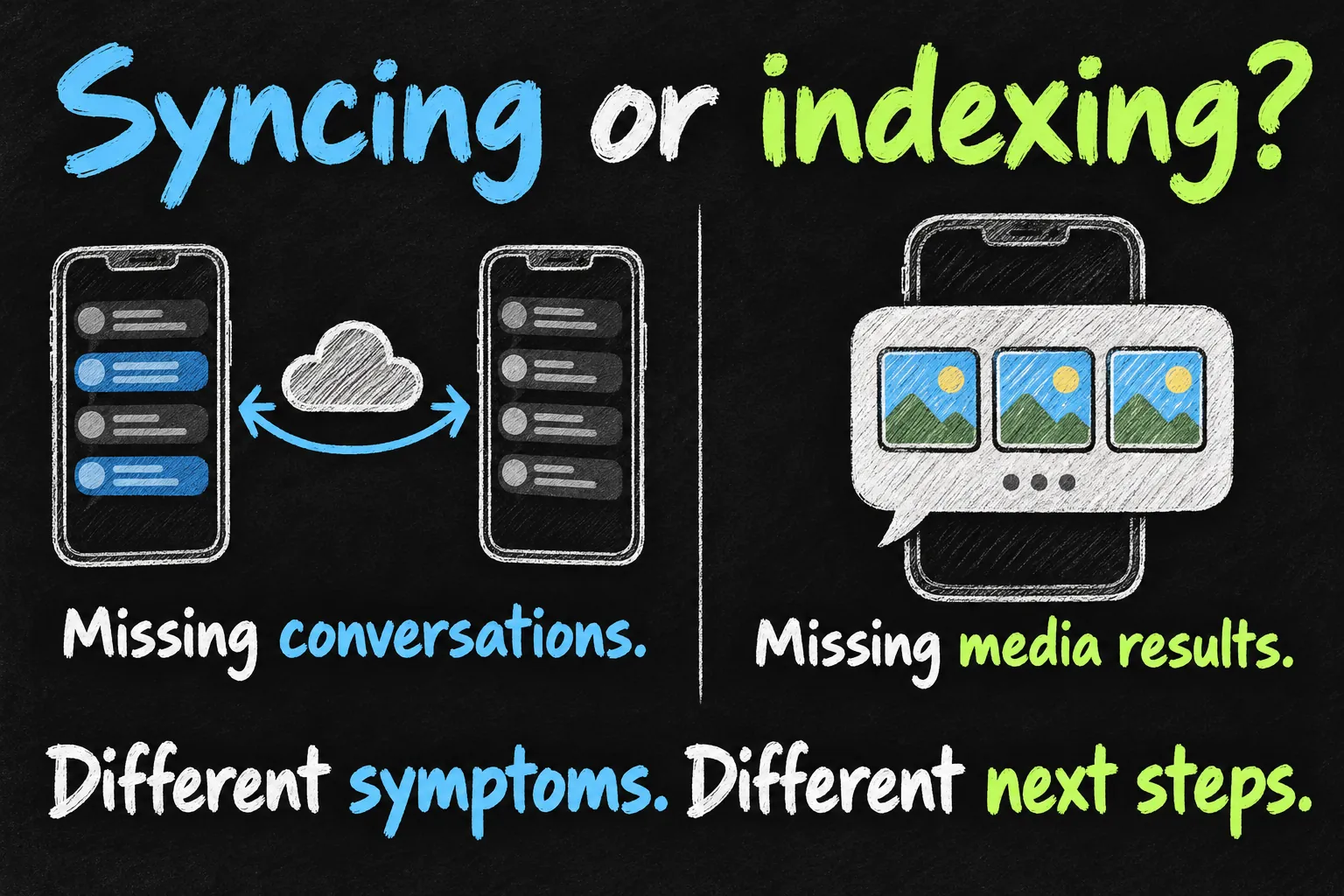
After an iOS update or a move to a new iPhone, shared photos, links and other media may not immediately appear in Messages search or the conversation’s media view. Apple says indexing can take up to a few days, depending on the saved data and other background work. Internet connectivity with the phone locked helps that process.
If you can read the conversation but cannot yet find its photos in the media view, allow indexing time before treating the history as erased. Apple documents turning Messages in iCloud off and on as a later indexing-specific step when media still does not appear. That advice is not a universal first response to every paused status: understand any download or disable prompt before confirming it.
If complete conversations remain missing despite matching accounts, adequate storage and working connectivity, contact Apple Support with the exact status, software versions, when it began and which device holds the complete history. Keep that device intact. Our new iPhone transfer checklist explains what to verify before erasing the old phone.
Give support a useful description of the failure
Before changing accounts, note the exact status message, which device still has the complete conversation, and whether the missing item is a new message or an old attachment in search. Those are different problems. Keep the complete device unchanged while you investigate. A photo missing only from search after a transfer calls for an indexing check; a newly sent message absent from the conversation needs a delivery or sync check.

FAQ
Does a paused status stop all new messages?
Not necessarily. Cloud history syncing and sending a new message are different operations. Apple notes that messages can still be sent and received during the initial Messages in iCloud sync. If sending itself fails, report that separate symptom.
Should I sign out or reset network settings immediately?
Start with the checks above. Signing out changes account-dependent services and a network reset disrupts saved connections. Neither is a useful automatic first step when the cause has not been identified.
Is Messages in iCloud a separate permanent backup?
No. It keeps the history consistent across devices, including deletions. Do not assume another synced device preserves an independently recoverable copy of a conversation you delete.
Sources and Reading Notes
Checked 25 October 2026. Apple Support and user guides: Set up iCloud for Messages; Keep your messages up to date with iCloud; Use Low Power Mode; If you get an iCloud Data Not Syncing message; If you see an iCloud maintenance message; If Messages is indexing and shared links and photos don’t appear. General power and connection checks are troubleshooting steps, not a confirmed diagnosis or a guaranteed repair for every pause.
Revision check, 1 November 2026: Apple Support, If you have issues searching in Messages.