To transfer data to a new iPhone, choose a migration method, make a current backup and keep the old phone until the essentials work on the new one. If you have both iPhones, Quick Start with direct transfer is a practical starting point. If the old device is unavailable, restore a suitable iCloud or computer backup. Whichever route you use, separately check your mobile number, photos, messages and important account access before erasing or trading in the old phone.
This iPhone migration checklist focuses on moving from an older iPhone, with a short Android branch below. It covers Apple’s current instructions and account-provider guidance checked on 14 October 2026. It is a research-based guide, not a timed transfer test.
Which method should you use to transfer data to a new iPhone?
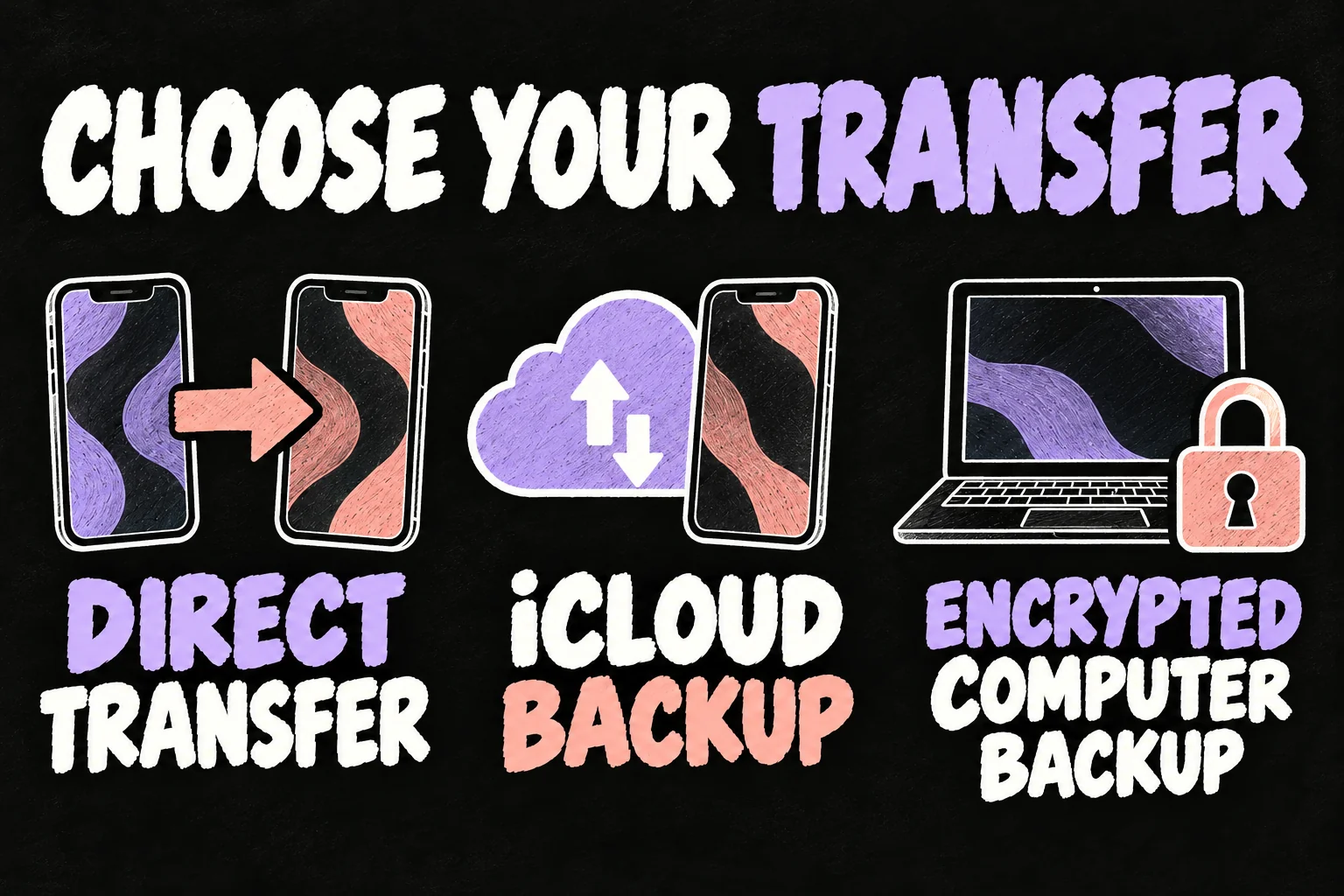
| Your situation | Practical route | Main consideration |
|---|---|---|
| Both iPhones are available | Quick Start, then direct transfer | Both devices stay occupied until transfer finishes |
| You have a current iCloud backup | Restore from iCloud | Apps and other content continue downloading afterwards |
| You prefer a local backup on Mac or PC | Restore an encrypted computer backup | Keep the backup password and verify encryption |
| Your old phone is Android | Move to iOS during initial setup | Check platform-specific apps and accounts separately |
Quick Start and iCloud are not mutually exclusive. iPhone Quick Start helps set up the device, then lets you choose how the data arrives. A direct device-to-device copy and an iCloud restore have different waiting patterns.
Before you start: protect the data and account access
Update the old iPhone to its latest supported iOS, have the Apple Account password and device passcode ready, and make a fresh backup. For iCloud, open Settings → your name → iCloud → iCloud Backup → Back Up Now. Check that it finished and note the last successful backup time.
Check your trusted phone number and the recovery options for important accounts. If your mobile number is changing, update your Apple Account’s trusted-number arrangements before losing access to the old number. Keep your password manager and authenticator accessible while you move.
iCloud syncing and iCloud Backup do different jobs. Photos and Messages already syncing through iCloud are not duplicated in the daily backup in the same way as unsynced device data. Check the sync status as well as the backup timestamp; a completed backup alone does not prove every recent photo has uploaded.
Choose a time when you can be without the old phone during a direct transfer. Avoid starting immediately before you need a boarding pass, work approval or a verification code. Keep chargers and a reliable Wi-Fi connection available.
Using iPhone Quick Start and direct transfer
- On the old iPhone, connect to Wi-Fi, enable Bluetooth and unlock it.
- Turn on the new iPhone and place it beside the old one. Follow the setup prompts.
- Complete the passcode, account and Face ID or Touch ID steps as requested.
- Choose to transfer directly from the old iPhone when offered, then keep the devices close and connected to power until completion.
If the Quick Start prompt disappears, Apple recommends restarting both devices. Transfer duration depends on your data and network conditions; there is no useful universal promise of a 15-minute migration.
Wired transfer is also an option. Apple’s current instructions specify a USB-C cable between two iPhone 15-or-later models, and a USB-C-to-Lightning cable from an iPhone 14-or-earlier model to an iPhone 15-or-later model. Follow the instructions for your exact pairing rather than buying an adapter based on an older guide.
Direct transfer avoids needing to use an iCloud backup as the migration source. You should still keep a backup, and activation or subsequent content downloads can require connectivity. An app icon appearing is not confirmation that its account is signed in.
Using iCloud, including free temporary storage
During setup, choose the iCloud-backup restoration option, sign in to the correct Apple Account and select the relevant backup by date and size. Follow any software-update request. Keep the new phone on Wi-Fi and power while content continues to restore.
If you bought a new iPhone and lack enough iCloud space for the old phone’s backup, Apple offers eligible users temporary extra storage. On the old phone, open Settings → General → Transfer or Reset iPhone → Get Started under Prepare for New iPhone, then follow the backup prompts.
Apple normally gives you 21 days to restore that temporary backup. If the new device has not arrived, an additional 21 days can be requested through Keep My Backup Longer; contact Apple for further time. After restoration, the temporary backup remains available for seven days. It is a migration allowance, not permanent extra iCloud capacity.
Missing downloads immediately after setup may mean restoration or syncing is still underway. Check progress, connectivity and the account used before treating the data as lost. Keep the old device available while investigating.
Using an encrypted computer backup
On a recent Mac, use Finder; on Windows, use the Apple Devices app, or iTunes where applicable. Connect the old iPhone, select Encrypt local backup, create a password you can retrieve and verify that the backup finished. Then restore the relevant backup to the new device and enter that password.
Encryption can include saved passwords, Wi-Fi settings, Health data and call history that an unencrypted computer backup does not. Face ID, Touch ID and the device passcode are not included. Encryption is not a guarantee that every banking session or work-account registration survives: test those separately.
iPhone eSIM transfer: verify the number before relying on SMS
Your data and your mobile service are separate things to verify. iPhone eSIM transfer through Quick Transfer depends on support from your provider and eligible software. Apple’s current checklist includes both phones signed into the Apple Account, the old phone unlocked, Bluetooth enabled, and iOS 18.4 or later on both.
If offered, follow the mobile-plan transfer prompts during setup. Afterwards, you can also look under Settings → Mobile → Set Up Mobile or Add eSIM → Transfer From Nearby iPhone. Labels can vary by region and software. If the option is unavailable, use your provider’s current app, QR-code or support process for your plan, including in Australia.
When the new mobile plan activates, the previous SIM is deactivated. Do not delete the old eSIM as a troubleshooting first step. On the new iPhone, test an ordinary call, incoming SMS and mobile data with Wi-Fi switched off. Check each number if you use more than one line.
The apps that deserve a separate login test
Google Authenticator: if you save codes to a Google Account, sign in to that account in Authenticator on the new phone and check that the codes are present. If you use it without an account, use the app’s export/import account process while you still have the old device. Keep export QR codes private and test a real sign-in before removing the old device.
Microsoft Authenticator: use Microsoft’s supported backup and recovery process. Backups restore to the same platform; an iOS backup is not an Android restore. Work or school accounts and passwordless sign-ins can require signing in or registering again. Seeing an account name restored is not the same as working verification. Contact your organisation’s IT team if approval fails.
Banking, password managers and messaging apps: open the ones you depend on and check access, rather than assuming the transfer completed their setup. Follow the provider’s device-registration and recovery instructions. Check important chat history and app-specific backup or transfer options before the old phone is gone.
Before erasing: the iPhone migration checklist
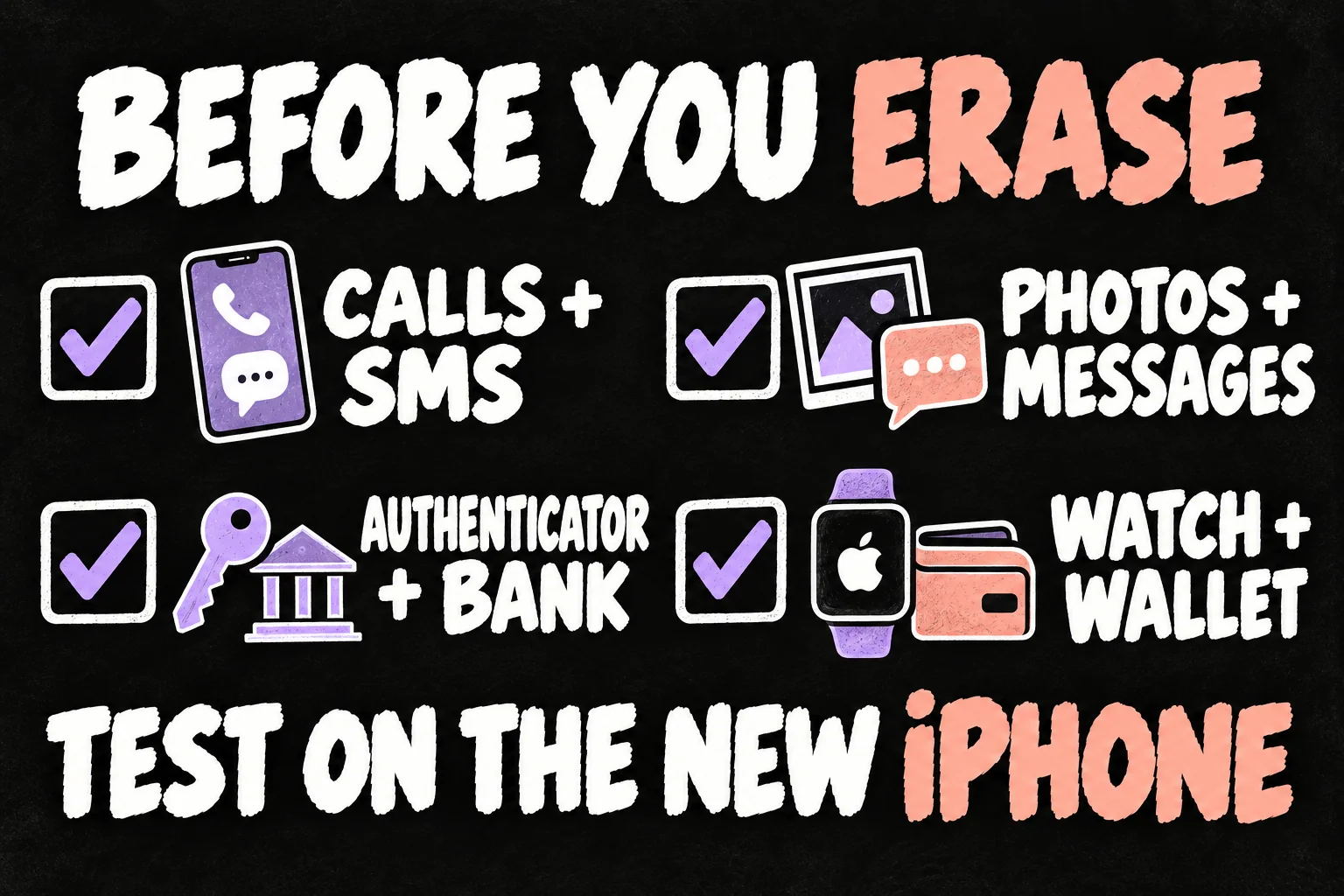
- Phone service: calls, SMS and mobile data work on the new phone; test every active line.
- Photos and messages: open recent and older items, including a video and important attachments. Check syncing has finished where relevant.
- Files and notes: open documents stored locally as well as cloud items. Check contacts, calendars and email accounts.
- Account access: test your password manager, authenticators, banking app and work or university sign-in.
- Apple Watch and Health: check the watch is connected to the new iPhone and the history you need is available. If it is still paired to the old phone, complete the supported transfer or unpairing process before erasure.
- Wallet and purchases: add and verify payment cards as required, and restore app purchases or download offline content you still need.
- Backup on the new phone: confirm your ongoing backup arrangement; temporary migration storage does not replace it.
These checks are more useful than a fixed instruction to wait one day. Keep access to the old phone until your important tasks work and outstanding downloads are understood, while allowing for any trade-in deadline.
When you are ready to erase the old iPhone
Do not manually delete synced photos or contacts to clean the old device. Deleting them while signed into iCloud can remove them from iCloud and your other devices too.
After verification, follow Apple’s current sign-out and handover instructions for your iOS version. The erase route is Settings → General → Transfer or Reset iPhone → Erase All Content and Settings. If handing the phone to someone else, complete the account/Find My removal prompts, remove a physical SIM where applicable and deal with its eSIM as instructed. A successfully erased device should be ready for the next owner rather than tied to your account.
Already set up the new phone, or switching from Android?
A full iCloud-backup restore uses the setup flow and requires erasing an already configured new iPhone. Protect anything created only on that new device before restarting setup, and confirm what happens to its active mobile plan. Do not erase the old phone to fix a failed transfer.
For Android, use Apple’s Move to iOS route during initial iPhone setup. It is not an iPhone Quick Start device-to-device copy, and platform-specific app data or authenticator recovery can differ. Verify the same essential tasks before wiping the Android phone.
FAQ
Can I transfer data to a new iPhone without paying for iCloud?
Yes. Direct transfer or an available computer backup can be used. Eligible new-device buyers can also get temporary iCloud backup storage when their existing space is insufficient.
Does an encrypted backup keep every app logged in?
No universal guarantee applies. Encryption preserves more categories of information, but app security and account-registration rules still matter. Test essential apps on the new device.
Why are photos or apps still missing after setup?
Some content restores or syncs in the background. Check the restoration status, Wi-Fi and Apple Account before restarting the process; keep the old phone while resolving missing data.
Sources and Reading Notes
Apple Support: Quick Start; iCloud transfer and backup; temporary iCloud storage; wired migration; encrypted computer backups; backup restoration; finishing setup; Android migration; Apple Watch setup; and preparing an iPhone for sale or trade-in. Google Account Help: Google Authenticator code synchronisation and transfer on iOS. Microsoft Support: Authenticator backup and account recovery. Checked 14 October 2026.
Menu wording, carrier support and app requirements can change. This checklist explains the published procedures and practical verification steps; it does not promise that every account or download transfers automatically. Illustrations are AI-generated concepts, not screenshots.
Prefer reading about Apple in Korean?
 Apple-worldApple news, tips and buying guides in Korean.blog.naver.com/apple-world ↗