Apple Watch sleep tracking can show how long you slept and estimate your sleep stages, but the useful part is getting a reliable record you can actually find the next morning. Start by enabling sleep tracking, wearing the watch comfortably overnight and moving charging to another part of your day.
This guide is for a watch paired to your own iPhone. It covers the first night, missing records and reading the results without treating a score as a diagnosis. Menu names can vary with software: recent Apple guidance uses Browse → Sleep in Health, while some versions show a Search tab instead.
In 3 Points
Set up Apple Watch sleep tracking for tonight
- Update your paired iPhone and watch to the latest compatible software; an older watch may not offer every newer sleep feature.
- Open Health on iPhone, find Sleep using Browse or Search, and choose Get Started if you have not configured it.
- Set a realistic sleep goal and, if useful, bedtime and wake-up schedules. You can use different schedules for workdays and weekends.
- In the iPhone Watch app, open My Watch → Sleep and enable Track Sleep with Apple Watch. On the watch, look under Settings → Sleep for Sleep Tracking.
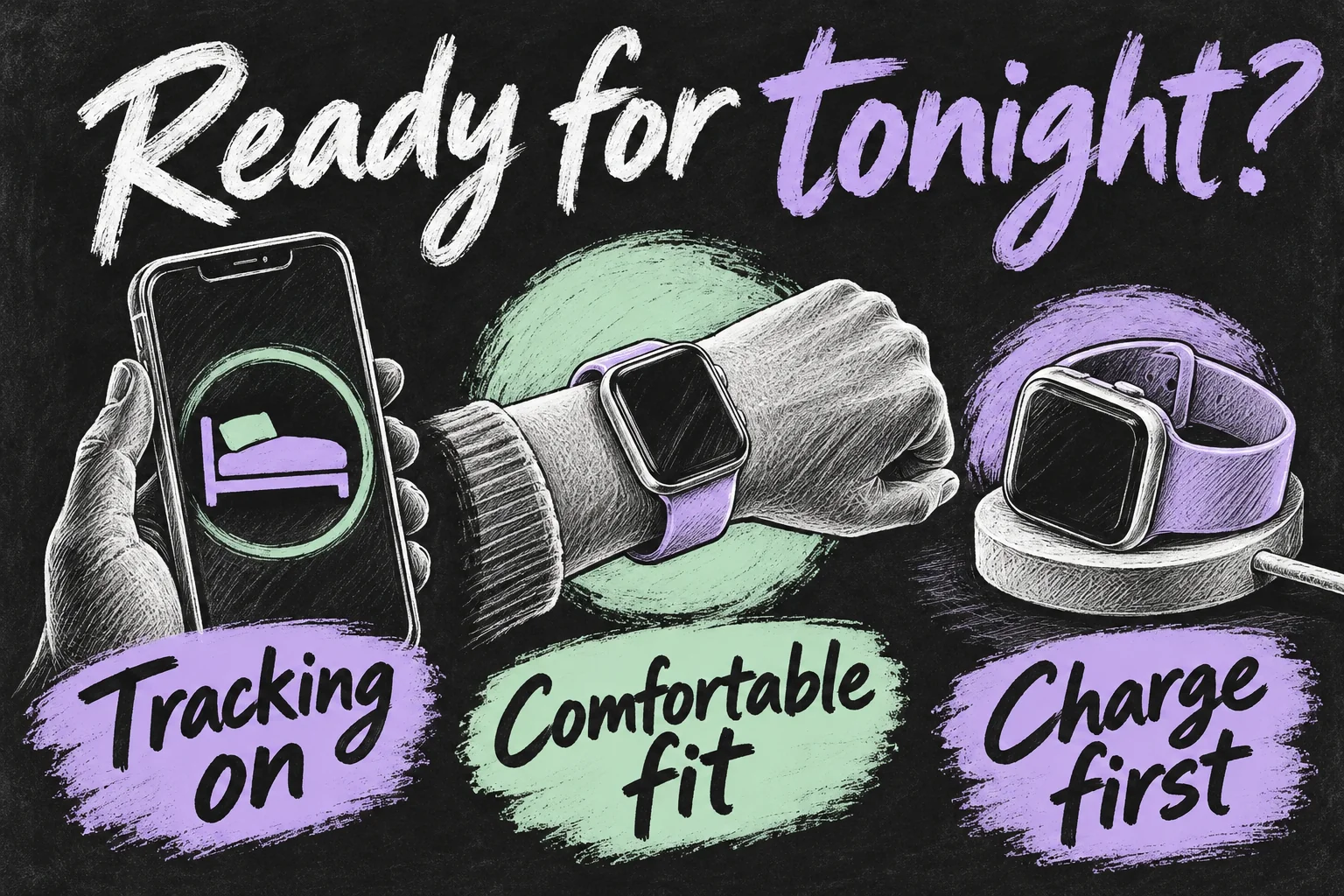
- Turn on Charging Reminders, put the watch on before bed and check the next morning’s result.
A bedtime reminder, an alarm and a recorded night are different things. A schedule organises your routine; Sleep Focus reduces distractions; tracking gathers the overnight record. Do not assume that creating an alarm alone enabled tracking. Equally, avoid treating older advice about a mandatory fixed bedtime as a universal rule for current watchOS.
Find a charging routine you can maintain
If the watch normally spends the whole night on its charger, the first change is practical rather than technical: choose a daytime charging window. Try charging while showering or getting ready, then check the battery again before bed. These are routine suggestions, not a promise that a particular number of minutes will charge every model enough.
A busy day of workouts, cellular use or an ageing battery can change what remains by bedtime. Check the actual percentage instead of relying on yesterday’s charging time. If it runs flat overnight, a blank or incomplete record is not automatically a software fault.
Keep the watch comfortably against your skin, above the wrist bone. It should not slide around, but tightening it until it feels uncomfortable is not a way to improve the data. A strap you can tolerate all night is more useful than one you remove halfway through. Stop wearing it if it irritates your skin.
Give the watch enough charge and time
Apple’s sleep-tracking checklist says to have at least 30% charge before bed and wear the watch for at least one hour. Use those as setup checks, not a promise that every nap or short session will produce every metric. If a night is missing, first check whether the watch stayed on your wrist and had enough battery before changing the schedule, installing another app or erasing the watch.
Read your sleep stages and sleep score separately
| What you see | What it helps you understand | What it does not prove |
|---|---|---|
| Time asleep | Your estimated nightly duration and longer-term pattern | That every minute was measured perfectly |
| Awake, REM, Core and Deep | An estimate of how the night was divided | A clinical sleep-stage assessment |
| Sleep score, where supported | A summary based on duration, bedtime consistency and interruptions | A diagnosis or a reason to ignore how you feel |
Open Sleep on the watch to review recent results. For a larger view, open Health on iPhone and find Sleep. Switch between daily and longer time ranges rather than judging the whole routine from one night. If a score is available, tap its information button to see its components; Apple assigns 50 possible points to duration, 30 to bedtime consistency and 20 to interruptions.
A useful first question is whether the recorded period broadly matches the night you remember. Next, compare several ordinary workdays with your days off. Looking for a repeatable pattern is more informative than trying to force a single deep-sleep number upward. Persistent tiredness or breathing concerns deserve a conversation with a healthcare professional, regardless of the score.
Check missing Apple Watch sleep data without wiping it
| Symptom | First check | Next action |
|---|---|---|
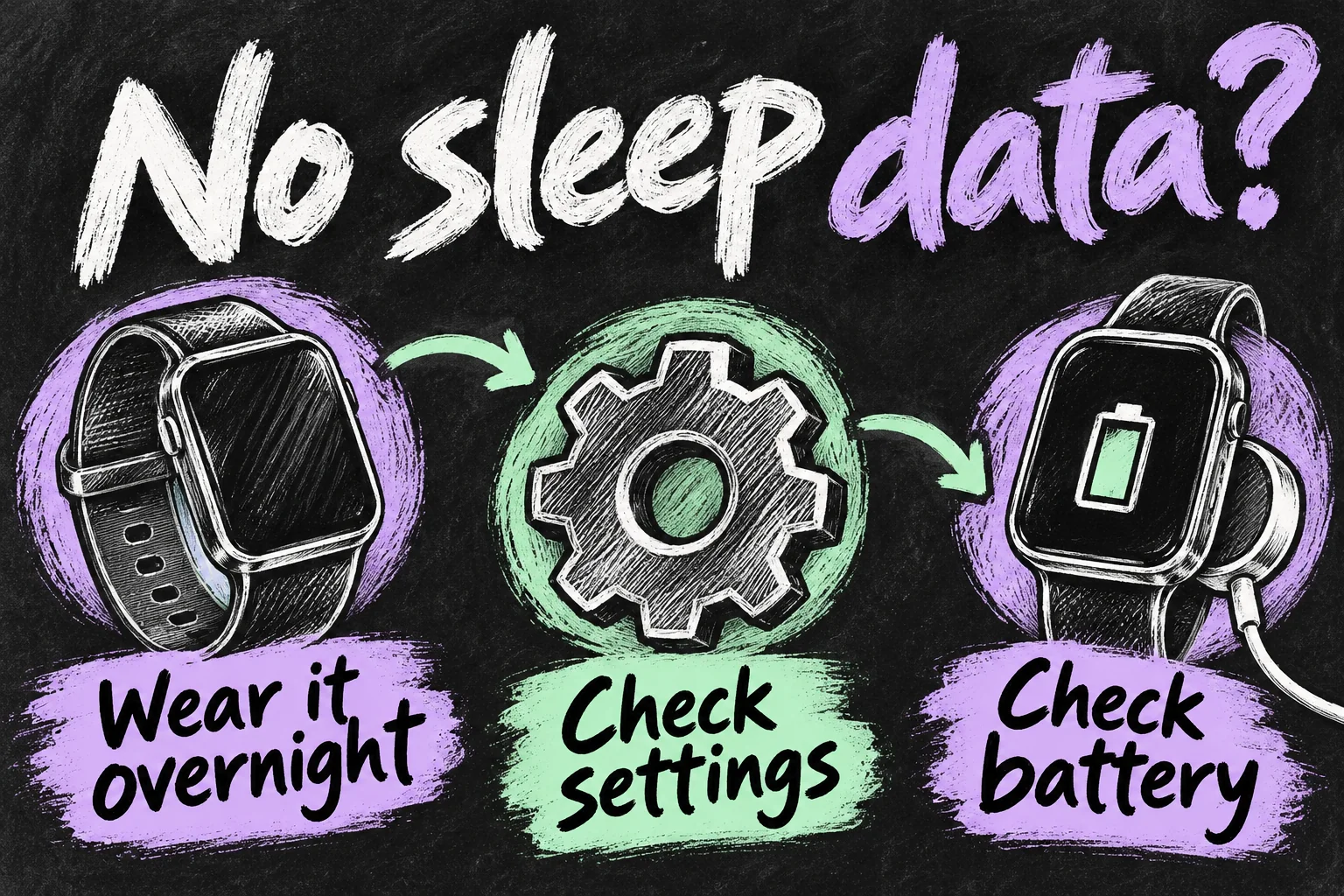
| No overnight entry | Was tracking on, and was the watch worn rather than charging? | Confirm settings and try another normal night with enough battery. |
| Record stops early | Did the battery run out or did you remove the watch? | Move charging earlier and check the fit. |
| Data on the watch but not immediately on iPhone | Are you looking at the correct day and paired phone? | Bring devices together, allow them to reconnect and check Health again. |
| Only a schedule, no stages | Are you viewing actual watch data? | Open the detailed Sleep view and inspect the available records. |
| Watch set up for a child without their own iPhone | Was Apple Watch For Your Kids used? | Sleep is not available under that setup; repeated resets will not add it. |
Change one thing, then check the next result. For example, if the battery was empty at breakfast, solve charging first rather than also deleting Health records and changing every setting. If tracking remains absent after the straightforward checks, restart the devices, check software updates and ask Apple Support before erasing anything. A reset cannot recreate a night that was never recorded.
Decide whether you need another app or a new watch
For a first-time user, start with the built-in Sleep and Health apps. They are the simplest way to learn whether overnight wearing and daytime charging suit your life. Consider another app only when you can name the missing capability you want; check its current price, privacy permissions and device support before subscribing.
You do not need to buy a cellular plan just to start this paired-iPhone sleep workflow. If you are still choosing hardware, our Apple Watch SE 3 buying guide discusses the purchase decision separately. Do not replace a working watch merely because one night looks unusual.

Frequently asked questions
Does Sleep Focus measure sleep by itself?
No. Its main role is limiting distractions. Check the separate Sleep Tracking setting and the actual overnight record.
Can I use sleep tracking if I work nights?
Set a schedule that suits your real routine rather than assuming everyone sleeps overnight. Review the correct date in Health and check your own watch’s results; do not treat a short daytime nap as guaranteed to produce every sleep metric.
Why does my older watch lack a sleep score?
Feature availability depends on model and compatible software. First check the update and feature requirements for that watch; basic sleep records and newer scoring features are not identical.
Sources and reading notes
Apple Support: Track your sleep on Apple Watch and use Sleep on iPhone; Apple Watch User Guide: Set up sleep schedules, Track your sleep and View your sleep score; Wearing your Apple Watch; Apple Watch For Your Kids feature availability. Reviewed 27 October 2026. Benchmark reading compared setup, charging and troubleshooting coverage in MyHealthyApple, Tom’s Guide and Sleep Foundation. This is a research-based setup guide, not a hands-on accuracy test. Sleep estimates do not replace medical assessment. Illustrations are original AI-generated sketches.
Revision check, 1 November 2026: Apple Support, Track your sleep with Apple Watch.
