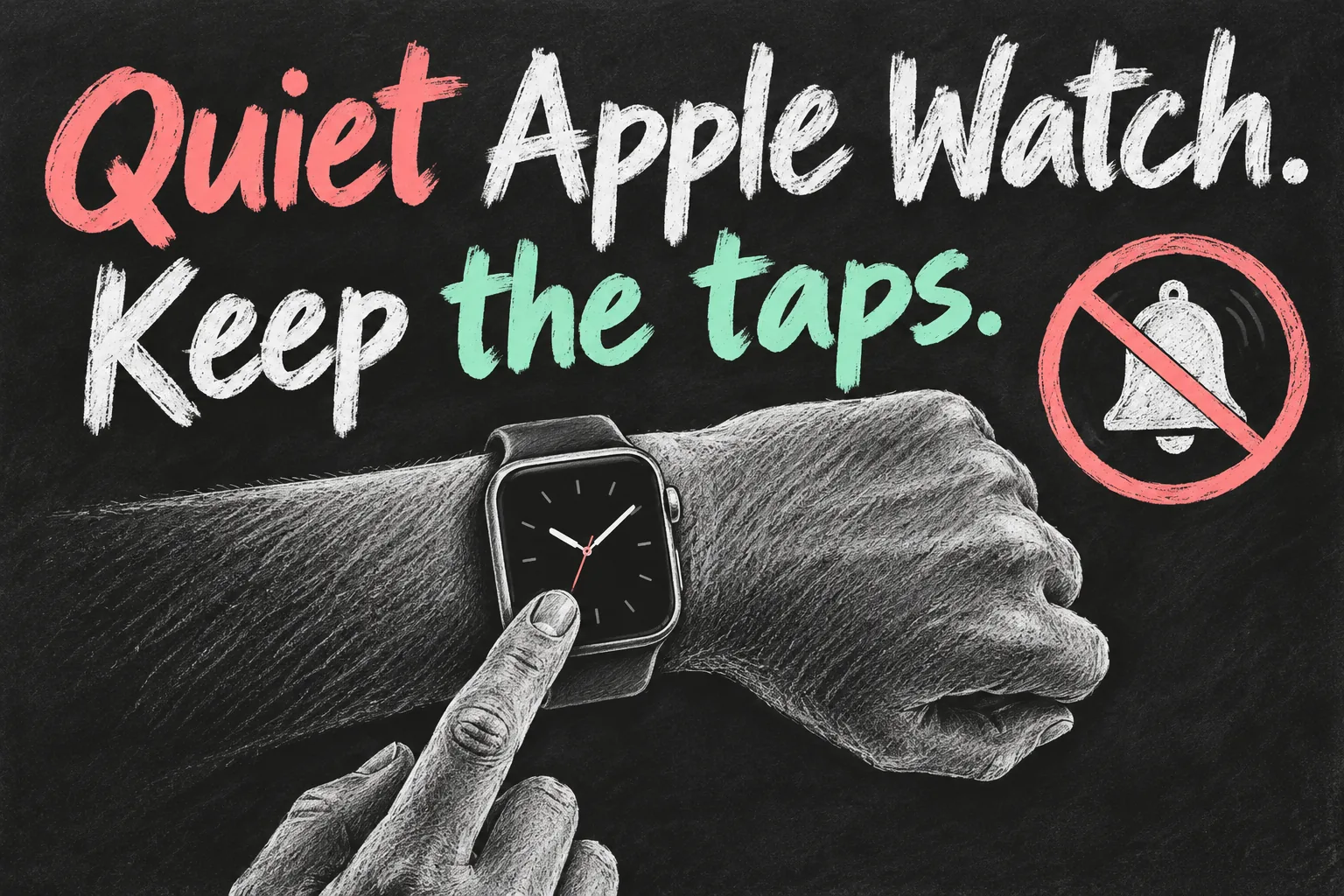
To silence your Apple Watch while keeping useful taps on your wrist, turn on Silent Mode in Control Centre. If the screen also needs to stay dark at the cinema, use Theatre Mode. If you want fewer interruptions rather than quieter ones, choose a Focus and check its allowed people and apps.
Those options solve different problems. This guide helps you keep the alerts you want, remove the distractions you do not and avoid assuming that one muted-bell icon controls every alarm, vibration and sound on every device. The steps below use recent watchOS; older versions may open Control Centre differently.
In 3 Points
Silence your Apple Watch and keep the taps
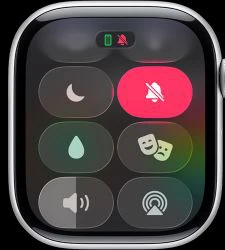
- Press the side button to open Control Centre on recent watchOS; this is the flat button beside the Digital Crown.
- Tap the bell-shaped Silent Mode control to enable it.
- Leave haptics enabled if you still want taps for notifications.
- Check the result with a normal, non-urgent notification when convenient, rather than waiting until you are in a quiet venue.
You can also open the Watch app on iPhone, choose My Watch → Sounds & Haptics and enable Silent Mode. This changes the watch’s sound behaviour; do not assume your iPhone is now quiet too. Check the phone separately before a meeting or performance.
Silent does not mean that every possible sound is impossible. Apple specifically notes that alarms and timers still sound while the watch is charging, even with Silent Mode on. Alarm settings can also offer exceptions. If an alarm matters, inspect its own settings instead of inferring its behaviour from the notification bell.
Choose between Silent Mode, Theatre Mode and Focus
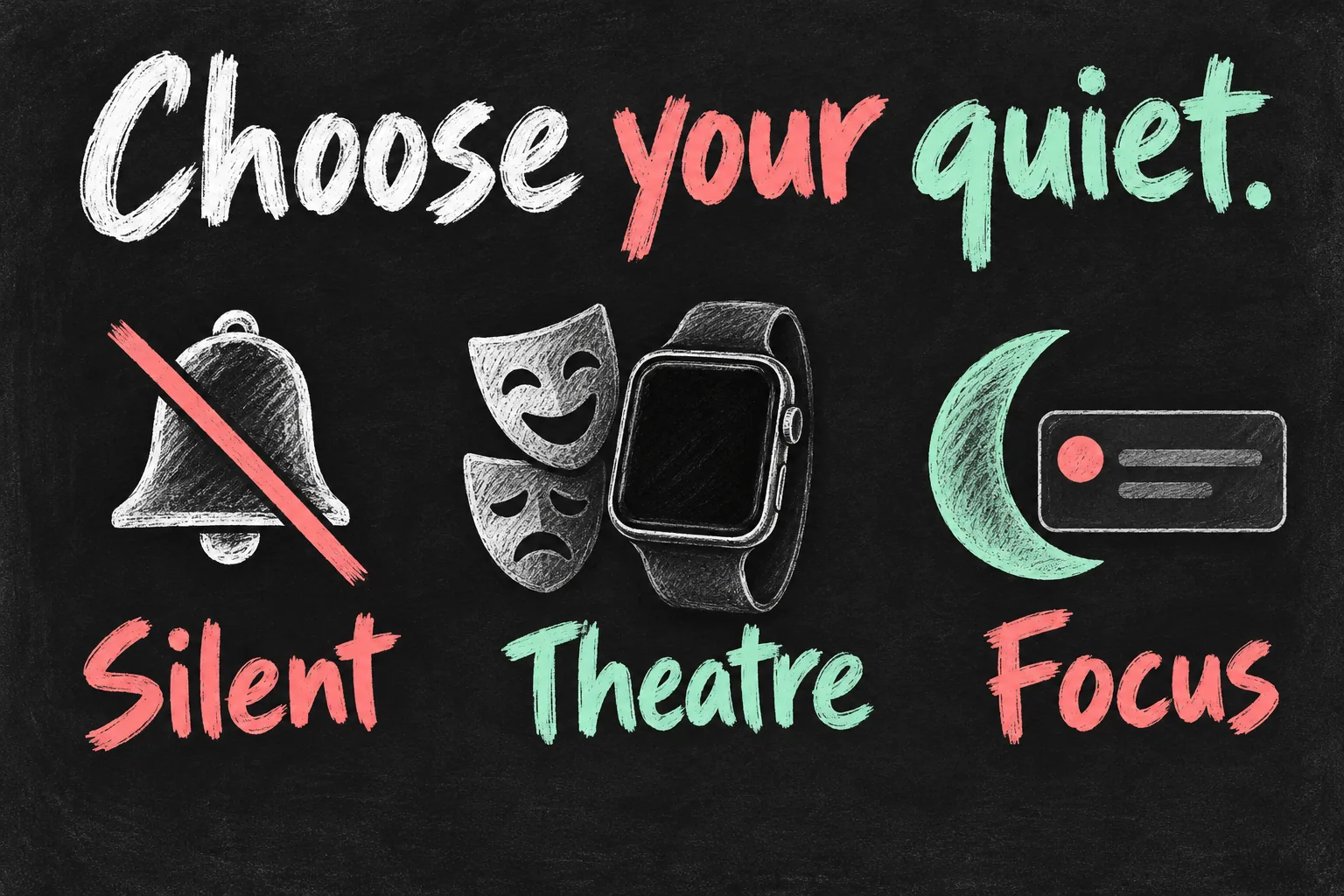
| Your goal | Useful starting point | What to check |
|---|---|---|
| No notification chimes, but keep wrist taps | Silent Mode | Haptics must still be enabled. |
| Avoid a bright screen when raising your wrist in a dark venue | Theatre Mode | It also enables Silent Mode; haptic alerts can still happen. |
| Stop routine interruptions during a meeting | Do Not Disturb or a custom Focus | Review allowed people, apps and other exceptions. |
| Keep only selected work or family alerts | Custom Focus | Set appropriate exceptions and an ending time or schedule. |
For a cinema visit, a muted watch that still lights up each time you move can be distracting. Theatre Mode prevents the display waking just because you raise your wrist. You can still wake it intentionally with a tap or the watch’s controls. It does not mean the watch has stopped receiving notifications.
For a study session, the problem may be repeated attention shifts rather than sound or screen brightness. A Focus is a better fit for deciding which people or apps can interrupt. Choose those exceptions carefully; a setup that blocks every useful reminder is not automatically the best one.
Quiet an alert that is already sounding
For an incoming alert, Cover to Mute lets you cover the watch display with your palm for at least three seconds, until the confirmation tap. Check Settings → Gestures → Cover to Mute if it is not working. This is a quick response to an alert, not a replacement for choosing your ongoing notification settings, and Apple notes that the gesture does not mute the wake-up alarm.
Adjust haptic alerts instead of fighting the vibration
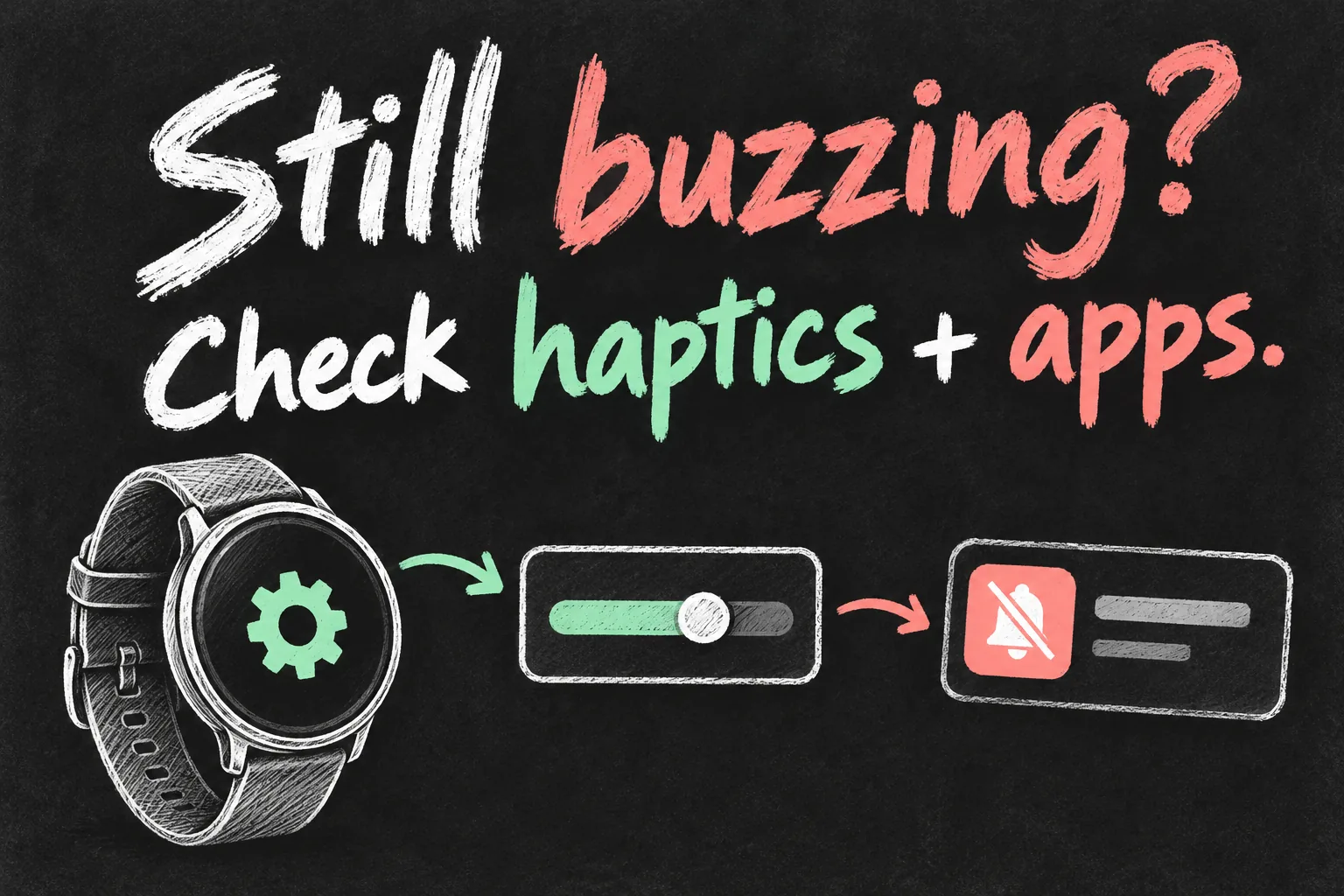
On recent watchOS, open Settings → Sounds & Haptics → Haptics and choose Off, Default or Prominent. Prominent adds a preparatory tap before some alerts. If you want the watch quiet but still noticeable, start with Default and see whether it suits you. If your aim is no taps, do not expect Silent Mode alone to achieve that.
The back of the watch needs comfortable skin contact for useful haptic feedback. A loose band can make a tap harder to notice; wearing it painfully tight is not the answer. If taps are missing, check fit, notification permissions and Focus before assuming the vibration hardware has failed.
If the watch keeps buzzing for one unimportant app, turn to that app’s notification settings rather than disabling haptics globally. That lets you retain taps for messages you actually need. Conversely, if you want to feel nothing during a short meeting, choose the appropriate interruption controls and re-enable what you need afterwards.
Reduce noisy apps and use Focus deliberately
- On iPhone, open Watch → My Watch → Notifications and select the app you want to change.
- Where available, choose Custom. Allow Notifications alerts you; Send to Notification Centre stores notifications without alerting you; Notifications Off stops that app’s notifications.
- Some apps offer fewer options or mirror the phone. Use the controls available for that app rather than assuming every app has a Custom menu.
- For a temporary quiet period, open Control Centre on the watch, choose a Focus and select an appropriate duration.
- Review the allowed people and apps in iPhone Settings → Focus, and check both devices when the mode activates.
Focus can be shared between the paired iPhone and watch, depending on your configuration. If switching it on at your wrist unexpectedly changes the phone too, inspect the shared Focus setup rather than assuming something is broken. Silent Mode and Focus are separate controls, so changing one is not a universal substitute for checking the other.
Notification delivery also depends on device state. Apple explains that notifications normally appear on either the watch or the iPhone, not both; when the phone is unlocked, alerts generally go there. A test performed while actively using the phone can therefore mislead you into thinking the watch’s haptics are off.
Check the sound that is still happening
| What you notice | Likely next check |
|---|---|
| A tap remains with the bell muted | That is expected if haptic alerts are enabled. |
| Screen still wakes on wrist raise | Consider Theatre Mode rather than only Silent Mode. |
| An alarm sounds on the charger | Check the documented charging exception and the alarm’s own options. |
| Music or spoken audio is still audible | Check playback volume and the source of that audio separately. |
| One app still interrupts during Focus | Review the Focus exceptions and app notification settings. |
| No watch alerts during your test | Check whether the phone is unlocked, whether the watch is connected and whether notifications are allowed. |
For an alert already making sound, Cover to Mute is a quick option: rest your palm on the display for at least three seconds or until a tap. Current Apple guidance places its setting under Settings → Gestures. It is not a permanent replacement for your sound preferences, and wake-up alarms are excluded from this gesture to avoid accidental cancellations during sleep.
The useful finishing step is a small checklist before the situation that matters: watch mode, phone mode, relevant alarm and allowed alerts. If you need an alarm to wake you, verify that specific alarm in advance. If your next question is how the watch records sleep rather than how it sounds, that is a separate setting from the muted bell.
Still deciding which watch suits your daily routine? Our Apple Watch SE 3 beginner guide looks at the buying decision. You do not need a new watch simply to learn these notification controls.

Frequently asked questions
Does Silent Mode stop vibrations?
No. Haptic alerts can remain active. Change haptics or notification permissions when you want to remove taps as well.
Does Theatre Mode stop all notifications?
No. It changes the display behaviour and enables Silent Mode; haptic notifications can still reach you.
Can I make the watch quieter without muting it?
Yes. Review Sounds & Haptics. On watchOS 26 and later, automatic alert-volume adjustment also has level controls. Lower alert volume is a different choice from muting notification sounds.
Sources and reading notes
Apple Support: Change the volume, audio and haptic settings on your Apple Watch; Notifications on your Apple Watch; Apple Watch User Guide: Silence notifications for extended periods and Use Focus. Reviewed 27 October 2026. Benchmark reading compared Asurion, Android Authority and T3’s quiet-mode explanations; current Apple documentation takes precedence where older guides differ. This is a research-based guide, not a tested guarantee that every alarm or audio source is muted. Illustrations are conceptual AI-generated sketches.
Revision check, 1 November 2026: Apple Support, Change the audio and notification settings on your Apple Watch.
