The iOS 27 new features to check first depend on the problem you want to fix: alarm volume, finding Safari tabs, photo editing or Liquid Glass readability. Start with the matching setting rather than changing everything at once.
This guide gives English menu paths and separates ordinary settings from hardware-dependent Apple Intelligence tools. Apple Australia and support information were checked on 10 October 2026. Confirm your phone’s compatibility before expecting every feature.
iOS 27 alarm volume: can calls stay loud?
For iOS 27 alarm volume, the useful change is independent control of ordinary Clock alarms and timers. You can leave the ringtone louder for calls and choose a gentler level for waking up. This is a sound setting, so it does not depend on Apple Intelligence.
Open Settings → Sounds & Haptics. Under Alarms and Timers, turn off Match Ringtone Volume, then move the slider. Turning the option back on links the two levels again.
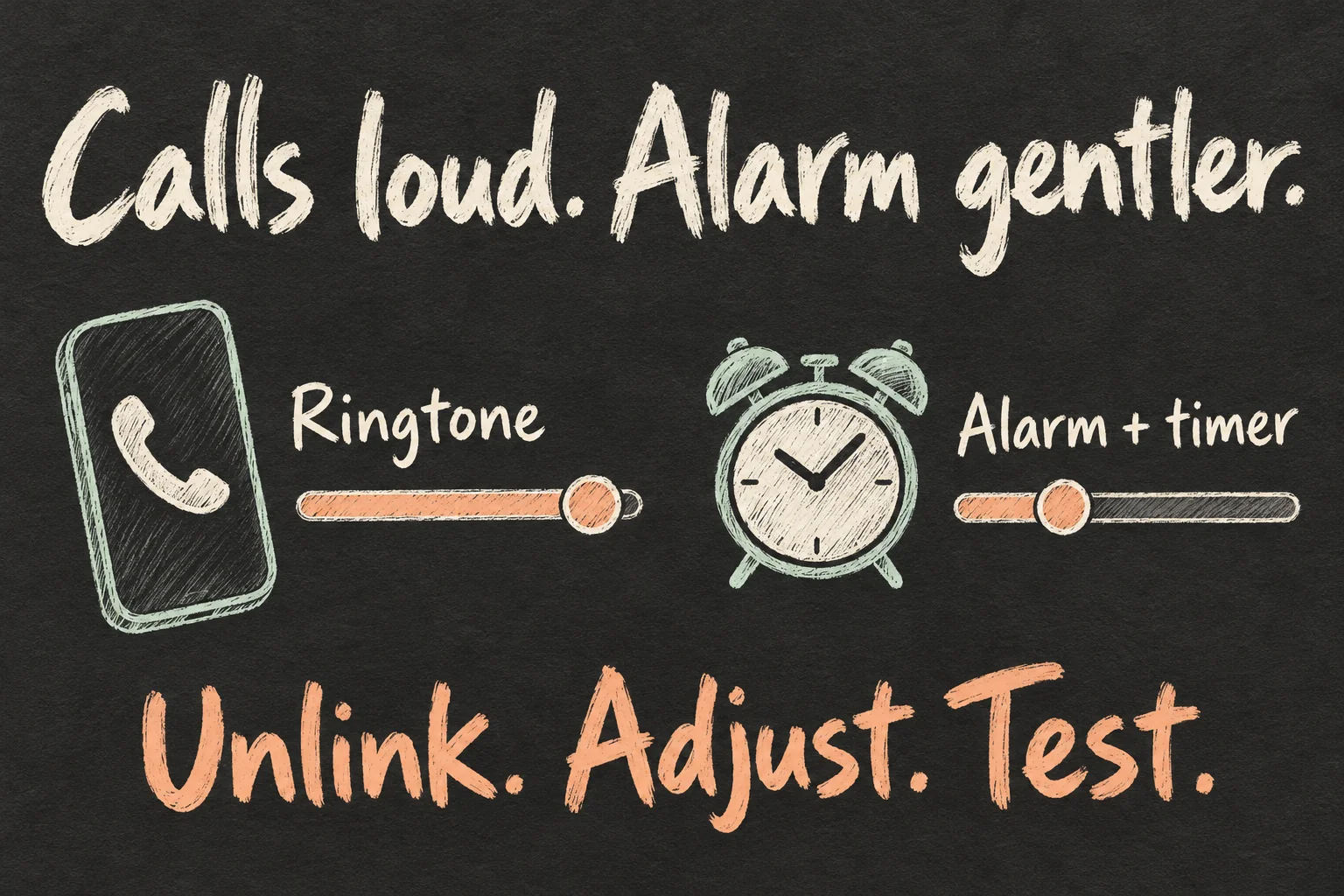
Set a temporary Clock alarm a minute ahead and hear it in the room where you normally sleep. Choose a level you can reliably hear before using it for an important wake-up. The Sleep schedule’s Wake Up alarm is a separate setting, so check which alarm you actually use.
Adjusting iOS 27 alarm volume is especially useful if you change your ringtone for busy surroundings but want the bedside alarm to stay consistent. Your music volume is another control; lowering a video is not the same as setting the next morning’s alarm.
Where did that useful Safari tab go?
If you are planning a weekend away, accommodation pages may be scattered among recipes and product searches. Topic grouping is one of the iOS 27 new features that helps you return to a subject instead of remembering every page title.
On an Apple Intelligence-enabled iPhone, open Safari → Tabs → Organize → Automatically Create Topics. When at least two related tabs can be grouped, Safari suggests a topic. Open the topic and inspect the page thumbnails to see whether the grouping matches what you wanted.
Think of the suggestion as a starting point for finding pages. A hotel and a transport timetable may belong together for your trip even if an automatic topic treats them differently. Check the pages in the group before closing anything you still need.
For iOS 27 Apple Intelligence, device eligibility matters here: installing the OS on an iPhone 14 does not add the AI grouping tools. A manual Tab Group remains an alternative when you want to collect pages yourself.
Could Safari watch a price instead of you?
Repeatedly reopening a product page to check a price or restock is a different problem from losing tabs. The new Notify Me tool lets Safari monitor the change you describe. It uses Apple Intelligence, so it has the same eligible-device and supported-language requirements.
Open the relevant page in Safari, then choose Page Menu → Notify Me. Describe what Safari should look for. If needed, use Edit to change how often it checks, then confirm.
Be specific about the item and change you care about. “Tell me when this size is back in stock” is more useful than asking to watch an entire shop. Check that the page you selected is the one that actually carries that size or option.
The checking interval matters. An alert is not a reservation or an instant stock guarantee. When it arrives, verify the current item, price and availability on the retailer’s page before deciding to buy.
Need more space around a good photo?
A coffee photo can look good on its own yet feel cramped when you add a heading. The photo tools among the iOS 27 new features address three different jobs: removing a distraction, adding surrounding space and changing the apparent viewpoint.
On an eligible iPhone, open Photos → a photo → Edit → Tools. Choose Extend to expand beyond the frame, Reframe to adjust perspective, or Clean Up to remove a distracting object.
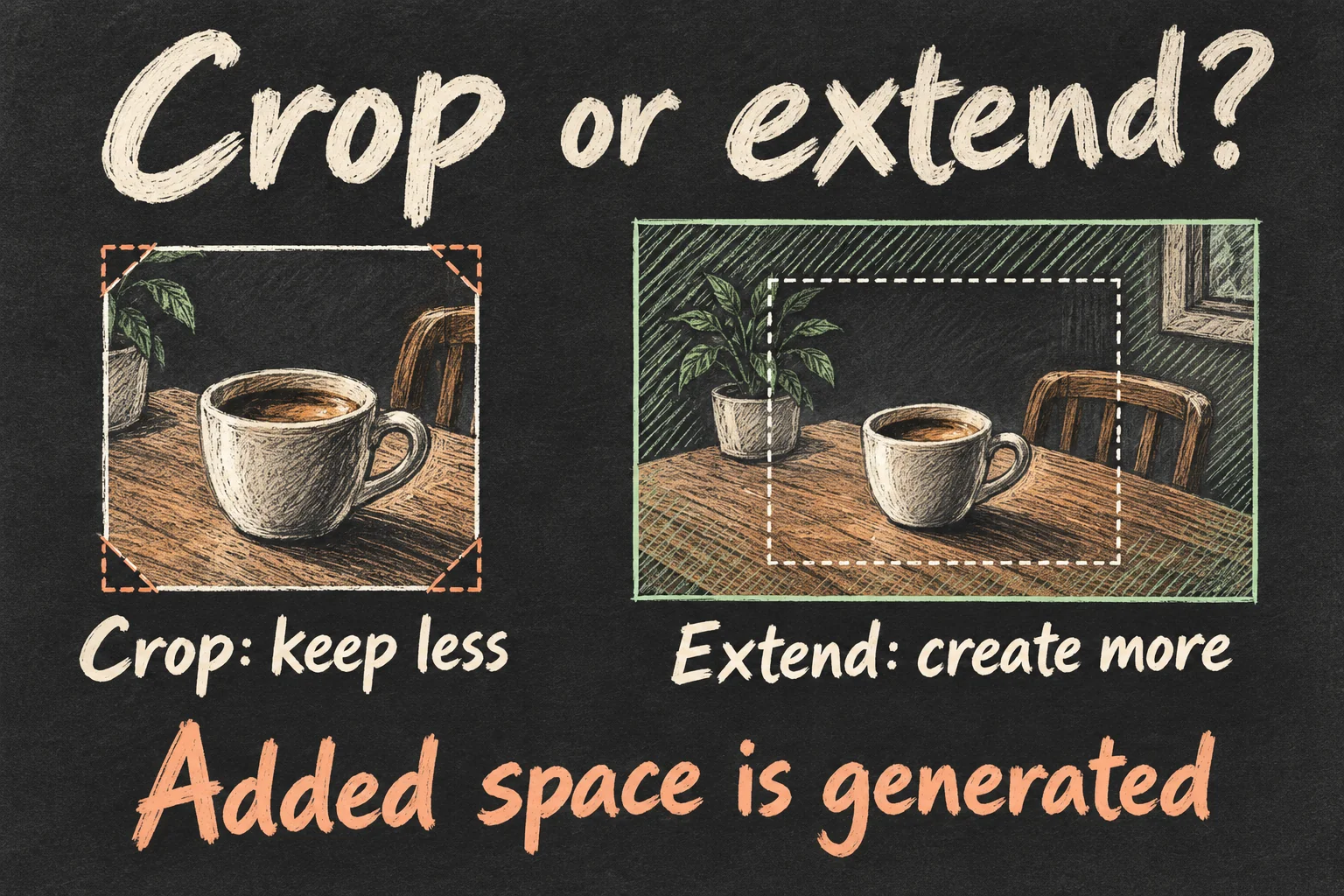
With Extend, pinch or drag to expand the background, then apply the change. Reframe lets you drag to adjust the viewpoint; compare its result with the original. These tools change different aspects of composition, so choose the one that solves the framing problem.
A crop keeps less of what you captured. Extension creates space beyond it. Inspect cup handles, lettering and straight edges before sharing the result. For a personal post that new space may be useful; for an accurate record of a scene, keep the original available.
The iOS 27 Apple Intelligence photo tools are useful for composition, but their output is something to inspect. An invented background is not recovered detail from outside the original photograph.
Can Liquid Glass be easier to read?
If buttons seem to disappear into your wallpaper, try the appearance controls before changing the whole way you use the phone. Liquid Glass arrived before this update; the new choice is a slider between clearer and more tinted styling.
Open Settings → Appearance → Liquid Glass. Move right for more tint and left for more clarity. Compare the result against your usual wallpaper and read a few menus, rather than choosing only by how the slider preview looks.
If accessibility settings for reduced transparency or increased contrast are active, Apple says they affect changing this appearance. Those settings may already make the phone easier for you to use, so there is no need to disable them simply to try the new look.
Among the iOS 27 new features, this adjustment can have value without AI hardware. The question is whether you can read what you need comfortably, not how transparent you can make every control.
Which iOS 27 new features will your iPhone get?
Check Settings → General → About for your model. Apple’s current compatibility list includes iPhone 11 and later, plus iPhone SE second generation and later. The AI features have a narrower hardware requirement.
| Your iPhone | iOS 27 support | Apple Intelligence hardware |
|---|---|---|
| 11–14 series; SE 2nd/3rd generation | Yes | No |
| 15 or 15 Plus | Yes | No |
| 15 Pro or 15 Pro Max | Yes | Eligible |
| 16 models or later; iPhone Air | Yes | Eligible |
For iOS 27 Apple Intelligence, use the same supported language for the device and Siri, and allow the required models to download. Australia’s official information lists English support. Eligibility is the starting point; each feature also has its own availability conditions.
Siri AI is an English beta with a separate enrolment. On a supported phone, go to Settings → Siri → Try Siri AI (Beta) and follow the prompts. Apple says a waitlist can apply, so seeing the update installed does not mean the new assistant is ready on that device.
Start with the change that fixes your daily annoyance.
A useful order is to test the alarm first, adjust readability if needed, then try an AI task you already repeat. Before installing an update, check your backup and use the instructions in Settings → General → Software Update. This keeps the first experiment small enough to tell whether it helps.
For your next decision, read iPhone 18 Pro Settings: 5 Things to Check on Day One or iPhone 18 Pro Camera Settings: Too Bright or Blurry?.
FAQ
Q. Why did my alarm stay linked after updating?
Check Match Ringtone Volume under Alarms and Timers in Sounds & Haptics. Turn it off for a separate level, then test an ordinary Clock alarm. Also confirm whether you are using a Sleep schedule’s Wake Up alarm instead.
Q. Can I use iOS 27 Apple Intelligence without limits?
Apple says some server-based features, including Siri AI and intelligent photo editing, have daily usage limits. It plans paid expanded access in the future. This does not establish a current Australian subscription price or unlimited allowance.
Q. Will updating automatically change weak passwords?
Apple’s current iOS page still marks automatic password updates as coming in a future software update. Keep managing password alerts through the available tools rather than assuming that future feature has already handled them.
Sources and Reading Notes
This guide draws on published information rather than personal hands-on testing. Illustrations explain concepts and are not product photographs or measurements.
- iOS 27 — Apple Australia
- Adjust the volume on iPhone — Apple Support
- Apple Intelligence and Siri — Apple Australia
Sources reviewed 11 October 2026. Prices and availability can change; checking dates are stated in the article. See how these guides are written.
Prefer reading about Apple in Korean?
 Apple-worldApple news, tips and buying guides in Korean.blog.naver.com/apple-world ↗
5 thoughts on “iOS 27 New Features: Is Your Alarm Still Too Loud?”