The Apple Intelligence update is most useful when Siri can help with a task you already find awkward, such as finding a booking email or acting on information in a supported app. Start with one relevant task and confirm your device, language and rollout eligibility first.
Apple’s Australian pages describe Siri AI beta rolling out in English. Documented capabilities are not a promise that every app or account already supports them. This guide separates availability, setup and practical examples; guidance was checked on 11 October 2026, without our own device testing.
Can the new Siri find an email without its subject line?
You remember booking a hotel for a trip, but not the wording in the confirmation email. The Apple Intelligence update makes personal context a more useful way into that problem. Apple’s examples include retrieving a hotel confirmation number from an old email and finding a restaurant recommendation someone sent in Messages.

Try a request with the detail you remember: the destination, approximate date or person who sent it. “Find the hotel booking email for my Sydney trip next month” is an illustrative prompt to adapt to your own information, rather than an exact command that guarantees a match.
Once a result appears, open the original and check the guest name, dates and reference. That turns a promising answer into something you can use at check-in. If there are several bookings, narrow the request rather than assuming the first answer is the one you need.
This is where the new Siri can feel relevant even if you rarely ask general-knowledge questions. The benefit is finding information you already have, with less need to remember which app or search term holds it. Apple says third-party personal-context support depends on developers integrating with Spotlight, so choose a supported source for your first attempt.
Can the answer become your next task?
Finding a useful answer is only half the job when you then have to copy it elsewhere. The Apple Intelligence update also connects context with app actions. Apple’s Australian product page describes actions in Messages, Music and Reminders, including adding a song heard in the car to a workout playlist.
A recipe is a clearer way to try that connection at home. Open the content you want to ask about, activate Siri and ask your question. Apple’s iPhone guide then demonstrates a follow-up request to add recipe ingredients to a shopping list.
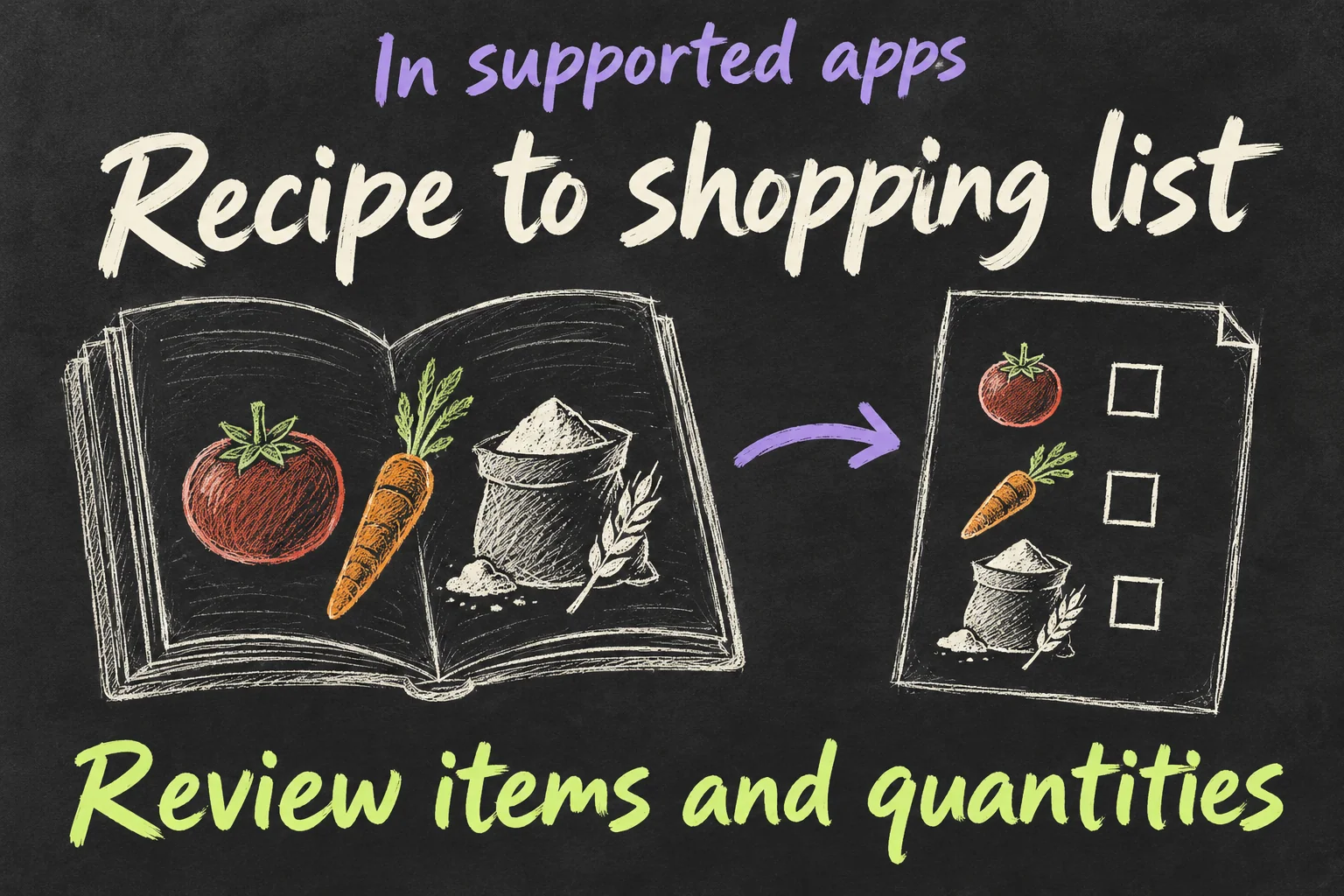
Start with the answer you need, then make the follow-up specific. For example, ask about the recipe you are viewing before requesting its ingredients in your shopping list. Review the destination list, quantities and duplicate items afterwards. Those checks are part of getting the shopping right, rather than just admiring the assistant’s reply.
On iPhone, Apple says you can swipe down on Siri’s answer to continue the conversation. Its screen-awareness guide also shows asking about a diagram in Notes or selected documents in Files. You can work from the content in front of you instead of retyping a description of it.
What would you normally copy, find or type again?
That question gives the Apple Intelligence update a practical test. Choose one ordinary task, keep the source available and check the result in the destination app. You are looking for a useful change to your routine, not trying to demonstrate every announced capability in one sitting.
What else is worth trying this week?
Siri is part of a wider Apple Intelligence update. The latest Australian support guide separates new capabilities from features that were already available in earlier software. Pick a job you actually repeat instead of treating every AI option as a reason to change how you work.
| A job you already do | A capability to try | Check before using the result |
|---|---|---|
| Get an awkward email started | Write with Siri, or refine a draft | Recipient, facts and the tone you want |
| Build an automation you keep putting off | Describe a shortcut in natural language | The actions and permissions before running it |
| Make a wallpaper or contact image | Reimagined Image Playground | Style, wording and any edits you requested |
If an email is the problem, describe the purpose and recipient before asking for a draft. Then read it as something you will send under your own name. Apple also lists automatic proofreading in the new software; older Writing Tools remain a separate option for users without Siri AI writing support.
For Shortcuts, a plain-language description can help you build the automation you had in mind. Inspect what it will do before running it, especially when it changes information or passes content between apps. The useful outcome is a repeatable task you understand, rather than a complicated shortcut you never use.
Image Playground’s new generation and editing options suit a different need: creating a particular look. That may be useful for a contact poster or wallpaper, while someone mainly interested in finding emails can start with Siri. There is no need to use every part of the Apple Intelligence update to get value from one part.
How do you get the Siri AI beta in Australia?
On an eligible updated iPhone, Apple’s instructions are Settings → Siri → Try Siri AI (Beta). If Siri is off, turn it on first. Follow the setup prompts for the voice and privacy settings; Apple says you join a waitlist and the download begins automatically once your wait is complete.
The Siri AI beta requires iOS 27 and compatible hardware. For iPhone, Apple lists the 15 Pro and 15 Pro Max, iPhone 16 models or later, and iPhone Air. Your device and Siri languages need to match a supported language, and your Apple Account needs an eligible region. English is the current rollout language in the support guide.
Installing the Apple Intelligence update and joining the new assistant are distinct steps. Other eligible intelligence features can be available with the software update while Siri still needs its beta setup. If you have already updated, check the Siri settings before wondering whether you need a different phone.
For your first request, use a piece of information you can easily verify. A reservation or a familiar note is a better starting point than a question where you have no way to judge the answer. Once the simple task works for your setup, try a related follow-up and see whether it removes a step you normally do yourself.
What happens to the information you ask about?
Personal context makes privacy relevant to the Apple Intelligence update. Apple describes a combination of processing on the device and Private Cloud Compute for more demanding requests. It says personal data processed by Private Cloud Compute is not stored there or made accessible to Apple or anyone else.
That cloud-processing statement is separate from your conversation history. Apple’s dedicated Siri app uses iCloud to sync conversations across your devices. Being able to continue a conversation later therefore should not be read as evidence that every part of Siri leaves no saved record.
Review the privacy choices during setup, and think about the content you are asking the assistant to use. If you are checking a booking, confirm the information you need in the original message. For a draft, review what it includes before sending. Keeping the task specific makes the result easier to check as well as easier to explain.
You can judge the new Siri by that small, finished job: the correct booking found, the shopping list reviewed or the draft ready to edit. Pick the task that currently interrupts your day. That gives you a more useful reason to try the update than asking another alarm question out of habit.
For a related practical guide, read iOS 27 New Features: Is Your Alarm Still Too Loud? or iPhone 18 Pro Settings: 5 Things to Check on Day One.
FAQ
Q. Do I need an iPhone 18 Pro to try it?
No. Supported earlier models include iPhone 15 Pro and 15 Pro Max and iPhone 16 models. The ordinary iPhone 15 and 15 Plus are not on Apple’s supported list. Check the model, iOS 27, matching device and Siri languages, and the beta option before treating a hardware purchase as the next step.
Q. Does the beta mean unlimited use, or a new subscription?
Apple lists usage limits for features using server-side models, including Siri AI and some image and Shortcuts features. Limits can vary with the feature, request complexity and demand. It says expanded access will be offered for a fee in the future. The checked guidance does not give a current Australian price for that expanded access; do not assume unlimited use or a fixed number of requests.
Q. Why are some voice options different on another iPhone?
Basic eligibility and the most advanced voice features have different requirements. Apple says expressive voices need its AFM Core Advanced model; supported iPhones include Air and the 17 Pro and 18 Pro models. A supported older phone can still qualify for the Siri AI beta without every newer voice option. Choose the feature you need before comparing phones.
Sources and Reading Notes
This guide draws on published information rather than personal hands-on testing. Illustrations explain concepts and are not product photographs or measurements.
- Apple Intelligence and Siri — Apple Australia
- Get started with Siri AI — Apple Support
Sources reviewed 11 October 2026. Prices and availability can change; checking dates are stated in the article. See how these guides are written.
Prefer reading about Apple in Korean?
 Apple-worldApple news, tips and buying guides in Korean.blog.naver.com/apple-world ↗
1 thought on “Apple Intelligence Update: What Can Siri AI Do?”