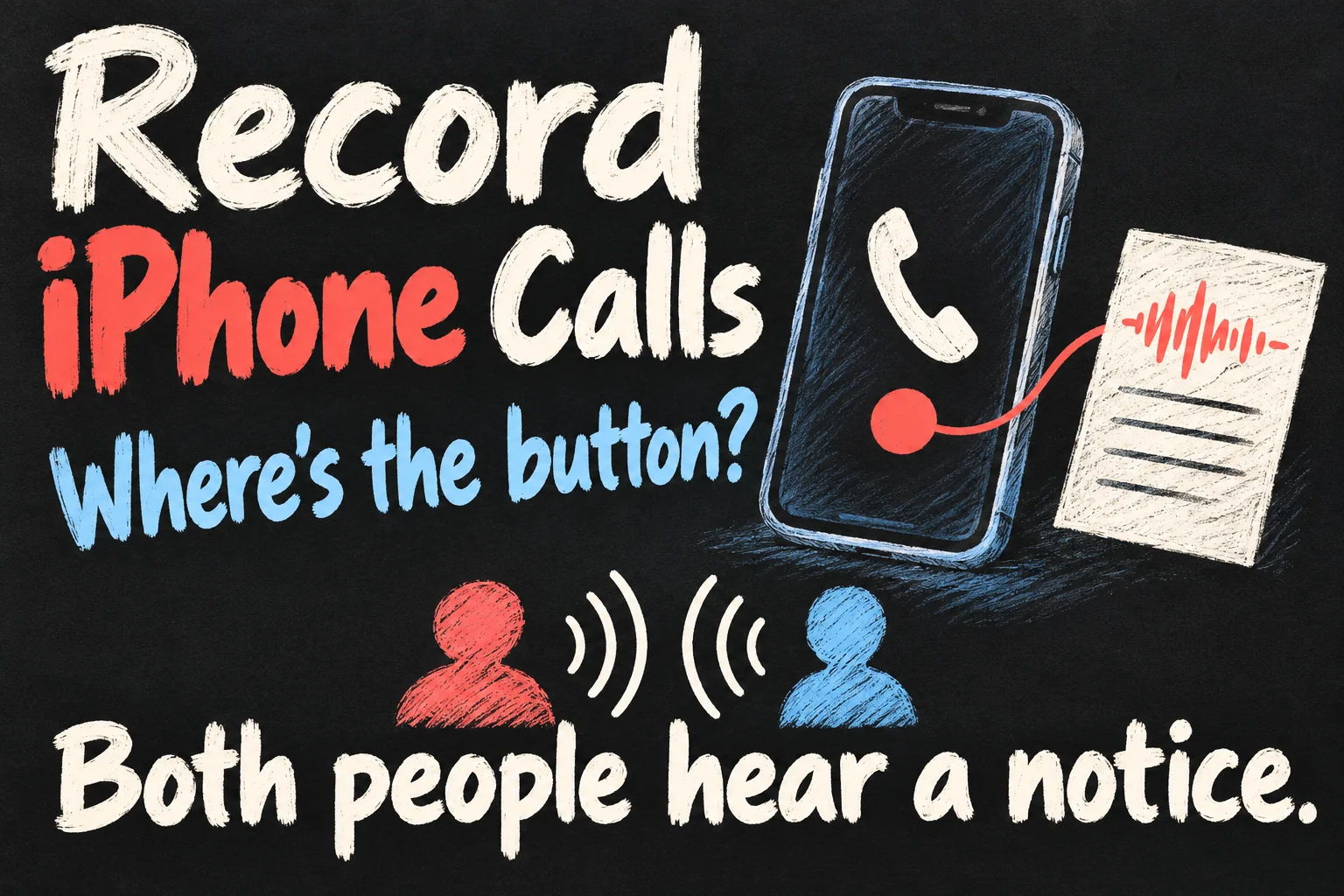
You can record a phone call on iPhone using the built-in Phone app where the feature is available. During a one-to-one call, open More → Call Recording; the audio is saved in Notes → Call Recordings. Both people hear a recording notice. Ask permission before starting, and treat permission to record separately from permission to share.
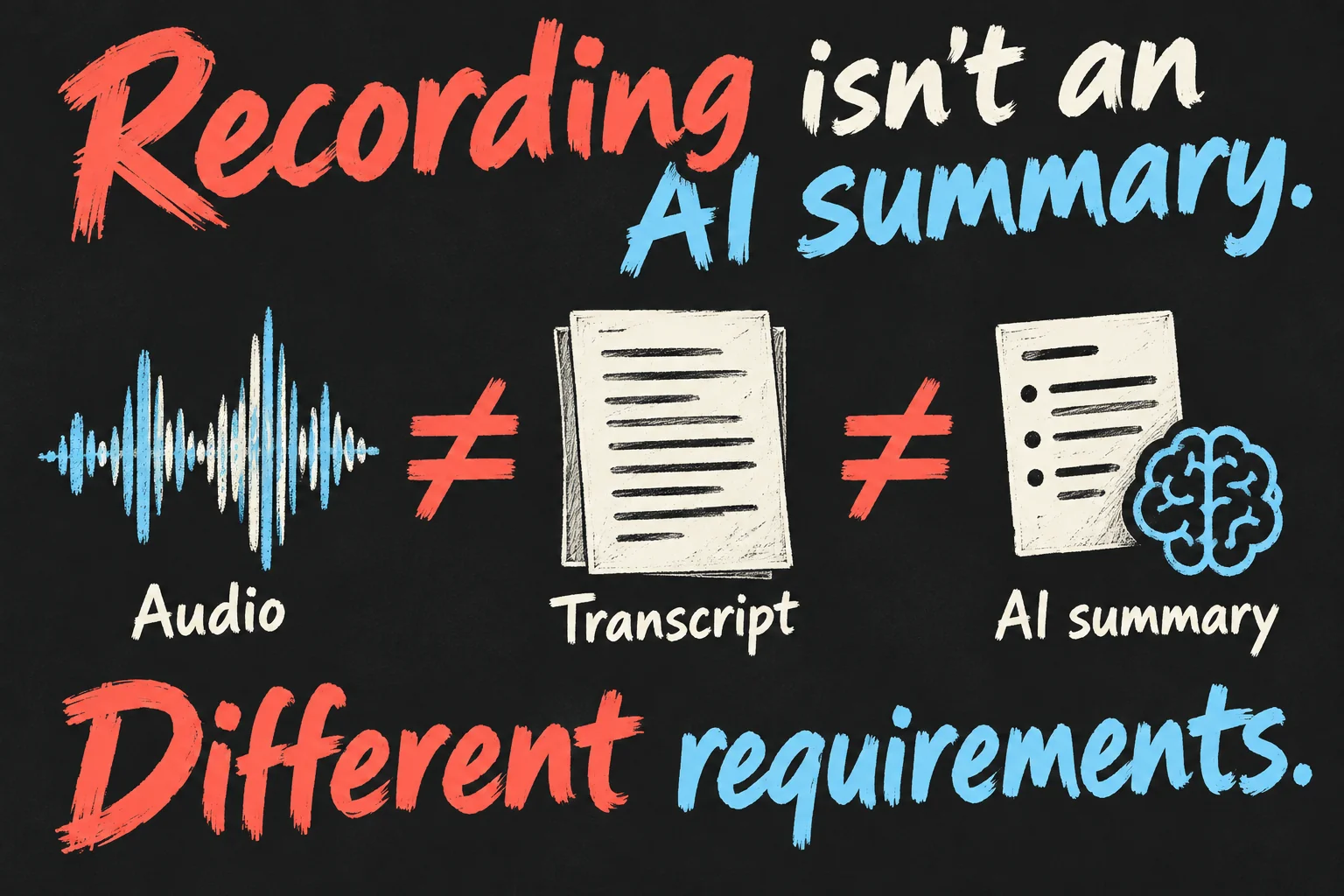
The important distinction is that saved audio, a written transcript and an Apple Intelligence summary are three different things. You may be able to record successfully without getting all three. Here is the practical workflow, followed by the checks to make when something is missing.
Checked 17 October 2026. This is a research-based guide, not a hands-on test or legal advice. Menus and availability can change with software, language and region.
How to record a phone call on iPhone
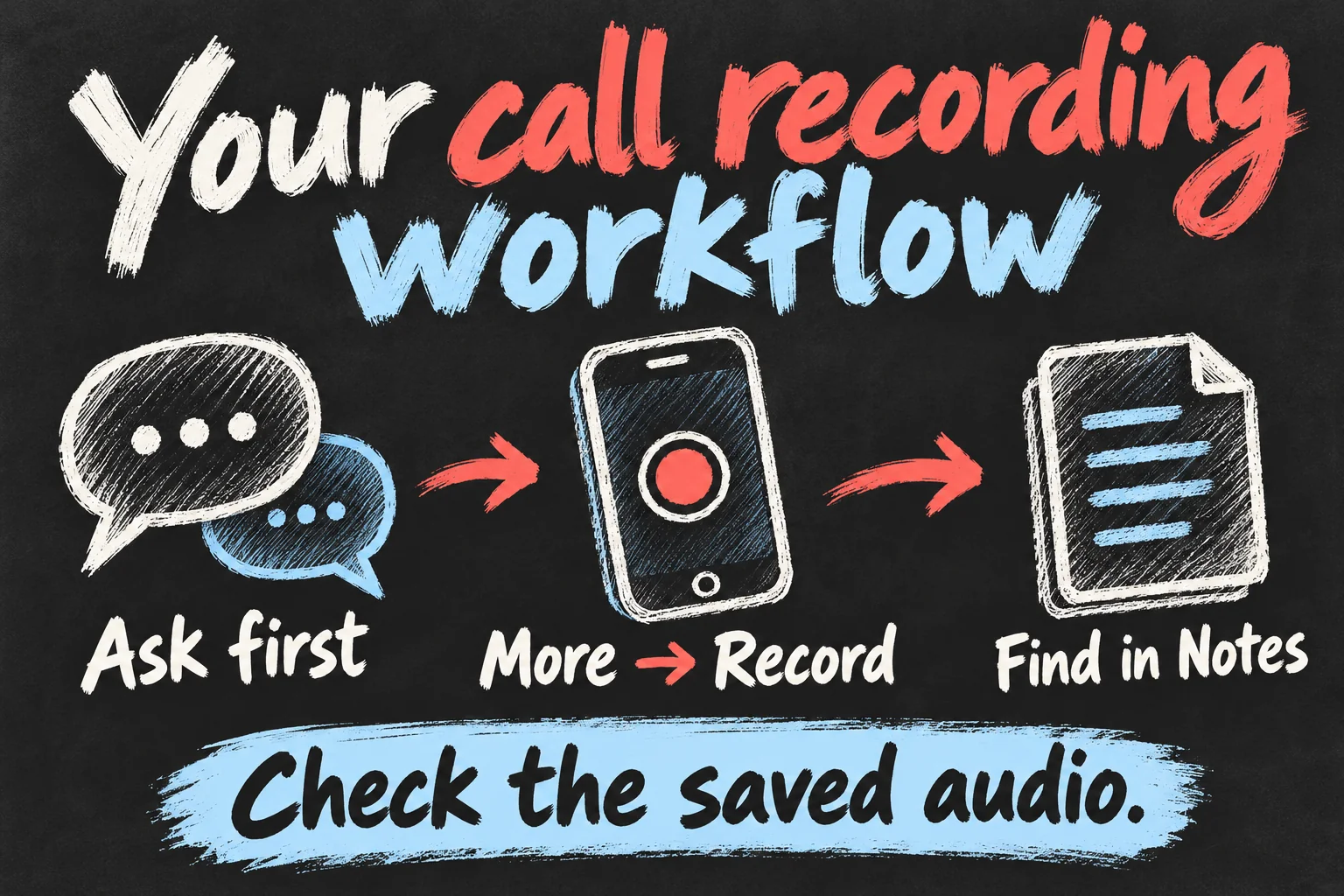
- Before the call, decide what you need to remember and ask the other person whether they agree to recording. Explain whether it is only for your own notes.
- Make or answer a one-to-one call in Phone. Once connected, tap More, then Call Recording.
- Let the audible notice play. Stop if the other person objects rather than treating the announcement as permission.
- Tap the stop control when you have what you need, or end the call. Open View Saved Call if it appears, or go to Notes afterwards.
Older instructions often show a waveform button at the top of the call screen. That can make current iPhone call recording look harder to find than it is: Apple’s current guide puts the command inside More. Start with the live call controls rather than hunting through Voice Memos.
Find your call recording in Notes
Open Notes → Call Recordings and select the relevant note to play the audio. If you regularly make appointments or discuss repair quotes, check the saved recording while the conversation is still fresh. A sensible next step is to add your own short note identifying the subject, agreed action and any detail you need to confirm.
A call recording in Notes can be useful even when no transcript appears. Listen to the original before relying on a name, booking time, dollar amount or promised action. A neat-looking sentence is not proof that speech recognition heard it correctly.
Audio, transcripts and AI summaries have different requirements
To record a phone call on iPhone, you need the recording feature to be supported on your device and in your region. Apple introduced native call recording with iOS 18.1. Installing a supported update is a starting point; it does not make every related feature available on every iPhone.
| What you want | What to check | How to use the result |
|---|---|---|
| Saved audio | A compatible iPhone, supported software and recording availability in your region. Basic recording is separate from Apple Intelligence. | Replay the actual conversation. |
| Written transcript | Compatible hardware plus supported transcription language and region. Notes audio transcription requires iPhone 12 or later. | Search for a detail, then verify it against the audio. |
| AI summary | An Apple Intelligence-compatible iPhone with the feature enabled and a supported language. | Use it as an overview, not a substitute for checking important details. |
Apple lists Australian English for call transcription, and Korean is also listed among supported call-transcription options. That does not guarantee accurate results for mixed-language speech, unclear audio or unfamiliar names. Transcription turns speech into text; do not assume it also translates the call.
If the missing feature is the AI summary, our Apple Intelligence and Siri AI guide explains the broader availability and setup checks. Keep that separate from the basic recorder: you do not need an AI summary to save useful call audio.
iPhone call recording button missing? Check these first
- Confirm the call type. Use a connected one-to-one call in Phone when checking the built-in controls. Do not assume the same recorder works inside WhatsApp, Messenger or every third-party calling app.
- Check the current menu. Look inside More. A tutorial showing an older top-left icon may describe a different iOS layout.
- Check the setting. In current software, look under Settings → Apps → Phone → Audio Call Recording. Apple says the available feature is enabled by default, but it can be switched off.
- Check software and region. Use a supported iOS version. Apple makes recording unavailable in some locations, so travelling can change what you see. Do not assume your home language setting overrides regional restrictions.
- Check management restrictions. A work or school administrator can disable recording on a managed iPhone. Ask the administrator rather than trying to bypass the restriction.
If recording works but there is no text, troubleshoot transcription support instead of repeatedly changing the recording setting. If the text is present but there is no AI summary, check Apple Intelligence eligibility. Separating these problems avoids paying for an app to solve a feature your phone already has.
Can you record calls in Australia? Ask first
Australia does not have one simple recording rule that covers every state, territory and situation. In Victoria, section 6 of the Surveillance Devices Act 1999 addresses listening-device recording of a private conversation by someone who is not a party to it. Section 11 separately restricts communicating or publishing recordings or reports, subject to exceptions. Being able to make a recording does not automatically mean you can forward or publish it.
For an ordinary personal call, the practical approach is to get clear agreement before starting and explain the intended use. Apple’s announcement tells the other person that recording has started; it is not a legal ruling or blanket consent for later sharing. For interstate calls, workplace matters, disputes or sensitive conversations, check the laws that apply and get legal advice where needed. This guide does not assess your individual circumstances.
Before you share a recording or transcript
First ask whether the recipient needs the complete conversation. For a booking or repair enquiry, your own short confirmation note may be more useful than sending an entire private call. Check names, numbers and unrelated personal information before passing anything on.
Where sharing is appropriate and permitted, open the recording’s menu in Notes to share or save the audio. Transcript options can copy the text or add it to the note. Review either format first: changing speech into text does not remove the privacy concerns. Deleting the recorded audio also removes its transcript, so do not delete the original if you still need to check it.
Frequently asked questions
Do both people need an iPhone?
The other person does not need to enable Apple’s recorder for you to use the supported feature. They will still hear the recording announcement. Availability needs to be checked on the iPhone doing the recording.
Can I record without the announcement?
Apple’s built-in recorder announces recording to both participants, with notices repeated periodically. It is not a silent recording mode. Do not choose a third-party app on the assumption that hiding a notice makes recording or sharing lawful.
Do I need Apple Intelligence to record a phone call on iPhone?
No. Basic audio recording and Apple Intelligence summaries have different requirements. A missing summary does not by itself mean the audio failed to save. Check the Call Recordings folder first.
Where should I look if I cannot find the file?
Look for the call recording in Notes, inside Call Recordings. For the next call, verify the saved audio immediately afterwards. That gives you a chance to follow up on missing information instead of discovering the problem days later.
Sources and Reading Notes
Apple Support — Record and transcribe a call on iPhone; Record and transcribe audio in Notes on iPhone; Record and transcribe calls on iPhone in the Personal Safety User Guide. Used for controls, storage, availability, announcements and feature distinctions. Apple iOS feature availability — used for supported transcription languages. Apple Platform Deployment — used for managed-device recording restrictions. Checked 17 October 2026.
Victorian legislation — Surveillance Devices Act 1999, authorised version 048, incorporating amendments as at 10 December 2025, sections 6 and 11. Used to distinguish recording from communication or publication. Checked 17 October 2026.
Prefer reading about Apple in Korean?
 Apple-worldApple news, tips and buying guides in Korean.blog.naver.com/apple-world ↗