
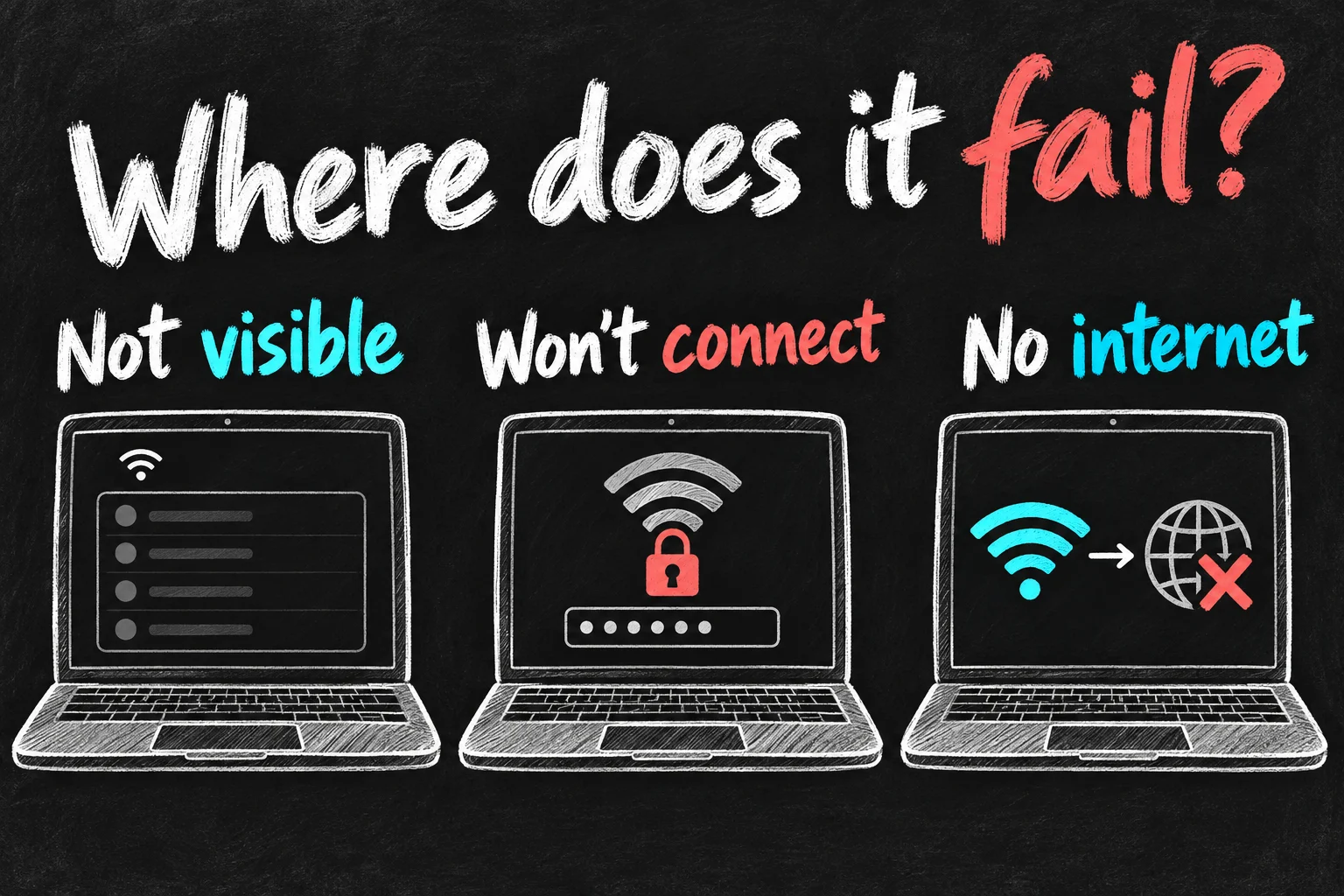
iPhone hotspot not working on your laptop? First check whether the phone itself can browse using mobile data. Then identify the actual symptom: the hotspot is missing, the password connection fails, or the laptop connects but has no internet. Those are different problems, so they need different next steps.
This guide covers Mac and Windows laptops, including a USB fallback when you need to get back to work. Start with reversible checks and test after each change. A network reset comes later, because it removes saved settings that you may need to rebuild.
In 3 Points
iPhone hotspot not working: find the failed link
| Symptom | Check first | What that separates |
|---|---|---|
| No hotspot option or it is unavailable | Mobile Data and carrier-plan support | A missing service or configuration, rather than a laptop password problem. |
| Laptop cannot see the network | Allow Others to Join, proximity and laptop Wi-Fi | Whether discovery is working. |
| Network appears but connection fails | Displayed password and a saved old network profile | Authentication versus internet access. |
| Connected, but no internet | Whether the iPhone can browse on mobile data | The phone’s network service versus the laptop connection. |
For a quick test, turn off Wi-Fi in the iPhone’s Settings and open an ordinary webpage using mobile data. If that does not load, troubleshoot the mobile connection first. A laptop cannot obtain internet from a phone that currently has none.
In Australia, the setting may be labelled Mobile Service or Mobile Data rather than Cellular. Check your actual plan’s tethering allowance and any speed or data limits. Do not copy an APN from an unrelated carrier or an old forum post; ask your provider if the feature remains missing.
Make the Wi-Fi hotspot visible and reconnect
- On iPhone, open Settings → Personal Hotspot, or Mobile Service → Personal Hotspot, and turn on Allow Others to Join. Keep this screen open while connecting.
- On the laptop, enable Wi-Fi and select the iPhone’s network name. The name comes from Settings → General → About → Name on the phone.
- Read the Wi-Fi password from the hotspot screen and enter that password, not the iPhone passcode or Apple Account password.
- If it still fails, restart both devices when you can save your work, then reconnect nearby. On supported iPhones, try Maximise Compatibility and test again.
Maximise Compatibility can help a laptop that has trouble with the hotspot’s wireless configuration. Apple warns that the option can reduce performance and Wi-Fi security for connected devices, so it is a compatibility test, not a universal speed upgrade. If the laptop works without it, you do not need to leave it enabled.
Check the laptop, using the branch that fits
Windows: if you have an old saved hotspot profile, open Settings → Network & internet → Wi-Fi → Manage known networks. Select the iPhone network, choose Forget, and reconnect with the current password. This removes that saved network profile, not every network on the computer.
If other devices connect successfully but this PC does not, run Windows’ network troubleshooter and check Windows and Wi-Fi driver updates from Microsoft or the laptop manufacturer. On a managed work computer, give IT the exact error and the results of that comparison rather than changing corporate networking tools yourself.
Mac: you can select the iPhone from the Wi-Fi menu. Instant Hotspot can connect eligible Apple devices using the same Apple Account, or eligible Family Sharing access, without manually entering the hotspot password. Wi-Fi and Bluetooth need to be on for that nearby-device workflow.
If Instant Hotspot discovery is the problem, check those account and wireless conditions rather than repeatedly changing the Wi-Fi password. Ordinary password-based Personal Hotspot and Instant Hotspot are related connection paths, but they are not identical setup tests.
If it connects but has no internet, try USB
Compare two results: does the phone browse on mobile data, and can another trusted device use its hotspot? If only the laptop fails, focus on its network configuration. If all hotspot clients fail while the phone browses, ask the provider to confirm tethering provisioning and the plan allowance.
Also check for a carrier-settings update in Settings → General → About while the phone is online. Install an update if Apple presents the prompt. If your SIM or eSIM was recently changed, the relevant carrier configuration may need updating; the menu does not mean an update is always available.
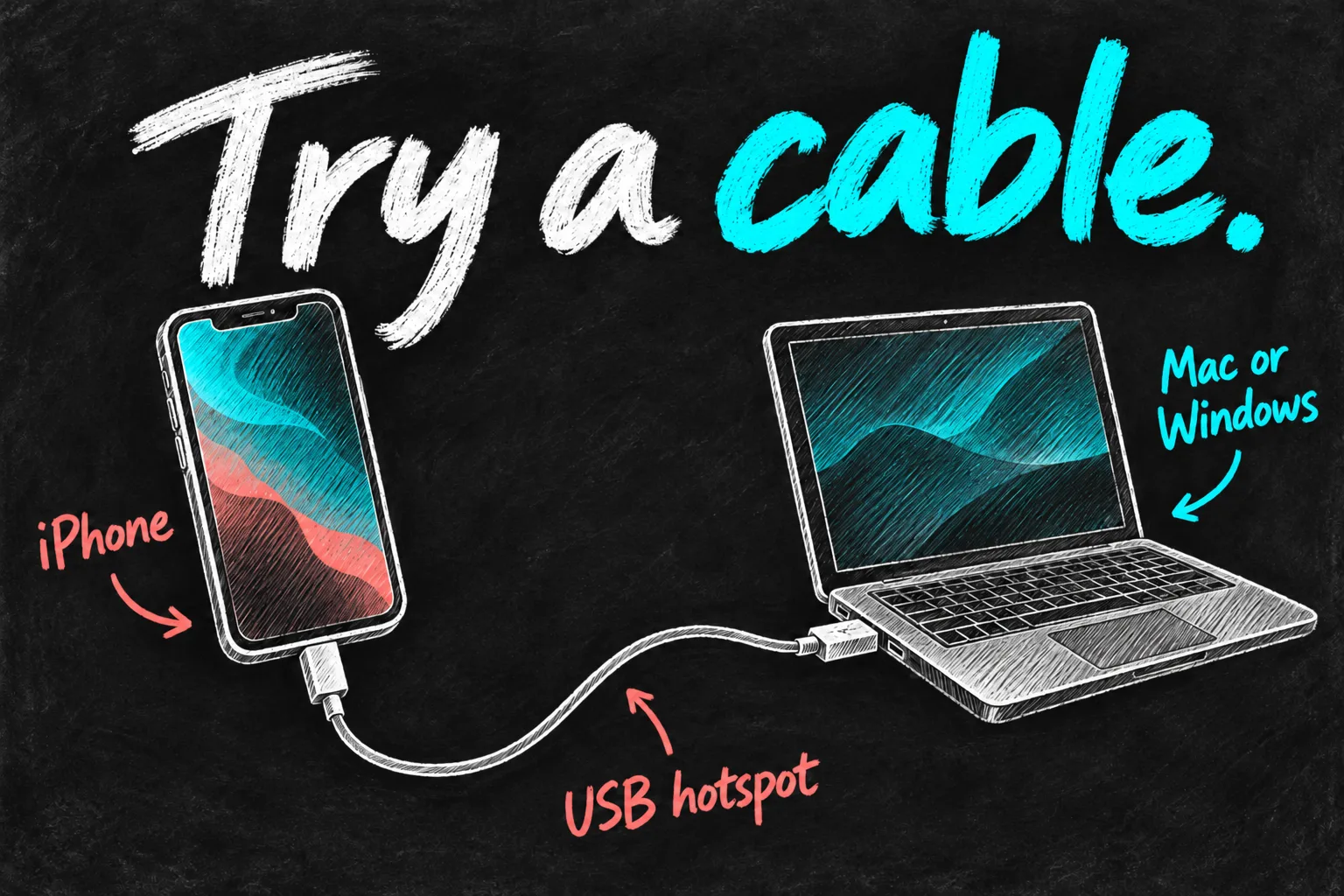
- Enable Personal Hotspot and connect the iPhone to the laptop with a cable that supports data as well as charging.
- On Windows, install the latest Apple Devices app or iTunes for Windows as Apple’s instructions require. On Mac, use current compatible macOS.
- Allow the accessory and tap Trust on the iPhone if prompted for your own trusted computer.
- On Mac, check System Settings → Network for iPhone USB. If it is missing, follow the network-service setup guidance. On Windows, first confirm that the phone is recognised in Apple Devices or iTunes.
- Test an ordinary webpage. Disconnect the cable or turn off hotspot sharing when finished so the computer does not keep using mobile data unexpectedly.
A charging symbol alone does not prove the USB data link works. If the phone is absent from Finder or Apple Devices, try a known data-capable cable and another port before diagnosing the hotspot service. Our iPhone photo-transfer guide for Windows also explains USB recognition and Trust prompts.
Reset only after simpler checks fail
If the connection still fails after supported software updates, restarts and a known-good connection test, Apple lists Reset Network Settings as a further step: Settings → General → Transfer or Reset iPhone → Reset → Reset Network Settings.
That removes saved Wi-Fi networks/passwords and resets mobile, VPN and APN settings previously used. Make sure you can reconnect afterwards, and consult IT first for a managed phone. Choose the network option deliberately; erasing the phone is not part of this hotspot checklist.
For a support request, note the iPhone model/software, laptop/OS, exact message, whether mobile browsing works, whether another client connects and whether USB works. That is more actionable than reporting that the hotspot is broken.
A hotspot that disconnects and one that runs out of data differ
If the laptop joins successfully but quickly uses a large allowance, first pause optional cloud syncing, game downloads and large app updates. Retest with one lightweight webpage. That will not fix a broken connection, but it separates background traffic from a joining problem. Check usage in the carrier’s app before buying another plan; do not assume a slow connection means the Wi-Fi password or iPhone hardware is faulty.
Frequently asked questions
Can Personal Hotspot share the hotel Wi-Fi my iPhone joined?
It shares the iPhone’s mobile data connection. Do not assume it rebroadcasts the hotel network or avoids roaming data charges.
Does USB tethering use my phone’s data allowance?
Yes. A cable changes the link between devices; it does not turn mobile internet into free broadband. Watch for laptop downloads and cloud sync.
Should I turn off security software?
Do not broadly disable protection to make a hotspot work. If the issue involves a work VPN or managed network policy, ask the administrator to check the configuration.
Sources and reading notes
Apple Support: Personal Hotspot troubleshooting; Connect to Personal Hotspot; Use Instant Hotspot; Update service provider settings; If your computer does not recognise your iPhone. Microsoft Support: Fix Wi-Fi connection issues in Windows. Benchmark reading included MacObserver’s laptop checklist, iDownloadBlog’s Mac guide and Tom’s Guide’s hotspot guide; configuration and reset advice was checked against the official instructions. Reviewed 26 October 2026. This is a research-based workflow, not a promise that one setting fixes every carrier or laptop. Images are original AI-generated sketches.
Revision check, 1 November 2026: Apple Support, How to set up a Personal Hotspot on your iPhone or iPad.
