To back up iPhone to Windows PC, use Apple Devices, connect the phone with a data-capable USB cable and create a local backup. Enable encryption if you want Health data and saved passwords included, then check the completed backup before resetting or handing over the phone.
The confusing part is choosing between Apple Devices, iTunes and iCloud for Windows. Here is a research-based workflow for keeping a recoverable copy, rather than discovering after a repair that you only copied your camera roll.
In 3 Points
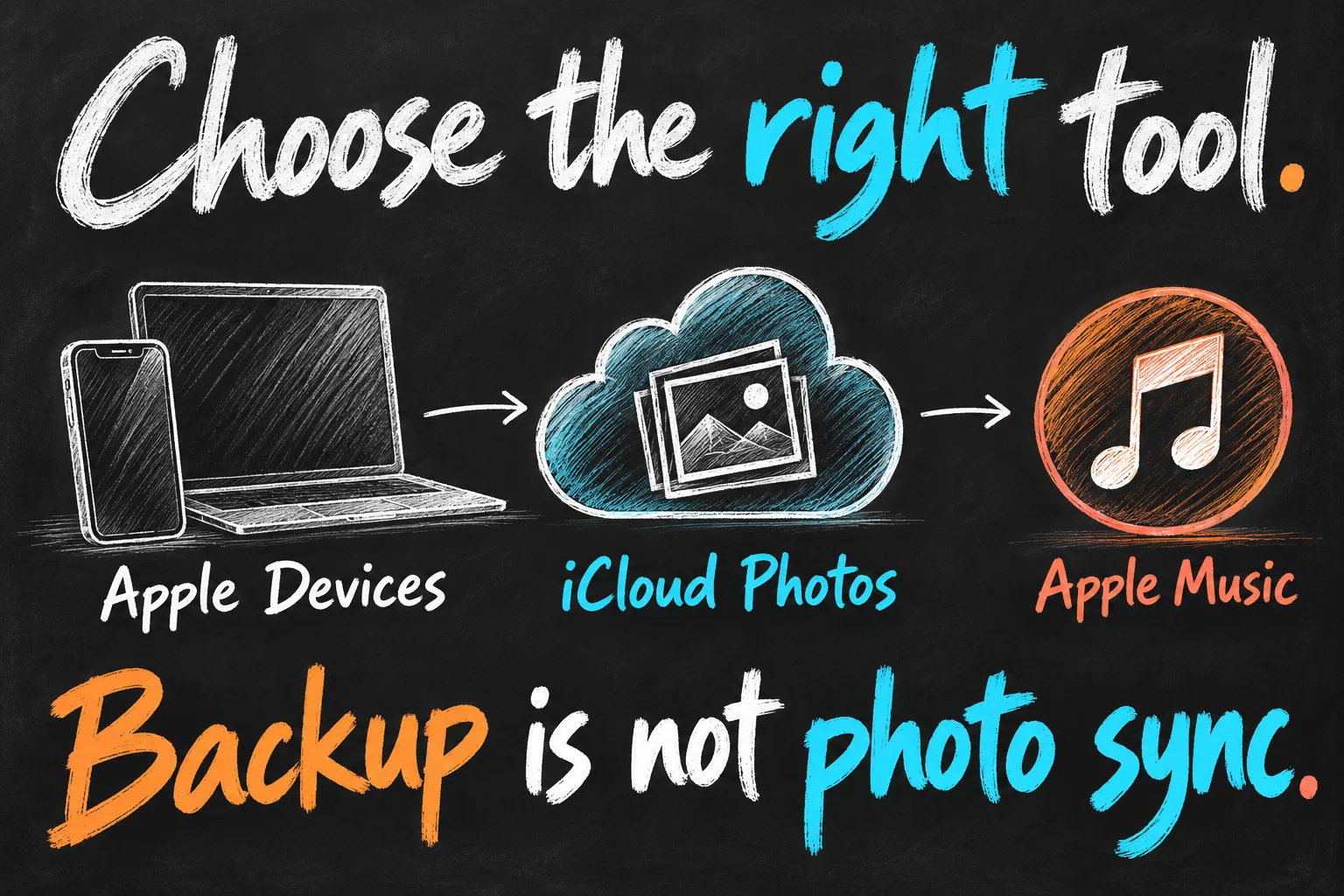
Choose the right app to back up iPhone to Windows PC
| Your task | Start here | What to expect |
|---|---|---|
| Create a local iPhone backup | Apple Devices app | Device management and a backup stored on your PC. |
| Access your iCloud photo library | iCloud for Windows | Photo synchronisation, not a substitute for a device backup. |
| Listen to your music library | Apple Music | Music playback and library management. |
| Use a PC without Apple Devices | iTunes, if supported | The backup controls are under Summary rather than General. |
Get the Apple Devices app from the Microsoft Store and check its current system requirements there. You do not need an Apple Music subscription to make a device backup. Installing every Apple app is not the purpose of this exercise: start with the app that manages the phone.
Connect and trust your own computer
- Use a cable that supports data as well as charging. Unlock your iPhone and connect it directly to the PC if a hub is unreliable.
- Open the Apple Devices app and select the iPhone in its sidebar. Approve Trust This Computer on the phone and enter its passcode when prompted.
- Open General. In the Backups area, choose the option to back up the iPhone’s data to this computer. For an iTunes backup, select the device and open Summary.
Only approve trust on a computer you control. A borrowed or public computer is a poor place to store a copy of your personal data. Check free PC storage before starting; the size depends on the phone’s contents and what is already stored in cloud services, not simply the capacity printed on the box.
Make an encrypted iPhone backup
Select Encrypt local backup and create a password you can safely retain. Encryption is not enabled by default. Besides protecting the file, an encrypted iPhone backup can include saved passwords, Health information and other sensitive categories that a standard backup leaves out. It still does not preserve Face ID, Touch ID or the phone’s passcode.
Before enabling encryption for the first time, check whether you need to retain an earlier backup. Apple says the first encrypted backup can overwrite previous local backups. Store the new backup password securely before proceeding. Do not assume it is automatically the same as your Apple Account password. Forgetting it can leave an existing encrypted backup unusable; creating a new password later does not unlock an old backup.
Select Back Up Now and leave the phone connected until the operation completes. This is a backup operation, not Restore iPhone. Restoring or erasing the phone is unnecessary when your immediate goal is to preserve its data.
Verify the backup before erasing anything
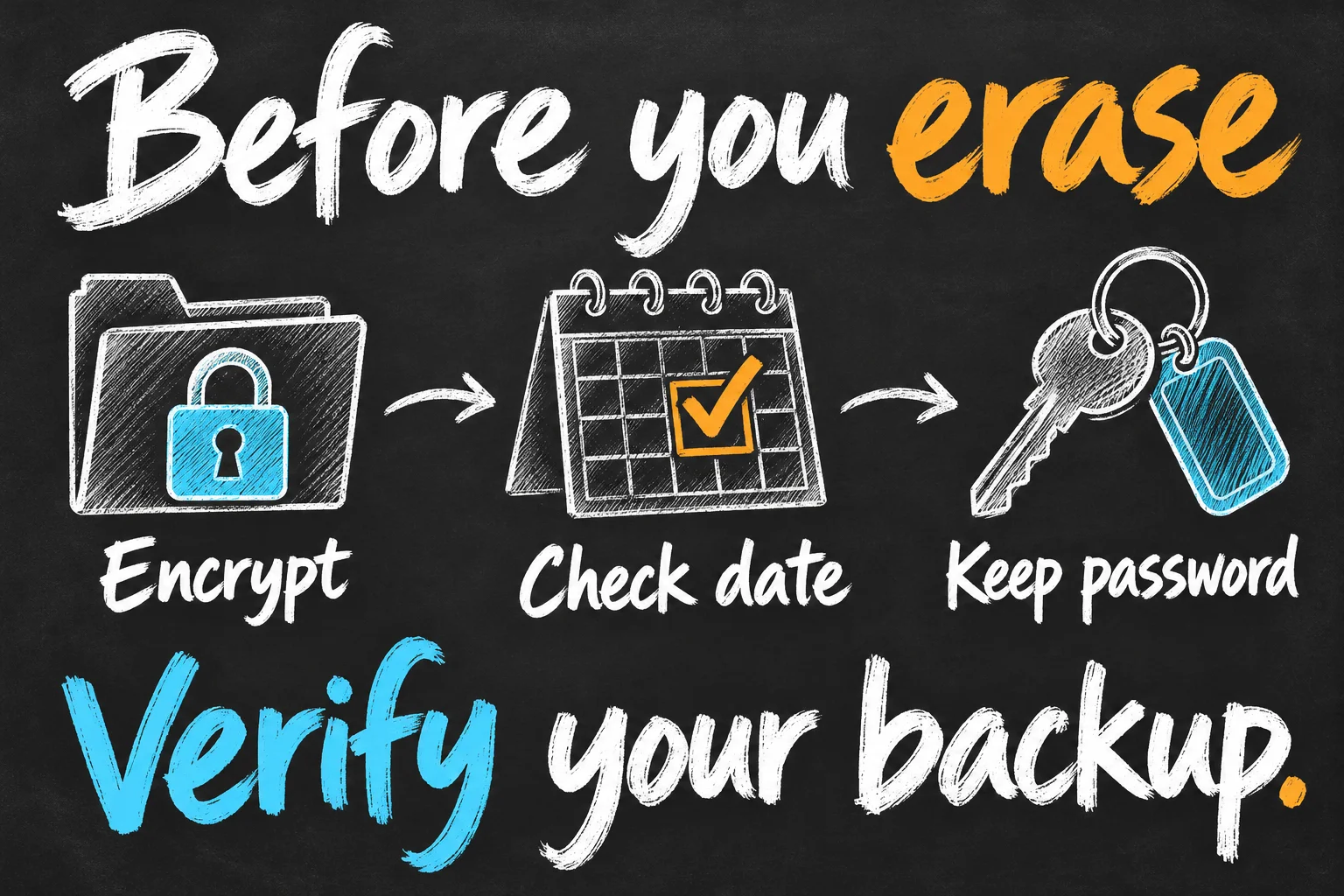
- Check that the most recent successful local backup shows the expected date and time. A progress bar that has stopped is not enough by itself.
- Open Manage Backups in Apple Devices. For an iTunes backup, use Edit → Preferences → Devices. Confirm the correct device and look for the lock indicator for an encrypted backup.
- Keep the password and the backup available. If you make a separate copy for safekeeping, preserve the complete backup folder rather than renaming or editing its contents.
Those checks confirm that a backup was recorded; they are not a guarantee that every app or external service will restore exactly as you expect. Keep the old phone intact until your replacement is set up and the information you need is accessible. A banking app may still require its own sign-in or reactivation.
Find the backup without guessing a Windows folder
In Apple Devices, open General → Manage Backups, right-click the intended backup and choose Show in Explorer. Match its device and date before copying or archiving anything. Archive keeps a selected backup from being replaced by a later backup. Do not rename or selectively edit the files inside a backup as though they were an ordinary photo folder; use a separate photo export when readable image files are what you need.
Check what your local backup does not cover
A computer backup contains much of the device’s data and settings, but it is not a complete offline clone. Apple excludes information already synced and stored in iCloud, such as an iCloud Photos library and Messages in iCloud, along with categories such as Apple Pay and biometric settings. Content previously synced from a computer also needs its original source.
For example, if your most important photos live in iCloud Photos, verify that library separately. If you also want a normal folder of pictures on Windows, use our iPhone photo transfer guide. Exporting pictures and creating a recovery backup solve different problems.
Before a trade-in or factory reset, work through our new iPhone transfer checklist. Back up iPhone to Windows PC first, but let successful access to your important data determine when it is safe to erase the original.
If Apple Devices cannot see your iPhone
Start with the connection: unlock the phone, check the trust prompt and try another data cable or USB port. Update Apple Devices through the Microsoft Store and install available device software updates when appropriate. Apple also recommends checking Windows drivers if detection still fails. Work through one change at a time so you know what helped.
If the device is visible but the backup fails, record the actual error and check free storage. Do not delete the only existing backup to see whether that helps. An iTunes backup is not a reason to maintain two conflicting troubleshooting workflows at once; identify which app currently manages the phone.


FAQ
Do I need to pay for iCloud to back up iPhone to Windows PC?
A local backup uses your computer’s storage, so it does not require buying additional iCloud capacity. Cloud-synced data remains a separate consideration, and having a PC backup does not make that data an independent offline copy.
Can I use both a PC backup and iCloud?
Yes. Apple supports using both methods. They offer different convenience and storage arrangements, so choose a routine you will actually maintain rather than treating a one-off backup as permanent protection.
Should I use Sync or Back Up Now?
Choose Back Up Now for a recovery backup. Sync manages selected content between devices. The buttons have different purposes, even when both appear in the same app.
Sources and Reading Notes
Checked 25 October 2026. Research-based guide using Apple Support: Windows device backups; Apple apps for Windows; encrypted backups; backup methods and exclusions; locating backups; and computer device-detection troubleshooting. Menu labels can vary with app versions. No hands-on restore test is claimed.
Revision check, 1 November 2026: Apple Support, Locate and manage backups of your iPhone, iPad and iPod touch.