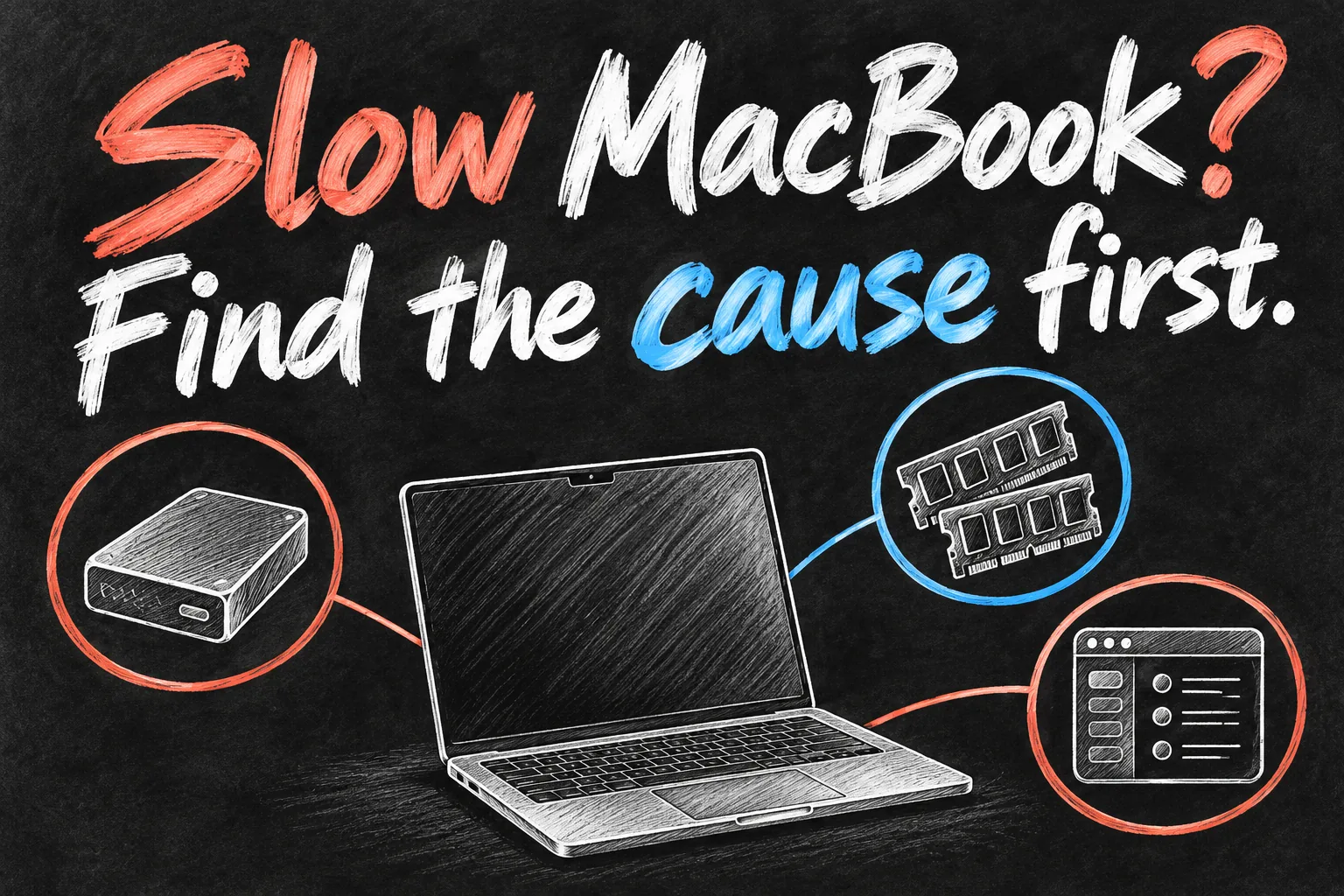
To speed up a MacBook, first work out what is slow: one app, everything on the computer, or only websites. Those symptoms can have different causes. A crowded startup disk, a busy app and an unreliable internet connection will not all be fixed by the same cleaner button.
Start with the checks built into macOS. This guide helps you narrow the problem, make a reversible change and repeat the same task before deciding whether a repair or upgrade is justified. It applies to everyday Intel and Apple silicon MacBooks, with menu names varying on older macOS versions; it does not promise benchmark gains.
In 3 Points
Speed up a MacBook by identifying the slow task
| What feels slow? | Useful first test | Why it matters |
|---|---|---|
| One particular app | Open a simple local document in another app. | The problem may be that app, file or extension rather than the whole Mac. |
| Everything, even local work | Save work, restart, then repeat the same task with fewer apps. | This gives you a simpler baseline before adding background work. |
| Only websites or streaming | Compare another website and another device on the same network. | The connection or service may be the bottleneck. |
| Only after login | Review automatically opened apps and background activity. | A startup pile-up can feel like an ageing computer. |
| Only a demanding project | Try a smaller project in the same app. | Your normal workload may exceed the machine’s practical resources. |

Choose one repeatable example: opening a local PDF, switching between two ordinary documents or loading a particular webpage. Write down what felt slow. Avoid comparing a tiny file after a change with a huge file beforehand. The aim is a fair everyday check, not a laboratory score.
If only the internet is affected, follow the network branch first. Check Wi-Fi, try another site and compare another device before deleting files from your Mac. Clearing a storage folder cannot repair a congested connection or a website outage.
Use Activity Monitor to find busy apps
- Open Activity Monitor with Spotlight or from Applications → Utilities. Keep it visible while reproducing the slowdown.
- In CPU, sort by % CPU and watch which apps stay busy during the problem. A brief spike while opening something is not the same as sustained background work.
- Select Memory and inspect the Memory Pressure graph, not only the amount labelled Memory Used.
- Save your work and normally quit an app you recognise but do not currently need. Repeat your chosen task.
- If an app is unresponsive, Force Quit is available, but it may discard unsaved changes. Do not terminate unfamiliar system processes at random.
macOS uses memory for useful caching. A large Memory Used value alone is not proof of a fault. Sustained yellow or red memory pressure during your usual work is a more useful reason to reduce the number of active apps or tabs and compare the result. Swap usage also needs context; a non-zero number is not an instruction to run a RAM cleaner.
If one recognised app repeatedly dominates the workload, check its updates, extensions and project requirements. Note its name before restarting it. Repeatedly killing a process hides the symptom without explaining why it returns. For a managed work or university Mac, ask your IT team before disabling agents or security software.
Check storage without deleting the wrong files
On recent macOS, open System Settings → General → Storage. Inspect large categories and files you recognise. Start with downloads you no longer need or large media you can move safely. Emptying the Bin removes its normal easy recovery route, so review it first rather than treating the button as a harmless speed setting.
If a folder matters, copy it to another location and open sample files from that copy before removing originals. Moving your only copy to an SSD frees internal space but does not create a backup. Keep a separate copy of irreplaceable work. Do not delete Library folders, unknown System Data or cloud-synchronised originals just because a forum says they are large.
There is no single magic amount of free space that guarantees a fast Mac. The useful question is whether macOS reports storage pressure and whether your normal tasks have room for working files and updates. Cleaning beyond the actual problem is not a substitute for diagnosing a demanding app.
Reduce unnecessary login and background work
- Open System Settings → General → Login Items & Extensions, or Login Items on older versions.
- Review Open at Login and remove only items you recognise and do not need to launch automatically. This does not uninstall the app.
- Review background permissions separately. A backup, cloud-sync tool or updater may have a legitimate reason to run.
- Change one known item, restart when convenient and repeat the same everyday task. Restore the setting if a needed function stops working.
Do not turn every switch off at once. If your cloud files stop syncing or your backup stops running, a faster-looking login can cost you something more important. Record the original setting so the change is reversible. If your Mac is processing a recent migration or a large photo library, check what is actually running before labelling all background activity as waste.

Retest, then decide whether repair or replacement makes sense
After reducing one clear source of load, run the same task again with the same files. If the problem disappears when an app is closed and returns when it opens, that is useful evidence for the app’s support team. If the slowdown occurs with local files and very few apps after a restart, record that too.
Back up first if you see recurring disk errors, unexpected restarts or other signs beyond ordinary slowness. Apple documents Disk Utility checks for disk problems; that is a repair step with its own instructions, not permission to erase the drive. Do not reinstall macOS or factory-reset the computer as your first experiment.
An upgrade becomes easier to justify when your necessary workload consistently hits the machine’s limits even after obvious software problems are addressed. Many modern MacBook memory configurations cannot be upgraded after purchase, so verify the exact model rather than buying RAM on assumption. A different workload, a repair and a replacement are three separate decisions.
For daily organisation rather than a promised hardware speed boost, our free MacBook apps guide covers useful utilities. Install a tool because it solves a named task, not because every slow Mac supposedly needs more software.
Keep a small before-and-after record
Choose one repeatable task, such as opening the same local document. Note which app is slow, whether the delay also happens offline, and the Memory Pressure colour while it occurs. Change one thing and repeat that task. If local work is normal but webpages are slow, investigate the connection before buying more computer. If one app alone stalls, update or troubleshoot that app before resetting macOS. This separates a repairable bottleneck from a hardware limitation.


Frequently asked questions
Do I need a paid cleaner?
Not to perform these first checks. Start with the built-in tools, identify the cause and assess any third-party app’s actual job, permissions and ongoing price.
Should I clear every cache?
No. Do not delete unknown caches or system folders as a routine fix. Apps may need to rebuild cached information, and indiscriminate deletion can create fresh problems.
Will an external SSD make all apps faster?
Not automatically. It can provide working space or hold large files, but it does not add internal memory or fix every CPU, app or network bottleneck.
Sources and reading notes
Apple Mac User Guide: If your Mac runs slowly; Apple Support: Free up storage space on Mac; Activity Monitor User Guide: View memory usage and Quit an app or process; Mac User Guide: Open items automatically when you log in and Solve internet connection problems. Reviewed 27 October 2026. Benchmark reading compared Macworld and Tom’s Guide troubleshooting structures, with additional search-result review of Tend’s cause-first approach. Instructions rely on Apple documentation; no timed performance test or guaranteed speed increase is claimed. Illustrations are original AI-generated sketches.
Revision check, 1 November 2026: Apple Activity Monitor User Guide, View memory usage.