Apple Music lossless does not make an ordinary iPhone-to-AirPods Bluetooth connection lossless. High Quality is a practical everyday starting point for that setup; a lossless source can use more data and storage without changing the wireless connection into a lossless one.
Choose quality for the complete listening setup. Supported wired equipment and specific device combinations can use lossless, so check the exact headphones, source device and connection. This guide covers streaming, downloads and exceptions, using Apple support guidance checked on 11 October 2026.
Why does Apple Music lossless show up with AirPods?
Apple Music lossless uses ALAC, a compression format that preserves the original audio data. That describes the music source. Your phone still has to send the audio to your headphones, and the connection has its own format.
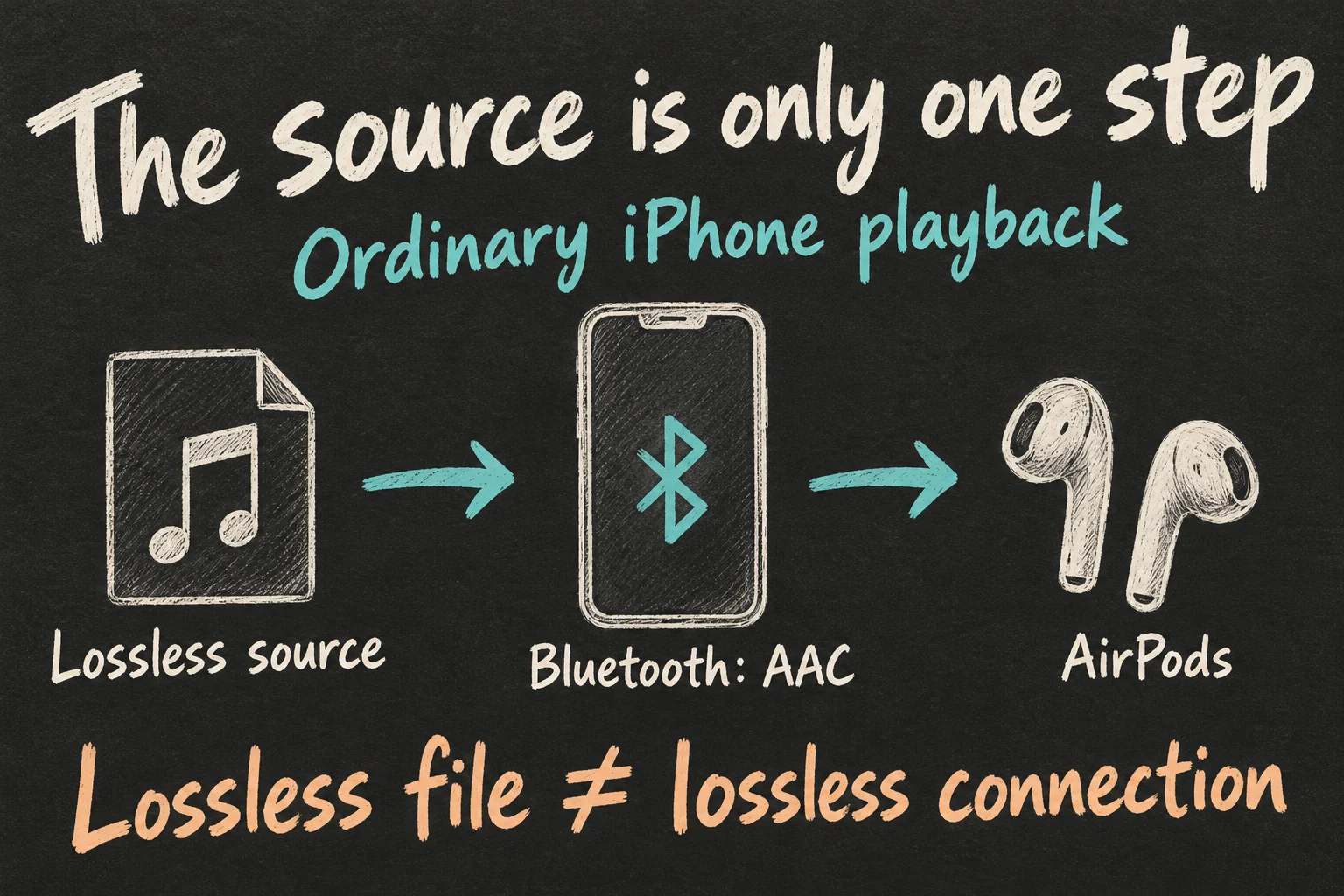
Apple’s iPhone guide says AirPods, AirPods Pro and AirPods Max use AAC over Bluetooth. Seeing a Lossless label therefore does not establish lossless audio on AirPods all the way from the file to your ears. It is a reason to check the connection, rather than keep raising the source setting.
This distinction also leaves room for your own preference. You can enjoy a particular version of a song without treating its badge as a sound-quality score. The everyday recommendation here concerns ordinary Bluetooth listening from an iPhone; wired AirPods Max and Apple Vision Pro have separate options covered below.
One setting for the train and another at home?
Open Settings → Apps → Music → Audio Quality. The Lossless Audio switch and the separate streaming and download choices are here. When you enable it for a mixed setup, check each category instead of assuming every option should be at the maximum.
| Your listening situation | Suggested starting point | What it solves |
|---|---|---|
| AirPods on mobile data | High Quality for Cellular Streaming | Avoids spending extra data on a lossless source for ordinary Bluetooth listening |
| AirPods-only listening over Wi-Fi | High Quality for Wi-Fi Streaming | Keeps the source choice aligned with your usual connection |
| An offline AirPods playlist | High Quality for Downloads | Leaves more room for the music you want to take with you |
| Compatible wired listening at home | Lossless for Wi-Fi Streaming | Uses a lossless source with equipment that can support it |
These are editorial starting points for Apple Music audio quality, rather than mandatory settings. If you alternate between AirPods outside and compatible wired headphones at home, keeping Wi-Fi on Lossless and mobile streaming on High Quality is a practical combination. Choose Downloads around how you will actually play those albums.
Apple says lossless streaming uses significantly more data and lossless downloads occupy more storage; higher resolutions use more again. Wi-Fi does not change the Bluetooth link to your AirPods. Before downloading a holiday playlist, decide whether you will use that larger file through wired equipment or mainly listen wirelessly.
Choose quality for the connection you use most.
Turned it off—why is storage still full?
Changing Apple Music lossless settings is also a download-management job. An Apple Music lossless album already saved on your phone needs its downloaded copy replaced when you want a different quality. A switch in Settings is not a reason to assume the existing files have become smaller.
Start with one album you know well. Select the quality you want under Downloads, then open Music and touch and hold the downloaded album. Choose Remove → Remove Download, and download it again after checking the setting.
Remove Download keeps the album in your library while removing its local copy. Delete from Library is different: it removes the music from your library and playlists, and from other devices when Sync Library is enabled. For a quality change, use the download option.
Let the replacement finish while you have an internet connection. Before relying on it during a flight or a patchy commute, try playing it offline. Once that album is ready and you are happy with the choice, work through the playlists you actually take out. There is little value in rebuilding your entire library before checking the first result.
Still missing bass or clear vocals? Check these first
If Apple Music lossless did not solve the sound you dislike, name the problem: weak bass, an uncomfortable fit, a quieter Atmos track, or a tonal balance you do not enjoy. That gives you a useful next setting to investigate.
For AirPods Pro, check the seal before experimenting with presets. With the earbuds connected and in your ears, open Settings → Bluetooth → the More Info button beside your AirPods. Pro 1 and Pro 2 use Ear Tip Fit Test; Pro 3 uses Acoustic Seal Test on iOS 26 or later. Apple says a good seal helps bass and noise cancellation. The comfortable tip size can differ between ears.
Under Settings → Apps → Music → EQ, you can choose a tonal preset. Try EQ Off as a reference, then compare one preset that addresses your complaint. Keep the listening level comfortable. Treat the result as a preference you can reverse, rather than a reason to keep searching for a universally best preset.
Dolby Atmos is another choice, separate from lossless compression. Supported tracks can play in Atmos with supported AirPods; check Settings → Apps → Music → Dolby Atmos. If you want to compare with stereo, turn Atmos Off for that comparison. For tracks downloaded in Atmos, Apple says a stereo version is downloaded too.
If Atmos sounds quieter than stereo, Apple recommends Sound Check. You will find it in the Music settings, where it normalises audio levels. Keep its choice consistent while comparing. Changing EQ, Atmos and volume together makes it harder to tell which adjustment you actually liked.
How do you know which change you prefer?
A useful personal check of Apple Music audio quality starts with a familiar section of one song. Pick the same album version and the same short passage each time. Listen somewhere you can pay attention, with the same headphones and a comfortable, consistent listening level.
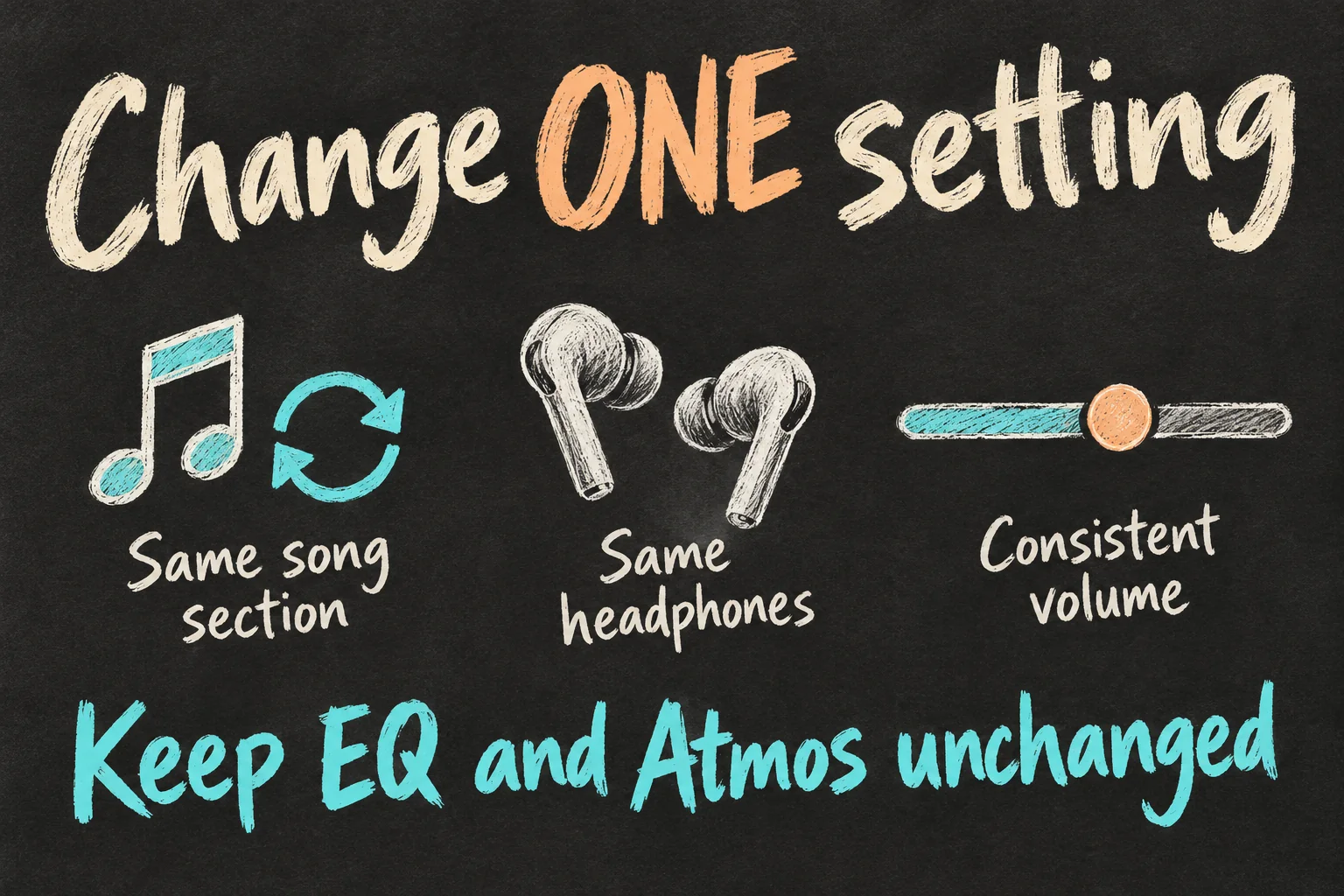
When comparing Apple Music lossless with High Quality, keep EQ, Atmos, Sound Check and the listening mode unchanged. When comparing downloaded quality, replace the local copy before listening again. Otherwise, you may still be playing the download you had before the switch.
Write down what you prefer in ordinary terms: vocals feel easier to follow, this mix feels more spacious, or both are enjoyable. This casual comparison cannot establish a technical improvement or a measurable ability to hear compression. It can help you decide whether a setting improves your own listening routine.
If you prefer Apple Music lossless and the file size is fine for you, you can keep it. If the difference is not useful in your usual AirPods routine, High Quality remains a practical choice. For lossless audio on AirPods, the connection question still matters whichever version you personally enjoy.
When is a cable actually worth considering?
Apple lists compatible wired headphones, receivers and powered speakers as lossless listening routes for an iPhone. This is where Apple Music lossless becomes a more relevant source choice: start with equipment you already own and check its supported audio format.
The standard Lossless option reaches up to 24-bit/48 kHz; Hi-Res Lossless goes up to 24-bit/192 kHz. On iPhone, playback above 48 kHz needs an external digital-to-analogue converter, or DAC. These are maximum format limits, not a promise that each song is available at the highest resolution.
If you already have a suitable wired setup, try a favourite album with Lossless before shopping for more hardware. Consider Hi-Res only when your source and equipment support it and you want that route. For an AirPods-only commute, Apple Music lossless by itself does not solve the Bluetooth limitation.
For a related practical guide, read AirPods 5: Is Wireless Charging Worth the Extra A$30?.
FAQ
Q. Can AirPods Max play lossless without buying new headphones?
It depends on the model and connection. Apple supports wired lossless with AirPods Max 1 (USB-C) and AirPods Max 2. Update the source device’s software and the headphones’ firmware, then use the included USB-C to USB-C cable with a USB-C iPhone, iPad or Mac. Ordinary Bluetooth playback remains a separate case; this support does not extend the same USB-C route to the Lightning model.
Q. Is Apple Vision Pro a wireless exception?
Yes. Apple lists lossless playback on Vision Pro with AirPods 4 or later, AirPods Pro 3, and AirPods Pro 2 with the USB-C Charging Case. That is a device-specific arrangement. It does not mean the same earbuds deliver lossless from an iPhone over ordinary Bluetooth.
Q. Why did AutoMix or Crossfade disappear after changing quality?
Apple’s iPhone guide says AutoMix and Crossfade are unavailable while Hi-Res Lossless is turned on. Choose the standard Lossless tier or another quality to use those transitions. Check that distinction before turning off every lossless option: Hi-Res Lossless and regular Lossless have different behaviour here.
Sources and Reading Notes
This guide draws on published information rather than personal hands-on testing. Illustrations explain concepts and are not product photographs or measurements.
- About lossless audio in Apple Music — Apple Support
Sources reviewed 11 October 2026. Prices and availability can change; checking dates are stated in the article. See how these guides are written.
Prefer reading about Apple in Korean?
 Apple-worldApple news, tips and buying guides in Korean.blog.naver.com/apple-world ↗