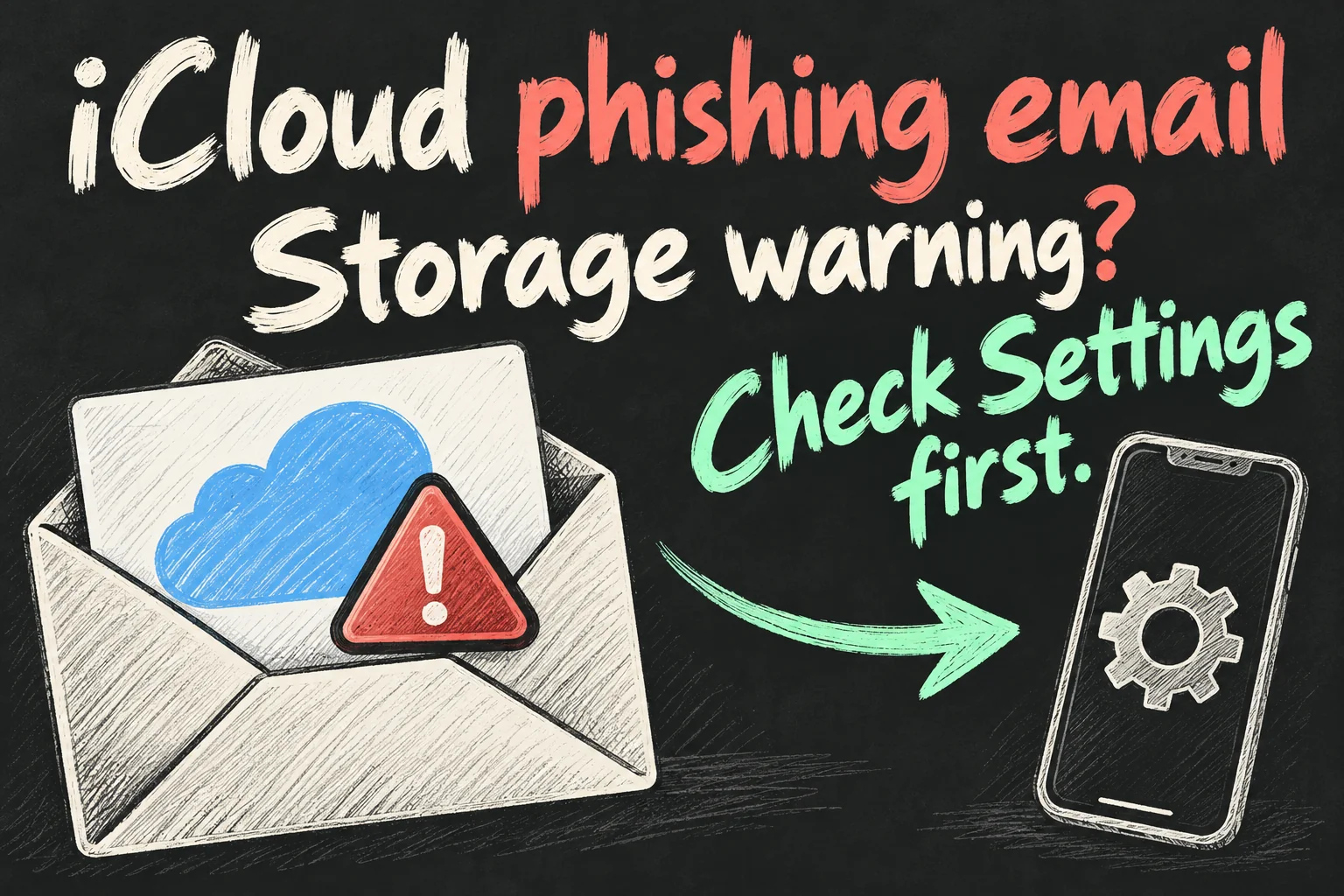
An iCloud phishing email can look like a genuine storage or payment warning. Before you click, open Settings → your name → iCloud and check the account directly. If the message says your payment failed, check your payment settings separately. A familiar logo, your name or an apparently correct sender address does not prove the email is genuine.
If you have already entered a password, verification code or card details, go straight to the response section below. The next step depends on what you shared; receiving a suspicious email does not, by itself, mean your account has been hacked.
This guide explains the iCloud storage full scam, misleading payment notices and what to do after an accidental click. Research and official instructions were checked on 12 October 2026.
How do you check an iCloud phishing email safely?
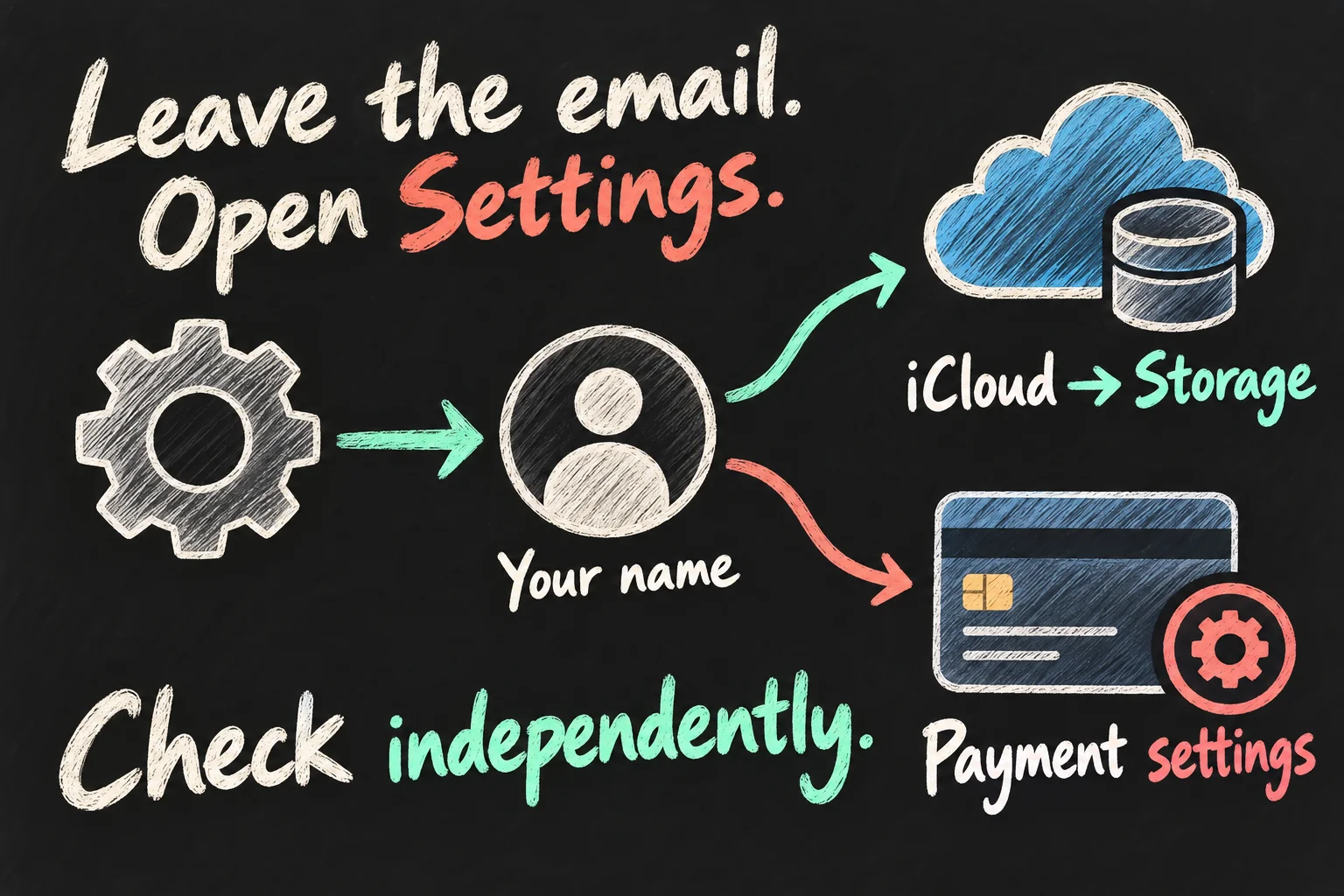
Leave the email and check through a route you open yourself. On an iPhone or iPad, open Settings, tap your name, then tap iCloud. Check the storage usage and your plan there. Menu wording can vary by software version; Storage or Manage Account Storage may appear.
For billing, return to your Apple Account settings and open Payment & Delivery. On some devices or language settings this is called Payment & Shipping. Use that screen to review your payment method rather than a button in the email.
On a Mac, open System Settings → your name → iCloud to review storage. Apple also provides payment management through the App Store: click your name, then your account details and Payment Methods.
If something does need attention, deal with it inside the settings or through Apple Support reached independently. Do not use a phone number supplied by the suspicious message.
For example, an email might claim that your storage is completely full while Settings shows plenty of space. That mismatch is a warning sign. If Settings confirms that storage really is full, the email is still not automatically genuine: scammers can make a claim that happens to match your situation.
What do these scam emails usually say?
Several messages use the same underlying pressure: something valuable is about to disappear unless you act now. The request can be framed as a storage upgrade, payment update or security check.
| Claim in the message | What to check independently |
|---|---|
| Your iCloud storage is full | Your actual usage and plan in iCloud settings. |
| Your payment failed or card expired | Your Apple Account payment settings and any genuine billing issue. |
| Your photos will be deleted shortly | The account status itself, without following the threatened deadline. |
| Your account is suspended or needs verification | Your account and devices through Settings or official Apple Support. |
Which? documented messages promising free storage, offering a large upgrade discount or threatening account access within 48 hours. Its examples, updated in July 2026, led to sites collecting personal and financial information. Intego published a further guide to these storage and payment lures in September 2026.
The iCloud payment failed email is convincing because cards really do expire and subscription payments really can fail. Treat the email as an unverified claim, then check the issue through your account.
Not every deceptive message has the same destination. In one sample analysed by PCRisk, the supposed iCloud warning redirected to another storage service’s checkout through an affiliate scheme. The danger is wider than one fake login page: a misleading message can push you into a purchase that does not fix your Apple account.
These reports establish that the scam exists and has been documented recently. They do not establish a sudden increase specifically in Australia, or a breach of Apple’s iCloud systems.
Will full iCloud storage automatically delete your photos?
A storage limit is not the same thing as a countdown demanding payment through an email. Apple’s storage guidance describes limits on new activity when your account runs out of space:
- New iCloud device backups cannot complete.
- New photos and videos cannot upload to iCloud Photos.
- iCloud Drive and other iCloud apps stop updating across devices.
- Your iCloud email address cannot send or receive mail.
Those restrictions matter, but they do not validate an email claiming that your entire photo library will disappear in 24 or 48 hours. Confirm the real problem in Settings and resolve it there.
Do not turn this into a promise that cloud data can never be deleted. Deleting content yourself, changing services or dealing with an account problem can have different consequences. If you decide to free space, make a separate copy of important files first. Deleting a photo from iCloud Photos also removes it from other devices using that same library.
The iCloud storage full scam exploits a real inconvenience. Understanding the actual restriction helps you respond without buying an unrelated service or handing over your login.
Which signs make an Apple phishing email suspicious?
Look at what the message wants you to do, rather than judging only its appearance. A polished email can still be dangerous.
- A rushed deadline: a demand to act immediately before losing photos or account access.
- An unexpected request: a page asking for a password, verification code, full card details or a small recovery payment.
- A mismatched destination: a link that leads somewhere different from the organisation it claims to represent.
- A different contact address: the message arrived at an address you do not use for that Apple Account.
- A strange offer: free storage or a dramatic discount presented as the only way to avoid losing data.
- A request to lower security: instructions to approve an unfamiliar sign-in, disable protections or install software to fix the account.
Scamwatch warns that sender addresses can be spoofed. Your name, the Apple logo, professional grammar and a familiar-looking address are therefore clues, not authentication. A browser padlock also does not prove that the business behind a page is Apple.
Checking a link’s destination can reveal a mismatch, but you do not need to visit it to investigate an iCloud phishing email. Open the account yourself instead. Avoid experimenting with suspicious attachments, unsubscribe buttons or the message’s support number.
Apple Support does not need you to disclose your account password or verification codes to a person assisting you. A code can be part of a legitimate sign-in you deliberately started; it should not be handed over to an unexpected caller or entered on a page reached through an unverified message.
What if you already clicked an iCloud phishing email?
Start by stopping the interaction. Do not keep following instructions from the email or the website. Record what you entered or installed so the next action addresses the actual exposure.
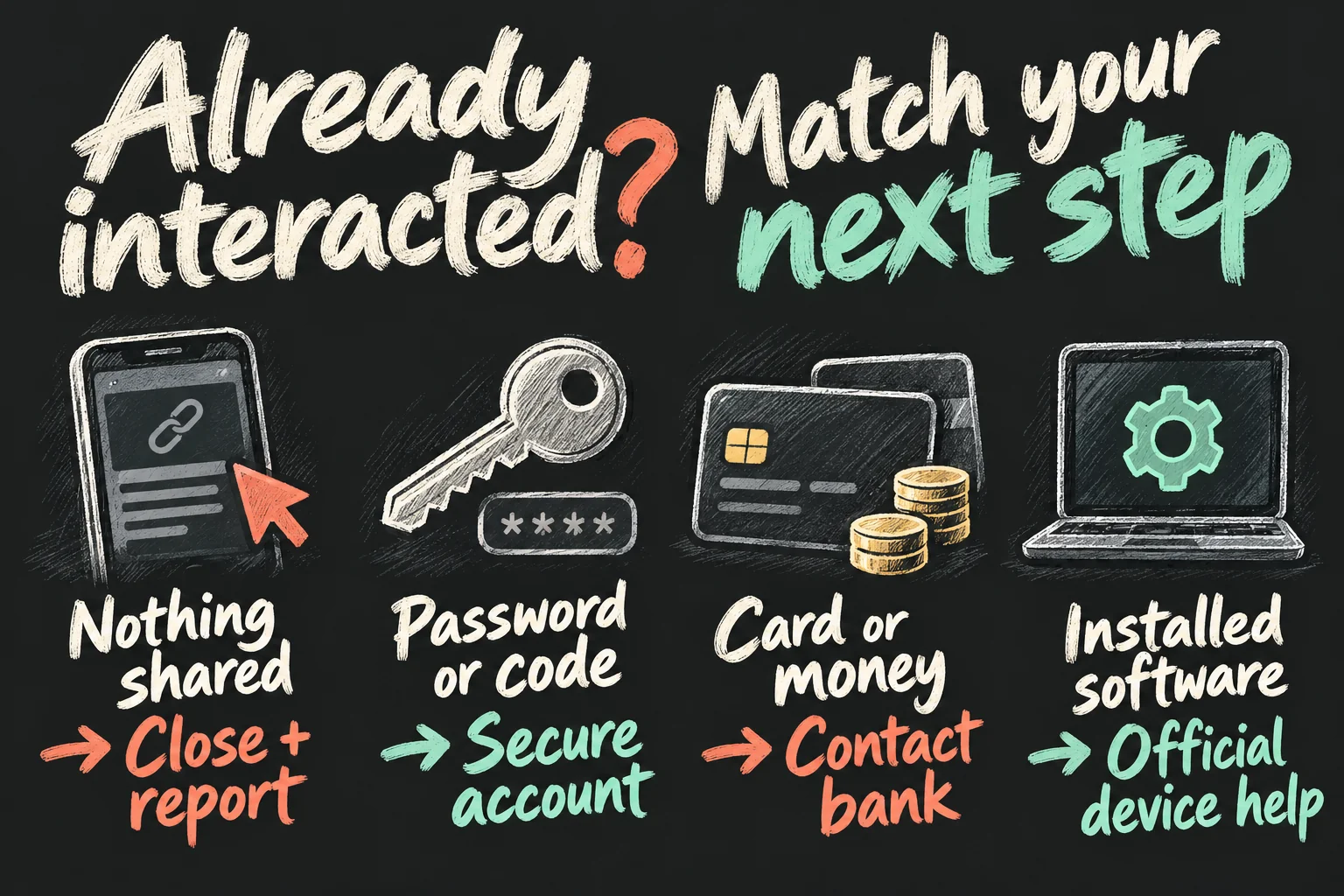
You clicked, but entered nothing and installed nothing
Close the page, avoid further interaction and report the message as phishing or junk. Check whether a file downloaded or you granted a permission. Keep your browser and device software up to date.
An accidental click alone is not evidence that the account has been taken over. It is also not a guarantee that nothing happened. If you notice an unfamiliar sign-in, a download or unusual device behaviour, use official account or device support. You do not need to buy a product advertised by the warning page.
You entered a password or verification code
Treat the account as potentially exposed. On a trusted iPhone or iPad, open Settings → your name → Sign-In & Security → Change Password. Change reused passwords on other affected services too.
Review the devices linked to your Apple Account and remove any you do not recognise. Check that the account’s contact and security details are yours. Enable two-factor authentication if it is not already active.
If you cannot sign in or reset the password, use Apple’s official account recovery process reached independently. Do not pay someone who contacts you claiming they can recover the account.
You entered card details or sent money
Contact your bank or card issuer immediately using its app, your card or independently verified contact details. Explain what you shared or paid, and ask about blocking the card, replacing it and investigating transactions.
Do not wait for an unfamiliar charge to appear before reporting card exposure. If the iCloud payment failed email also captured your account login, complete the account steps as well.
You installed an app, profile or remote-access tool
Stop using the suspicious tool and get device-specific help through official support. Unknown software or configuration profiles require a different response from merely opening a page. Use a separate trusted device for urgent account changes if you suspect the original device is compromised.
On a work device, contact your IT team. On a personal device, follow Apple or the Australian Cyber Security Centre’s relevant removal and recovery guidance. Do not assume that uninstalling one app has resolved every possible account change.
Does two-factor authentication stop every scam?
Two-factor authentication adds an important barrier to account access. It does not make an Apple phishing email safe. A scammer may try to obtain both your password and a verification code or persuade you to approve an unexpected sign-in.
Do not approve a sign-in you did not initiate. Receiving an unexpected code is a reason to review account security; it does not mean you should enter it into the page supplied by the email.
For people seeking additional protection against targeted phishing, Apple supports physical Security Keys as an optional advanced feature. This requires compatible devices and at least two suitable keys. Losing every trusted device and key can lock you out permanently, so understand the recovery implications before enabling it.
For separate preparations against losing the phone itself, our iPhone setup guide covers Find My and Stolen Device Protection. Those checks complement account security; they do not authenticate an email.
How do you report an iCloud phishing email?
Apple directs users to forward suspicious emails impersonating the company to reportphishing@apple.com. For an Apple-impersonation text message, its guidance is to send a screenshot to the same address.
Use your mail provider’s phishing or junk reporting option too. If the message arrived in an iCloud, me.com or mac.com inbox, marking it as Junk helps improve filtering. Merely receiving the message is not a reason to reply to its sender.
In Australia, you can report a scam to Scamwatch. If money or personal information was stolen through an online scam, the Australian Cyber Security Centre provides ReportCyber and recovery guidance. IDCARE can help people facing identity misuse. Banking action should come first if a card or payment is at risk.
Readers outside Australia should use their local reporting service alongside Apple’s reporting address. Official reporting does not require buying an identity-protection subscription.
FAQ
Q. Does Apple send genuine account emails?
Yes. Apple can send genuine account notifications, and real billing issues exist. Do not label every iCloud message as fake. Verify its claim directly in your settings or through independently reached Apple Support.
Q. Is an email genuine if my storage really is full?
No. An iCloud storage full scam can happen to match your actual usage. A correct detail does not authenticate the sender or the payment page. Manage the storage inside your account.
Q. Why am I receiving warnings when I do not use iCloud?
A generic campaign can reach people who do not use the advertised service. Receiving an iCloud phishing email does not prove that someone created or accessed an account in your name. Avoid the link and report the message.
Q. Can I just delete the email?
If you have not interacted with it, report it as phishing or junk and remove it. If you already shared information or installed something, deletion alone does not address that exposure.
Sources and Reading Notes
This is a research-based guide, not a claim that Aussie Oppa tested a live phishing site or investigated an individual account. We did not open the malicious destinations shown in scam examples. Instructions and reports were checked on 12 October 2026; device menu names can vary.
- Apple Support: recognising social engineering; compromised Apple Accounts; iCloud storage management; updating payment methods; changing passwords; two-factor authentication; Security Keys.
- Scamwatch: Email scams and independent account verification.
- Australian Cyber Security Centre: Recover from scams and account recovery guidance.
- Which?: documented iCloud storage and payment scam examples, updated 15 July 2026.
- Intego Support: iCloud storage scam guidance, published 21 September 2026.
- MailGuard: intercepted iCloud storage credential-harvesting campaign, published 8 July 2025.
- PCRisk: specific payment-declined sample and observed affiliate redirection, updated 3 February 2026.
- Proton and LifeLock: comparative reading on storage scams, message verification and recovery.
The examples establish documented scam patterns. This guide does not claim an Australia-specific surge, an iCloud data breach or guaranteed recovery after an incident. All illustrations are AI-generated concepts.
Prefer reading about Apple in Korean?
 Apple-worldApple news, tips and buying guides in Korean.blog.naver.com/apple-world ↗