Switching from Samsung to iPhone feels easier when you keep the services you already use, adjust typing and notifications, and check your transferred data before wiping the Galaxy. Some frustrations have a setting you can change. Others, especially app navigation and Samsung-specific tools, need a different routine rather than a promise that iOS can behave exactly like One UI.
This guide gives you seven practical places to start: going back, typing, finding notifications, keeping Google apps, moving photos and WhatsApp, restoring passwords and payments, and finding files. Each section includes an action and a check you can perform yourself.
Official guidance was checked on 12 October 2026. Menu names and available defaults depend on your iOS version, language and region. This is a research-based guide, not a personal account of testing every Galaxy and iPhone combination.
What should you fix first when switching from Samsung to iPhone?
If the iPhone is already in use, begin with the task that interrupts your day most: correcting text, seeing an important message or signing in. You do not have to replace Chrome, Gmail and your existing cloud storage just because you changed phones.
If you are still preparing the move, secure access first. Confirm you can sign in to your main email account, receive verification messages and use your authenticator. Keep the Galaxy available until the new phone passes those checks.
| The frustration | Start here |
|---|---|
| Going back is unpredictable | Identify Back versus Close controls in the apps you use most. |
| Typing feels awkward | Learn the space-bar cursor gesture and adjust keyboard feedback. |
| Notifications seem hidden | Try List view, then check the affected app and Focus settings. |
| Links open in unfamiliar apps | Set supported browser and email defaults. |
| Photos or WhatsApp seem missing | Check the transfer route and open representative older items. |
| Passwords or cards are unavailable | Reconnect your password provider and enrol eligible payment cards. |
| Downloads are hard to find | Use Files and identify the actual storage location. |
1. Why does going back feel inconsistent?
A Galaxy user accustomed to a system Back action may expect one gesture to leave every screen. On iPhone, returning to the previous screen and dismissing a panel are often separate actions controlled by the app.
What helps: look for the app’s back arrow or previous-screen label. Where supported, a swipe from the left edge towards the right returns to the previous screen. A photo viewer, composer or pop-up panel may instead have Close, Done or an X. Follow the visible control when the gesture does not work.
On a Face ID iPhone, swiping up from the bottom returns Home; swiping up and pausing opens the app switcher. Those actions do not mean the same thing as going back within an app.
Try this: open a conversation and return to its list, open a photo and close it, then open an email draft and find its dismissal control. Learn those three exits in your everyday apps instead of repeatedly trying an edge swipe on every screen.
What remains different: there is no single setting in this guide that makes every iPhone app implement Galaxy-style Back. Accessibility shortcuts can help with reach, but they should not be presented as a universal replacement.
2. How can the iPhone keyboard feel less awkward?
Start with cursor movement. On the built-in iPhone keyboard, hold the Space bar until the keys fade, then slide your finger to move the insertion point. This is useful when a typo sits in the middle of a long message and tapping the exact letter keeps missing.
For tactile feedback, open Settings → Sounds & Haptics → Keyboard Feedback and enable Haptic. Apple notes that keyboard haptics may affect battery life. If vibration is absent, check the Vibration setting under Accessibility → Touch.
Review Auto-Correction and predictive typing under Settings → General → Keyboard. Change one option at a time so you can tell which adjustment helps. For numbers and symbols on Apple’s standard keyboard, use the number or symbol key rather than looking for the same layout you used on Samsung.
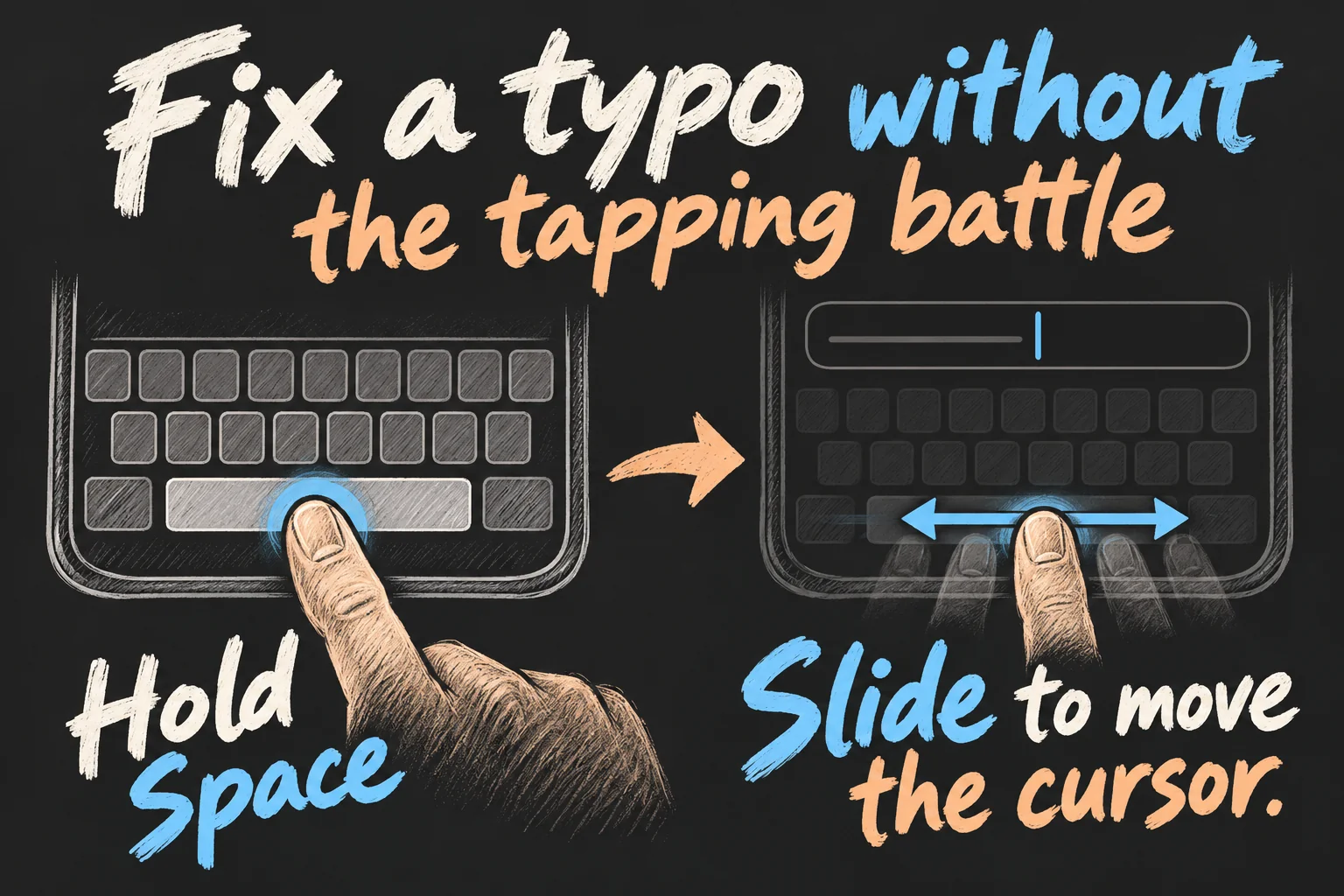
Try this: write a sentence, reposition the cursor in the middle and correct one word. That small task is a better starting test than changing every keyboard preference at once.
What remains different: a replacement iPhone keyboard should not be assumed to include every feature of its Android version. Compare the actual iOS app before relying on a particular number row, clipboard tool or gesture. This guide does not promise a Samsung Keyboard clone.
3. Where did the iPhone notifications go?
If your iPhone notifications appear as a small count or a collapsed stack, try Settings → Notifications → Display As → List. This changes their Lock Screen presentation; it does not make notifications follow every Galaxy behaviour.
To see older alerts, swipe up from the middle of the Lock Screen. From another screen, swipe down from the top-left to open Notification Centre. On a Face ID iPhone, the top-right opens Control Centre instead, so the corner you use matters.
If a particular app still stays quiet, check these separately:
- App permission: Settings → Notifications → the app → Allow Notifications, then choose the alert locations you want.
- Focus: Settings → Focus → the active mode. Review whether that app or contact is allowed.
- Scheduled Summary: if enabled under Notifications, check whether the app is being held for a scheduled delivery.
- The conversation itself: check whether you muted that chat inside the messaging app.
Try this: have someone send a non-sensitive message while the phone is locked, then check the Lock Screen and Notification Centre. If it fails, investigate that app rather than assuming all iPhone notifications are broken.
What remains different: List view is a display preference, not a guarantee that every unread message will stay visible forever. Clearing an alert and marking a message as read are also different actions.
4. Do you have to abandon Chrome and Gmail?
No. Switching from Samsung to iPhone does not require replacing your Google account. Install the iOS versions of the services you use and sign in to the correct account before deciding whether to change your routine.
To choose supported defaults, open Settings → Apps → Default Apps. Browser App lets you choose an eligible alternative to Safari; Email controls which app opens when you follow an email link. Set Chrome and Gmail if they appear as available choices.
Try this: open a normal web link from a message and an email-address link from a website. Then check whether they open where you expected. Also confirm the account used in Chrome or Gmail: installing the right app with the wrong account can make your existing information appear missing.
What remains different: default categories vary by region and app support. Apple’s published guidance lists Navigation defaults for the European Union and Japan; do not assume Australian settings offer the same system-wide Google Maps choice. You can still open Google Maps directly. Some apps also use their own embedded browsers.
Keep the apps that solve your daily tasks first. Changing both the phone and every service at the same time makes it harder to identify what caused a problem.
5. Did the Samsung to iPhone transfer move everything?
Verify the important items individually. Apple’s Move to iOS guidance includes contacts, messages, photos and videos, files, calendars and WhatsApp messages and media. It is not a promise that every app, account session or Samsung-specific setting will be reproduced.
The Move to iOS route takes place during iPhone setup. If you have already finished setting up the iPhone, Apple describes starting again after erasing it or moving content manually. Do not erase a phone that now holds new data just to experiment: first work out what is missing and preserve what is already on it.
There is also a newer app-free transfer route for compatible Android 17 devices. Eligibility depends on the Android device and software; do not assume every Galaxy supports it. WhatsApp’s own Android-to-iPhone instructions still specify its Move to iOS route.
For a WhatsApp transfer, its current guidance requires a new or factory-reset iPhone, updated apps and the same phone number. Select WhatsApp during the transfer, complete its preparation on Android, then install and activate WhatsApp on iPhone and finish the import. Do not simply copy a WhatsApp folder through Files.
WhatsApp says the transfer does not include its call history, and existing new and old chat histories cannot be merged through this process. Its cited route also excludes WhatsApp Business. Transferring chats does not automatically create an iCloud backup.
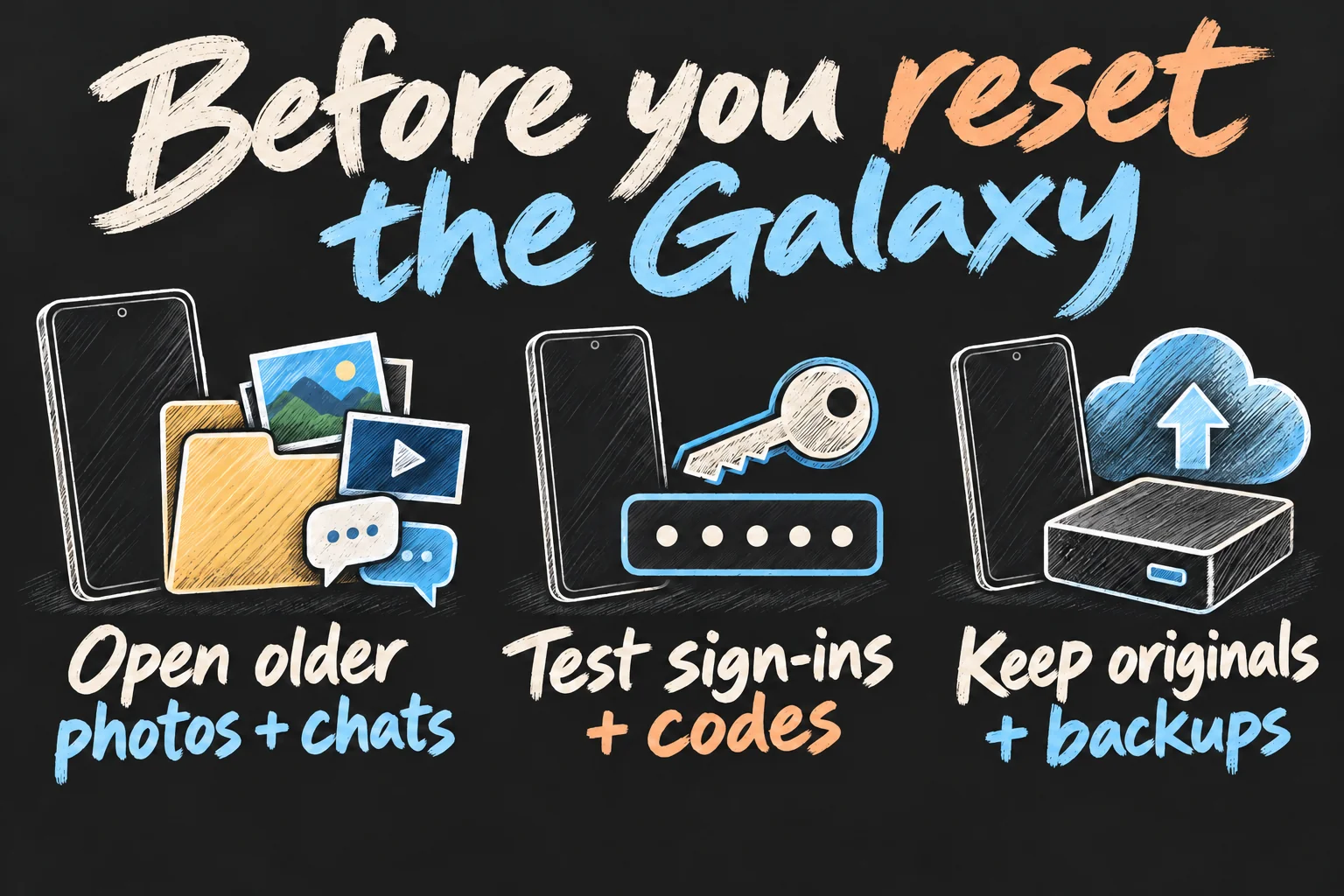
Try this: open an older photo, play an older video, search for a known contact and check an important WhatsApp conversation with its media. If you already use Google Photos, verify the correct account and backed-up items there too; seeing an online library is different from storing every original on the iPhone.
What remains different: the correct route depends on the content and whether the iPhone is already in use. Music, books and PDFs may need separate handling. Keep the original data until the checks pass.
6. Why are passwords and payment cards missing?
A Samsung to iPhone transfer is not the same thing as reconnecting all the services that made the Galaxy convenient. Separate saved logins, verification codes and contactless payment cards.
Reconnect the password provider you actually used
If your logins are saved in Google Password Manager, install Chrome on the iPhone and sign in. Google’s guidance uses Settings → General → AutoFill & Passwords: enable password and passkey autofill, then choose the available Google provider under AutoFill From.
If you used Samsung Pass, check your credentials on the Galaxy before retiring it. Samsung describes Pass for supported Samsung Internet and app logins. Do not assume a Samsung Pass backup file is an iPhone import file, or that installing Chrome brings across credentials stored only in Pass.
For important accounts without a verified import route, sign in or reset through the service itself, then save the login in your chosen iPhone password manager. Review any existing cross-platform manager’s own migration instructions. Do not upload password files to an unknown converter.
Check verification codes separately
Test access to your email and accounts that use an authenticator. Google Authenticator supports account-based code sync and a separate manual transfer route for codes stored without an account. Other authenticators have their own procedures. An app icon appearing on the iPhone does not prove its codes arrived.
Set up an eligible payment card again
Samsung Wallet is for supported Samsung devices. On iPhone, set up supported payment cards in Apple Wallet: open Wallet, use Add Card and complete the issuer’s verification. Availability depends on the card and region; support in Samsung Wallet does not establish Apple Pay eligibility.
Try this: sign in to a frequently used account with the selected autofill provider, confirm access to a two-factor-protected account and finish card verification before relying on the iPhone outside. Keep an alternative payment method available during the changeover.
What remains different: passwords, passkeys, authenticator codes, loyalty cards and digital keys are different items. Treat each required service as its own check, not one automatic wallet migration.
7. Where do downloaded files and attachments go?
Think of Files as your starting place for documents. Open Files → Browse and check iCloud Drive and On My iPhone. Apple’s download guide points to the Downloads folder in iCloud Drive; the location can differ if you changed Safari’s download destination.
If you already use Google Drive or another supported cloud service, install and sign in to its app. Then open Files → Browse → More → Edit and enable the provider. You can keep using that storage rather than relocating every document to iCloud.
Try this: download a harmless PDF, find it in Files, open it and attach it to an email draft. In an app’s attachment menu, choose the document or file option when you need a PDF; the photo picker serves a different purpose.
If the provider is not listed, check its app setup and support. If a file is needed without internet access, use the provider’s available offline option and test it before travelling. A filename visible in a cloud location does not necessarily mean the complete file is already downloaded.
What remains different: Files brings supported locations together, but individual apps still choose their own attachment and export controls. Learn the complete download-to-send task in the apps you use.
When is a remaining difference a deal-breaker?
After switching from Samsung to iPhone, judge the transition by your essential tasks. Can you correct a message, notice the alerts you need, access accounts, pay with a supported method and send the right file?
If one missing Galaxy feature is essential, such as a specific Good Lock workflow, investigate that exact task before committing. A different app may help with part of it, but that does not establish complete feature parity. It is reasonable to prefer the device that supports your routine.
Once the handover is working, our iPhone setup guide covers Find My, Stolen Device Protection and other first-day checks. Those are follow-up preparations rather than substitutes for verifying your transferred accounts and data.
FAQ
Q. Can I make an iPhone behave exactly like my Galaxy?
You can change supported defaults and adjust typing, alerts and file access. Navigation, Samsung-specific integrations and individual app features still differ. Aim to restore the tasks you need rather than copy every control.
Q. Do I need to move everything into iCloud?
No. Supported Google services and other cloud apps can remain part of your routine. Choose deliberately where new photos, documents and backups will live, and check each service’s storage and backup settings.
Q. Can WhatsApp history be added after I have started using the iPhone?
The cited Android-to-iPhone migration requires a new or reset iPhone and cannot merge old and new histories. Preserve new data and review WhatsApp’s current instructions before deciding whether to restart setup.
Q. Why did my iPhone notifications change but messages still arrive late?
List view changes appearance. App permissions, Focus, scheduled delivery and in-app muting can affect alerts separately. Check the particular app and send a test message.
Q. When can I reset the old Galaxy?
After your important data is available, your account and verification access works, and you have backups for what you need. There is no fixed waiting period that replaces those checks.
Sources and Reading Notes
This guide uses official Apple, Google, Samsung and WhatsApp documentation checked on 12 October 2026. It does not report our own timed migration, device testing or a measured rate of switching problems. Illustrations are AI-generated concepts.
- Apple Support and iPhone User Guide: app switching, keyboard input and cursor editing, notifications and Focus, supported default apps, Android migration, downloads, cloud providers in Files and Apple Pay setup.
- Apple Developer Documentation: app-level navigation gestures. Implementation by an individual app does not establish a universal system Back action.
- Google Account Help: iPhone autofill and Google Authenticator sync and transfer.
- Samsung Support: Samsung Pass use and Samsung Wallet device compatibility.
- WhatsApp Help Centre: Android-to-iPhone migration conditions, exclusions and limitations.
MakeUseOf, Android Authority and Android Police were comparative reading for the questions users raise. Their individual experiences are not presented as ours; older interface and product claims were checked against current official instructions.
Prefer reading about Apple in Korean?
 Apple-worldApple news, tips and buying guides in Korean.blog.naver.com/apple-world ↗
1 thought on “Switching from Samsung to iPhone: 7 Frustrations and What Helps”