To factory reset a MacBook before selling it, first verify a backup, then use Erase All Content and Settings if your Mac supports it. Older models need a different route: sign out of Apple services, erase the startup disk in Recovery and reinstall macOS. Finish at Setup Assistant so the buyer can use their own details. Deleting files or reinstalling macOS alone is not the same preparation.
This MacBook selling checklist helps you choose the correct route, avoid deleting synced files from your other devices and hand over a machine that is no longer locked to your account. It applies to a MacBook Air or Pro you own and are preparing for a new owner.
Checked 19 October 2026 against Apple’s current support instructions. This is a research-based guide, not a reset we performed on your device. Erasing permanently removes local data: complete the backup checks before confirming an erase. Menu wording varies with macOS.
1. Back up and check what you will keep
Make a current Time Machine backup or copy the files you need to separate storage. Apple describes both methods in its backup guidance. If you are moving to another Mac, complete the transfer while the old one is still available. Do not treat a backup drive being plugged in as proof that the latest work is saved.
Our practical check is to open a recent document, an older important file and any photo or video library you cannot replace from the backup or new Mac. Check local Downloads and project folders as well as cloud folders. Keep any encrypted-backup password somewhere you can access after the sale, then disconnect the backup drive before erasing.
Do not manually clear iCloud Drive to clean the Mac. Apple explains that changes, including deletions, propagate across devices using that synced storage. A factory reset removes the Mac’s local content through the supported process; deleting synced documents in Finder can also remove the copies you wanted to keep elsewhere.
Before proceeding, make sure you can sign in to your Apple Account without depending solely on this Mac. Also check the sign-out or device-deactivation requirements of paid software you will keep using. Follow each provider’s process rather than assuming a local erase frees every licence.
If this was an organisation-managed Mac, ask its IT team to release it and resolve account locks before you erase it for sale. Apple’s device-release guidance requires erasure and restoration after release; follow the organisation’s handover instructions.
2. Which method should you use to factory reset a MacBook?
| Your Mac | Requirement | Reset route |
|---|---|---|
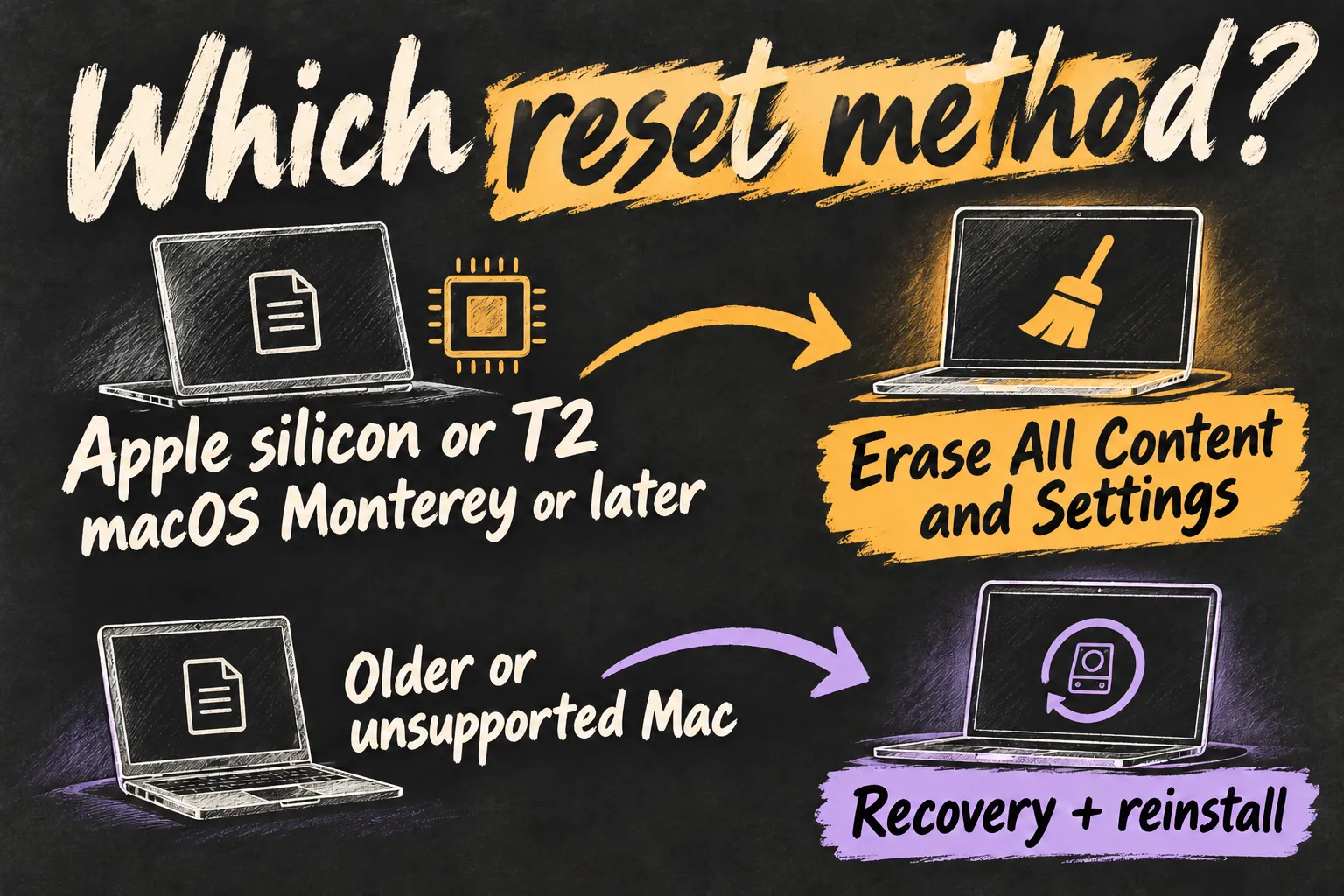
| Apple silicon | macOS Monterey 12 or later | Erase All Content and Settings |
| Intel with Apple T2 Security Chip | macOS Monterey 12 or later | Erase All Content and Settings |
| Intel without T2, or an unsupported installation | Feature unavailable | Manual sign-out, Recovery erase and macOS reinstall |
Check Apple menu → About This Mac for the chip or processor and macOS version. Do not use the purchase year alone: Intel and Apple silicon models overlap in 2020. For Intel MacBooks, Apple lists T2 in Air and Pro models introduced from 2018 to 2020, excluding the M1 models.
To check T2 directly, hold Option while opening Apple menu → System Information, then look under Controller or iBridge. Apple T2 chip in the details confirms it. A newer macOS installation does not add T2 hardware to an older Mac.
If your Apple silicon Mac still uses Big Sur or Erase Assistant cannot run, consult the fallback note below. Do not start deleting unfamiliar volumes just because a generic tutorial says to select the top disk.
3. Use Erase All Content and Settings on supported Macs
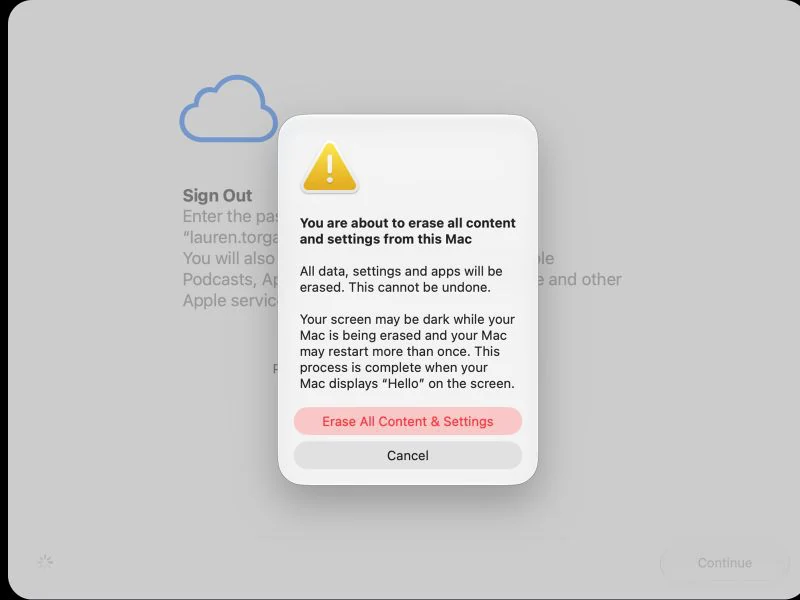
This is the simpler route. Apple’s Mac User Guide says Erase Assistant signs out of Apple services, removes user accounts and installed apps, and turns off Find My and Activation Lock. Apple also states that it keeps the currently installed operating system. It does not require a separate macOS reinstall after a successful erase.
- On macOS Ventura 13 or later: open Apple menu → System Settings → General → Transfer or Reset → Erase All Content and Settings.
- On macOS Monterey 12: open System Preferences, then use the System Preferences menu in the menu bar → Erase All Content and Settings.
- Follow Erase Assistant. The Mac administrator password is your local login password; the Apple Account password is for your account. Supply each only when the assistant requests it.
- Review what will be removed. Once the backup is verified and you are ready, confirm the final erase button. Allow the restarts to finish.
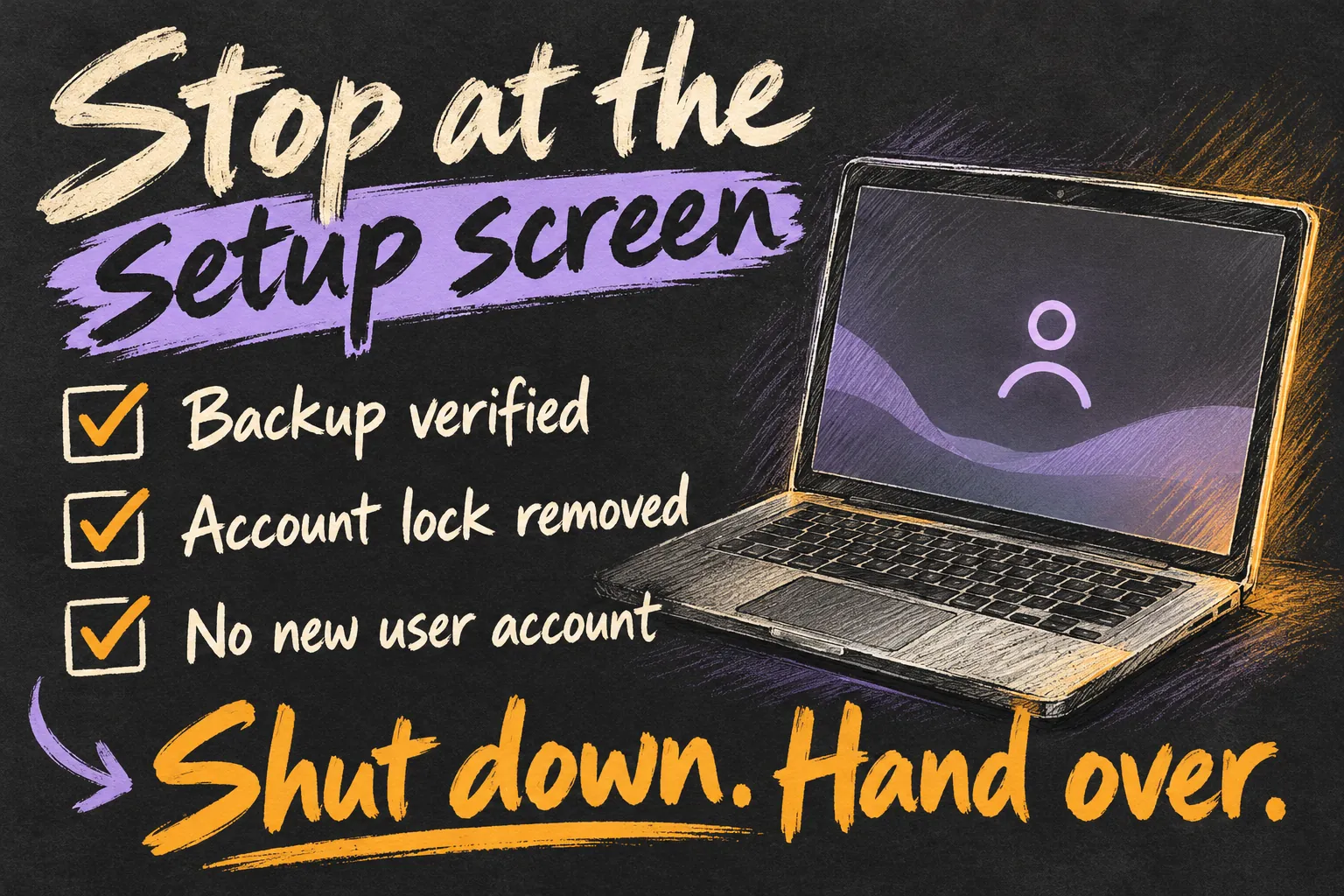
- Connect to Wi-Fi or Ethernet if requested for activation. When Setup Assistant appears, stop: do not create another user or sign back in. Apple’s current erase guide says to hold the power button to turn the Mac off at this stage.
If the Mac has been repaired, or you are unsure, Apple asks users of Apple silicon with macOS 26 or later to check for an unfinished repair before erasing. Look in System Settings → General → About → Parts & Service if that section appears. Resolve a pending Restart & Finish Repair prompt with Repair Assistant or the repair provider.
If Erase Assistant reports that other volumes must be removed and you installed Windows through Boot Camp, Apple directs you to remove Windows with Boot Camp Assistant. Follow that specific prompt and Apple’s partition instructions instead of improvising in Disk Utility.
4. Older Intel Mac: sign out, erase and reinstall
Use this branch when the supported erase feature is unavailable. First sign out of iCloud in the account section of System Settings or System Preferences. Then open Messages → Settings or Preferences → iMessage → Sign Out. On systems earlier than Catalina, Apple also calls for iTunes → Account → Authorisations → Deauthorise This Computer.
If Find My remains enabled on a Mac that supports Activation Lock, turn it off using your Apple Account password before handover. Unpair Bluetooth accessories you are keeping if they will remain nearby; keep the built-in keyboard and trackpad available to finish the reset.
- Enter Intel Recovery: shut down, turn the Mac on and immediately hold Command-R until an Apple logo or globe appears. Complete any network and authorised-user prompts.
- Choose Disk Utility → Continue. Select the internal startup volume, normally Macintosh HD. Check the target carefully; your backup drive should be disconnected.
- Click Erase. Name it Macintosh HD and use APFS or Mac OS Extended (Journaled), as recommended by Disk Utility for that Mac. Click Erase Volume Group if offered; otherwise click Erase. Deal with any extra internal volumes you created using Apple’s model-specific instructions.
- Quit Disk Utility. Select Reinstall macOS, choose Macintosh HD if asked and follow the installer. Keep power and internet connected and let installation finish without closing the lid.
- At Setup Assistant, press Command-Q and choose Shut Down rather than entering your own details again.
For this manual Intel route, Apple recommends a final NVRAM reset: switch on and immediately hold Option-Command-P-R for about 20 seconds. At Setup Assistant again, use Command-Q to shut down. The NVRAM key combination is not needed on Apple silicon; Apple says a successful supported Erase All Content and Settings process replaces the separate manual preparation steps.
Apple silicon fallback: complete the same manual Apple-service sign-outs, then shut down, hold the power button until startup options appear, then choose Options → Continue. Use Apple’s silicon-specific Disk Utility instructions: Macintosh HD, APFS, and Erase Volume Group if offered. Complete activation and return to Recovery Utilities to reinstall macOS. The detailed disk workflow differs from Intel, so use the correct Apple support article listed in the reading notes if your volumes or prompts do not match.
Reinstalling is not erasing. Apple says a normal macOS reinstall preserves apps and personal data. In the manual reset route, the disk erase is a separate operation. Command-R normally reinstalls the most recently installed macOS; Intel Internet Recovery with Option-Command-R may offer the latest compatible version, rather than necessarily the original shipping OS.
5. Finish the MacBook selling checklist before handover
A welcome screen is the right place to stop setup, but it is not a reason to ignore an ownership-lock prompt. Activation Lock is separate from having files on the disk. A remotely erased Mac can still remain locked until the account association is removed.
| Final check | Ready to hand over when… |
|---|---|
| Your files | You verified the backup or transfer and kept the backup drive. |
| Account lock | The supported account-removal process finished and no unresolved previous-owner activation request remains. |
| Startup | macOS is installed and Setup Assistant appears without you creating a fresh personal user. |
| Other storage | SD cards, USB drives and personal peripherals are removed. |
| Sale details | The model, included accessories and any known faults match what you told the buyer. |
If you forgot to remove Activation Lock, Apple’s supported route is to turn off Find My or, for an offline Mac, select it in Find Devices on iCloud.com → Remove. Do this through your own account. Do not give the buyer your account password. If you cannot recover account access, Apple offers an Activation Lock support request with proof of purchase.
For a former work or university Mac, ask the organisation to confirm its management release before sale. Apple documents organisation-controlled device release separately. If setup shows Remote Management, resolve it with the organisation; repeating a personal factory reset is not a reliable substitute for that release.
Keep a simple private record of the handover and the agreed accessories. If AppleCare is attached, check Apple’s cancellation or transfer options. You do not need to set up the buyer’s account for them. If you are selling to fund an upgrade, compare your replacement before handing this Mac over. Our MacBook Air vs Pro buying guide helps match the next laptop to the work you actually do.
FAQ
Q. Do I need to sign out of everything before I factory reset a MacBook?
On a supported Mac, Erase Assistant handles Apple-service sign-out and Find My removal as part of its process. Check paid software separately. If you use the older manual route, complete the Apple-service sign-outs before erasing.
Q. Why can’t I find Erase All Content and Settings?
It requires Apple silicon or T2 hardware and macOS Monterey 12 or later. Monterey uses the System Preferences menu bar rather than the newer System Settings path. Use the appropriate Recovery route if the feature cannot be used.
Q. Will a factory reset delete the files in my iCloud Drive?
Do not delete synced files manually in Finder: those changes can sync elsewhere. Verify the cloud copies and any separate backup, then use the supported local reset process.
Q. Should I log in again to check that the Mac works?
For sale preparation, leave it at Setup Assistant after activation or reinstall completes. Resolve any account-lock or management prompts, then shut down. The buyer should create the next user account.
Sources and Reading Notes
Apple Support and the Mac User Guide: preparing a Mac for sale; Erase All Content and Settings; backup options; T2 identification; Intel and Apple silicon Recovery and Disk Utility procedures; macOS reinstallation; NVRAM; Activation Lock; Repair Assistant; iCloud Drive synchronisation; and organisation-controlled device release. Checked 19 October 2026. The erase and sale-preparation support pages were updated in September 2026.
9to5Mac, MacRumors and Swappa guides were reviewed for search intent and layout benchmarking. Procedural details here follow Apple’s current instructions where older articles differ, including hardware eligibility, the operating system retained by Erase Assistant and volume-group handling. No device was erased or independently recovery-tested for this article.
Interface checked 1 November 2026. Credit: Apple Support, Erase your Mac and reset it to factory settings.