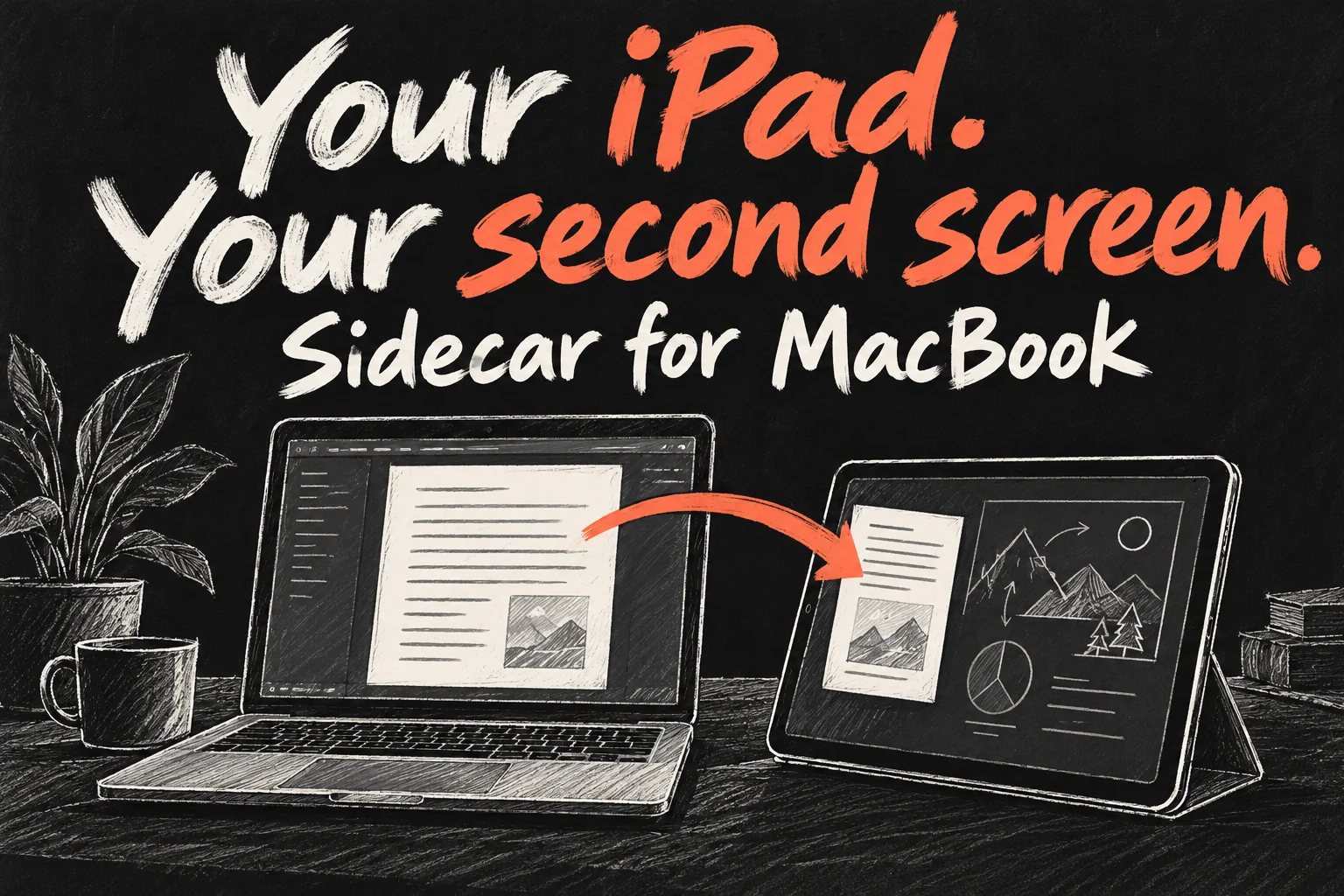
You can use an iPad as a second monitor for your MacBook with Apple’s built-in Sidecar feature. On a compatible pair, it can give you extra room for a reference document, spreadsheet or browser window without buying another display or a separate display app.
The important choice is Extend. Mirroring repeats your Mac screen, while Universal Control shares a keyboard and pointer with the iPad’s own apps. If you want to drag a Mac window onto the tablet, start with Sidecar and an extended desktop.
This guide covers supported devices, five setup steps and a practical troubleshooting order. It is based on Apple’s current documentation, checked on 20 October 2026; the workflow suggestions are advice rather than our own latency or display-quality tests.
Can your iPad work as a second monitor?
Check the model before buying a cable or an app. Apple’s Sidecar compatibility list is broader than the M-series iPad range: an iPad does not need an M chip simply to become a Mac display. Hardware eligibility and software eligibility both matter.
| Device | Apple’s Sidecar baseline |
|---|---|
| MacBook Air | Introduced in 2018 or later; macOS Catalina 10.15 or later |
| MacBook Pro or 12-inch MacBook | Introduced in 2016 or later; macOS Catalina 10.15 or later |
| iPad | 6th generation or later; iPadOS 13 or later |
| iPad Air | 3rd generation or later; iPadOS 13 or later |
| iPad mini | 5th generation or later; iPadOS 13 or later |
| iPad Pro | All models; iPadOS 13 or later |
Both devices also need the same Apple Account with two-factor authentication. A recent iPad signed into a different account is not a qualifying pair just because it sits next to the Mac. For a university- or employer-managed device, check the organisation’s account and device policies before changing anything.
These are baseline requirements, not an instruction to install an old operating system. Use current updates supported by your devices. Features available on newer software, including expanded touch support, should not be assumed to exist on every older compatible pair.
iPad as a second monitor: 5 easy setup steps
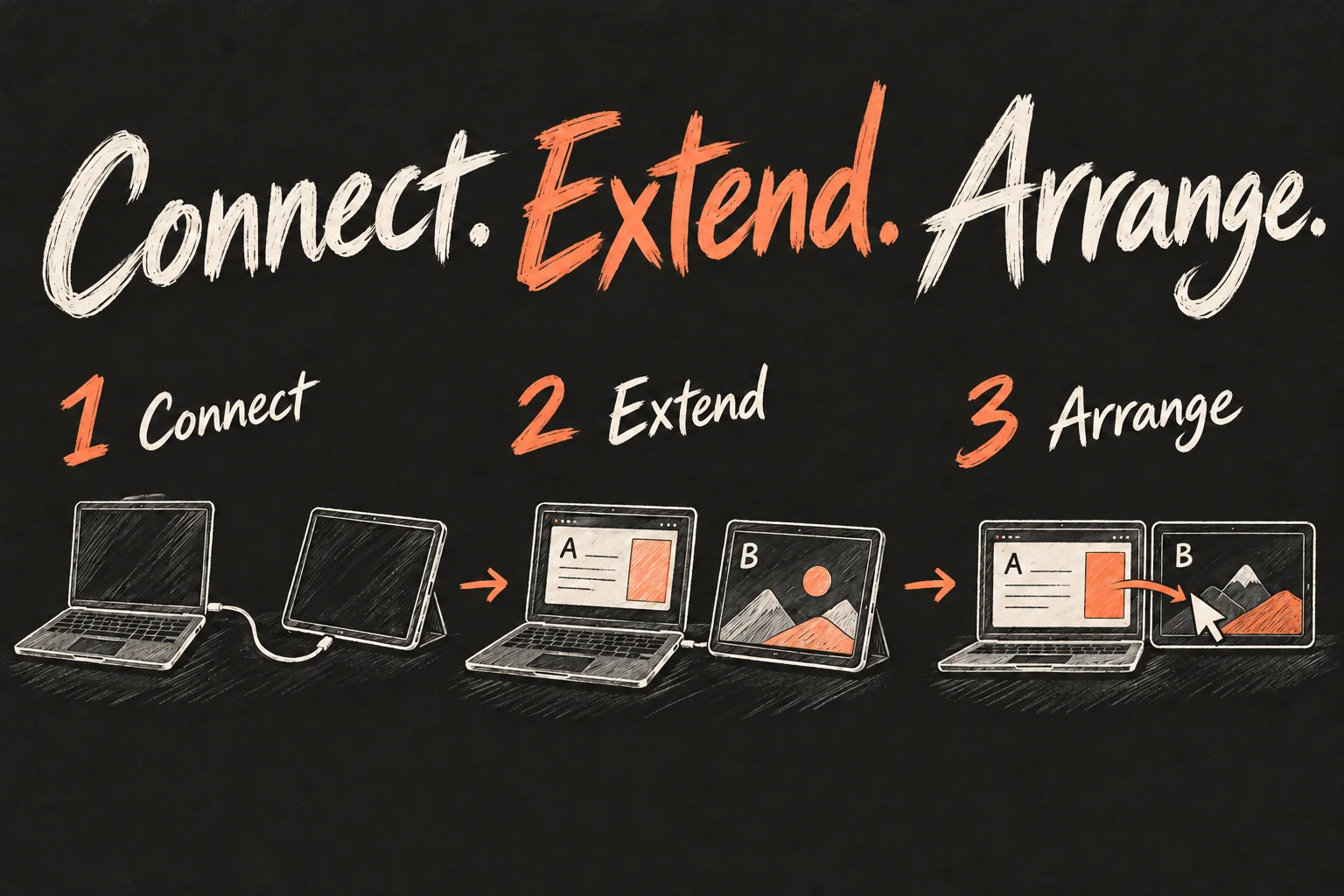
- Prepare both devices. Wake and unlock the iPad, then check the Apple Account on both devices. For a wireless setup, enable Wi-Fi, Bluetooth and Handoff, keep the devices nearby and start on the same Wi-Fi network. Avoid sharing the iPad’s cellular connection or the Mac’s internet connection during the wireless session.
- Open Displays on the Mac. Choose Apple menu → System Settings → Displays. On older macOS versions the equivalent starts in System Preferences. You are configuring the Mac’s display output; you do not need to find a Sidecar app in the App Store.
- Add the iPad as a display. Open the Add Display menu, sometimes shown as a plus, and select the iPad under the option to mirror or extend. Choosing a keyboard-and-mouse link instead starts a different workflow.
- Choose an extended desktop. Select the iPad in Displays and use the available “Use as” options to choose an extended display. If both screens show the same content, check this setting before treating the connection as broken.
- Arrange the displays and move one window. Use Arrange to place the iPad on the same side as it is on your desk. Drag a Mac window across that edge, or use the window’s full-screen button menu to move it to the iPad.
Make the first test deliberately simple: keep your writing app on the MacBook and place one reference window on the iPad. Move the pointer across the shared edge and back. If the pointer leaves on the wrong side, fix the arrangement rather than changing cables or reinstalling software.
The best starting point for an iPad as a second monitor is one useful supporting task. A small tablet crowded with three tiny windows can recreate the problem you were trying to solve. Increase text size or simplify the layout if you have to lean forward to read it.
Wireless or USB: which connection should you try?
Wireless Sidecar avoids another cable, but Apple specifies a distance of no more than 10 metres, with Wi-Fi, Bluetooth and Handoff enabled. That is a maximum operating condition, not a reason to put the tablet across the room. Keep it next to the MacBook for the initial test.
USB is a sensible alternative when you want to keep the iPad charged. Connect it directly using a suitable cable and approve the Trust prompt on your own devices when requested. The same Apple Account requirement still applies; adding a cable does not turn an unsupported iPad into a supported one.
For a long library or home-office session, my starting choice would be a cable and a stable stand. For a short task at a cafe, wireless may be more convenient. Those are practical trade-offs, not a guarantee that USB is always faster or that either route will be free of interruptions.
If wireless works badly but a direct USB test works, you have narrowed the investigation toward the wireless environment. Test one variable at a time. A cable that only supplies power, an unapproved Trust prompt and a wireless discovery problem are different faults.
Extend, mirror or Universal Control?
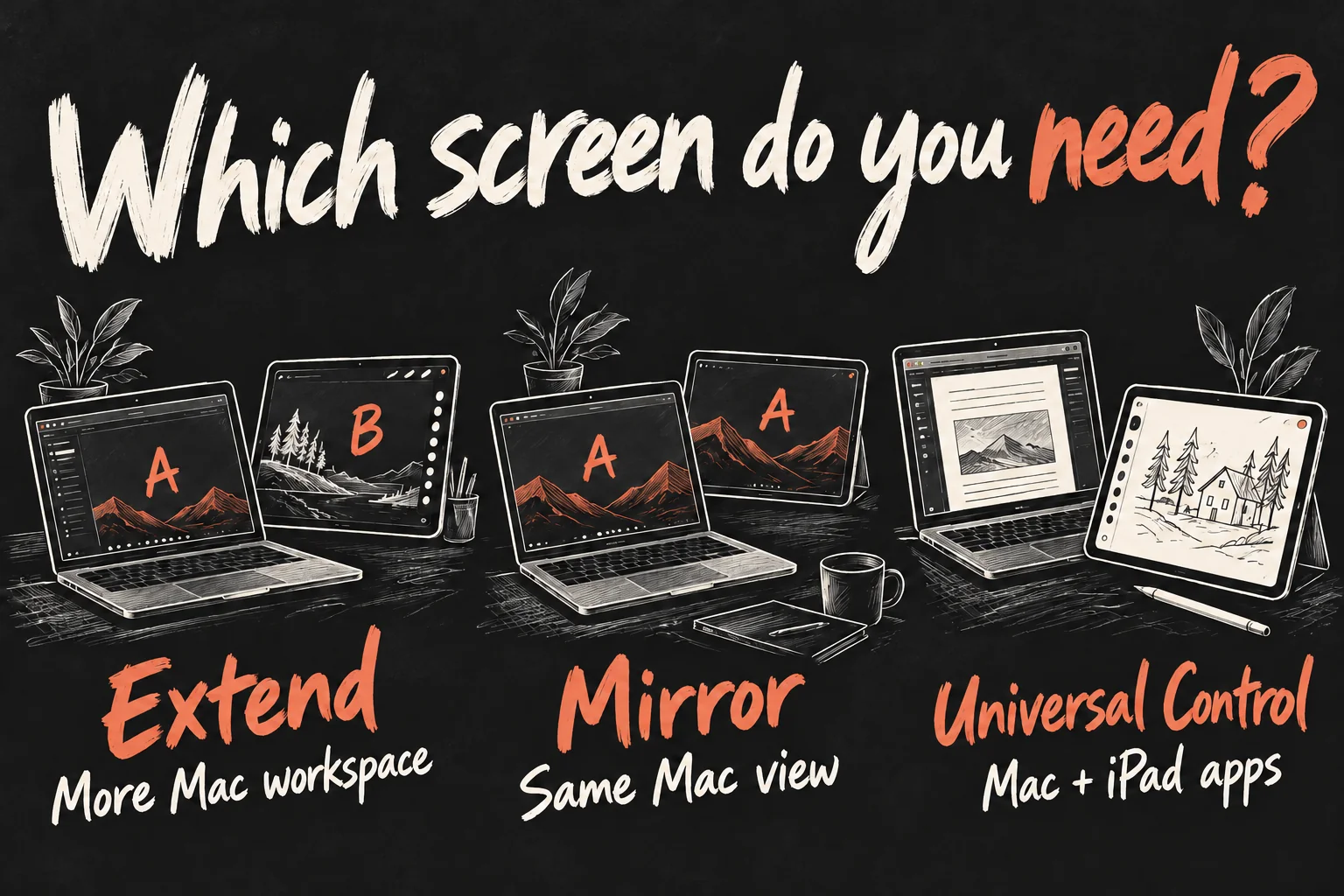
| What you want | Choose | What stays on the iPad |
|---|---|---|
| Keep a Mac reference window beside your main work | Sidecar: Extend | An additional part of the Mac desktop |
| Show someone the same Mac content | Sidecar: Mirror | The same Mac view |
| Type in an iPad app using the Mac keyboard | Universal Control | The iPad’s own Home Screen and apps |
Universal Control is useful when the iPad app itself is the reason you have the tablet beside you. For example, you might want an iPad note-taking app beside a Mac browser. That does not create another Mac desktop, and dragging a Mac window toward the iPad is not the same as dragging a file between supported apps.
Sidecar also does not install macOS on the iPad. The Mac still runs the Mac apps. Think about which app needs to be on the extra screen before deciding whether you want an iPad as a second monitor or two devices sharing an input setup.
If your goal is to work on the tablet while leaving the MacBook at home, our guide to using an iPad as a laptop tackles that separate question. Sidecar is the better starting point when the MacBook remains part of the setup.
Can you use touch, Apple Pencil and the iPad’s own apps?
Check both operating-system versions before following an older tutorial. Apple’s September 2026 guidance says iPadOS 27 with macOS 27 expands touch interaction with Mac windows and menus. Older versions offer more limited gestures, so an old blanket claim that Sidecar has no touch interaction is no longer a reliable description of every setup.
A compatible Apple Pencil can interact with Mac content on the iPad, including drawing and marking up documents in suitable apps. It is optional for a basic extra-screen workflow. Start with the MacBook’s own keyboard and trackpad before buying another accessory.
You can switch to an iPad app during a Sidecar session, but the Mac display session pauses until you return. If you need an iPad-only app visible all the time, consider Universal Control instead of repeatedly switching in and out of Sidecar.
Sidecar not working? Check the symptom first
| Symptom | Check next |
|---|---|
| The iPad never appears | Compare exact models, software versions and Apple Accounts first. Then check wireless prerequisites and bring the devices together. |
| The connection appears, but the view is duplicated | Choose Extend in Displays if you want additional workspace. Mirroring can be a successful connection in the wrong mode. |
| The pointer moves the wrong way | Match the display arrangement to the physical left/right position. |
| Wireless is unreliable | Try a direct USB connection, then investigate interference and network conditions. |
| USB charges the iPad but does not establish Sidecar | Check cable data capability, unlock the tablet and respond to the Trust prompt. |
| A work or university setup behaves differently | Ask the administrator about device, account and local-network restrictions. Do not remove required security controls. |
Apple also advises checking whether a VPN configuration blocks local networking. On a managed Mac, ask the administrator for an allowed configuration rather than disabling protection. Restart and update the devices if the basic checks pass, then test again with one simple Mac window.
Avoid resetting accounts, erasing a tablet or buying a display app as your first response. Record the model names, macOS and iPadOS versions, connection type and exact symptom. Those details make a support request far more useful than “my iPad will not connect”.
Is an iPad a good alternative to a portable monitor?
If you already own a compatible iPad, test it with the tasks you actually do. A reference PDF beside an essay, a preview beside an editor or a checklist beside a browser are reasonable trial layouts. Spend a normal work session with one before deciding that you need more hardware.
Buying an iPad only for this job needs a separate cost comparison. Consider the screen area you want, a stand, charging, your available ports and whether a dedicated display would suit the desk better. An iPad’s value is easier to justify when you will also use it as a tablet; a premium model is not automatically necessary for Sidecar.
For an Australian university student choosing a tablet for several roles, our iPad A16 vs Air student guide looks at the study decision. Choose the tablet for the whole workload, then treat the extra display as one useful feature.
Frequently asked questions
Is Sidecar free?
It is built into supported Macs and iPads. You do not need to buy a separate Sidecar app, although you still need compatible hardware and an appropriate setup.
Do I need an iPad Pro or Apple Pencil?
No. Several standard iPad, Air and mini generations qualify. Apple Pencil is optional; check the device table before spending money.
Can I use a different Apple Account over USB?
USB does not remove Apple’s same-account requirement. Check the accounts before diagnosing the cable.
Why is the iPad just copying the MacBook screen?
The session is probably mirroring. Select the iPad in Displays and choose an extended desktop for different windows on each screen.
Sources and Reading Notes
Apple Support: Use an iPad as a second display for a Mac; Continuity features and requirements for Apple devices; iPad User Guide, Use your iPad as a second display for your Mac; Mac User Guide, Use your iPad as a second display; Use one keyboard and mouse to control Mac and iPad. Checked 20 October 2026. Menu labels and feature availability vary with software version. Images are original AI-generated explanatory sketches, not Apple product photographs or screenshots.