A MagSafe SSD for iPhone can help you keep a 256GB phone for longer by moving older photos and videos into an external archive. It can also cost much less than choosing 512GB when buying a new phone. The catch: it does not expand the internal space available to iOS, games or installed apps.
256GB is not automatically too small. If your everyday apps fit comfortably and old camera footage is the main space hog, a regular export routine can make it workable. Here is the Australian price comparison, what a magnetic SSD actually does, and how to free space without losing the only copy of your photos.
1. Is 256GB enough for your iPhone? Check what fills it
Open Settings → General → iPhone Storage before shopping. Look at the largest categories and individual apps. A phone full of holiday videos needs a different solution from one filled with games, offline streaming downloads and app data.
- Mostly old photos and videos: an SSD archive can free substantial room once you have verified and backed up the exported files.
- Mostly apps and games: an SSD will not let you install those apps externally. Remove unused downloads, offload suitable apps or consider more internal storage.
- You want every photo available in Photos: iCloud Photos with Optimise iPhone Storage may suit you better, provided you have enough cloud storage and accept the subscription and internet requirements.
Think of 256GB as your working space rather than your entire lifetime archive. Keep recent trips, current projects and favourite photos on the phone; move completed material elsewhere. Leave room for new recordings, downloads and updates instead of planning to fill every last gigabyte.
2. What does a MagSafe SSD for iPhone actually do?
A magnetic SSD combines external flash storage with a mount that sticks to a compatible phone or case. The magnets hold it in place; a USB cable transfers the files. It is not wireless storage, and the magnetic attachment does not mean it charges the phone.
After connecting a compatible drive, you browse its files in Files or another supported app. Your iPhone remains a 256GB iPhone. Adding a 256GB SSD gives you a separate storage location, not one seamless 512GB pool. Exported files also do not remain a fully integrated Photos library with all the same album and search behaviour.
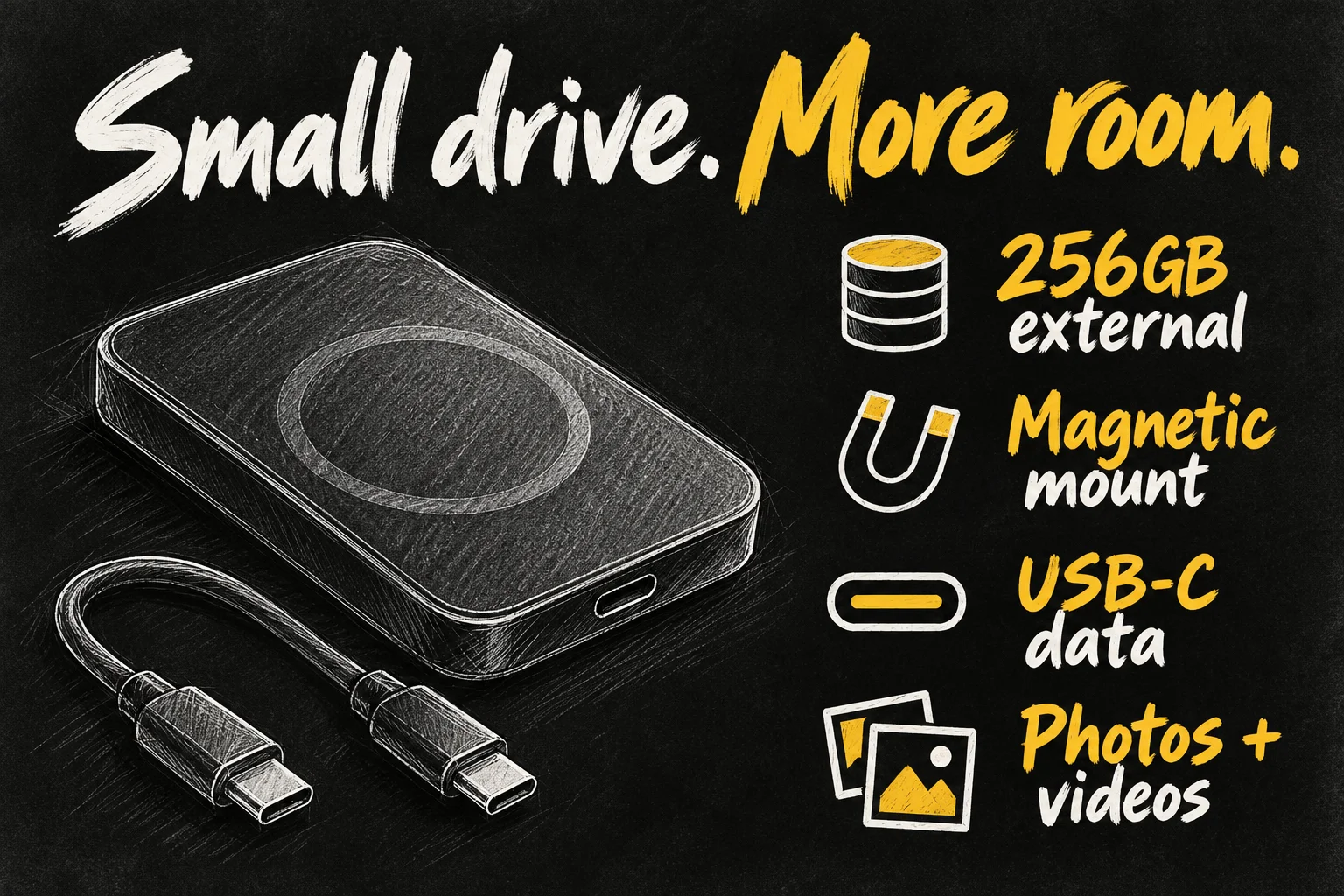
For this comparison, the example is the ORICO K5mini 256GB listed on Amazon Australia: a complete magnetic SSD with a USB-C/USB-A cable, rather than an empty enclosure. The listing specifies a metal body, 59g weight and read speeds up to 460MB/s. These are seller-listed specifications, not our measured results. An enclosure-only bargain needs a separate compatible SSD before it can store anything.
This guide focuses on USB-C iPhones. Lightning models can require adapters and additional power; verify the exact drive and adapter combination instead of assuming that every magnetic accessory will work. A compatible case also matters: a weak magnetic connection can make a hanging drive and cable awkward.
3. iPhone 256GB vs 512GB: is a 256GB SSD cheaper?
Using the same iPhone 17 model keeps the comparison fair. On 20 October 2026, Apple Australia listed the 256GB version at A$1,549 and the 512GB version at A$1,949: a A$400 storage upgrade. These are the current store prices checked for this article, not the launch prices or a carrier promotion.
| Option | Price checked | What you get |
|---|---|---|
| iPhone 17 256GB | A$1,549 | 256GB internal storage |
| iPhone 17 512GB | A$1,949 | 512GB internal storage |
| ORICO K5mini 256GB SSD | A$89.99 | Separate 256GB external drive |
| 256GB iPhone + 256GB SSD | A$1,638.99 | 256GB internal plus external file storage |
At those prices, the phone-plus-SSD route costs A$310.01 less upfront. The arithmetic is A$400 − A$89.99. Amazon also displayed a 10% coupon, which would bring the drive to A$80.99 if eligible, but the main comparison uses the ordinary displayed price so it does not depend on a coupon.
The Amazon listing was in stock, sold by ORICO G.O.A.T AU OFFICIAL STORE and shipped by Amazon, with free delivery displayed for the postcode checked. Prices, seller, coupon eligibility and delivery vary; confirm the checkout total. Any extra adapter, replacement cable or second backup drive reduces the saving. This is a cost illustration, not a claim that the two storage arrangements offer the same convenience.
If you already own the 256GB iPhone, the useful decision is simpler: would spending about A$90 solve your photo-storage problem? The A$400 comparison describes a choice when purchasing a new phone; you cannot upgrade an existing iPhone’s internal capacity by paying Apple that difference.
Before buying a new phone, also compare retailer discounts on each capacity. Our guide to buying an iPhone cheaper in Australia covers ways to reduce the handset price. A discounted 512GB model can narrow the gap.
4. How to move iPhone photos to an external SSD safely
- Connect the drive with a data-capable cable. Open Files → Browse → Locations and confirm that the drive appears.
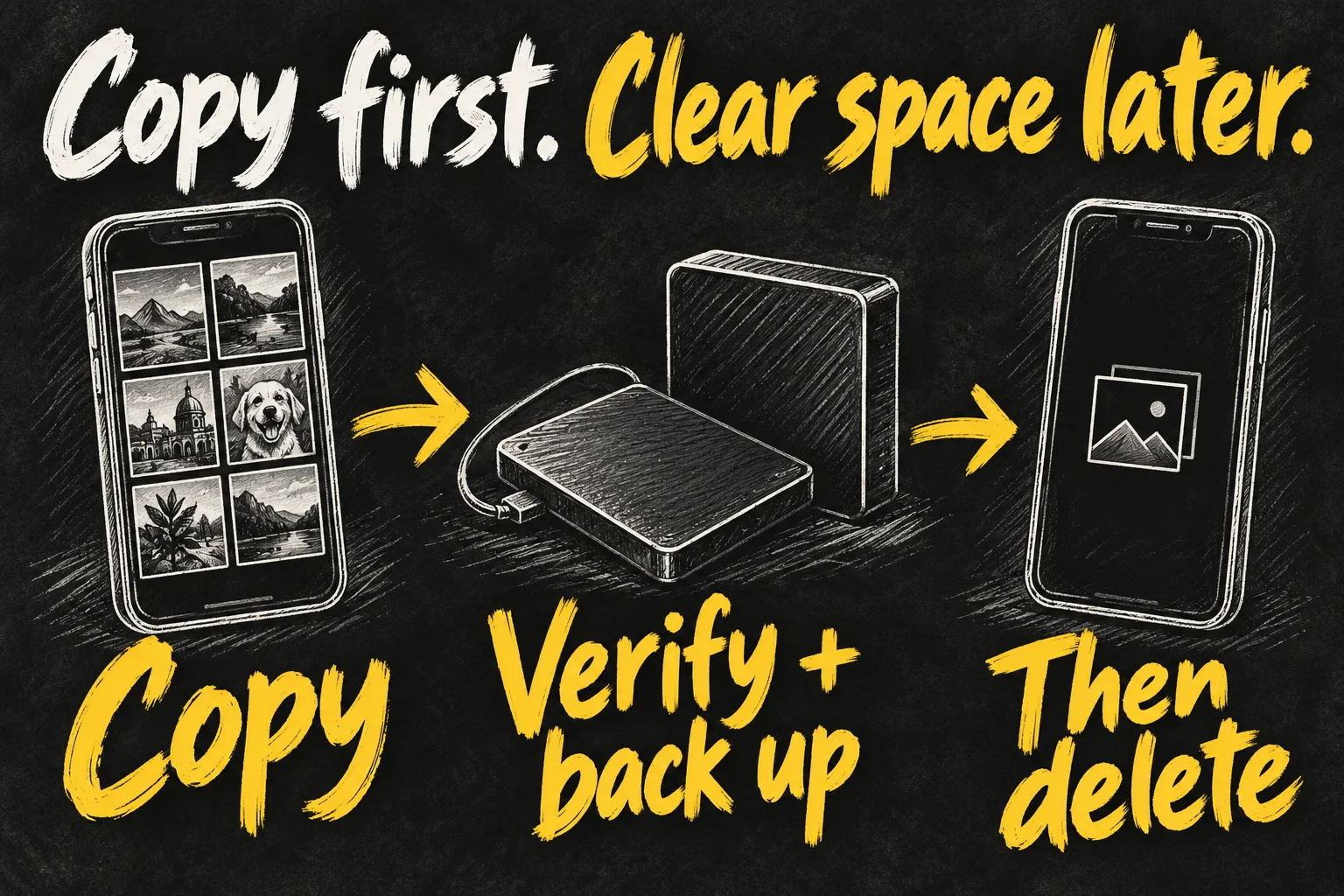
- Start with a small test batch. In Photos, select the photos or videos, tap Share, then Export Unmodified Original. Choose the external drive and save. This exports the original version, so preserve edited versions separately if you need those too.
- Wait for completion, then open the saved files from the SSD. Play videos and check important items, not just thumbnails. Organise exports into dated folders so you know what has been copied.
- Make a second independent copy on another drive or computer. Once the phone copy is deleted, one SSD alone is your only copy, not a resilient backup.
- Only after checking both copies should you delete the intended items from Photos. Recently Deleted can continue to hold them; permanently clearing it removes that recovery option, so do so only when you are certain.
If iCloud Photos is on, deleting a photo from the library also deletes it from iCloud and your other synced devices. An exported file on a separate SSD remains separate, but check it first. Do not treat the iCloud library as the backup that will rescue a deliberate synced deletion.
Cloud-only originals can also complicate exports when the phone is nearly full. Apple’s archive instructions include downloading originals. Avoid trying to download an entire large library onto an already-full phone; work in manageable batches or download through a computer with enough free space. An SSD does not remove every temporary-space requirement during transfer.
5. What to check before buying a magnetic SSD
- Actual capacity included: choose a complete drive, or include the cost of the SSD if buying an enclosure.
- Cable and phone speed: USB-C is a connector, not a guarantee of high transfer speeds. The standard iPhone 17 supports USB 2 data speeds up to 480Mb/s, so it cannot reach a drive’s advertised 460MB/s. Megabits and megabytes are different units.
- Format and power: Apple supports a single data partition and formats including exFAT. ExFAT is useful when moving files between Mac and Windows. Formatting erases existing data, so back it up first. Some drives need a powered hub.
- Mounting and handling: check case compatibility, cable strain and whether the attached drive blocks another accessory.
- Recording versus archiving: copying existing videos is different from recording directly to SSD. Supported ProRes recording depends on the iPhone model, app, sustained write speed, cable and power draw. A quoted read speed does not establish recording reliability.
Do not buy this budget example solely because a marketplace title mentions 4K or 120fps. We have not tested its sustained writing or heat behaviour. For demanding direct recording, check Apple’s requirements for your exact model and the drive maker’s tested compatibility. For ordinary photo archiving, a reliable connection and a repeatable backup routine matter more than headline speed.
Who should keep 256GB, and who should buy 512GB?
Keep 256GB and consider an SSD if the phone otherwise works well, old media is the main problem, and you are comfortable exporting occasionally. The drive can later move between your phone and computer, so its usefulness is not tied to one handset.
Choose 512GB if you want a large library always available inside the phone, install many large apps, capture lots of footage before you can offload it, or know you will not maintain an archive. You are paying for convenient internal capacity as well as more gigabytes.
A MagSafe SSD for iPhone makes 256GB more practical for the right workflow. It is an economical way to carry and archive files, provided you are willing to manage those files. It should help you avoid an unnecessary phone upgrade, rather than persuade you that external storage has no trade-offs.
Frequently asked questions
Can I install iPhone apps on a MagSafe SSD?
No. Treat it as external file storage. It does not increase internal space for installed apps or iOS.
Do I need MagSafe to use an external SSD?
No. A compatible ordinary external drive can connect by cable. The magnetic mount mainly makes carrying the attached drive easier.
Does copying photos to SSD remove them from my phone?
No. Exporting creates copies. You must manage the originals separately after verifying the archive and its backup.
Is 256GB plus a 256GB SSD the same as a 512GB iPhone?
No. They are separate storage locations with different app access and convenience. Actual usable capacity is also lower than advertised nominal capacity.
Sources and Reading Notes
Apple Australia: iPhone 17 purchase page and technical specifications. Apple Support: Connect external storage devices to iPhone; Import and export photos and videos; Archive or make copies of iCloud information; Manage photo and video storage; Manage iCloud storage; About Apple ProRes. Amazon Australia: ORICO K5mini 256GB listing, ASIN B0FLNTH7FV. Prices and listing details checked 20 October 2026.
This is a documented workflow and price comparison, not a hands-on SSD review. Product specifications and compatibility claims are attributed to their sources. No affiliate links are included. Illustrations explain concepts and do not reproduce official product photographs.