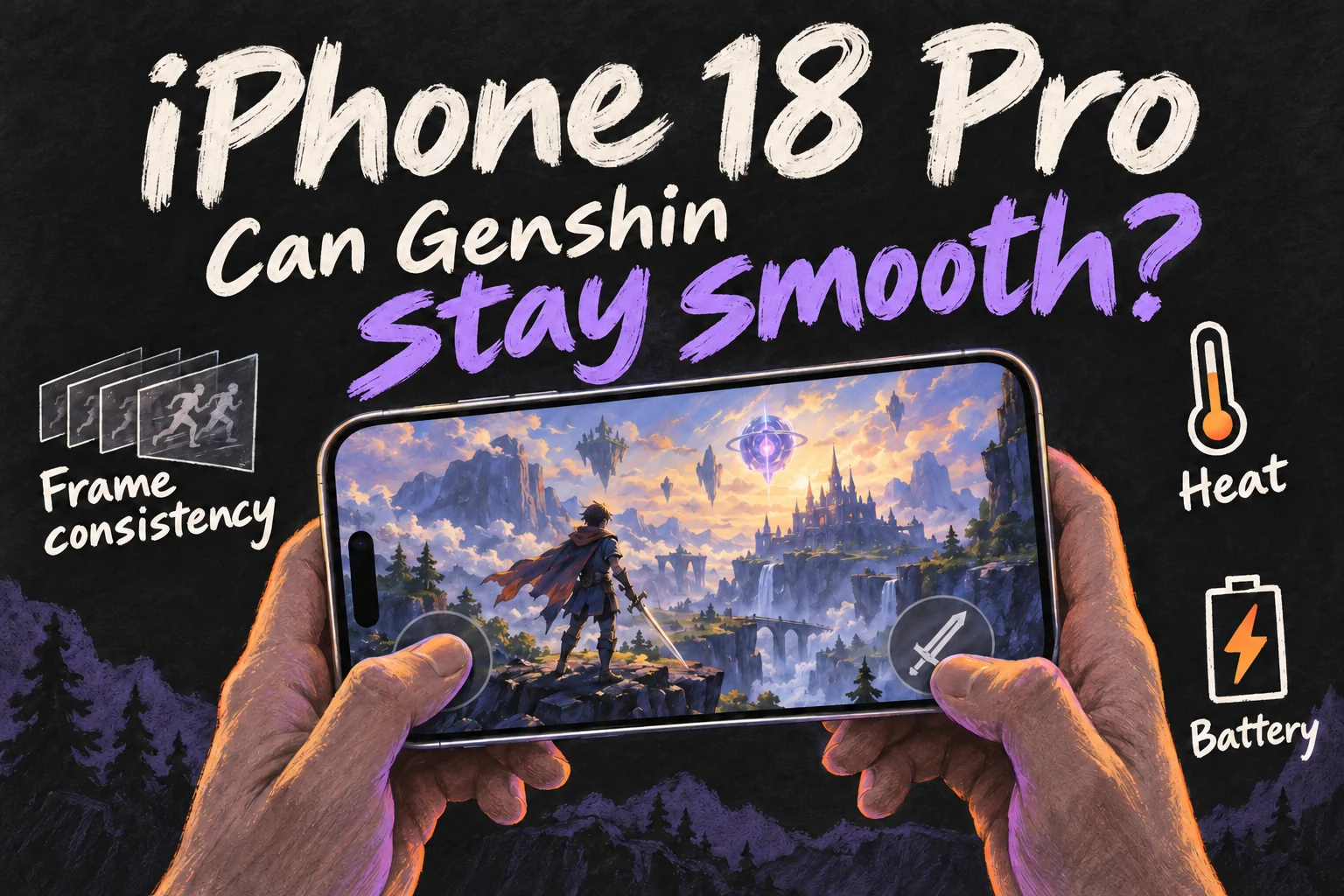
For iPhone 18 Pro gaming, published Genshin impressions are encouraging, but they do not establish a guaranteed frame rate or sustained performance in your own settings. Judge an upgrade by frame consistency, heat, battery use and handling across a session.
This guide separates reviewer observations from logged benchmarks and explains what test conditions to look for. Apple and developer guidance were checked on 10 October 2026. We have not run a hands-on gaming test; reported results belong to the named reviewers.
What do gaming reviews actually show?
In her Tech Advisor iPhone 18 Pro review, Emma Rowley reported that Genshin ran easily and the phone barely warmed up during her play. That is an encouraging observation from the smaller Pro. The article does not specify a Genshin frame-rate log, graphics preset or session length.
Geek Culture’s gaming article also reports solid Genshin performance, alongside Zenless Zone Zero and Delta Force. Its device was the Pro Max, and the accompanying test is described as short bursts with temperature checks. Use it as a look at that model in action.
The hardware gives those impressions a plausible basis. Apple’s A20 Pro and thermal-system announcement claims an improvement of up to 40% in sustained performance over the previous generation. That is a manufacturer comparison, rather than a measured Genshin gain.
For a purchase driven by long RPG sessions, look for the same model playing your game for roughly as long as you do. A review of a short exploration run answers a different question from a series of demanding fights.
What would 120fps really give you?
Apple lists ProMotion with an adaptive refresh rate up to 120Hz. Refresh rate describes how often the screen updates. Game fps describes how many frames the game renders each second. A 120Hz display does not make every game render at 120fps.
There are three things to check: the frame-rate option offered by your current game version, the target you select, and what happens during play. Check the actual Graphics menu on the device rather than treating a display specification as the game’s support list.
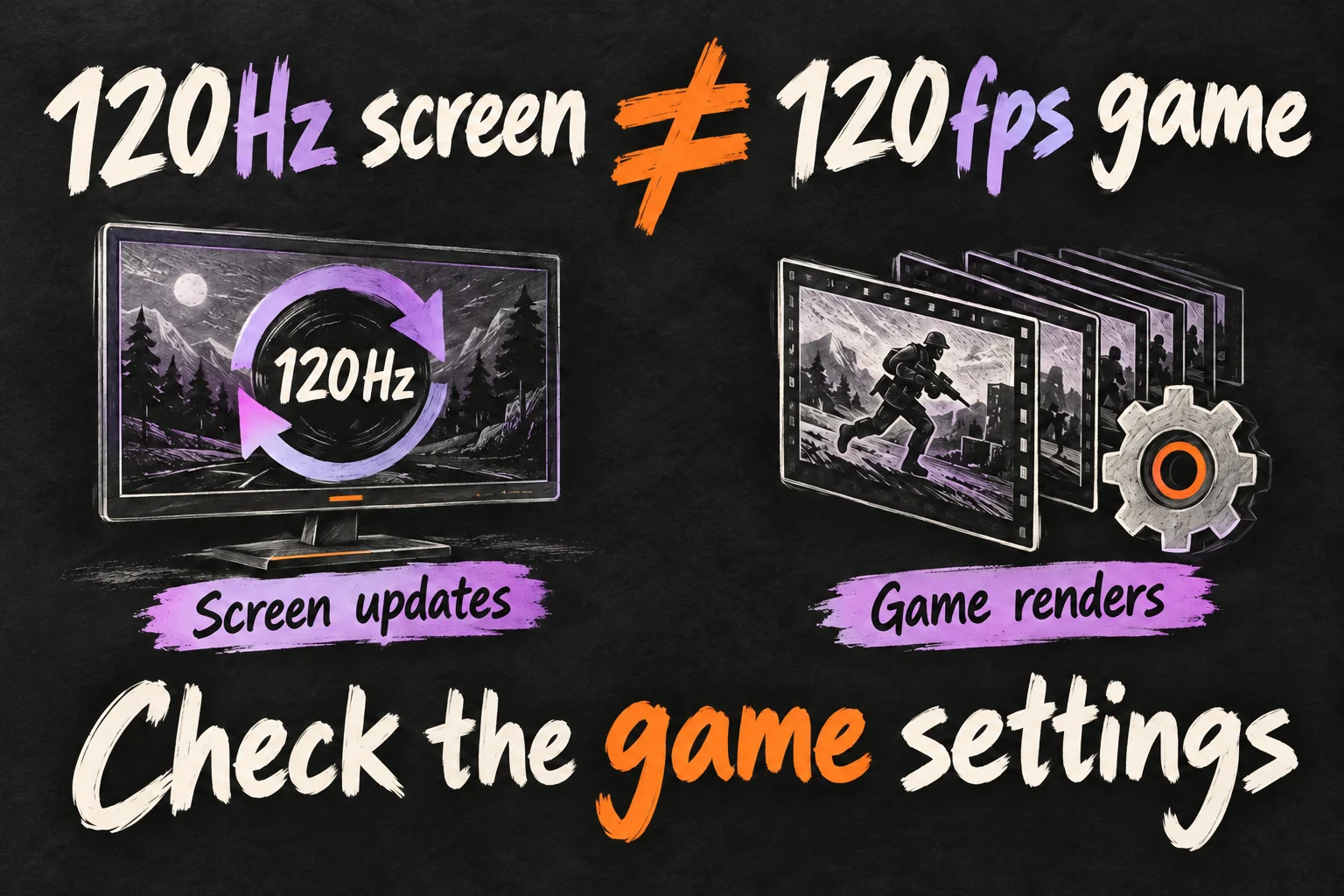
A higher target can look smoother when the device delivers it consistently. Decide whether the improvement is noticeable in your usual battles, and whether the heat, battery use and image quality remain comfortable over the same session.
Which part of a test deserves your attention?
Does it still feel smooth at the end of the session?
When reading a test, look beyond its average fps. Watch a busy fight for brief pauses and uneven motion, and check whether the display brightness changes as the run continues. Then compare the conditions with how you actually play.
| Look for | The question it answers |
|---|---|
| Exact model and versions | Is this the Pro, with comparable game and iOS versions? |
| Graphics and fps target | Is it showing the image quality you want? |
| Duration and scene | Does it cover long fights or a quick walk? |
| Room, brightness and charging | How close are the conditions to your usual setup? |
This turns a review into a buying criterion. If your current phone becomes uncomfortable late in a session, a relevant test should show what happens at that point. If the problem is thumb reach or battery access, include those in the decision too.
Can you keep the scenery and improve the fights?
Start with a 60fps target as a comparison point, then keep the image quality you like. This is a practical starting suggestion, not a developer-approved preset or a promise of a locked 60fps.
Paimon Menu → Settings → Graphics
HoYoverse’s troubleshooting guide points to this menu and recommends reducing graphics options such as shadows and special effects when the game lags or freezes.
- Choose a repeatable fight or route. Use the same team and similar actions. Keep brightness, charging status and power-mode settings consistent.
- Change one graphics option. If a fight feels uneven, lower shadows or effects one step while keeping the fps target fixed. Compare the motion and the visual detail you give up.
- Replay for a similar length of time. Note when stutters or brightness changes appear, how comfortable the phone feels and the battery used. Let it return to a similar starting temperature before the next comparison.
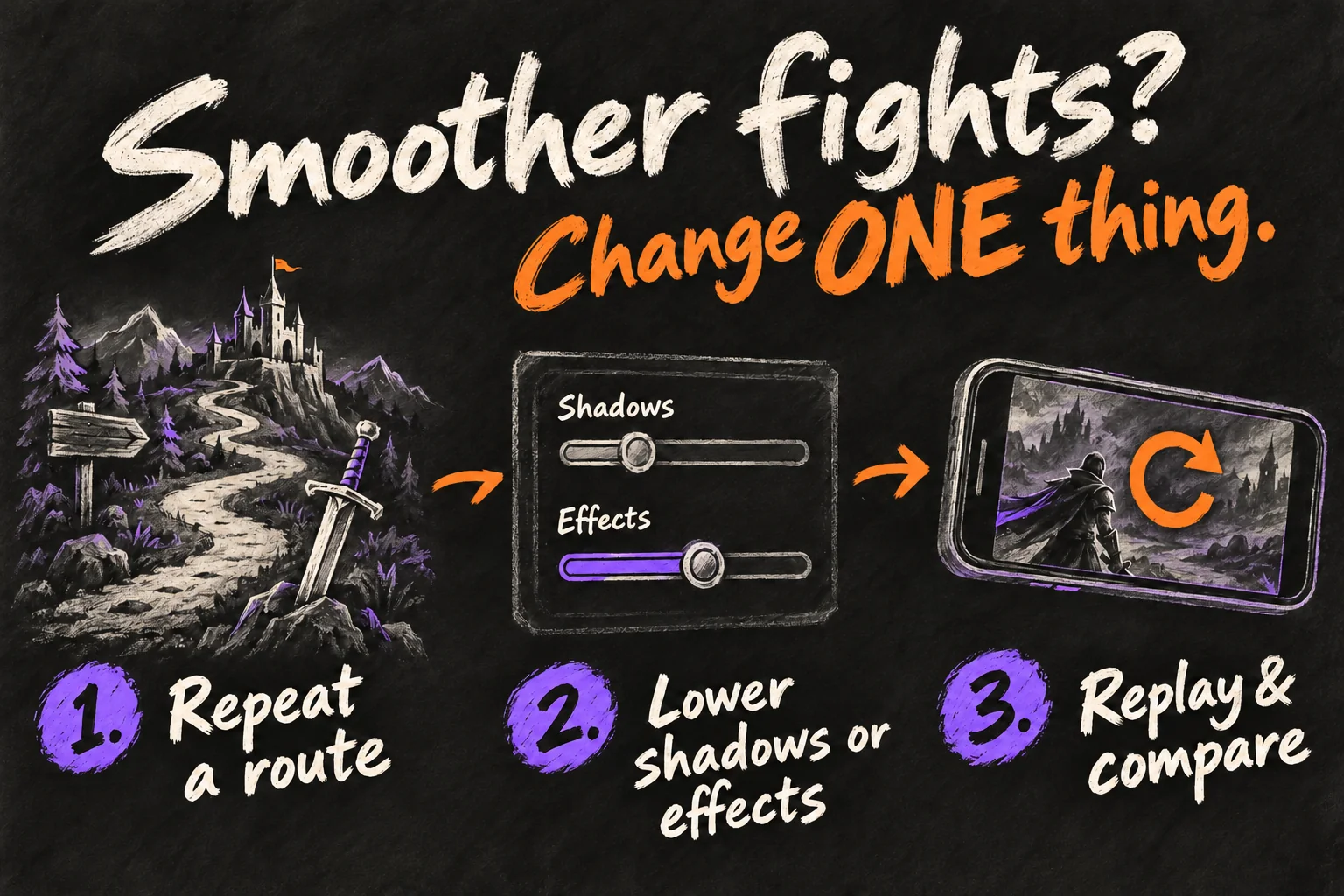
If the result is comfortable, keep that setting. If it is not, change the next option separately. A short note on each run helps you identify the change that actually improved your play.
What should Game Mode change?
Apple’s Game Mode prioritises the game’s CPU and GPU access while reducing background-task usage. It turns on automatically when a supported game enters full screen, unless you have switched it off for that game.
To check it while playing:
Control Centre → Game Overlay → Controls button → Game Mode
Swipe down from the top-right corner to open Control Centre, then use the overlay labelled with your game. If you turn Game Mode off there, Apple says it remains off for that game until you enable it again.
Think of it as help with resource priority. You still choose the graphics and fps target inside Genshin. To filter interruptions, set up a Gaming Focus separately; it handles notifications.
When does warmth change the buying decision?
Some warmth during a demanding game is normal. Apple explains that high internal temperatures can reduce frame rates and dim the display. If those changes interrupt the sessions you enjoy, temperature handling belongs in your upgrade checklist.
Compare play indoors away from direct sun, and note whether the phone is charging. Apple specifies an ambient operating range of 0–35°C, but being within that range does not guarantee a particular game frame rate. A shaded seat and a consistent setup give you a more useful comparison than changing graphics, brightness and charging all at once.
If a temperature warning appears, follow Apple’s instructions: turn the device off, move it to a cooler place away from sunlight and allow it to cool.
The iPhone 18 Pro is worth investigating when your current phone cannot sustain the quality and comfort you want in frequent RPG sessions. First try the repeatable settings comparison on your current phone. If it already fixes the problem, you have found a useful improvement. If it does not, you know exactly what a new-phone test needs to demonstrate.
For your next decision, read iPhone 18 Pro vs Pro Max: Is Bigger Worth A$200 More? or iPhone 18 Pro Settings: 5 Things to Check on Day One.
FAQ
Q. Will a good Genshin result predict Wuthering Waves performance?
Use a test of the game you actually play. Genshin, Wuthering Waves and Zenless Zone Zero use different workloads, and updates can change the result. A Genshin observation gives you evidence about that run, rather than a score for every RPG.
Q. Should Low Power Mode match between comparisons?
Yes. Keep its state the same, because it changes how the phone uses power and can reduce display brightness. On the iPhone 18 Pro, check Settings → Battery → Power Mode → Low Power Mode. Apple lists its effects and menu path.
Q. Why do notifications still appear with Game Mode on?
Game Mode prioritises gaming resources. A Gaming Focus filters notifications, so configure that separately for the people and apps you want to hear from. Apple explains the two roles.
Sources and Reading Notes
This is a research-based guide. It does not report personal hands-on testing. Manufacturer figures are claims, and illustrations are explanatory concepts rather than test results.
- Emma Rowley: iPhone 18 Pro review — Tech Advisor
- iPhone 18 Pro Max gaming test — Geek Culture
- Use Game Mode — Apple Support
- iPhone 18 Pro technical specifications
See how these guides are written. Sources reviewed 11 October 2026; prices refer to the checking date stated above.
Prefer reading about Apple in Korean?
 Apple-worldApple news, tips and buying guides in Korean.blog.naver.com/apple-world ↗
1 thought on “iPhone 18 Pro Gaming: Can Genshin Stay Smooth?”