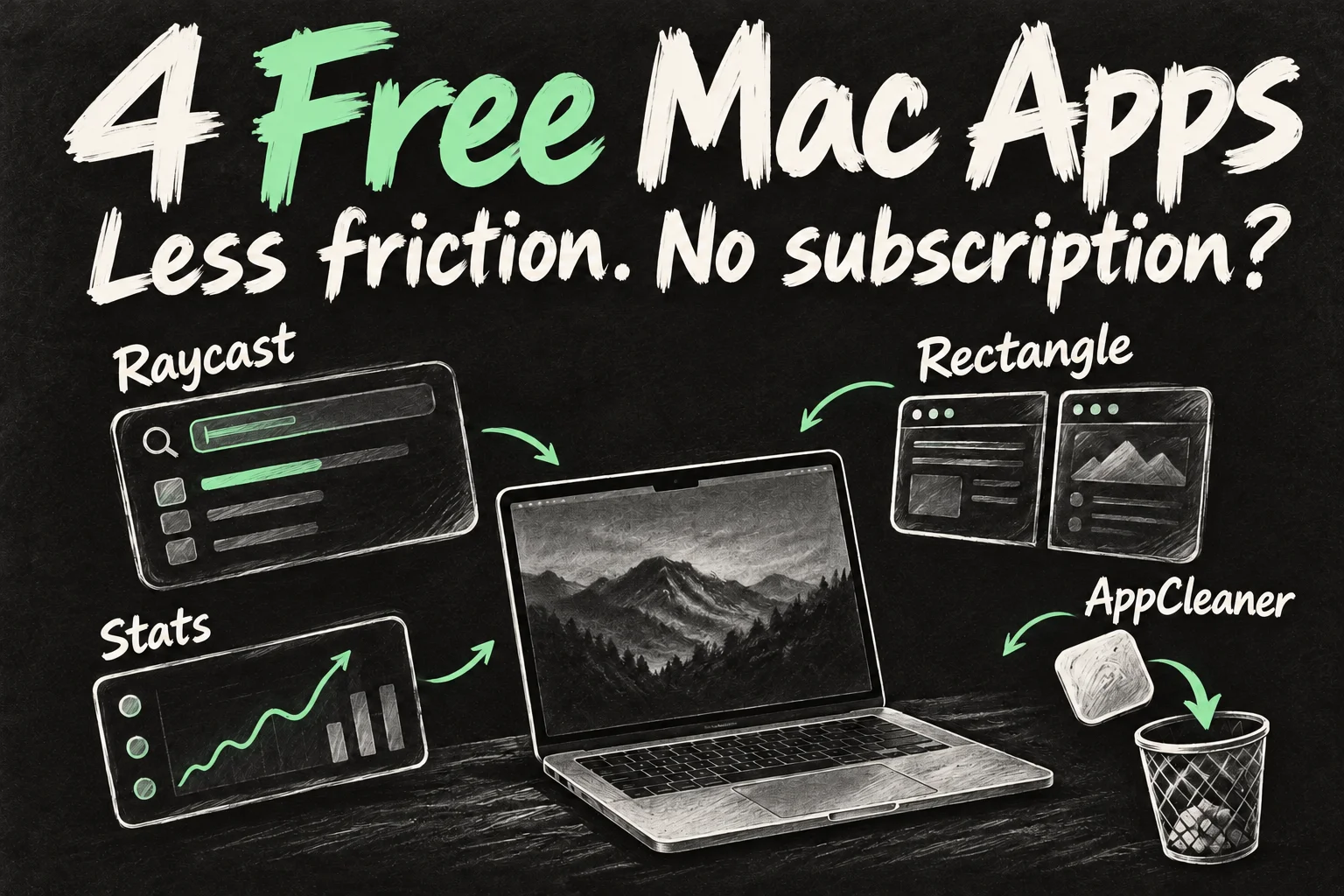
These four free MacBook apps solve four everyday annoyances: finding tools, arranging windows, understanding system activity and removing unwanted apps. Raycast, Rectangle, Stats and AppCleaner are worth considering because each has a clear job. You do not need to install all four on the first day.
For a student moving between lecture notes and a browser, or someone working from a Melbourne kitchen table, the useful upgrade is fewer interruptions. Start with the task that keeps slowing you down. This is a research-based selection using developer documentation checked on 21 October 2026, not a claim that we benchmarked the apps or measured time savings.
Before you dive in
Which free MacBook apps should you install first?
| App | Useful job | Free scope | You may not need it when… |
|---|---|---|---|
| Raycast | Launch apps, calculate and run commands | Usable free core; AI is paid | Spotlight already meets your needs |
| Rectangle | Move and resize windows with shortcuts | Free and open source; Pro is separate | Built-in tiling or Raycast already handles your layout |
| Stats | See CPU, memory and network activity | Free and open source | Activity Monitor is enough for occasional checks |
| AppCleaner | Review related files when uninstalling an app | Free download from FreeMacSoft | The app supplies its own uninstaller |
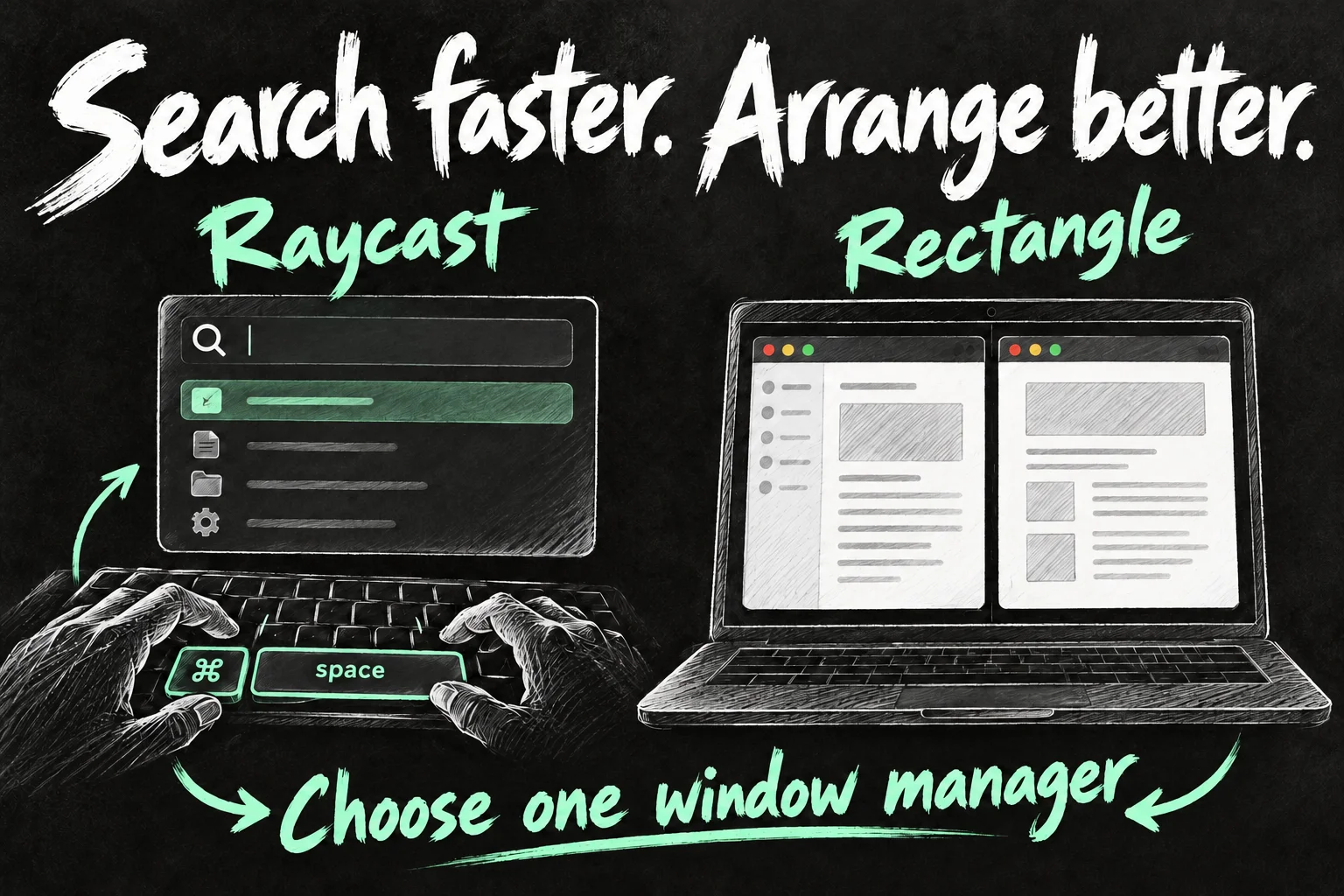
The important overlap is window management. Raycast includes it in its free core, and recent macOS versions also have window tiling. Rectangle earns its place if you prefer dedicated snapping and shortcut controls. Choose one tool to handle a particular shortcut or edge-drag action, rather than making several utilities compete.
1. Raycast Free: open tools without hunting through the Dock
Raycast puts app launching, quick calculations, snippets and other commands behind a keyboard-driven launcher. Its free plan also includes clipboard history, Quicklinks, window management and extensions. Raycast AI is not part of Raycast Free, so you do not need to start an AI subscription to try these core tools.
A useful first session is deliberately small: launch your browser, calculate an expense and create a Quicklink to the page you open every morning. For a university student that might be the learning portal. For a home office it could be a work dashboard. Learn those repeated actions before browsing hundreds of extensions.
Open Raycast’s settings and choose a hotkey you can remember without colliding with an existing shortcut. Keep Spotlight available while deciding which launcher you prefer. If you enable clipboard history, check its exclusions and retention settings before using it alongside sensitive work; extensions should be chosen for a specific need, too.
Free does not mean every Raycast feature is included. Cloud Sync, unlimited clipboard history and the AI offering belong to paid plans. Compare the current feature list before building a workflow around one. Get Raycast from its official site.
2. Rectangle for Mac: give two windows a predictable place
Rectangle is a focused window manager: move and resize a window with keyboard shortcuts or drag it to a snap area. The standard app is free and open source. Rectangle Pro is a separate product, so use the ordinary download if you want the free version.
Try a simple essay or report layout. Put your writing app on one side and your reference browser on the other. Repeat it with the same shortcuts the next day. The benefit is a repeatable workspace, especially if manually adjusting overlapping windows interrupts your concentration.
Rectangle requires Accessibility permission to move other apps’ windows. Use its setup prompt to find the relevant macOS setting, and grant access to the copy you obtained from the developer. If snapping behaves unpredictably, check whether Raycast or macOS is reacting to the same gesture. Keep the controller you prefer for that action.
The current standard release lists macOS 14 or later; the developer also links older releases. A newer Mac already offers built-in tiling, so try that first if two halves are all you need. Download the free Rectangle app rather than the Pro trial.
3. Stats: see what your Mac is doing from the menu bar
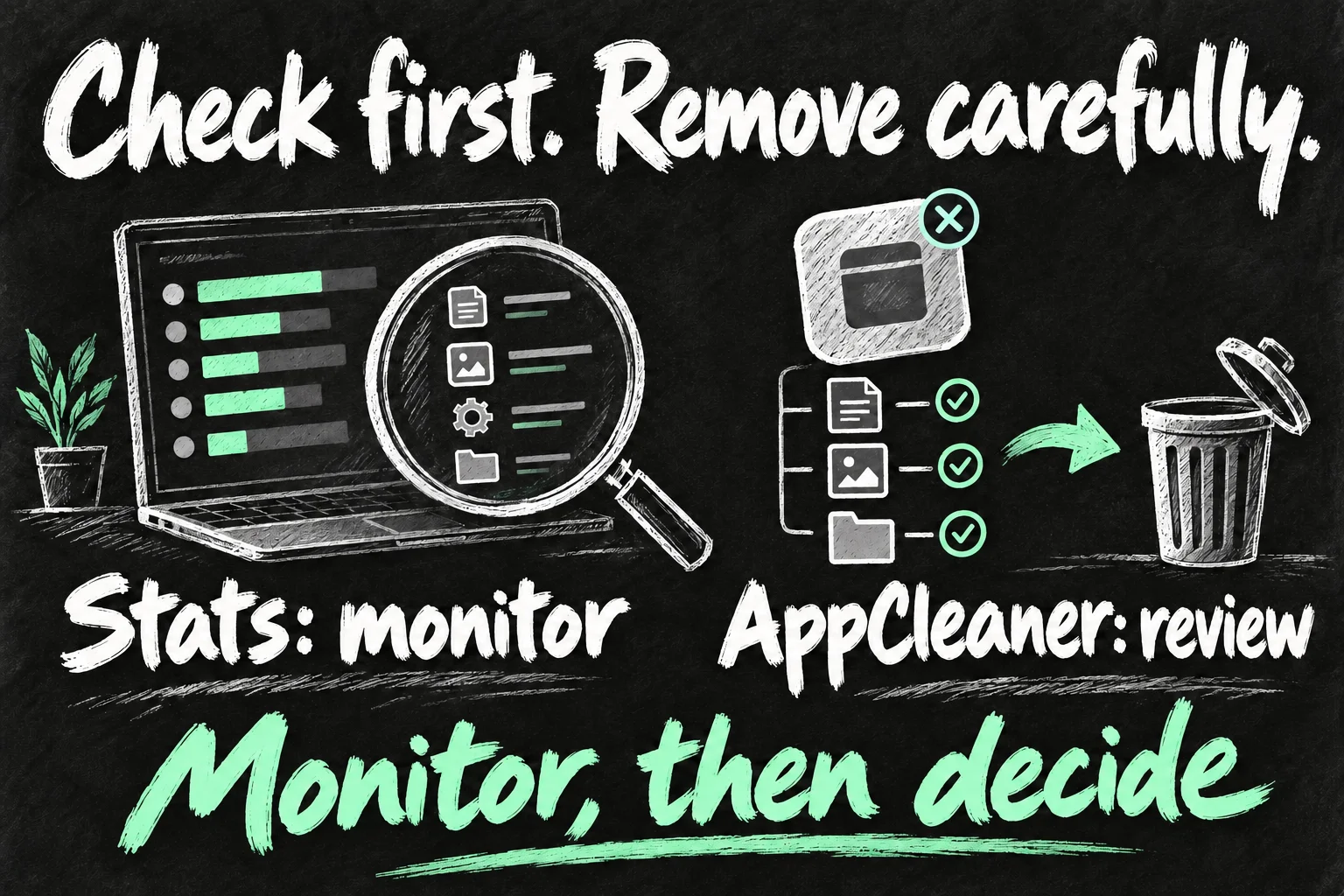
Stats displays system information such as CPU use, memory, network traffic and battery status in the menu bar. Its official project is open source and supports macOS 12 or later. Available sensors and readings depend on the hardware; a missing sensor does not by itself prove a fault.
Start with only the information that answers a question. If a download seems stuck, look at network activity. If a Mac feels busy during an export, glance at CPU activity, then use the built-in Activity Monitor to investigate processes. A brief spike while doing demanding work is different from a persistent problem after the task finishes.
Stats is a monitor, not a RAM cleaner or a promise of a faster computer. It also consumes resources to collect readings. Its developer recommends disabling unneeded modules to reduce overhead, and notes that fan control is a legacy feature without active maintenance. For this beginner setup, leave manual fan changes out.
On macOS 26, the project notes that menu-bar visibility may need permission in System Settings → Menu Bar. If nothing appears, check that setting and whether a module is enabled before reinstalling. Get Stats from the developer’s official GitHub project.
4. AppCleaner for Mac: check what leaves with an unwanted app
AppCleaner is FreeMacSoft’s small app-removal utility. Drop an unwanted app into it and it looks for related files, giving you a list to review before removal. It is useful for tidying up after an app you no longer want, rather than treating every cache or preference file as harmful.
For a first use, choose an ordinary app you recognise and have decided to stop using. Quit it, check whether its developer provides an uninstaller, then inspect the proposed removal list. Keep any documents or settings you still need. Do not assume an automatic match is permission to discard unfamiliar shared files.
Apple recommends using an app’s own uninstaller when one is supplied. That matters for software with background components or specialised installation steps. AppCleaner is not a substitute for that guidance, does not cancel subscriptions, and should not be presented as a guaranteed way to remove every trace of every app.
FreeMacSoft currently offers AppCleaner 3.7 for macOS 15 or later and separate downloads for older systems. Its release notes say Full Disk Access may be needed to remove some files; review that request rather than granting access to unrelated software with a similar name. Download AppCleaner from FreeMacSoft. It is a different product from similarly named paid uninstallers.
A sensible first-week setup for these free MacBook apps
- Day one: pick the recurring annoyance. Try Raycast for launching or Rectangle for layout. Add only the shortcuts you expect to use.
- During normal work: observe one task. If you need Stats, enable a small selection of readings and compare activity before and after the task.
- When an app is no longer useful: remove it intentionally. Follow its own uninstall instructions, or review AppCleaner’s related-file list for an ordinary app.
- At the end of the week: keep what you used. Remove duplicate shortcuts and optional login items you do not need. More utilities are not automatically a better setup.
For an Australian student buying a Mac to run these tools, the apps are the easy part. Required course software and memory needs still come first. Our MacBook Neo university guide explains what to check before choosing a budget machine. Installing utilities cannot make incompatible course software run.
Already comfortable with the basics and looking for entertainment? Our Steam games on MacBook guide covers a different compatibility question. Check the game itself rather than assuming that installing Steam makes every Windows title playable.
Frequently asked questions
Are all four MacBook apps really free?
The core uses described here are available without a subscription. Raycast has a free tier with paid extras, Rectangle Pro is separate, and Stats and AppCleaner are free downloads. Check the current developer page before installing.
Do I need both Raycast and Rectangle?
No. Try Raycast’s window commands or macOS tiling first. Add Rectangle if its dedicated controls suit you better, then avoid assigning competing shortcuts.
Will Stats and AppCleaner make my Mac faster?
Neither is a guaranteed speed boost. Stats shows activity; AppCleaner helps review files associated with an app you are removing. Diagnose the actual workload or storage problem before changing things.
Can I use these free MacBook apps on an older Mac?
Compatibility depends on each app and release. Check Apple menu → About This Mac, then choose a supported developer download. Do not assume the newest installer supports every older Mac.
Sources and Reading Notes
Developer sources: Raycast pricing and Billing manual; Rectangle official website and project documentation; exelban/Stats project README; FreeMacSoft AppCleaner download page and release notes. Apple Support: window tiling and deleting or uninstalling apps. Checked 21 October 2026. Feature lists and minimum software versions can change. Workflow examples are suggested uses, not hands-on benchmarks. Images are original AI-generated explanatory sketches.