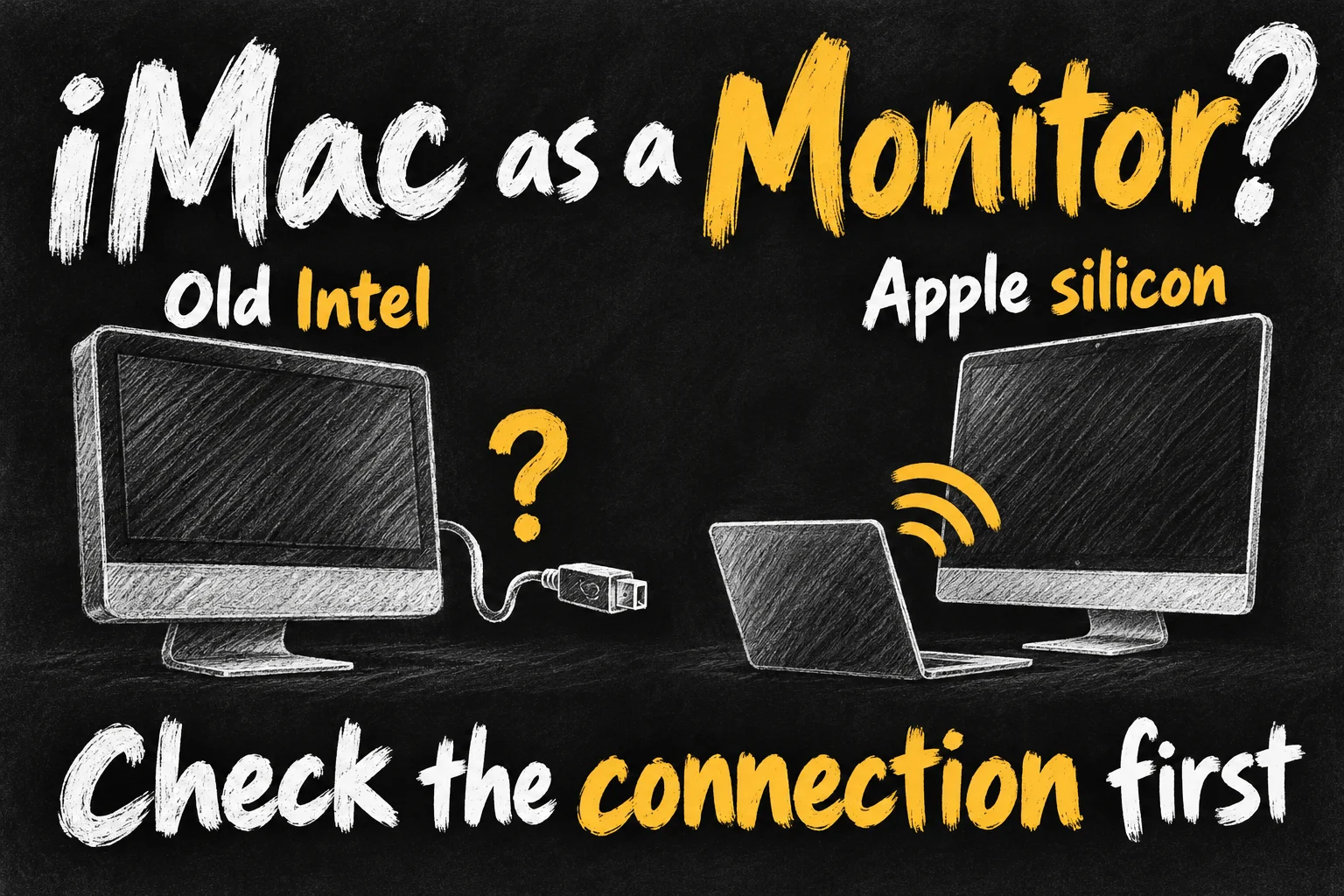
You can use an iMac as a monitor in some setups, but the method depends on its year, software and the computer sending the picture. A spare Intel iMac and an M-series iMac are different cases. A cable that fits the port does not necessarily provide a video-input connection.
This guide is about showing another computer’s desktop on the iMac’s built-in screen. Connecting a separate monitor to an iMac is the opposite direction. If your aim is more desk space for study or work in Australia, check what you already own before spending on adapters.
Before you dive in
Use an iMac as a monitor: start with this compatibility table
| iMac receiving the picture | Direct display route | What to check next |
|---|---|---|
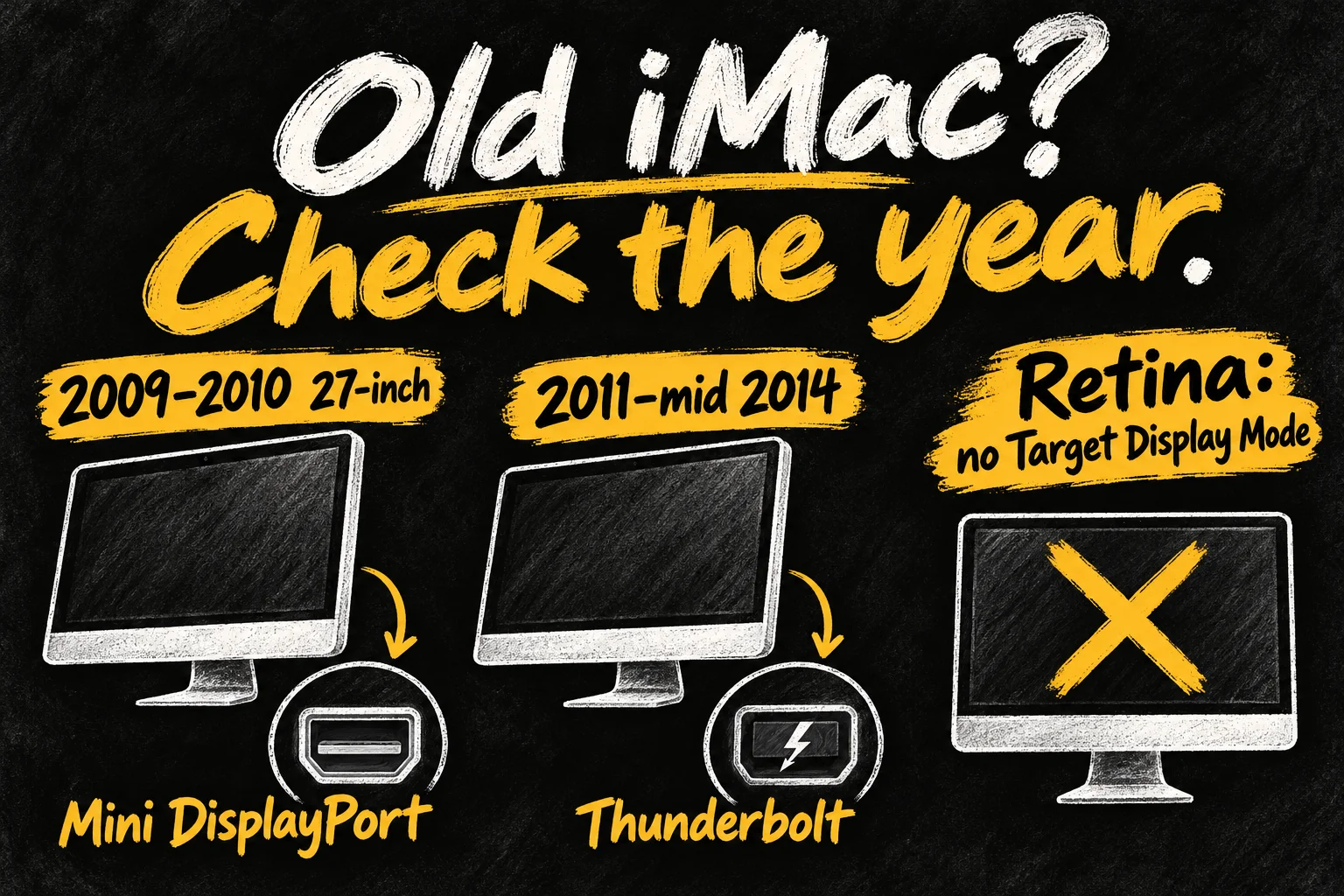
| 27-inch Late 2009 / Mid 2010 | Mini DisplayPort input; legacy requirements apply | Check the exact source and signal path |
| 2011–mid 2014, non-Retina | Target Display Mode over Thunderbolt | Both Macs must meet Apple’s legacy requirements |
| Retina Intel iMac | No Target Display Mode | AirPlay on supported models, or third-party tools |
| Apple silicon iMac: M-series | No Target Display Mode | AirPlay receiver or compatible third-party tools |
On each Mac, open Apple menu → About This Mac and record the model year, chip and macOS version. Mark the MacBook or desktop doing the work as the source, and the iMac showing its picture as the receiver. This prevents the most common mix-up when comparing connection guides.
Older Intel iMac: when Target Display Mode works
For Apple’s supported legacy setup, the receiving iMac runs High Sierra 10.13.6 or earlier; the source Mac is a 2019-or-earlier model running Catalina or earlier. Apple silicon is outside that supported source configuration. Apple does not support Windows or Boot Camp for this mode.
- Match the receiver to the cable in the table; Mini DisplayPort and Thunderbolt are not interchangeable just because their connectors look alike.
- Start both Macs, log in on the source, connect them, then press Command-F2 on the iMac keyboard.
- If required by the function-key setting, try Command-Fn-F2; press the shortcut again to leave the mode.
A special distinction: Apple’s Late 2009 27-inch specifications explicitly describe input from external DisplayPort sources. Do not generalise that to later Thunderbolt iMacs or assume every modern adapter combination works. Verify the exact iMac, source output and adapter direction before purchasing.
M-series iMac as a monitor: try AirPlay first
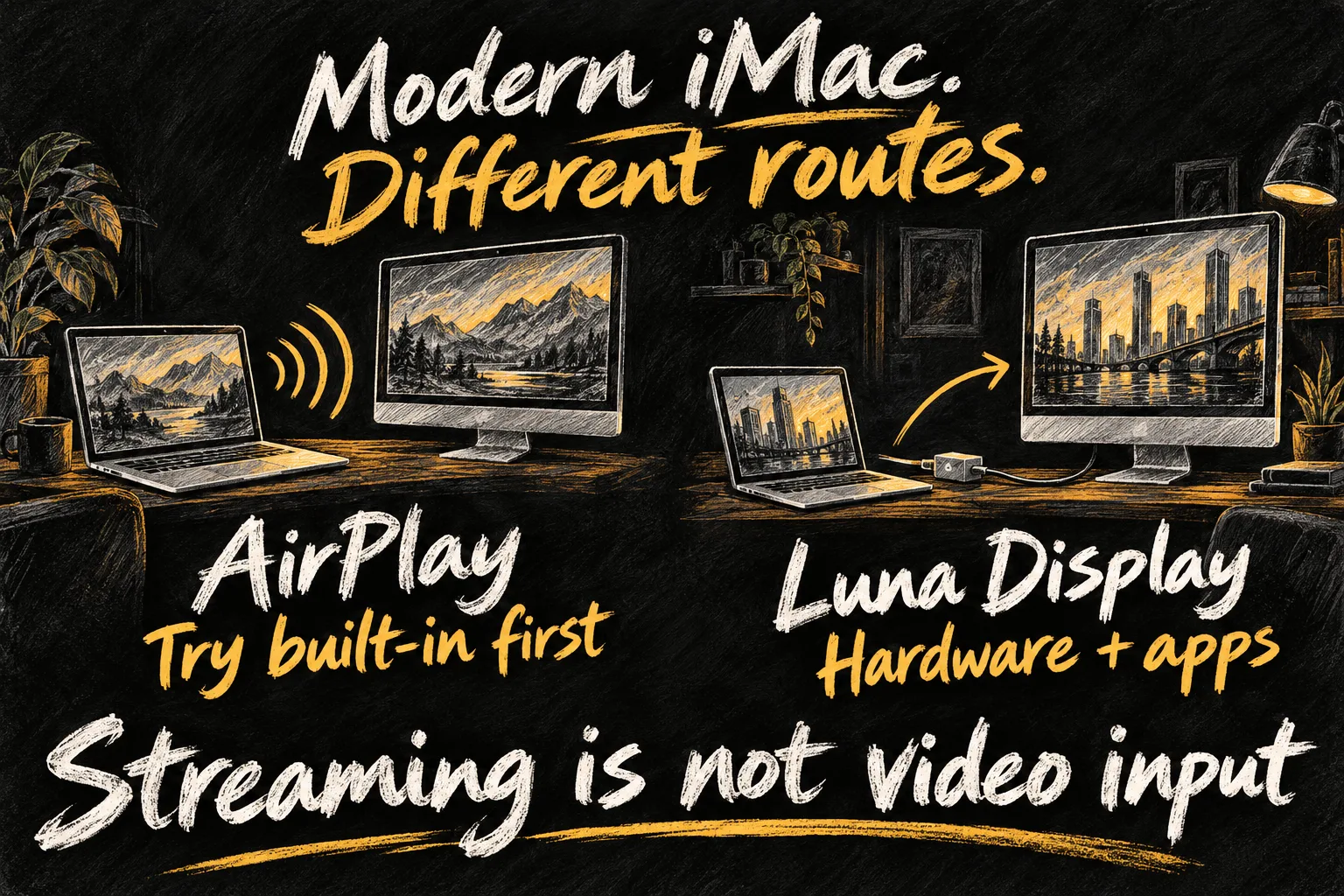
An M-series iMac cannot become a conventional external monitor simply by connecting another computer to its USB-C or Thunderbolt port. AirPlay to Mac is a different route: the iMac runs macOS and receives a streamed screen. It can be useful for reference material or occasional extra workspace, provided both devices support the feature.
Apple lists macOS Monterey 12 or later for AirPlay to Mac. The supported receiver list includes iMac Pro and other Mac models introduced in 2018 or later, with a separate rule for Mac mini. For ordinary iMacs, the 2019-and-later Intel models and M-series models are the relevant generations. A 2017 standard iMac is not an officially listed receiver; iMac Pro is different.
- On the receiving iMac, open System Settings → General → AirDrop & Continuity, or AirDrop & Handoff, and turn on AirPlay Receiver. In Monterey, use System Preferences → Sharing.
- Keep both Macs awake, with Wi-Fi on and connected to the same network. Using the same Apple Account makes your own devices easier to connect.
- On the source Mac, open Control Centre → Screen Mirroring and select the iMac. Approve any code or permission prompt.
- Use the available mirroring or extended-display option, then check Displays settings. Mirroring repeats the picture; extending gives you a separate area for windows. Menu wording varies by macOS version.
If the iMac is missing from the list, check receiver support, AirPlay permissions and the network first. On a university or workplace network, device discovery or AirPlay may be restricted. A restrictive “Allow AirPlay for” setting can also prevent discovery. Change that setting deliberately rather than opening access to everyone by default.
AirPlay does not promise the panel’s native 4.5K or 5K quality, wired-monitor responsiveness or suitability for colour-critical work. Try moving a document window and scrolling text before relying on it. For editing, gaming or an all-day workstation, judge the actual connection rather than the screen’s advertised resolution.
Luna Display: another route for Intel and Apple silicon
Luna Display is a paid hardware-and-software option for using a compatible Mac as another computer’s display. Astropad lists secondary Macs from 2011 onward running macOS 10.13 or later. Its Mac setup requires a suitable Luna unit on the source Mac; downloading the software alone is not enough.
- Check both models against Astropad’s current compatibility guide and choose the appropriate hardware for the source.
- Install Luna Display on the source and Luna Secondary on the receiving iMac, then plug the Luna unit directly into the source.
- Connect using a supported network or wired method and arrange the resulting display. Keep the receiving iMac running.
For Mac-to-Mac USB, Astropad specifies macOS 10.15 or later on both Macs and Luna 5.3 or later. Its guide calls for a suitable data-capable cable; a charging lead is not automatically suitable. A cable does not replace the Luna hardware or turn this into Target Display Mode.
Check the resolution-and-refresh-rate combination as well. Astropad’s current Mac guidance lists 5K at 30Hz or 45Hz and 4K at 60Hz, subject to the setup; its 5K path requires a USB-C Luna unit and Big Sur. Do not read “supports 5K” as a blanket 5K-at-60Hz promise. We have not measured latency or image quality on a test setup.
What about HDMI capture, Universal Control and Sidecar?
HDMI capture can display a feed, with limitations. The route is source HDMI output → compatible USB capture device → capture app on the iMac. A normal HDMI adapter is not a capture device. Check the app’s Mac requirements and the capture device’s actual capture resolution and frame rate, rather than its HDMI passthrough specification. Preview delay and text clarity may make this less attractive for desk work. Protected video may not display. The HDMI Monitor app listing, for example, includes in-app purchases; older guides describing it as entirely free should not be assumed current.
Universal Control shares input, not a desktop. It lets a keyboard and pointer move between supported Macs or an iPad while each device keeps its own apps. It can be excellent if you want a browser running on the iMac beside work on a MacBook, but it does not make the iMac a display for the MacBook’s windows.
Sidecar is for an iPad. It does not turn an iMac into another Mac’s screen. If you already own a compatible tablet, an iPad may provide a portable workspace through Sidecar. Keep that option separate when choosing equipment.
Should you reuse the iMac or buy a separate monitor?
Start with an AirPlay trial when your existing hardware supports it. If it handles a reference page comfortably, you may already have enough. Consider Luna only after checking the precise models, software and resolution you need. Compare the full Australian checkout cost, including hardware, shipping, tax and any cables, with a separate monitor; a US-dollar headline is not an Australian total.
For an everyday main screen, a dedicated monitor is often the simpler choice: it does not require a second computer to stay running just to show a picture. If you enjoy keeping the iMac useful as a computer, Universal Control may fit better. For student desk planning, our MacBook university buying guide also explains why required course software matters before accessories. The best outcome is a workspace that solves your problem without accumulating adapters.

Frequently asked questions
Can I use a 2017 Retina iMac as a monitor for an M-series MacBook?
Not through Target Display Mode. A standard 2017 iMac also falls outside Apple’s listed AirPlay receiver models. Check a compatible third-party display solution; a 2017 iMac Pro has different AirPlay eligibility.
Can an M1, M3 or M4 iMac receive a desktop?
Yes, through a supported AirPlay or third-party setup. That does not mean it accepts a direct monitor signal over an ordinary cable.
Will a USB-C-to-HDMI cable solve it?
Not by itself on a modern iMac. That adapter normally provides output to an HDMI display. Receiving HDMI through a capture device is a separate app-based workflow.
Can I use the iMac while it is switched off?
The software-based routes here require the iMac to be powered on and running. They do not make its built-in panel an independent monitor.
Sources and Reading Notes
Apple Support: Use iMac as a display with target display mode; iMac (27-inch, Late 2009) technical specifications; Continuity features and requirements; Stream video and audio with AirPlay; Extend or mirror your Mac desktop; Universal Control. Astropad: Luna Display system requirements, setup, USB connections and 4K/5K support. HDMI Monitor App Store developer listing. Checked 21 October 2026. This is a documentation-based compatibility guide, not a hands-on performance comparison. Illustrations show concepts, not actual ports or app interfaces.