You can revive a 5K iMac for videos and music if its screen and core hardware are healthy, its software still suits your services, and the repair bill stays modest. On a machine slowed by a hard drive or Fusion Drive, an SSD startup disk is worth considering before giving up on that large Retina display. An external drive is the first route we would investigate because it avoids removing the screen.
The strongest case is an iMac you already own. Buying one used needs more care: a low asking price is less attractive if the display is damaged, streaming is unsupported or the machine needs several repairs. This guide separates a useful media computer from the mistaken expectation that every old 5K iMac becomes a modern 5K monitor.
Before you dive in
Why revive a 5K iMac instead of replacing it?
The attraction is easy to understand: a 27-inch desktop screen, a computer and speakers in one unit. Even the Late 2014 Retina 5K model has a native 5120 × 2880 panel. That gives photos, text and the macOS interface plenty of detail, alongside a useful viewing area for a desk or spare room. It does not mean every piece of video contains that much detail.
A sensible second life might be watching a cooking video at a kitchen desk, following a tutorial beside a hobby project, playing a local music library or watching a film without opening your main laptop. These are narrower expectations than replacing a new work computer, and they make it easier to decide whether a small upgrade solves the actual problem.
Compared with a standalone monitor, however, you are also keeping the older computer behind the panel. Budget for that machine’s software limits, power use, fan noise and repair risk. There is no universal Australian bargain price: compare the complete setup you would actually buy, rather than an old iMac listing against a new display’s headline price.
1. Identify the exact model before buying parts
Open the Apple menu and choose About This Mac. Write down the full model year, installed macOS, memory and storage type. Late 2015 is not the same as Mid 2015. Check whether you already have an SSD: another SSD is unlikely to solve a problem caused by video decoding, a browser or the network.
| 27-inch Retina 5K model | Newest compatible macOS listed by Apple | What that means for this project |
|---|---|---|
| Late 2014 / Mid 2015 | Big Sur | Start with software and service compatibility before spending. |
| Late 2015 | Monterey | Do not assume a current browser will keep supporting it. |
| 2017 | Ventura | Test your required services and remaining update support. |
| 2019 | Sequoia | A newer software ceiling, but still inspect condition and storage. |
| 2020 | Tahoe 26 | Shipped with SSD storage; not the same HDD-upgrade case. |
These are Apple’s listed compatibility ceilings, checked on 23 October 2026. They are not a promise of ongoing security updates or support from every app. A newer compatible operating system and a currently supported operating system are different questions.
This article covers regular 27-inch Retina 5K Intel iMacs. Do not apply it automatically to a non-Retina 2013 model, a 21.5-inch iMac or an iMac Pro. Those machines can have different panels, parts and repair requirements. In particular, a generic SSD shopping recommendation is not proof that a drive fits the storage connector inside your machine.
2. Check whether an iMac SSD upgrade fixes the problem
An iMac SSD upgrade makes most sense when a mechanical startup drive is behind long waits to boot, open apps or load files. Faster storage can make those tasks more responsive. It cannot add modern video-decoding hardware, improve your internet connection or repair a GPU that produces lines on the display.
Before buying anything, restart the Mac, check free storage and try one task at a time. If the browser opens slowly but a video runs smoothly once loaded, storage may be a useful target. If only a high-resolution video stutters while ordinary apps feel responsive, investigate the browser, codec, network and processor first. These observations narrow the problem; they are not a hardware diagnosis.
A Fusion Drive combines flash and hard-drive storage into one logical setup. Treat migration and recovery carefully, especially if either component appears to be failing. Back up important files before a change. A drive that is clicking, disappearing or reporting errors needs attention beyond a promise that an SSD will make the computer feel new.
3. Try an external SSD for iMac before opening the screen
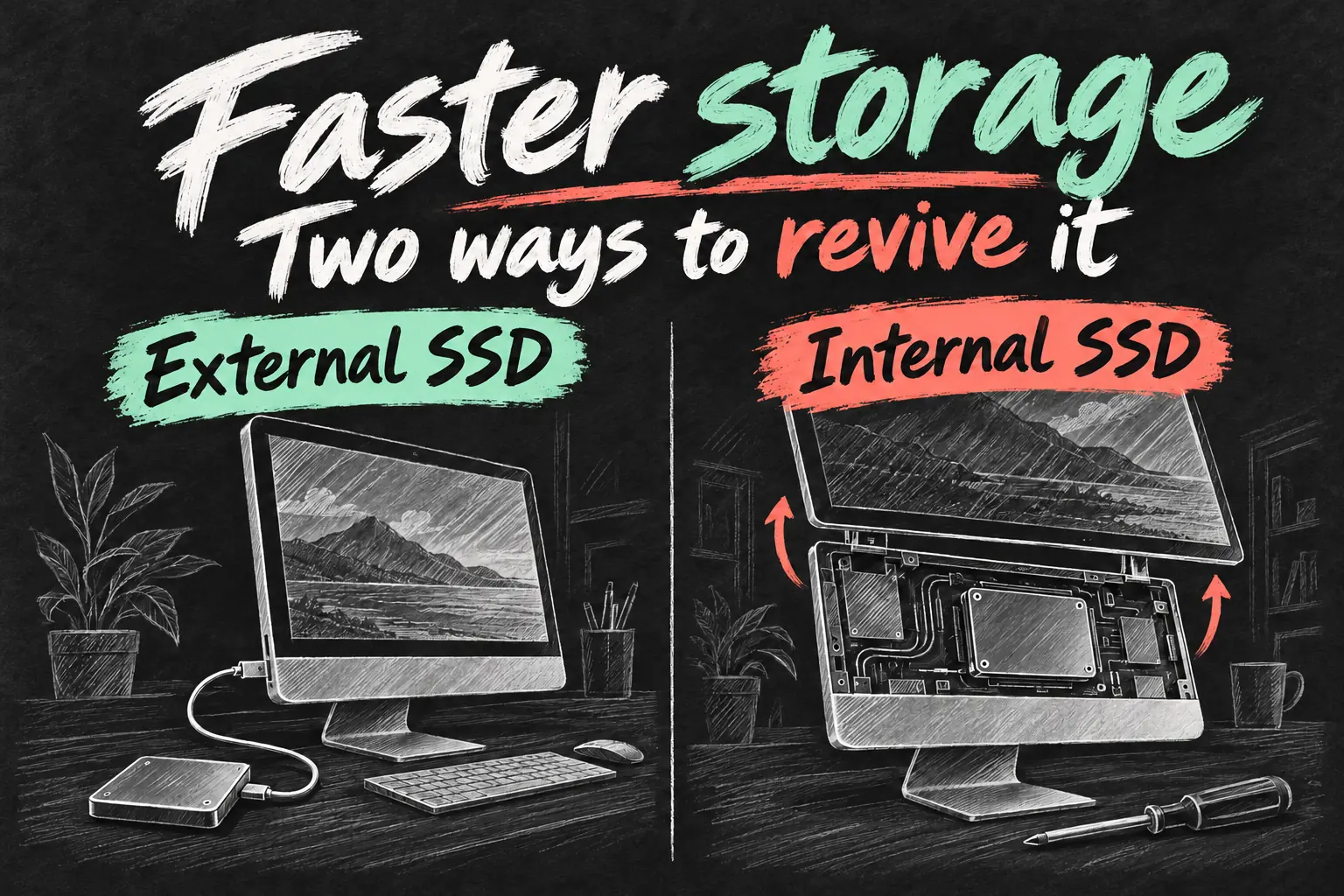
An external SSD for iMac is attractive because you can use it as the startup disk without cutting the display adhesive. Simply connecting a blank SSD does not move macOS or make the current startup drive faster. Apple supports installing macOS on suitable external USB or Thunderbolt storage and selecting that installation at startup.
- Back up first. Keep a separate copy of important files and identify the internal and external disks clearly. Formatting the wrong destination can erase data.
- Choose compatible storage and a cable. Match the actual ports on your iMac. A USB-C connector alone does not tell you which protocol or speed the computer supports.
- Prepare the external drive. Follow Apple’s startup-disk instructions; APFS is the recommended format for an SSD. Erasing the destination removes its existing files.
- Install a compatible macOS onto that drive. Select the external destination in the installer, then choose it as the startup disk. A T2-equipped model has an additional external-boot permission requirement.
- Test before retiring the original setup. Restart, open your apps, check sound and playback, and confirm which disk is running. Keep the external startup drive connected during use.
The instructions above are the preparation path, not a universal click-by-click installer for every macOS release. Use the version appropriate to your model and the current Apple procedure. Do not erase the internal disk until your files and replacement installation are verified. If setup or migration is unfamiliar, ask a technician to prepare the external startup drive instead of paying immediately for display removal.
There is little value in paying for a drive’s fastest advertised number if the enclosure, cable or iMac port cannot deliver it. Choose enough space for macOS, updates, apps and your intended media, with room left over. We have not measured transfer speeds or boot times on a test iMac, so this guide does not promise a particular speed increase.
When does internal SSD replacement make sense?
The iFixit Retina 5K hard-drive replacement guide confirms that an internal SSD conversion is possible for the covered configuration. It involves removing the display and moving the left speaker; its SSD section also addresses temperature sensing so fan behaviour remains correct. That is a model-specific repair route, not evidence that every 27-inch iMac accepts the same kit.
Before ordering, match the full model and existing storage layout. A SATA hard-drive conversion and replacement of a separate blade SSD are different jobs. Ask which drive, bracket or adapter, thermal arrangement and fresh display adhesive are included. The guide also warns about exposed power-supply components: this is not a casual first repair for someone whose main goal is watching films.
Internal work is more reasonable when a qualified repairer has diagnosed the bottleneck, the screen is worth preserving, and you want a tidy single-unit result. Request an itemised quote and a repair warranty. Our recommendation is to investigate an external SSD for iMac first when it meets your needs, then pay for internal work only when its additional benefit justifies the cost and risk.
4. Test an old iMac for streaming before you commit
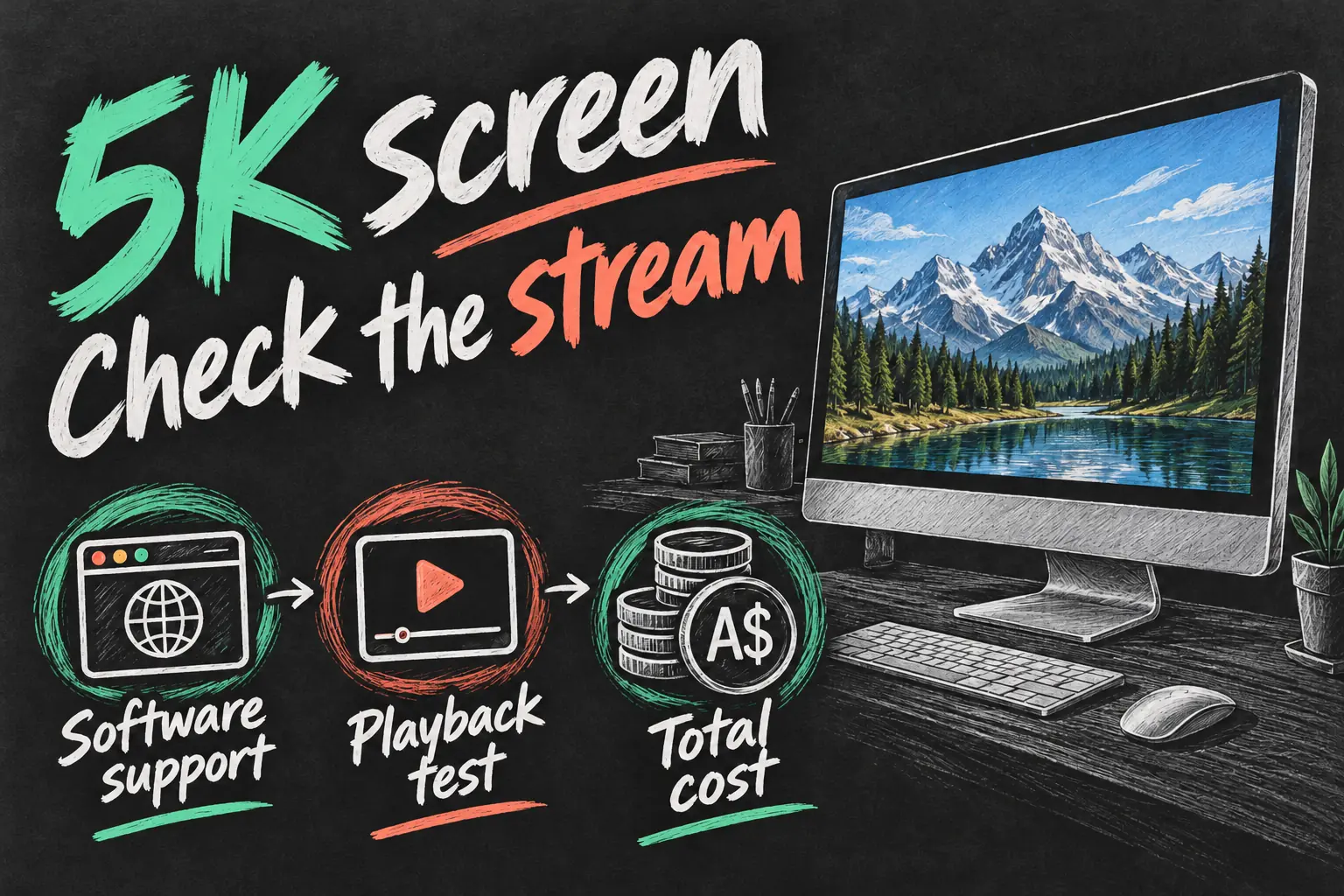
A 5K display and a 5K stream are different things. The panel can show a detailed desktop while a film service delivers a lower-resolution stream. Your subscription, the title, browser, macOS, hardware and connection all contribute. A higher-resolution panel cannot recover detail absent from the source video.
Netflix is a useful example. Its Mac Ultra HD requirements include Apple silicon or a T2-equipped Mac, Big Sur or later and the latest Safari, along with the relevant service requirements. Among regular Intel 27-inch 5K iMacs, Apple lists T2 in the 2020 model; the iMac Pro is a separate exception. Do not buy a 2014–2019 regular iMac expecting Netflix 4K merely because its panel is 5K.
For YouTube, test the resolution and frame rate you actually watch in the browser you plan to keep using. Watch a sustained section, try seeking and full screen, and listen for intrusive fan noise. If 4K struggles but 1080p or 1440p plays well, decide whether that result suits the desk and viewing distance. An SSD is not a guaranteed cure for dropped frames.
Before choosing an old iMac for streaming, also confirm that the service still supports the available browser and operating system. Older macOS releases eventually lose browser updates. An unofficial OS patcher may extend possibilities, but it adds compatibility and maintenance questions; it is not the default recommendation for a simple media machine.
Music and legally obtained local video can provide a useful second life too. Test your actual files and the playback app: file format and codec support matter more than the file extension alone. For subscription music, check that signing in, playback and the required app or web player still work. A local library is not dependent on the same streaming-service login, although the playback software still matters.
5. Compare the full cost with a newer setup
If the iMac is already yours and its display, sound and playback work well, the marginal cost of reviving it may be modest. If you are buying one, the calculation starts with the asking price and includes everything needed to make it useful. Do not spend on extra memory automatically: first check whether memory pressure is a real problem during your normal task.
Total project cost = iMac purchase + SSD and enclosure or internal repair + missing accessories + any other necessary repairs. Add your own allowance for the time spent setting it up. Compare that total with a newer used computer and suitable screen, or a simpler TV-based media setup if films are the main purpose.
- Inspect the display. Use light and dark backgrounds to look for discolouration, persistent marks, dead pixels, flicker and lines. A storage upgrade does not fix these.
- Try your real playback task. Confirm sound, Wi-Fi or Ethernet, the intended service and a representative video rather than accepting a desktop photograph as proof.
- Restart and check ownership. Ask the seller to remove their accounts and leave the Mac ready for your setup; check that you can complete the relevant startup process.
- Include accessories and noise. Test the keyboard, pointing device, ports, speakers and fans. Missing essentials or an expensive fault can erase the apparent saving.
Revive a 5K iMac when it does the job you need at a cost you are comfortable writing off if another old component fails. Walk away when a cheap machine needs a display, major logic-board work and an upgrade just to reach basic playback. For an already owned machine, a short trial can be worthwhile even when buying the same model today would be hard to recommend.
Can you use the 5K iMac as a standalone monitor?
Not through Apple’s Target Display Mode. That feature’s supported iMac range predates the Retina 5K models. A normal cable cannot turn a Retina 5K iMac into an HDMI-input monitor for a PC, games console or Apple TV. Software display-sharing solutions are a different category and should not be assumed to behave like a direct display connection.
This is why the most practical reuse discussed here is running videos and music on the iMac itself. A display-controller conversion is a separate hardware project, outside this SSD revival guide. If your main goal is a simple television setup, compare that route before paying to rebuild a desktop computer.
Frequently asked questions
Is an old 5K iMac still worth using for YouTube?
Potentially, if the display is healthy and the available browser plays your preferred videos acceptably. Test the exact model and service first; we are not promising smooth 4K playback on every configuration.
Can I upgrade an old iMac to an SSD?
Many configurations have an upgrade route, but the parts and work vary. The cited iFixit guide shows one internal conversion approach. Confirm the exact model before ordering; an external startup SSD may avoid opening the screen.
Will an SSD make Netflix play in 4K?
No. Faster storage does not satisfy Netflix hardware, browser, plan or content requirements. The resolution of the built-in panel alone is insufficient.
Should I buy a 2014 5K iMac just because the screen is cheap?
Only after checking software and playback limits, condition and the complete project cost. A low price cannot compensate for a task it no longer supports. Reusing one you own is a different value decision.
Can I just plug in an external SSD and use it?
You can use it for file storage after appropriate preparation. To move startup work off the internal drive, you need a compatible macOS installation on the SSD and must select that installation as the startup disk.
Sources and Reading Notes
Apple Support: Identify your iMac model; iMac Retina 5K Late 2014 technical specifications; iMac Retina 5K 2020 technical specifications; Use an external storage device as a Mac startup disk; Mac computers with the Apple T2 Security Chip; and Use iMac as a display with target display mode. iFixit: iMac Intel 27-Inch Retina 5K Display Hard Drive Replacement. Netflix Help Center: Using Netflix on your Mac computer. Checked 23 October 2026.
This is a research-based reuse guide, not a hands-on benchmark, repair guarantee or survey of Australian used prices. Upgrade recommendations are editorial judgements based on the intended job. Original AI-generated illustrations show concepts rather than an exact product or disassembly procedure. Software support, streaming requirements and repair costs can change. Read how Aussie Oppa researches and writes these guides for our approach to documented capabilities and buying advice.