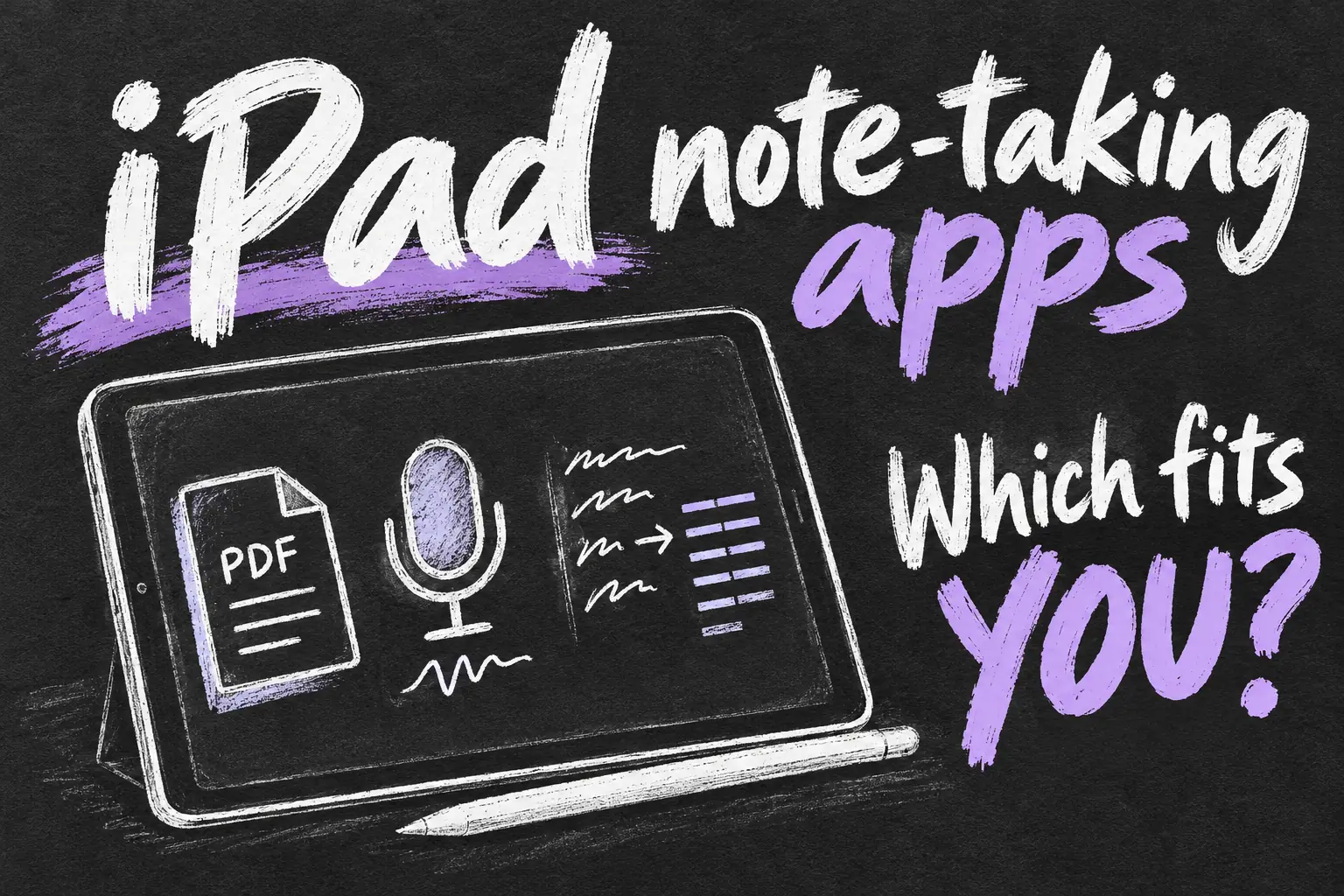
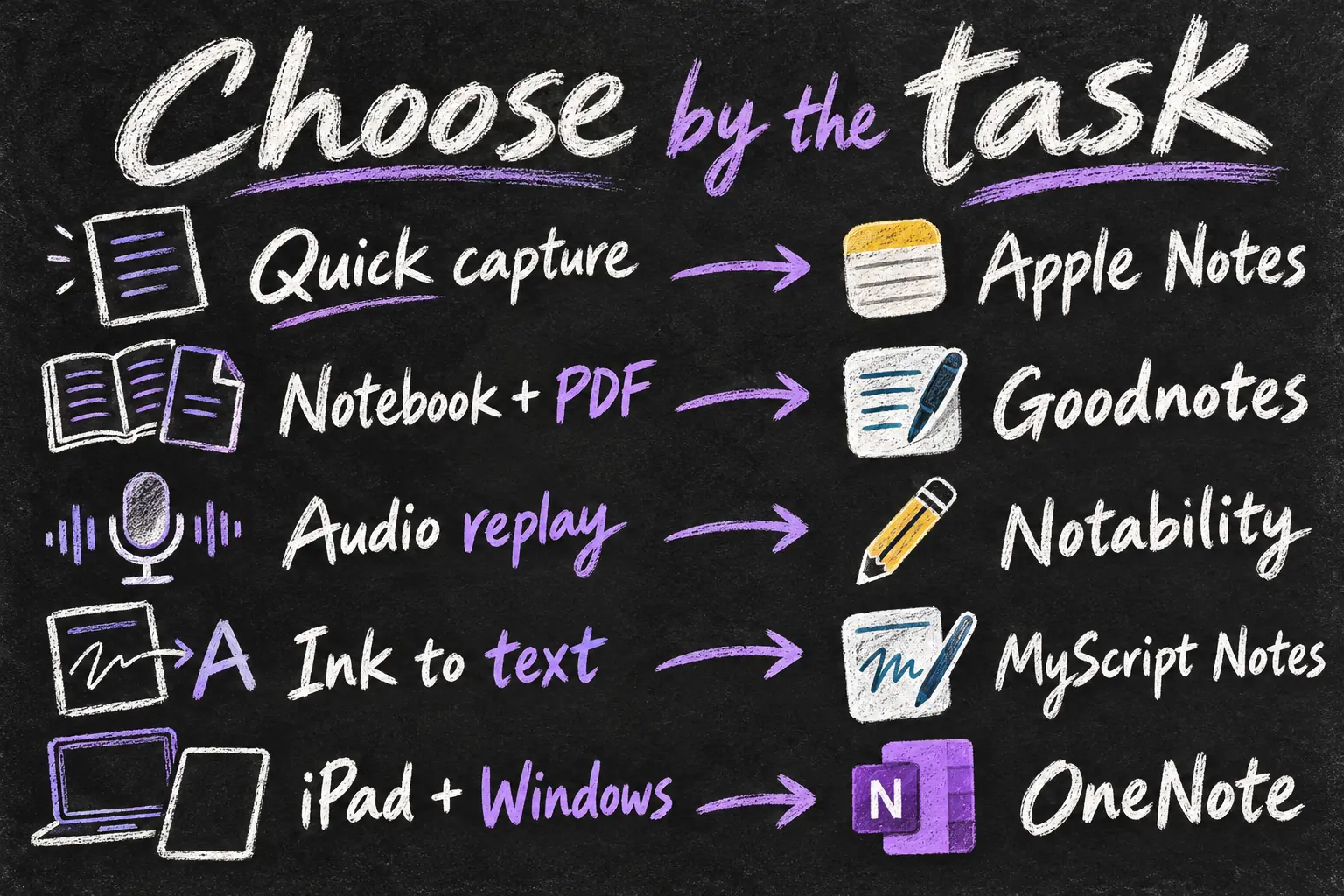
The right iPad note-taking apps solve different problems. Start with Apple Notes for free everyday capture, Goodnotes for a notebook-and-PDF routine, Notability when replaying audio alongside your annotations matters, MyScript Notes when handwriting needs to become editable text, and OneNote when your iPad works alongside a Windows computer.
These are workflow-based recommendations, not a claim that we have personally tested every app or that one is best for everyone. Features and plan information were checked against developer documentation and Australian App Store listings on 23 October 2026. Pick the task that matters, then try a real page before moving a semester of notes.
Before you dive in
Which iPad note-taking apps fit your work?
| Start with | A good reason to try it | Check before committing |
|---|---|---|
| Apple Notes | Quick ideas, checklists and occasional handwritten or PDF notes | Whether its organisation and exports suit long study sessions. |
| Goodnotes | Subject notebooks and repeated PDF annotation | Free-file limits, paid plan and the sync arrangement you need. |
| Notability | Revisiting what was said when you wrote an annotation | Recording permission, note limits and transcription tier. |
| MyScript Notes, formerly Nebo | Turning handwritten explanations into editable text | Your handwriting, language, document type and export result. |
| Microsoft OneNote | Writing on iPad and continuing on a Windows laptop | Account, sync and platform-specific feature differences. |
The table is a shortlist, not a set of exclusive features. For example, recording audio is not unique to Notability, and Goodnotes is not the only app that marks up a PDF. Choose the workflow you want to make easier, rather than paying simply because an app has a feature another one also offers.
1. Apple Notes: start here for free everyday capture
Best fit: you want to jot something down, scan a handout, make a checklist or keep a few handwritten pages without choosing a subscription first. Apple Notes is free and supports attachments, handwriting, folders, tags and searching your notes. You can sketch in a note or an inline PDF with a compatible Apple Pencil or your finger.
Picture a meeting where you need a quick diagram, a photo of a whiteboard and three actions to do afterwards. Keeping that together may be more valuable than building a perfect digital binder. Try this before assuming ordinary notes need a specialist paid app.
Move beyond it when: your regular work depends on a particular page layout, a large PDF routine or an export format that your trial cannot reproduce comfortably. Test the actual output rather than assuming an attractive note will look the same in a submitted PDF.
Apple Notes can also record and transcribe audio. Transcription depends on supported hardware, software and language; a recording button does not guarantee that every recording will produce text. Do not pay for another app solely because an older comparison says Apple Notes cannot record.
2. Goodnotes: choose it for notebooks and PDF study
Best fit: you repeatedly import lecture slides, annotate readings and organise handwritten work into subject notebooks. Goodnotes is a sensible first trial among iPad handwriting apps when the notebook itself is where you study, rather than a temporary step before typing everything elsewhere.
For example, import one week’s slides, write explanations beside the material and add a separate worked-example page. Then search for a term and export the pages you would send to a classmate. That small task reveals more about fit than browsing a gallery of decorative templates.
Check the limits: the current Free plan covers up to three files across notebooks, whiteboards and text documents, with import limits and watermarked exports. Essential expands everyday note-taking; Pro is relevant when you need Goodnotes Cloud library sync between Apple and non-Apple platforms. The Apple-only Special Edition is a one-time option, not an unlimited cross-platform cloud plan.
Goodnotes also supports audio recording, so a Goodnotes vs Notability decision should not begin with the assumption that only one records lectures. Compare the complete workflow and the features included in your chosen plan.
3. Notability: try it when audio replay matters
Best fit: you understand the topic better by returning to the explanation that accompanied a written point. Notability links recorded audio to annotations: during playback, tapping a note can jump to that point in the recording. That is a concrete benefit if you often write an incomplete explanation and need to revisit what was being discussed.
A useful trial is to make a few marks while recording a short explanation, then play it back and tap those marks. Judge whether that makes revision easier than a separate audio file. Check course or meeting rules and obtain any required permission before recording other people.
Check the plan: Starter currently includes five notes, audio recording and editing tools. Unlimited notes, backups, handwriting recognition and AI transcription are not interchangeable promises; their availability depends on the tier. Notability also offers a Classic one-time purchase, so the old description that it is subscription-only is incomplete.
Export needs attention too. A PDF is useful for sharing visible pages, but it is not a substitute for keeping the editable note and its recording. Notability’s own file format can include recordings; confirm what the recipient can open before sending it.
4. MyScript Notes: choose it to turn handwriting into text
Best fit: you prefer thinking with a pen but need an editable written result afterwards. MyScript Notes is the current name of Nebo. Its central appeal is converting handwriting to typed text, with pen gestures for editing and support for notes, documents, sketches and PDF annotation.
Think of a student who handwrites an explanation after class, then wants to reuse that explanation in a document. Try a real paragraph containing your usual abbreviations and subject vocabulary. Check whether the result needs only light correction or so much rewriting that you would rather type from the start.
Choose something else when: you mainly want to preserve handwritten pages exactly as they are and rarely reuse text. Conversion is valuable when it removes a second task; it is less persuasive if it adds a correction step you do not need.
The developer offers a seven-day trial, followed by paid access or a limited free version. Local purchase options can vary. Test the language and the particular document or export workflow you need; a recognised sentence is not proof that every equation, diagram or technical name will transfer perfectly.
5. OneNote: choose it for an iPad-and-Windows routine
Best fit: you write by hand on iPad, then revise, type or organise on a Windows laptop. OneNote is free to download and offers handwritten and typed notes within a notebook structure. Its account and OneDrive-based syncing make it worth trying before paying for another cross-device setup.
For a practical check, make a page on the iPad, add a diagram, open the notebook on your computer and edit it there. Confirm that the correct account is signed in and that changes reach both devices. Students using an institution account should also plan how to keep their work when they leave that institution.
Important limitation: Microsoft’s iPad help page currently says OneNote for iPad does not support converting existing handwriting to text. Do not assume a feature demonstrated in the Windows app is available in the iPad app. Drawing ink, entering text and converting existing ink are different tasks.
Cloud storage and premium extras can still have costs. Free basic note-taking is not a promise of unlimited storage or every AI feature. If handwritten-to-text conversion is the main reason you are comparing iPad note-taking apps, trial that requirement explicitly rather than choosing OneNote solely for its platform reach.
Goodnotes vs Notability: which should you trial first?
Start with Goodnotes when your recurring task is building a useful collection of written pages and annotated PDFs. Start with Notability when revisiting the moment in a recording behind an annotation is the task you most need to improve. These are editorial starting points, not claims that the other app cannot do the job.
Use the same handout and the same short recording in both trials. Ask which app gets you from a lecture to a usable revision page with fewer interruptions. Goodnotes vs Notability is less useful as a feature-count contest than as a comparison of your real study session.
Neither needs to win if Apple Notes already covers your work. Similarly, do not abandon a notebook you can search and export comfortably simply because another app is popular. Moving existing files and learning new controls is part of the cost.
Free plans, subscriptions and Australian prices
Among these iPad note-taking apps, free can mean either a usable core app or a limited introduction. Apple Notes has no separate app purchase. OneNote has free basic use with account and storage considerations. Goodnotes, Notability and MyScript Notes each have limits or paid features to inspect before committing.
As one clearly labelled example, the Australian Goodnotes App Store listing shows Essential (Yearly) at A$17.99 at this check. This is a listed in-app option, not a guarantee of the offer shown to every account. The Notability and MyScript listings contain several differently named purchase amounts without a clear billing period beside every entry; we have not turned those into an invented annual-price comparison.
Check the purchase screen on your own Australian account for the plan, billing period, trial end, renewal price and included features. A developer’s US-dollar web offer is not automatically an Australian App Store price. A one-time purchase may exclude cloud or AI services that a separate subscription includes.
Do you need an Apple Pencil Pro or an iPad Air?
You do not need to buy the most expensive iPad just to begin comparing iPad handwriting apps. First check your exact iPad, the app’s minimum software requirement and the Pencil model it supports. Apple lists Apple Pencil USB-C for iPad A16; Pencil Pro is not compatible with that iPad. Paying for a different notes app does not change hardware compatibility.
If you mainly type, start with the keyboard and app you already have. If you handwrite, try your actual pen-and-screen combination before buying accessories for the sake of an app recommendation. Our iPad for university comparison covers the separate A16-versus-Air buying decision.
A short test before you move all your notes
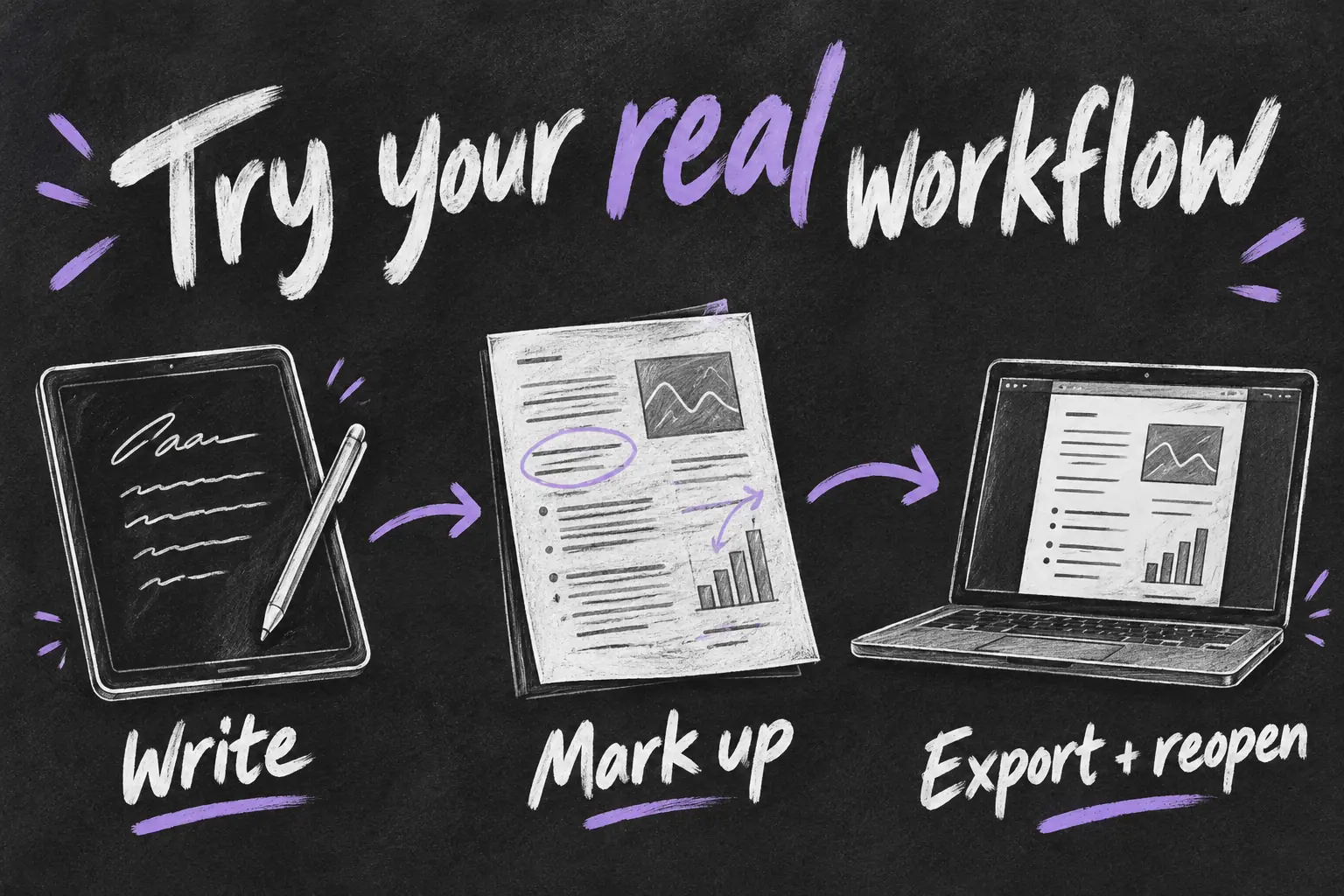
- Write one real page. Include your normal headings, abbreviations and diagrams. Check legibility and editing at the zoom level you would actually use.
- Mark up a real PDF. Open the sort of file your course or job sends you, add notes and find a marked page again.
- Test the reason you chose the app. Try conversion, audio replay or opening the same notebook on Windows. Do not judge only the writing tool.
- Export and reopen. Inspect the result on the device where you will read or submit it. Keep the editable original as well as a shareable copy.
- Make a recovery plan. Check syncing and backup separately, and open a saved copy before depending on it. Keep a copy of existing notes until the new workflow is proven.
Use a small selection of ordinary notes for the trial. You do not need to upload private client material or a whole course archive just to discover whether the writing, export and sync tools suit you. Keep AI-generated summaries as revision aids and compare important details with the source material.
Frequently asked questions
What is the best free note-taking app for iPad?
Apple Notes is our first suggestion for ordinary Apple-device notes. If you also study on Windows, trial OneNote. Neither recommendation means that every storage or advanced-feature requirement is free.
Is Notability the only app that records audio?
No. Apple Notes and Goodnotes also offer audio features. Compare playback, transcription requirements and plan limits rather than treating the presence of a microphone button as the whole decision.
Is Nebo still available?
The developer now calls it MyScript Notes, formerly Nebo. Use the current official listing and confirm purchase restoration if you already own an older version.
Can OneNote turn my handwriting into text on iPad?
Microsoft’s current iPad help says existing handwriting-to-text conversion is not supported there. Do not transfer expectations from a Windows demonstration without checking the iPad workflow.
Which app should I use for PDF lecture slides?
Goodnotes is a sensible starting trial for a notebook-and-PDF routine. Use one real slide deck to compare annotation, navigation and exported results before paying or importing all your files.
Sources and Reading Notes
Apple: Australian App Store Notes listing, Apple Pencil compatibility, and Record and transcribe audio in Notes on iPad. Goodnotes: official plans and pricing, and Australian App Store listing. Notability: official pricing, Subscription FAQ, Recording and Playing Audio, and Australian App Store listing. MyScript: MyScript Notes product information and Australian App Store listing. Microsoft: OneNote Australian App Store listing, Handwrite, draw, and sketch in OneNote for iPad or iPhone, and Sync a notebook in OneNote. Checked 23 October 2026.
Recommendations are based on documented features and example workflows, not personal comparative testing or measured recognition accuracy. Plans, prices, supported languages and feature availability can change. Original AI-generated sketches illustrate choices; they are not app screenshots.