
You can add an eligible USYD student ID to Apple Wallet through the Transact eAccounts app. Enrolled University of Sydney students can opt in and use a supported iPhone or Apple Watch at campus readers for services such as building access, library borrowing and printing. The physical card remains active. Bring it for in-semester tests and end-of-semester exams if you plan to use your student card as ID.
The useful outcome is a campus pass ready on the device you already carry. Below is the setup route and a short first-day checklist, checked on 23 October 2026 against university, Apple and eAccounts guidance. This is specific to the University of Sydney, rather than a claim that every Australian university uses the same system.
In 3 Points
Get the account and photo ready first
Existing cardholders can follow the university’s digital-card setup instructions. New students need to complete the relevant enrolment, account and photo steps first. Have your UniKey and the university’s multi-factor authentication available before starting the app sign-in.
The university’s student-card page explains the approved-photo and Card is Ready email process. Follow the current instructions and the email applying to your card instead of assuming a digital pass appears immediately after uploading a photograph. Resolve an unapproved or incomplete card record with the university before troubleshooting Wallet.
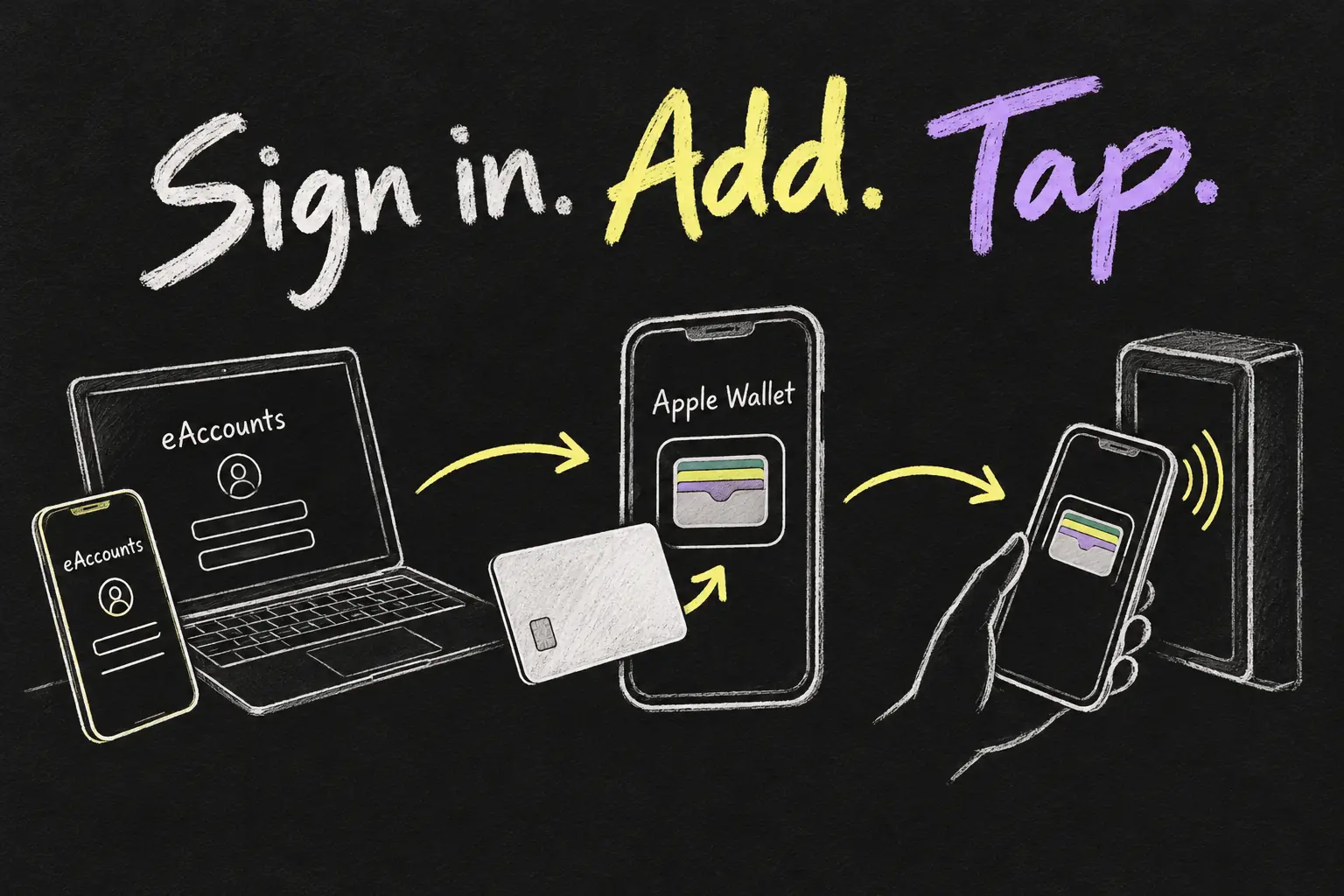
Add your USYD student ID in five steps
- Check the official requirements. Use a compatible iPhone or Apple Watch, current supported software and your Apple Account. Check the university’s linked device requirements before setup, especially for an older device.
- Install Transact eAccounts. Follow the university’s App Store link, open the app and select Get Started. This is the card-issuing route described by USYD; a photograph or manually created pass is not an equivalent credential.
- Select University of Sydney. Search for the university in eAccounts and sign in with your own university account. Complete its Okta authentication when prompted.
- Choose Add to Apple Wallet. Select iPhone, review the onscreen terms and prompts yourself, then finish adding the pass. Wait for the app’s confirmation and open Wallet to check the card.
- Add the watch if wanted. Use the same supported eAccounts process and choose Apple Watch. The university permits one iPhone and one Apple Watch; check the pass on the device you actually plan to tap.
Do the setup while you have time and a reliable connection, rather than at a locked library door. Keep your login and verification codes private. If the correct institution or Add to Apple Wallet option is missing, return to the university’s current guidance and check the underlying account record.
Use the digital student card around campus
| Task | What to prepare |
|---|---|
| Building or study-space access | Use the card at an authorised reader; enrolment and location permissions still control access. |
| Borrowing library items | Use the supported self-service process with your digital or physical card. |
| Printing, copying and accommodation laundry | Check the relevant SydPay account balance and service instructions. |
| Exam identification | Carry the physical card required by the university. |
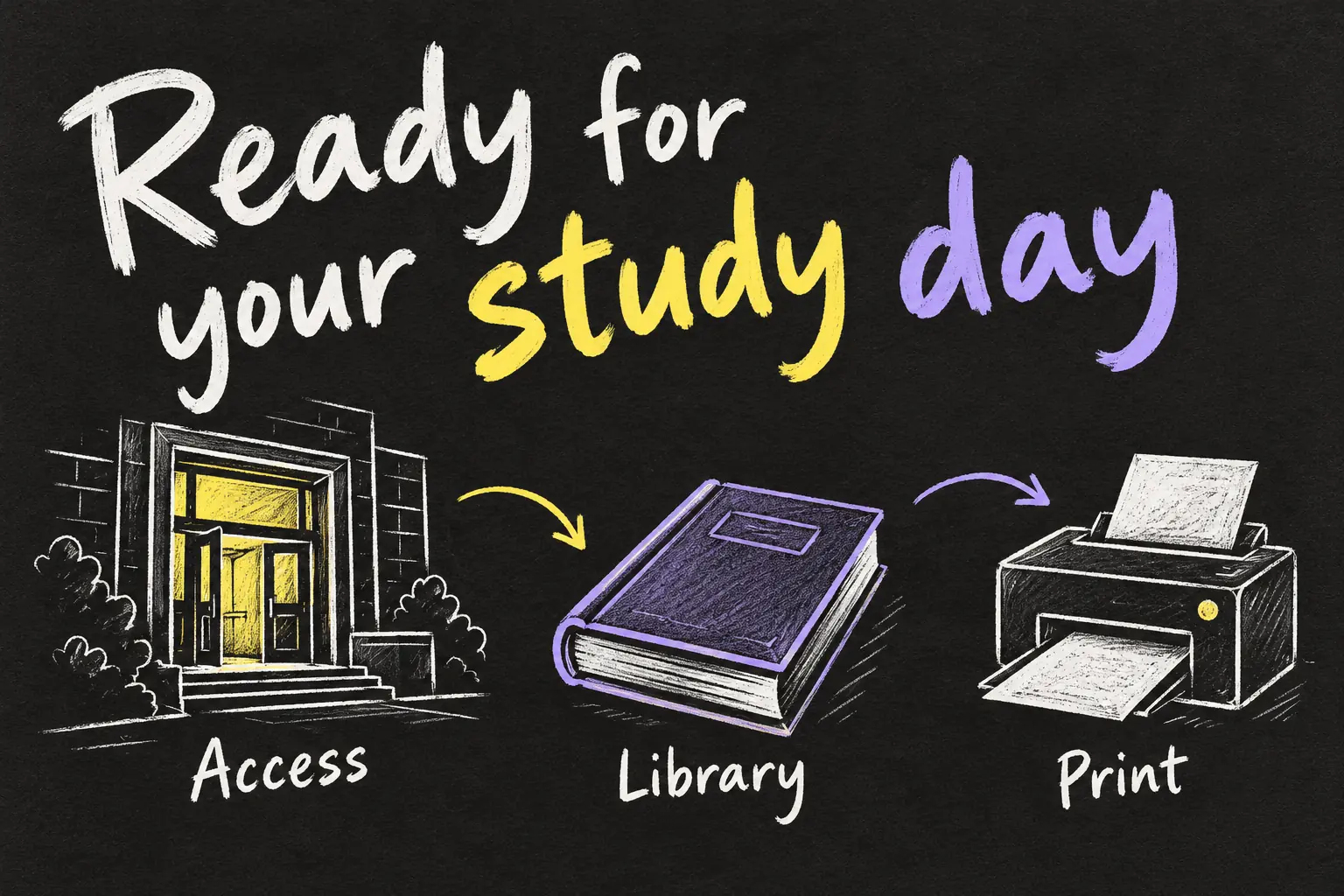
The library’s published digital-card announcement also describes access to library buildings and self-service borrowing. That makes the pass useful across an ordinary study day: enter an authorised study space, collect a book and use a supported campus payment service without repeatedly finding the plastic card.
A digital pass presents your existing identity and permissions. It does not grant access to a faculty laboratory or restricted building merely because it has been added successfully. Ask your school or the university access team about permissions if a particular location remains unavailable.
Tap with Express Mode
Apple says Express Mode is enabled automatically when a supported student ID is added. For ordinary supported use, hold the top of the iPhone or the Apple Watch display near the reader. You generally do not need to unlock the device for each Express Mode tap. Follow the reader and university instructions for the particular service.
If you turn Express Mode off, open the student pass in Wallet and authenticate before presenting it. Keep the phone charged for your campus day. Limited power reserve is available on some compatible devices, but it is better to plan for a working device than assume every model behaves the same after the battery runs down.
Keep the physical card for exam day
The university explicitly requires the physical student card for identification in in-semester tests and end-of-semester exams. Keep it accessible even if the digital student card handles your usual library and building routine. A useful phone setup and a separate exam requirement can coexist.
Before an exam, check the official exam checklist rather than relying on a Wallet screenshot. For everyday campus services, keep the pass itself available in Wallet and follow the live reader process. The issued credential is what the reader uses, not an image of the card.
Moving to a new iPhone or fixing access
eAccounts says a Mobile ID does not automatically transfer to a new device. Its documented process removes the credential from the old device before adding it to the new one, subject to eligibility and device limits. Check the current university transfer instructions while you can still access the old phone; do not assume restoring an iPhone backup completes the campus-card transfer.
If the card is present but a building denies entry, first check that you are enrolled and authorised for that location. The university’s access guidance says recently re-enrolled students may need to allow 48 hours for access to return. Report the actual reader location and outcome to the correct university team instead of repeatedly reinstalling the app.
If the device is lost, Apple advises marking it lost and contacting the university card office; Lost Mode turns off Wallet card and pass access. Follow the university’s recovery process before setting the credential up again. This guide does not ask you to share an account password or student number with our site.
Keep campus access and shopping eligibility separate
Adding the student card to Wallet solves a campus-access task. It does not automatically verify an Apple Education Store order or replace the retailer’s current eligibility process. If you are planning a study-device purchase as well, keep the university card setup and the education-discount verification as two separate jobs. That avoids repeatedly re-adding a working student pass when the problem is actually with a shopping account.

Frequently asked questions
Which app adds the pass?
USYD directs Apple users to Transact eAccounts. Select University of Sydney and use the university sign-in process.
Can I use the phone and Apple Watch?
The university supports adding the ID to one iPhone and one Apple Watch through the documented setup.
Does my physical card stop working?
The university says the physical card remains active when you opt in to the digital service. Keep it for required uses, including exams.
Is this also my Opal ticket?
The student pass is a university credential. Set up your transport payment separately and check concession eligibility and registration requirements.
Set up the pass for your real campus routine
A USYD student ID in Apple Wallet is useful when it is ready before you need it. Complete the account and photo steps, add the issued pass, and try a normal authorised campus service. If you are also choosing a device for lectures and notes, our iPad for university buying guide separates basic study tasks from reasons to pay for an Air. Keep that purchase decision separate from whether your existing phone already supports the campus pass.
Sources and Reading Notes
Checked 23 October 2026. University of Sydney: Digital cards, Student cards and Using your student card. University Library: digital ID announcement and supported library uses. Apple Support: student ID in Wallet and Express Mode. Transact/Illumia: Apple Wallet user guide and device transfers. No personal campus-access test or affiliation with the university is claimed. Illustrations are original AI-generated concepts.
Revision check, 1 November 2026: University of Sydney, Digital student cards.