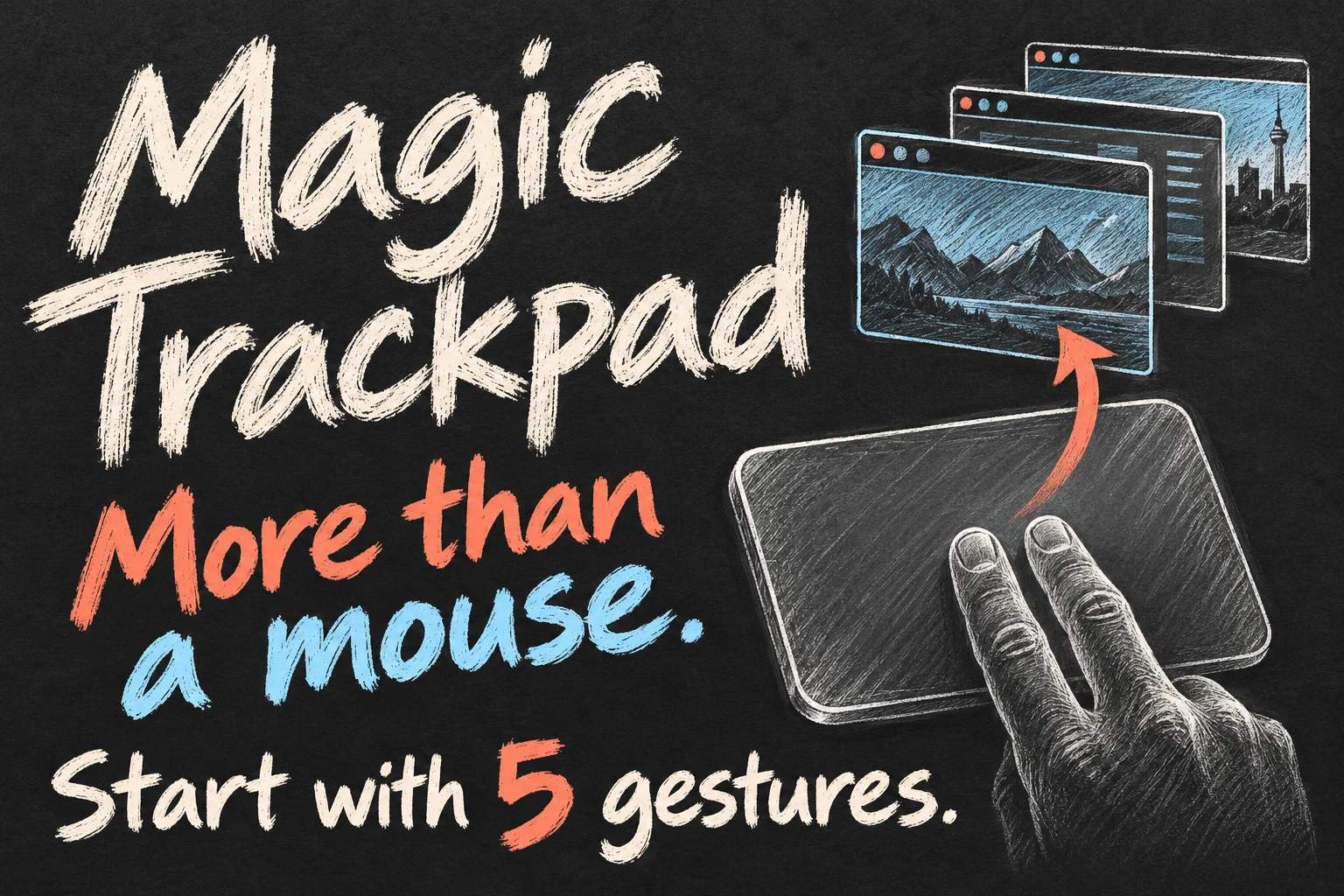
Learning how to use Magic Trackpad on a Mac starts with a connection and a few gestures: right-click with two fingers, scroll, zoom and move between windows. You do not need to memorise every shortcut. Confirm your settings, practise the five actions below, then add three-finger drag if holding a click feels awkward.
This guide covers the standalone Apple trackpad on Mac. Many gestures also work on a MacBook’s built-in trackpad, but iPad gestures and menus are different. Instructions follow current Apple documentation; the options you see depend on your trackpad and macOS version.
Checked 18 October 2026. Documentation-based guide, not a hands-on test of every Mac or trackpad generation. Illustrations show concepts rather than actual settings screenshots.
How to use Magic Trackpad: connect it first
For a rechargeable model, use a cable that fits its USB-C or Lightning port to connect it to the Mac. Turn the trackpad on so green is visible at the switch. The connection charges it and pairs it automatically. In System Settings → Bluetooth, confirm the device appears, then disconnect the cable for wireless use.
A trackpad supplied with a new Mac may already be paired. The original replaceable-battery model follows a different Bluetooth setup and does not gain Force Touch through a software setting. Apple’s current USB-C model lists macOS 15.1 or later; check the requirements for your exact hardware rather than treating every Magic Trackpad as identical.
Change these Magic Trackpad settings before practising
Open Apple menu → System Settings → Trackpad. Its gesture demonstrations are the most useful reference for your own Mac. Begin with these preferences, changing one at a time:
- Tracking speed: adjust until you can reach a target without repeatedly correcting the pointer.
- Secondary click: select the two-finger option if you want a familiar right-click menu.
- Tap to click: enable it if you prefer a light one-finger tap to a physical press.
- Natural scrolling: choose the direction that feels predictable to you.
Treat these Magic Trackpad settings as preferences, not a competition to switch everything on. If accidental taps interrupt your work, leave Tap to click off and use a normal press. Keep a mouse connected during setup if it makes the transition easier.
5 Magic Trackpad gestures to learn first
| Task | Movement | Practise it here |
|---|---|---|
| 1. Right-click | Click with two fingers, using your selected Secondary click setting. | Open a shortcut menu on a file. |
| 2. Scroll | Slide two fingers vertically. | Move through a web page. |
| 3. Zoom | Pinch or spread two fingers in a supported app. | Change magnification in a PDF or photo. |
| 4. See open windows | Swipe up with three or four fingers, as configured for Mission Control. | Find an open window without searching the Dock. |
| 5. Change desktops or full-screen apps | Swipe horizontally with the finger count chosen in More Gestures. | Move between existing desktops or full-screen apps. |
For the last two Magic Trackpad gestures, check More Gestures rather than assuming three fingers or four fingers is universal. Apple notes that mappings vary. A sideways swipe is not a general command to cycle through every ordinary app window; use Mission Control when the window you want is on the same desktop.
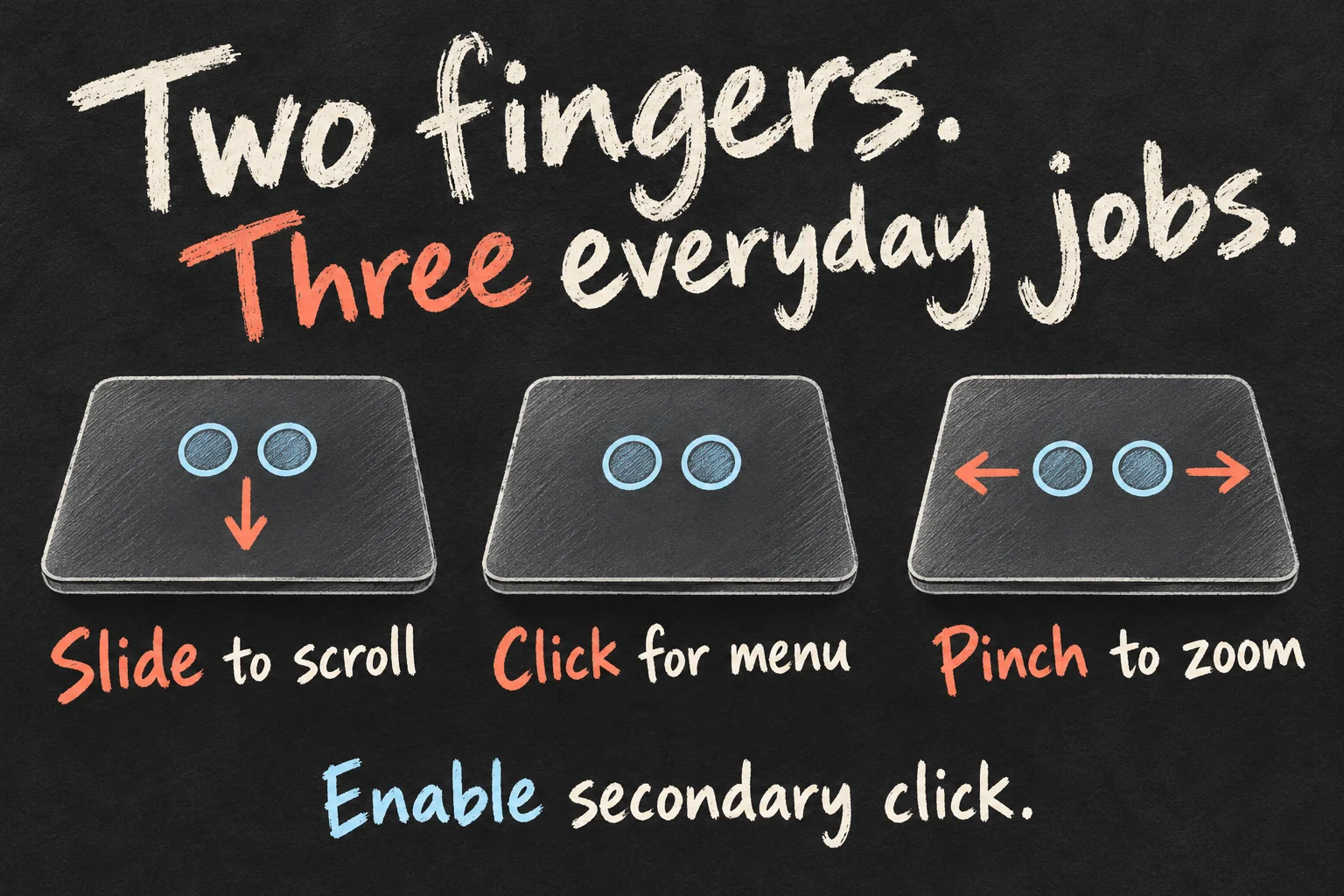
Start with one browser and one PDF. Scroll a paragraph, open a shortcut menu, adjust the PDF view, then bring the two windows back through Mission Control. Repeat that small workflow rather than switching between a long list of gestures. Change only the action that is not behaving as expected.
Enable three-finger drag without hunting through menus
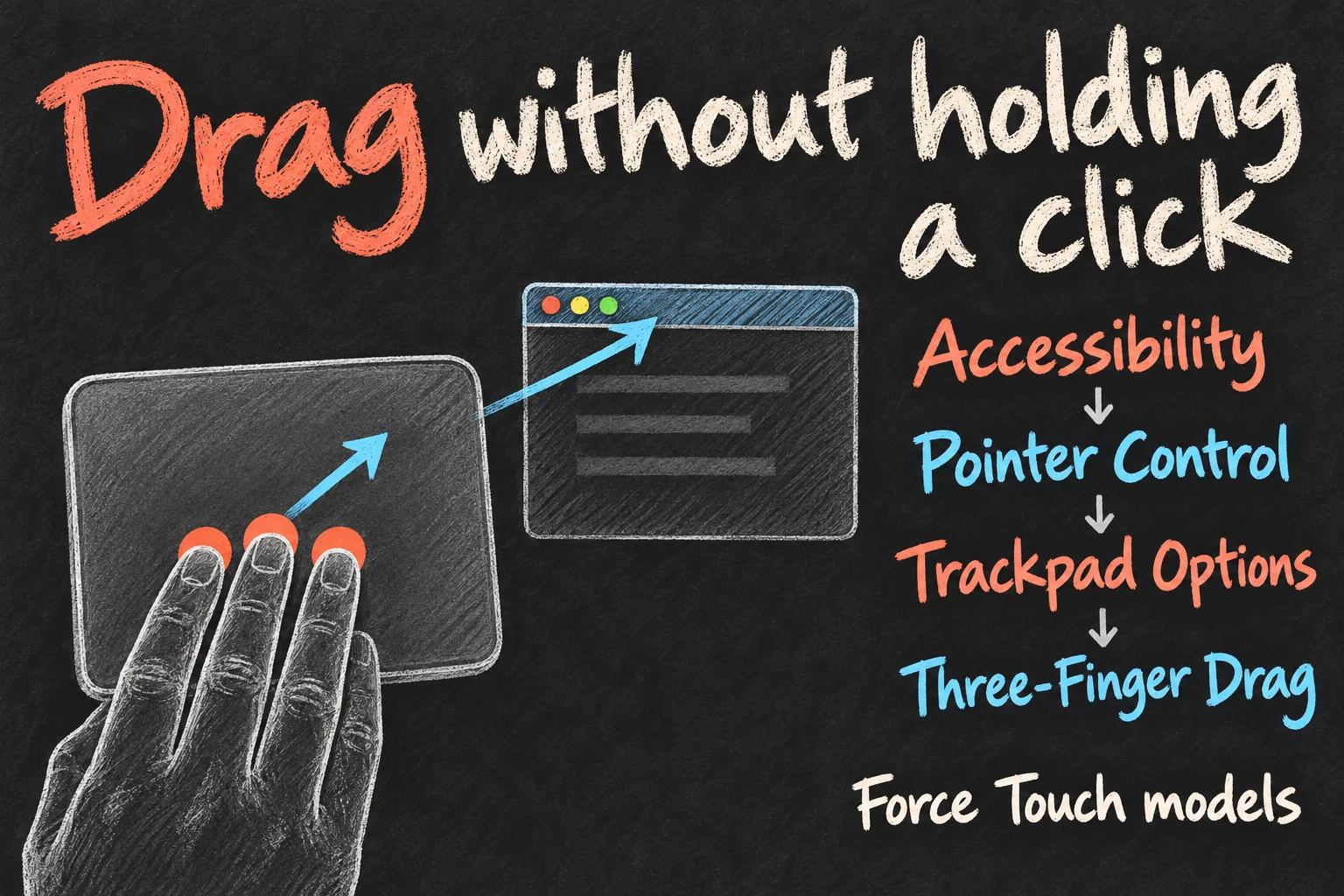
Three-finger drag is in Accessibility, not the main Trackpad pane. On a supported Force Touch trackpad, follow this path:
- Open System Settings → Accessibility → Pointer Control.
- Choose Trackpad Options.
- Enable Use trackpad for dragging.
- Select Three-Finger Drag as the dragging style and confirm with OK.
Try three-finger drag on a window’s title bar first, rather than moving files while learning. Position the pointer on the title bar and move three fingers together across the surface without holding down a click. Check the available dragging styles on your Mac if the result is different. Older systems may use names such as Enable dragging or Mouse & Trackpad.
After enabling three-finger drag, revisit More Gestures if window or desktop swipes behave differently. Follow the finger counts now shown there; do not keep repeating a conflicting movement. You can return to ordinary click-and-hold dragging if that suits your work better.
Force click is a deeper press, not a double-click
On a Force Touch model, Force click means pressing beyond the first click until you feel a deeper response. It is different from clicking twice. Under Trackpad → Point & Click, check Force Click and haptic feedback; the setting only appears for hardware that supports it.
One useful example is a file preview in Finder. Another is looking up selected text, when Look up & data detectors is configured for a one-finger force click. Actions depend on the item and app. If you do not like the deeper click, use alternatives: select a Finder file and press Space for Quick Look, or Control-click text and choose Look Up where available.
A rechargeable Force Touch trackpad does not provide its normal click sensation when switched off. That alone does not mean its surface has mechanically jammed. Check power and charge before assuming the click mechanism is broken.
When Magic Trackpad gestures do not work
| What happens | Check first |
|---|---|
| Pointer does not move | Power, charge, Bluetooth connection and the exact model’s system requirements. Reconnect a rechargeable model with its matching cable. |
| One gesture fails | Its toggle and selected finger count in Trackpad settings. Test the gesture in an app that supports it. |
| Right-click does nothing | Secondary click configuration; tap and physical click are not interchangeable unless the appropriate option is enabled. |
| Dragging moves the wrong thing | Place the pointer on the intended title bar or item before starting. Test on a window before rearranging files. |
| Pointer or scrolling feels wrong | Change tracking speed or Natural scrolling separately, then repeat the same simple task. |
Separate connection problems from gesture problems. If the pointer works but zoom does not, pairing the whole device again is not the first useful step. If nothing works, focus on power and connection before changing gesture assignments. Note which app and movement fail so you can describe the problem accurately.
FAQ
Q. Can I charge it while using it?
Rechargeable Magic Trackpad models can be connected to the Mac by their matching charging cable. That connection is also Apple’s documented pairing method. The original battery-powered model is different.
Q. Do I need to buy a gesture app?
No extra app is needed for the built-in Magic Trackpad gestures covered here. Learn the macOS controls before considering custom automation.
Q. Are these the same gestures as on an iPad?
Not throughout. An iPad has its own pointer settings and navigation gestures; Mac Accessibility instructions do not transfer directly. If your goal is tablet productivity, our iPad laptop-style setup guide covers the wider workflow.
Q. What should I learn on the first day?
If you are working out how to use Magic Trackpad for the first time, practise right-click and scrolling first. Add zoom and window navigation when those feel predictable. Learn three-finger drag only if it solves a problem for you.
Sources and Reading Notes
Apple Support, checked 18 October 2026: Magic Trackpad guides for iMac and Mac Pro; accessory setup; Multi-Touch gestures; Trackpad settings; three-finger drag; Pointer Control settings; Force Click and haptic feedback. Apple Australia’s USB-C Magic Trackpad listing supplied its system requirements. Hardware support, macOS version and app context determine the available actions.
Search comparison reading: Apple’s iMac and Mac Pro guides and Macworld’s gesture article dated 2 January 2023. HowToSimply’s October 2026 guide was additional comparison material, with its search position unverified. The article prioritises a short practice sequence, configurable finger counts and separate troubleshooting paths instead of copying an exhaustive gesture list.