
Live Listen on iPhone turns your phone into a microphone for connected AirPods. Place the iPhone near the person speaking, then listen through your earbuds. It can help when a voice is too far away or a room is noisy, and you can start it from Control Centre without buying another app.
The key is where you put the phone. Leaving it beside you while a speaker sits across the table gives the microphone much the same distance problem you started with. Put it nearer the voice you want to hear, then adjust volume to a comfortable level.
What does Live Listen on iPhone actually do?
Live Listen sends the sound around the iPhone to your supported headphones. That makes it useful for a conversation across a table or a speaker you cannot sit beside. It is different from simply making a music track louder: the source is the microphone in the room.
Apple lists AirPods, AirPods Pro and AirPods Max, along with selected Beats models, as supported listening devices. Its support article requires iOS 14.3 or later for the basic feature. The headphones must be connected to the iPhone, not merely saved in its Bluetooth list. Arbitrary Bluetooth earbuds are not automatically compatible.

Set up and use Live Listen in five steps
- Connect your AirPods. Put one or both earbuds in your ears and confirm the iPhone shows them as connected. Start with a charged phone and headphones.
- Add the control. Open Control Centre, tap the add-controls button, then Add a Control. Search for Live Listen under Hearing Accessibility and add it. Exit editing mode.
- Start listening. Open Control Centre again and tap Live Listen. On layouts using the Hearing control, open Hearing, choose your AirPods and select Live Listen.
- Position the phone. Set it on a stable surface near the person speaking. Keep the microphone clear of your hand, a bag or a folded napkin. Adjust headphone volume gently.
- Stop when finished. Return to the Live Listen controls and use the session’s stop switch. Check that the session has ended before putting the phone away.
Apple’s current iOS 27 guide also provides a Settings route: Accessibility → Audio & Visual → Live Listen → Start Live Listen. Menu wording can differ on older software. If a guide tells you to find an old “Customise Controls” screen that is missing, use Control Centre’s current Add a Control route instead.

Use captions and replay when you miss a sentence
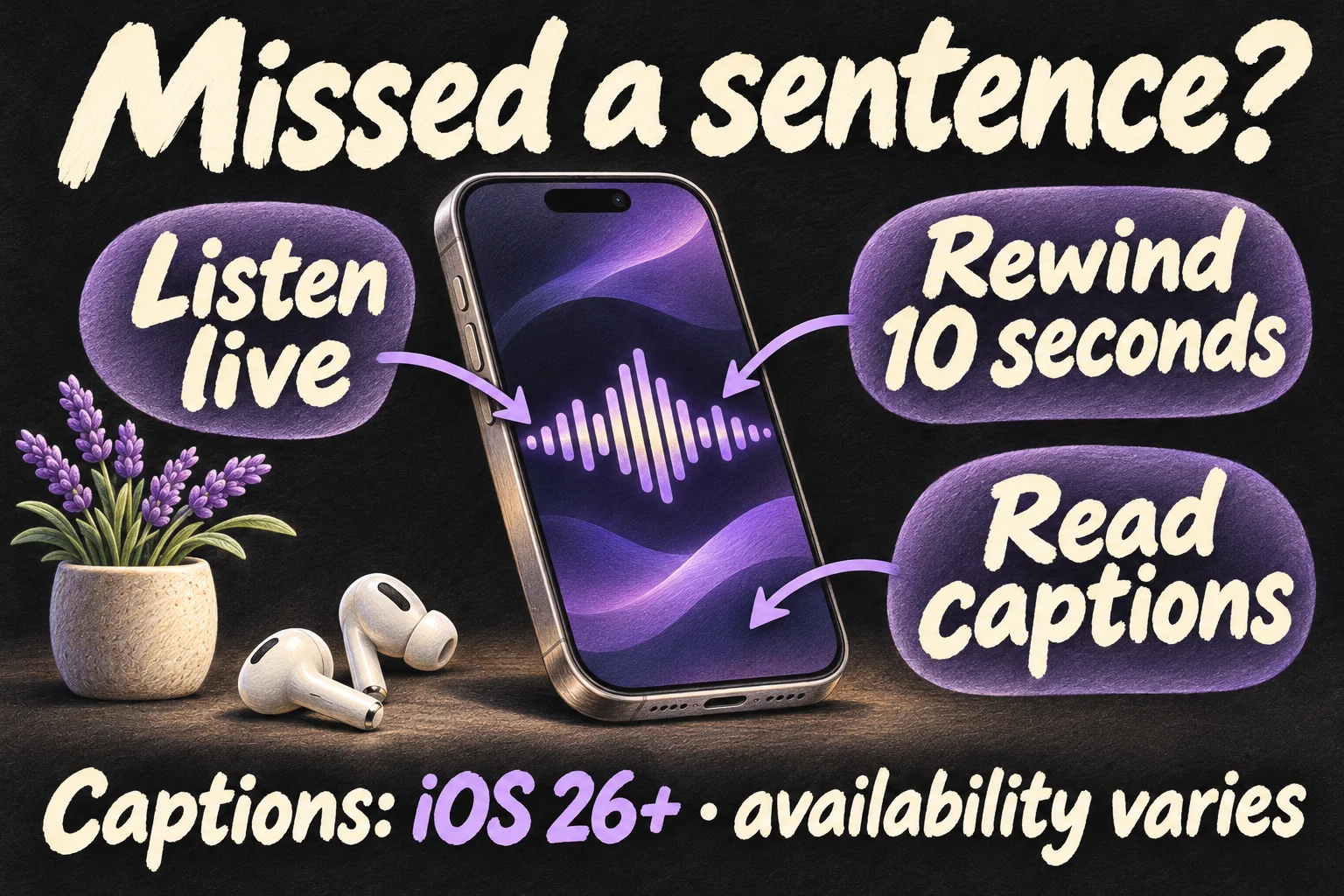
On supported software, the expanded Live Listen session can display live captions, jump back ten seconds and return to live audio. The rewind is useful when you heard a name or instruction but missed the last few words. Return to live audio afterwards so you do not keep listening behind the conversation.
Apple requires iOS 26 or later for Live Captions within Live Listen, and availability varies by language, country and region. Do not assume every spoken language will produce captions or that a transcript is exact. The basic microphone feature and caption availability are separate checks.
The current iPhone guide also describes controlling a session from a paired Apple Watch or another nearby Apple device signed in to the same Apple Account. That can be convenient when the microphone phone is on the table near the speaker. It does not make the feature an internet listening service.
Live Listen, Transparency and Live Translation are different
| What you want | Start with | Why it fits |
|---|---|---|
| Hear someone closer to your phone than to you | Live Listen | The iPhone is the microphone you can move nearer the speaker. |
| Hear your immediate surroundings while wearing supported AirPods | Transparency mode | This uses the earbuds’ listening modes rather than placing the phone beside a distant speaker. |
| Understand speech in another language | Live Translation, if supported | Translation has its own iPhone, AirPods, language and regional requirements. |
| Use Apple’s Hearing Aid feature | Check the separate supported feature | Its eligibility and setup are separate from the Live Listen control. |
For a conversation at your own table, decide whether distance or language is the real difficulty. Live Listen can bring a remote microphone nearer the voice; it does not translate that voice into English. Our translation guide covers the separate setup rather than mixing the two features together.

If Live Listen is unavailable or has no sound
Check the connection before resetting anything. Open Settings → Bluetooth and confirm the headphones are connected to the iPhone acting as the microphone. A pairing saved on a laptop is not proof that the phone is currently using those headphones.
| Problem | First check | Next action |
|---|---|---|
| The control is missing | It may not have been added | Search Live Listen in Control Centre’s control gallery. |
| It will not turn on | Bluetooth, charge and active connection | Charge the headphones, turn Bluetooth on and reconnect them. |
| You hear the room but not the person clearly | Where the microphone is sitting | Move the phone closer to the speaker and away from nearby clatter. |
| Audio drops when you move | Distance and obstructions | Move closer to the microphone phone and test again; do not rely on a fixed room-to-room range. |
| Captions are missing | Software and language availability | Check the caption requirements separately from the audio connection. |
If the connection still fails after charging and reconnecting, restart the phone and try again. Use a full headphone reset only after ordinary connection checks. Our pairing guide explains the different controls across AirPods generations, which is useful if you are also moving between a phone and a laptop.

Get a useful result without buying new hardware
Try the AirPods you already own before shopping for an upgrade just for Live Listen. At a café, set the phone nearer the person you are speaking with and compare a short sentence before and after starting the session. In a meeting, ask where the microphone phone can sit without blocking anyone’s work. These are setup suggestions, not claimed test results.
The simple goal is a clearer route from the speaker to your headphones. If moving the phone does not help enough, repeatedly turning up the volume is unlikely to be the best next step. Stop the session, reconsider the position and choose a quieter place to talk where possible.
Sources and checked software
Checked 19 November 2026: Apple Support, “Use Live Listen with AirPods or Beats”; Apple iPhone User Guide for iOS 27, “Use iPhone as a remote microphone with Live Listen”; Apple’s AirPods listening-mode and translation guidance. Basic Live Listen and newer caption controls have different software requirements. Illustrations explain the signal path and workflow; they are not screenshots.