
Tesla Siri shortcuts can turn a supported vehicle action into an iPhone voice command. Start with the official Tesla app, choose an action available in Shortcuts, save a clear name and run it manually before asking Siri. Apple Watch offers two different routes: Tesla’s own watch app and compatible shortcuts you enable for the watch.
Use iPhone shortcuts for saved actions, the Tesla Watch app for its on-screen controls, and the separate Watch Key setup when supported. Vehicle and software requirements can differ.
Before you dive in
Tesla Siri shortcuts: what you need before starting
Install or update the official Tesla app from Tesla, Inc., sign in to the account with access to your vehicle and confirm that a normal app command works. The car must be visible in that account and have mobile access enabled. If the ordinary app cannot reach the vehicle, adding Siri introduces another step without fixing the underlying connection.
For remote controls, Tesla describes the phone and vehicle needing connectivity. Do not assume a working Bluetooth phone key means a remote climate command will work from an underground car park. Local key access and a remote command solve different problems. Select the intended vehicle carefully if your account has more than one.
You also need Apple’s Shortcuts app. Check the Tesla actions offered by your installed app instead of copying a years-old list as a guarantee. Vehicle equipment and software affect what a control can do. A shortcut does not add a powered tailgate, a new driving feature or access to a car you are not authorised to use.
Set up an iPhone shortcut, then control Tesla with Siri
The cleanest starting point is one climate action. It has an outcome you can check without opening a door or changing a charging routine. The exact Tesla action labels can change, so select the one actually shown for the job you want.
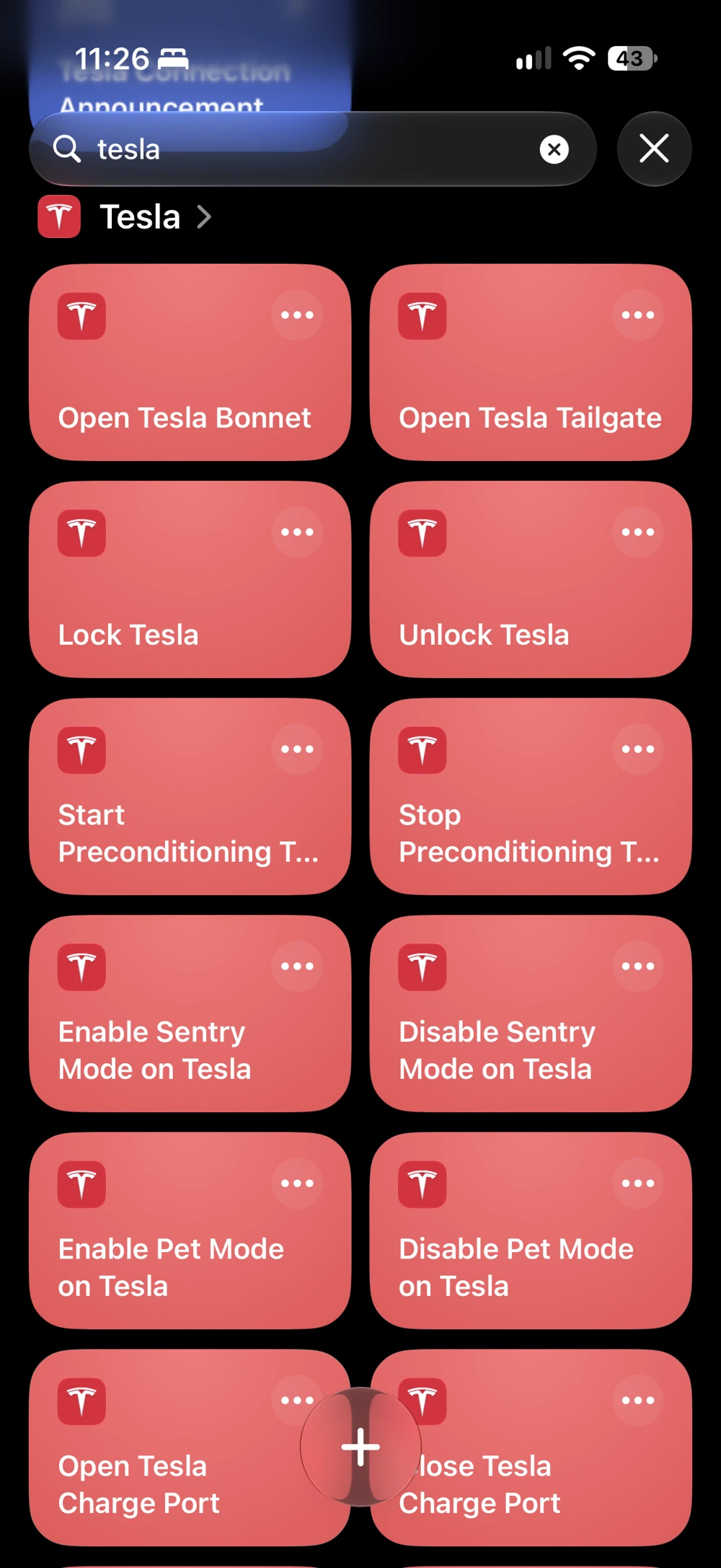
- Open Shortcuts on iPhone. Look in App Shortcuts for Tesla and inspect the available actions. Tapping an action may run it, so read what it does first.
- For a reusable routine, create a new shortcut with +, choose Add Action and search for Tesla. Select the supported climate or preconditioning action offered by the app. You can also use an app shortcut’s menu to choose Use in New Shortcut when available.
- Set the vehicle and any parameters the action exposes. If you want a temperature, use the available temperature control; do not assume changing a set point alone starts climate.
- Rename the routine something distinctive, such as Tesla Cabin Ready. Run it from Shortcuts and review any legitimate permission or authentication prompt.
- Check the Tesla app and the vehicle’s state. Once that works, activate Siri and say Tesla Cabin Ready, using the name you actually saved.
That example phrase is a name you create, not a universal Tesla command. A short, distinctive name reduces confusion with navigation or another shortcut. If Siri answers a general question instead of running the action, simplify the name and try the same routine manually again.
Find Tesla actions in Shortcuts
Searching for Tesla in Shortcuts shows actions including Open Tesla Bonnet, Open Tesla Tailgate, Lock Tesla and Unlock Tesla. Read an action before tapping it: it can operate the vehicle.
Apple notes that a shortcut which opens an app can require you to unlock a locked device. Keep that authentication rather than treating it as an error to bypass. You can still keep a Home Screen shortcut or widget as a visible fallback when speaking is inconvenient.
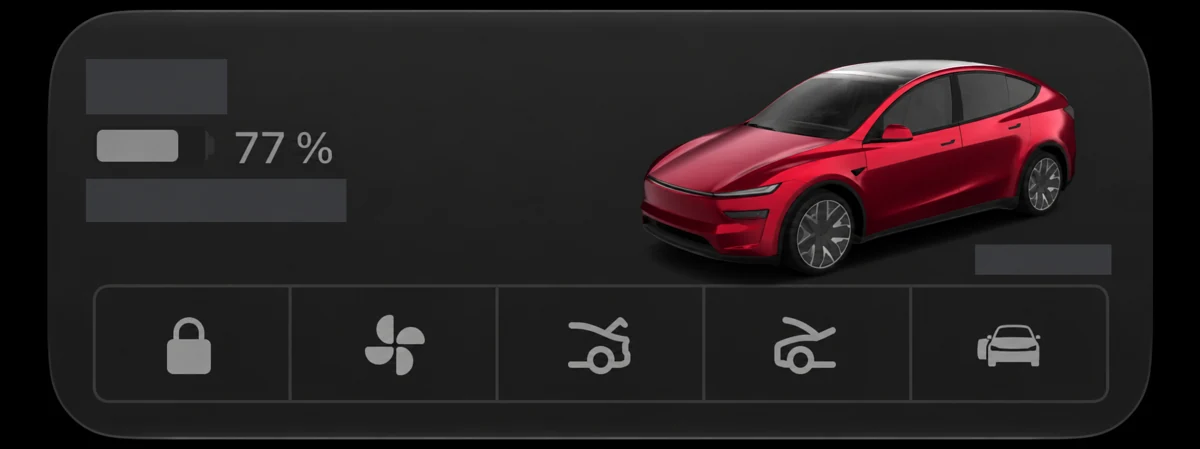
5 Tesla control ideas worth setting up
Use this list as a shortlist to compare with your own Tesla actions, not a promise that all five appear on every device. The phrase examples below only work after you create the matching routine and choose the appropriate supported action.
| Control idea | Example shortcut name | What to check |
|---|---|---|
| 1. Prepare the cabin | Tesla Cabin Ready | Use the available climate or precondition control, then check the result. Useful before leaving a Melbourne home on a cold morning or returning to a hot parked car. |
| 2. Lock after parking | Tesla Lock Check | Choose the lock action if offered and verify the lock status afterward. Do not make an unlock action your first experiment. |
| 3. Open the boot or frunk | Tesla Open Boot | Choose the specific compartment action your car supports. Check clearance and keep people clear; opening a frunk does not imply it can close itself. |
| 4. Open the charge port | Tesla Charge Port | Use an available port action when you are next to the parked car with the charging cable. Opening the flap is different from starting a charging session. |
| 5. Start or stop charging | Tesla Start Charging | Use a supported charging action only with the cable connected and the intended charging conditions met. Confirm the charging state in the Tesla app. |
Start with one routine you expect to use each week. A menu full of rarely used commands is harder to remember than a reliable cabin-preparation shortcut. For scheduled departure or charging needs, compare the scheduling options already available in Tesla before building a chain of phone automations.
Cabin preparation is not a promise of Supercharger battery preconditioning. Do not label a generic climate shortcut as a fast-charging optimisation unless Tesla documents that exact behaviour for your situation. Likewise, Siri is not a substitute for checking that a boot has actually closed or charging has actually begun.
Tesla Apple Watch app and Watch Key: a separate setup
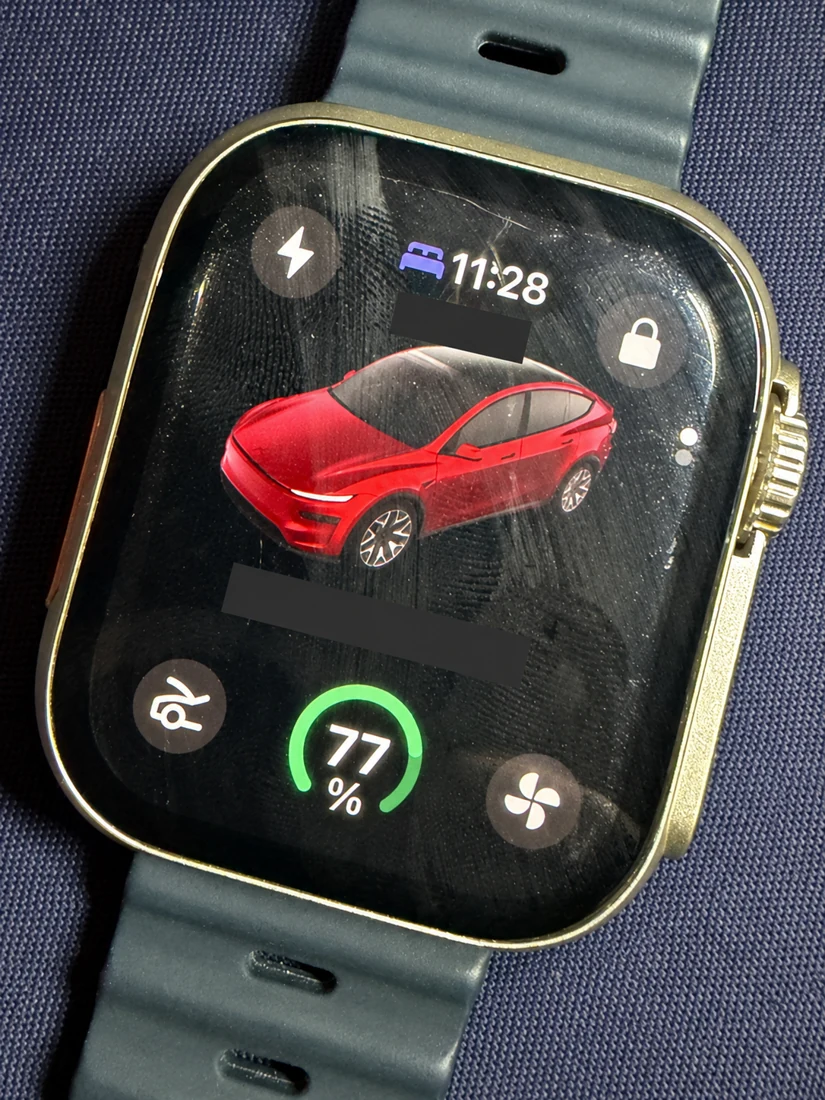
You do not have to use Siri for every wrist-based action. Tesla’s Australian support page lists a native watch app with Watch Key pairing, frunk opening, battery charge status, charge-port opening and climate activation. Treat those as its documented controls, rather than assuming the full iPhone app is mirrored on the smaller screen.
Tesla lists Tesla app 4.39.5 or later, vehicle software 2024.44.25 or later and watchOS 11 or later for its vehicle watch app. These are documented minimums, not a recommendation to remain on old versions. Use current compatible updates and check your particular vehicle’s support.
With the watch paired to your iPhone, press the Digital Crown and open Tesla. Pair Watch Key next to the vehicle using the app’s instructions. Watch Key enables local locking and unlocking in the way Tesla describes; it is not the same operation as sending a spoken remote command.
Use the Tesla Watch app
On my Apple Watch I use the Tesla controls for the vehicle. The app shows battery status, lock, front-boot and climate controls. Using these controls is separate from pairing Watch Key.
If you only want a quick charge check or cabin control, first try the native Tesla Apple Watch app. It may already cover the need. Do not buy a third-party subscription solely because an old tutorial predates Tesla’s watch app.
Put a compatible Tesla shortcut on Apple Watch
- Build the routine on iPhone and confirm it works there.
- Open the shortcut’s edit screen, open Details and enable Show on Apple Watch, then tap Done. The position of Details can vary with your software.
- Open Shortcuts on Apple Watch and tap the saved routine. Check the actual vehicle result.
- Only after that test succeeds, ask Siri on the watch to run the same saved name. Add a supported Shortcuts complication if tapping is more convenient.
Apple explicitly says not all iPhone shortcuts are compatible with Apple Watch. Enabling Show on Apple Watch does not prove the Tesla action will execute successfully. A routine can still depend on an app, a phone connection, network access or authentication. Test your actual setup rather than assuming a cellular watch makes every step independent.
If it runs on iPhone but fails when tapped on the watch, focus on compatibility and the watch’s connection first. If it runs when tapped on the watch but not by voice, investigate Siri recognition and the saved name. These are different faults, so changing every setting at once makes diagnosis harder.
Tesla Siri shortcuts not working? Follow this order
- Test the Tesla app. Check account access, the selected car, mobile access and connectivity. A remote app failure is not primarily a Siri failure.
- Test one action inside Shortcuts on iPhone. Review the selected vehicle, parameters and permission prompt. If the action is absent, update the official app, open it and sign in, then check the available actions again.
- Test Siri on iPhone. Use the exact saved name. If an unlock prompt appears for an app-opening step, authenticate normally.
- Test the watch by touch, then by voice. Keep the native Tesla app test separate from the Shortcuts test. One working does not establish that the other must work.
- Check state before retrying. A delayed response does not tell you whether the car completed the action. Read its current state before repeating a command, especially one that toggles or moves something.
For a persistent failure, note the Tesla app version, vehicle software, iOS/watchOS version, exact action and which of those tests fails. That gives support a useful starting point. Reinstalling the Tesla app is not the first step: Tesla warns that reinstalling can require phone-key pairing again.
Do you need Tessie or another paid app?
Start with Tesla’s official app and Apple’s built-in Shortcuts. No separate paid Tesla-control app is required just to inspect and try the official actions available to you. That does not mean every advanced automation or every vehicle function is included.
Tessie is one optional route when you need a specific action or workflow absent from your setup. Its own documentation describes Siri and Shortcuts support. Before subscribing, check the current features, pricing and Tesla account permissions for the exact job; do not assume a third-party app fixes all watch compatibility problems.
Build and test vehicle routines while parked. For a first shortcut, avoid automatic unlocking, unattended moving panels or a multi-action routine whose partial completion would be difficult to notice. Use authorised Tesla sign-in flows and review unfamiliar shared shortcuts instead of pasting account tokens into a downloaded script.
For other practical Apple Watch decisions, see our Apple Watch SE 3 buying guide. If your interest is broader in-car iPhone features, our CarPlay feature guide covers a different system; setting up Tesla Siri shortcuts does not establish CarPlay support in your vehicle.
Frequently asked questions
Can I control Tesla with Siri without a paid app?
Try the actions exposed by the official Tesla app in Shortcuts first. You need authorised vehicle access and a supported action, but a paid third-party control app is not the default requirement.
Do I need Apple Intelligence?
Running a saved shortcut by its name is a standard Shortcuts/Siri workflow. This guide does not depend on generative AI creating the routine or on an AI upgrade controlling the car.
Will Siri unlock my Tesla without my iPhone nearby?
Do not assume that. A compatible shortcut’s dependencies and connectivity still matter. Watch Key pairing is a separate feature; use Tesla’s documented key setup rather than relying on an untested voice routine.
Can every Tesla use every command in an online list?
No such blanket promise is sensible. Compare the actions shown by your installed app with your vehicle’s equipment and software. An unsupported action cannot add missing hardware.
What is the best first shortcut?
A single cabin-preparation action is a useful starting experiment. Run it manually, confirm what changed and then add Siri. Keep the routine only if it saves effort reliably in your own use.
Sources and Reading Notes
Tesla Support Australia: Vehicle Products on Your Apple Watch. Tesla Support: Tesla App Support and Getting Started With Your Tesla Vehicle. Tesla Model Y Owner’s Manual: Mobile App. Apple Shortcuts User Guide: Run App Shortcuts, Create a Custom Shortcut, Use Siri to Run Shortcuts With Your Voice, and Run Shortcuts From Apple Watch. Apple Watch User Guide: Use Shortcuts on Apple Watch. Tessie Help Center: Siri. Documentation checked 22 October 2026.
Apple and Tesla documentation checked 22 October 2026. Screenshots and watch photo: Aussie Oppa; interfaces: Apple and Tesla. CarCody, SlashGear, Tesla-Info and Not a Tesla App informed the reader questions. The featured illustration is AI-generated.