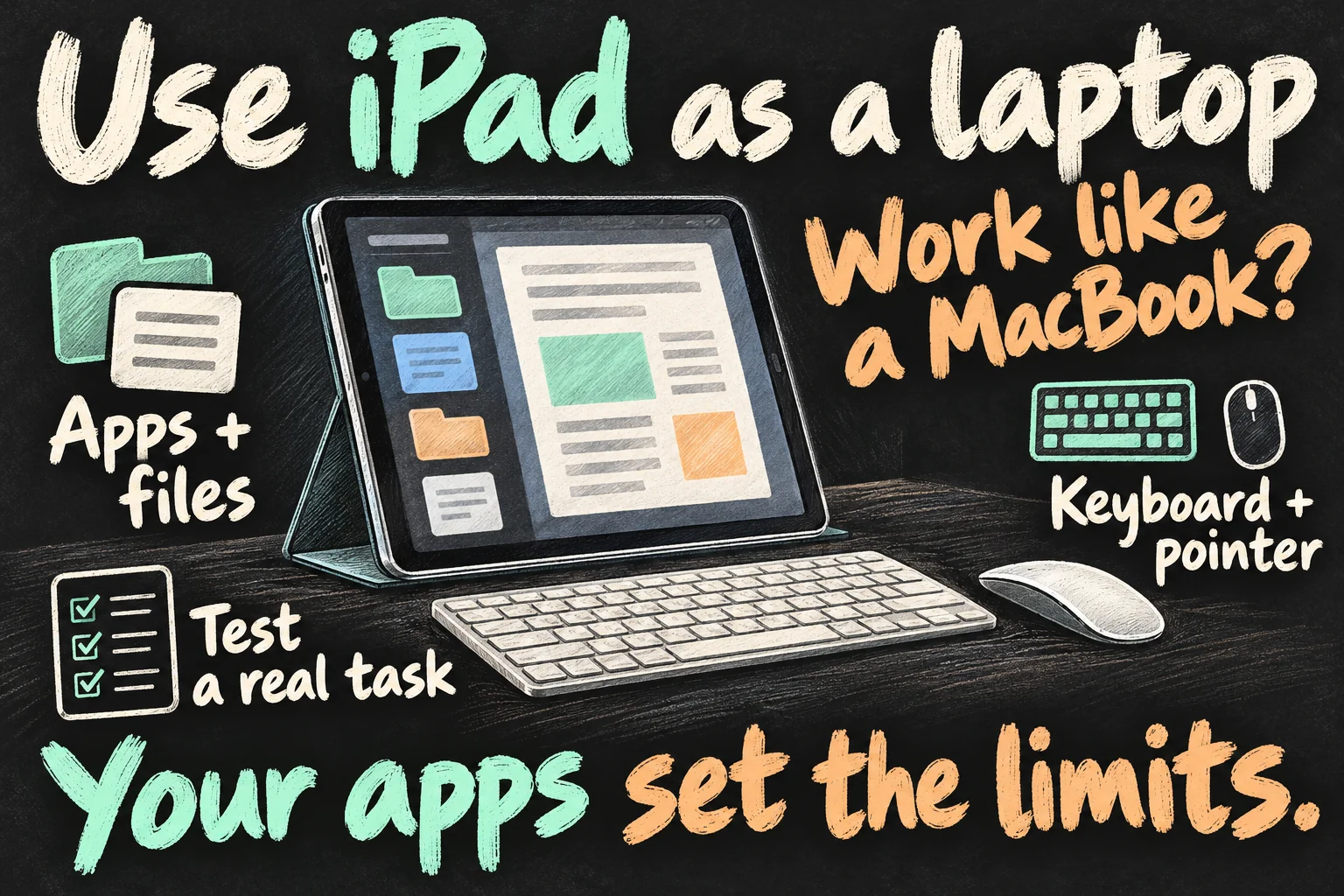
You can use iPad as a laptop for writing, research, email and many everyday tasks with a keyboard, a pointer and a workable file routine. It can replace those parts of a MacBook workflow, but a Mac-only app or a missing feature in your work software can still stop the job. Start with the iPad you own and test a complete task before buying accessories.
This guide covers five practical setup steps, what to check before adding a monitor, and a simple test for deciding whether the setup fits your work. Settings were checked against Apple’s iPadOS 27 user guide on 12 October 2026; the Windowed Apps approach also applies to supported iPads running iPadOS 26. This is a research-based guide, not a hands-on comparison.
Can you use iPad as a laptop for your work?
Match the device to the task you must finish. A faster processor does not add a missing command to an app. Equally, a simpler iPad can be useful when your work already fits its apps and screen.
| Your work | What to check on iPad |
|---|---|
| Email, research and writing | Text selection, attachments and the final document layout. |
| Notes, drawing and PDF annotation | Your preferred app, Pencil compatibility if needed, and export format. |
| Spreadsheets and business portals | The exact formulas, automation, uploads and browser controls you rely on. |
| Photo or video projects | Required editing tools, plug-ins, media import and delivery format. |
| Mac-specific software or Xcode | Plan for a Mac. A keyboard does not make the desktop app run locally on iPad. |
There are concrete limits behind that last distinction. Microsoft says Excel for iPad can open macro-enabled workbooks but does not run their VBA functions. Apple lists macOS requirements for Xcode. If either is essential, an iPad as a MacBook replacement needs another computer for that work, even if the tablet handles everything else.
1. Add a keyboard and a comfortable pointer
An iPad keyboard and trackpad make long documents and precise selections easier to approach without constantly reaching for the screen. A keyboard case keeps the pieces together; a separate Bluetooth keyboard and mouse or trackpad let you reuse equipment you already have.
Check the accessory’s compatibility with your exact iPad model and size before ordering. “Magic Keyboard” is not one universal fit for every iPad. For Bluetooth accessories, put the accessory into pairing mode, open Settings → Bluetooth and select it when it appears.
Once paired, adjust pointer speed under Settings → General → Trackpad, or Trackpad & Mouse depending on the connected device. Try Tap to Click and a secondary click if those options suit you. Apple notes that first-generation Magic Mouse and Magic Trackpad do not support scrolling or other gestures on iPad.
Also test the physical setup where you work: a keyboard case may suit a small café table, while a separate stand and keyboard may suit a desk. Check whether the screen angle and support remain comfortable on your lap. These are buying checks, not a claim that one accessory works best for everyone.
2. Turn on Windowed Apps and learn a few shortcuts
To use iPad as a laptop for research beside a document, try Settings → Multitasking & Gestures → Windowed Apps. Apple’s current guide explains that you can resize windows from the bottom-right corner and move them by dragging their top edge. Open a second app from the Dock or App Library, then arrange the two so both remain readable.
Stage Manager is another window organisation mode, available from the same settings area on supported software and hardware. Begin with two useful apps rather than filling the display: for example, a browser for reference and a document for your own notes. If text becomes cramped, use one app full screen and switch between them.
With an iPad keyboard and trackpad, learn the shortcuts that remove your most repeated actions. Apple documents Command-C and Command-V for copying and pasting, Command-Z to undo, Command-Space to search, and Command-Tab to switch apps. Individual apps can add their own commands.
For app menus on iPadOS 27, Apple’s shortcut guidance says to enable Windowed Apps or Stage Manager, then tap or click the app name beside the date at the top left. On iPadOS 26, the menu bar can be revealed from the top edge instead. Older Split View instructions online may describe a different software version.
3. Make files and exports predictable
An iPad as a MacBook replacement needs a reliable hand-off from an app to the place your work must go. Decide where project files live, where the exported result is saved and how you will send it. A document is not finished simply because it looks correct inside the editor.
A practical routine is to keep one project folder, save the exported file there, reopen that export to inspect it, then upload or attach it. Try this with an actual form or work document, including its images and formatting. Confirm that the recipient accepts the file type and that the final page layout survives.
The Files app and supported apps can access connected USB storage and SD cards. Apple specifies a compatible connector or adapter and a supported drive format with a single data partition. Some external hard drives require their own power or a powered hub. Check those conditions before assuming that a drive which works on your Mac will appear on iPad.
If you use cloud storage, prepare an offline test as well: disconnect from the network and try opening, changing and saving the files you need. Download and offline behaviour depend on the app and service. Keep a separate backup of important work; synchronisation alone does not make an accidental deletion harmless.
4. Check what an iPad external monitor will actually do
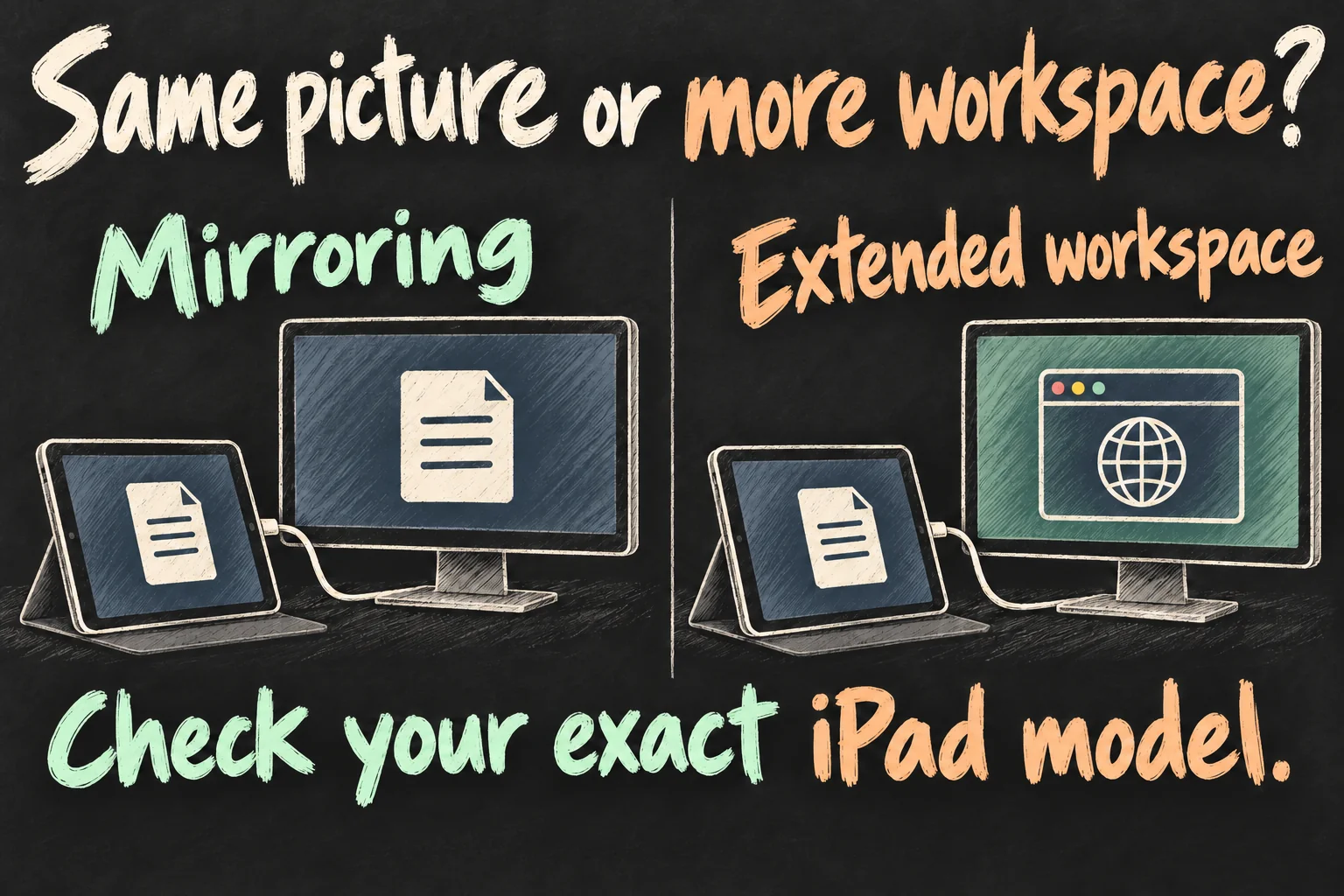
An iPad external monitor can mean two different things. Mirroring shows the same content on another display. An extended workspace lets you put different app windows on the two screens. A USB-C port or a picture appearing on a monitor does not, by itself, prove that the second mode is supported.
Apple’s iPadOS 27 guide limits moving apps between displays to compatible iPad models and a suitable cable or adapter. Check the model-specific support before buying a monitor or hub. Supported examples include iPad Air (5th generation) and iPad Pro 11-inch (3rd generation); support is not universal across the iPad range.
On a compatible extended-display setup, Apple describes dragging an app by the top of its window between screens. You can also use window controls to choose Move to Display or Move to iPad. Test the document or app you actually need on that screen, including the pointer and keyboard.
When choosing an iPad external monitor connection, check video output, ports and charging together. A cable that charges the tablet is not automatically the right cable for a display. If you also need a drive or card reader, check the hub’s port functions and power requirements. Add the monitor only when more visible workspace solves a specific problem.
5. Test a complete job before buying more gear
The strongest test of an iPad as a MacBook replacement is your hardest normal task. Pick a representative job, not an empty document that avoids the difficult parts. For a blogger, that might include reading sources, preparing an image, editing in WordPress, checking the preview and saving a draft.
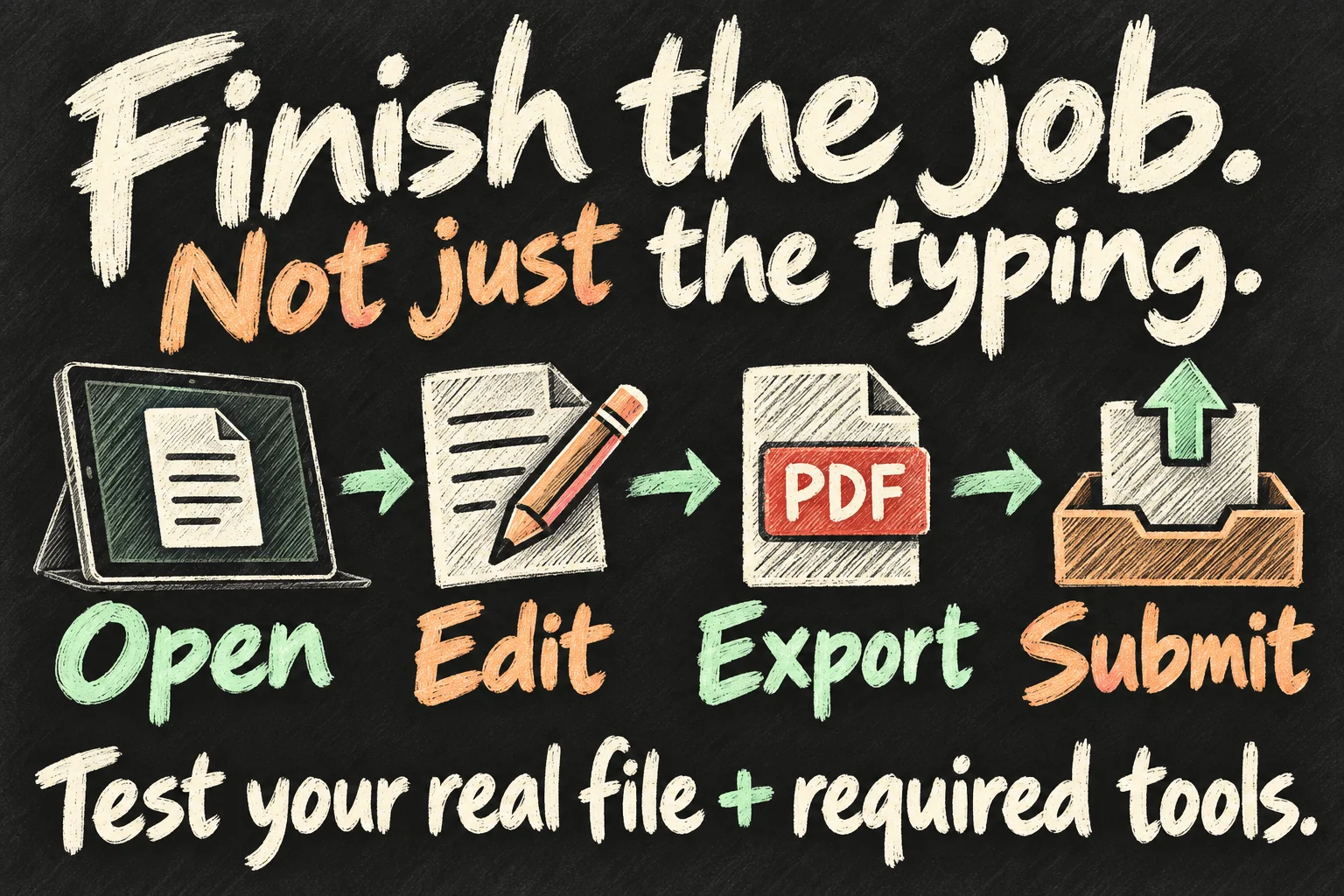
- Open: import the real file, media or project you normally use.
- Edit: use the features your work requires, including any specialist tools.
- Export: save the exact format and inspect the result outside the editing app.
- Submit: attach, upload or deliver it through the actual service you depend on.
Record where a step fails or requires a workaround. A remote computer may help, but you still depend on that computer and its connection. Treat it as part of the setup rather than proof that the tablet performs every task by itself.
Then compare the total setup cost: tablet if needed, keyboard, pointer, stand, hub and any app subscriptions. If you already own an iPad, trying existing equipment first can answer the question cheaply. If you are buying everything, compare the complete basket with a laptop that runs the software you need. A Pencil is optional unless handwriting or drawing is part of your work.
If a laptop remains necessary, our MacBook Air vs Pro guide looks at deciding whether the Pro’s extra cost addresses your needs. If your priority is a compact tablet instead, our iPad mini buying guide covers buying now versus waiting. Those are different decisions from completing a laptop workflow.
FAQ
Q. Can I install macOS to use iPad as a laptop?
This setup uses iPadOS and compatible iPad or web apps. Adding a keyboard or enabling windows does not install macOS or make Mac-only applications run on the tablet. Test the iPad version of each essential app.
Q. Do I need an iPad Pro or Apple’s keyboard?
Do not buy them simply to make the setup look like a laptop. Start by checking your current iPad, its software support and your essential apps. A compatible separate keyboard and pointer can be enough; demanding software and extended-display requirements may change the hardware you need.
Q. Does any iPad external monitor connection provide a second workspace?
No. Mirroring and moving separate app windows between screens are different capabilities. Check the exact iPad model, software and connection before buying accessories for an extended workspace.
Q. Is an iPad keyboard and trackpad worth buying?
They are worth considering if typing and precise selection are your main frustrations and the apps already complete your work. They will not fix a missing feature, a rejected export or a desktop-only tool. Test those barriers first.
Sources and Reading Notes
Checked 12 October 2026. Apple’s iPadOS 27 User Guide: multiple windows, moving apps to an external display, compatible models and external storage. Apple Support: Windowed Apps, Bluetooth mouse and trackpad settings, and keyboard shortcuts. The shortcut support article is marked archived; its version-specific instructions were reviewed rather than treated as a promise of future support.
Microsoft Support: supported Excel mobile file formats and the limitation on VBA functions. Apple Developer: Xcode system requirements. The buying checks and complete-task checklist are editorial recommendations based on these capabilities; no accessory performance measurements or personal hardware tests are claimed. Illustrations are AI-generated concept graphics.
Prefer reading about Apple in Korean?
 Apple-worldApple news, tips and buying guides in Korean.blog.naver.com/apple-world ↗
1 thought on “Use iPad as a Laptop: 5 Steps to Work Like a MacBook”