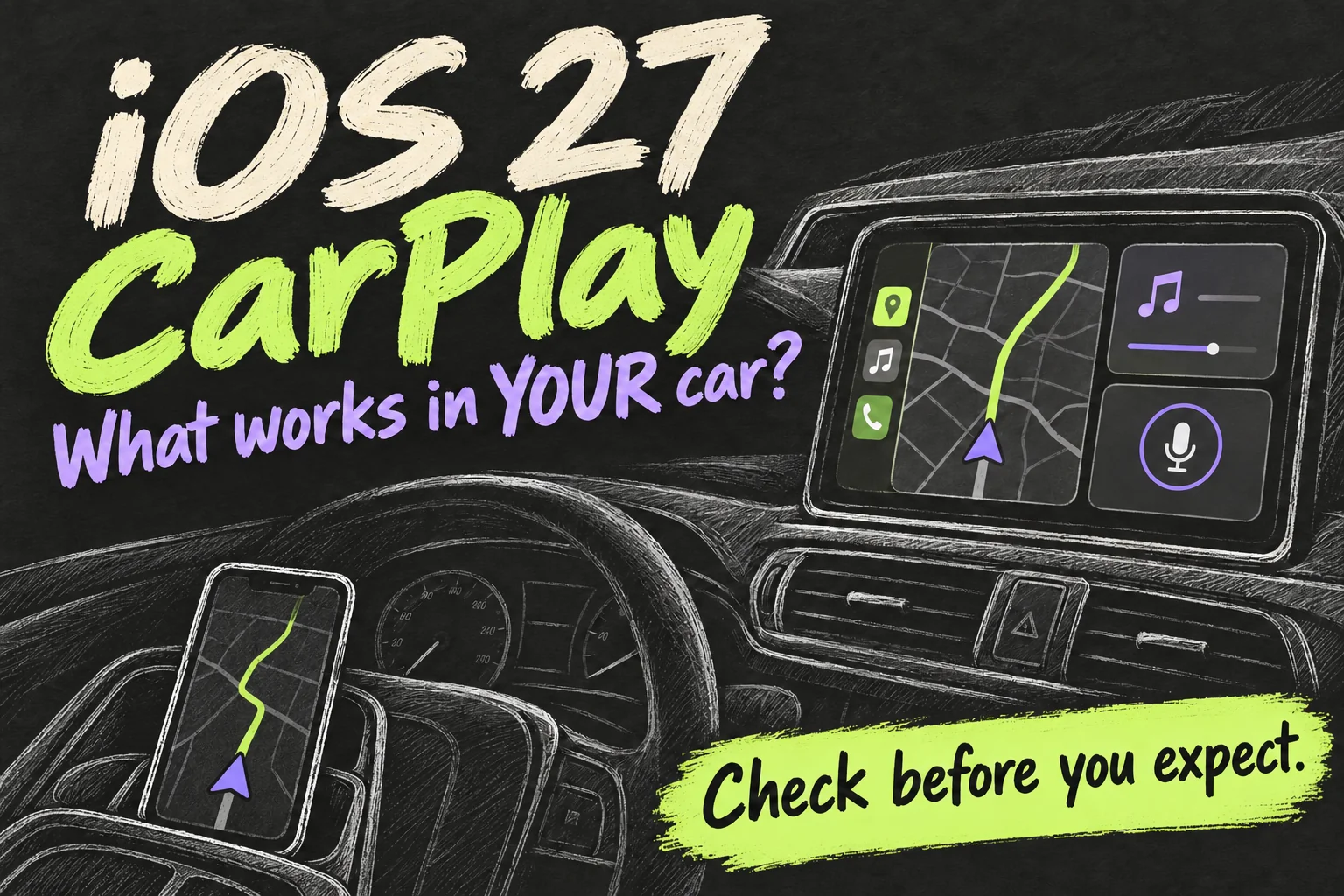
iOS 27 CarPlay is worth checking for Siri AI, useful widgets, easier media controls and more capable app interfaces. But updating your iPhone does not unlock every feature in every car. Siri AI has its own device and language requirements, while video playback and deeper vehicle integration depend on the car as well as the app.
The useful question is what your existing setup can actually do. Start with the five areas below, then use the setup checklist while safely parked. Widgets and some underlying capabilities existed before iOS 27; this is a practical guide to what to check now, rather than a claim that every item was invented in this update.
Checked 17 October 2026. Research-based guide using Apple documentation; no claim of hands-on testing in a particular car. Menus, apps and regional availability can change.
iOS 27 CarPlay: what depends on your phone, app or car?
| Feature area | What you gain | What can limit it |
|---|---|---|
| Siri AI beta | Conversational help and access to earlier conversations. | Apple Intelligence-compatible iPhone, enabled features and supported language. |
| CarPlay widgets | Information you choose at a glance. | Compatible widgets and the space available on your display. |
| Media controls | A MiniPlayer in supported app interfaces. | App implementation and screen size. |
| Navigation integration | More flexible app layouts and optional route coordination with the vehicle. | Navigation-app support, vehicle capability and permission. |
| CarPlay video | Video browsing and playback when parked. | A vehicle with video support plus a suitable app. |
Siri AI: check the iPhone before blaming the car
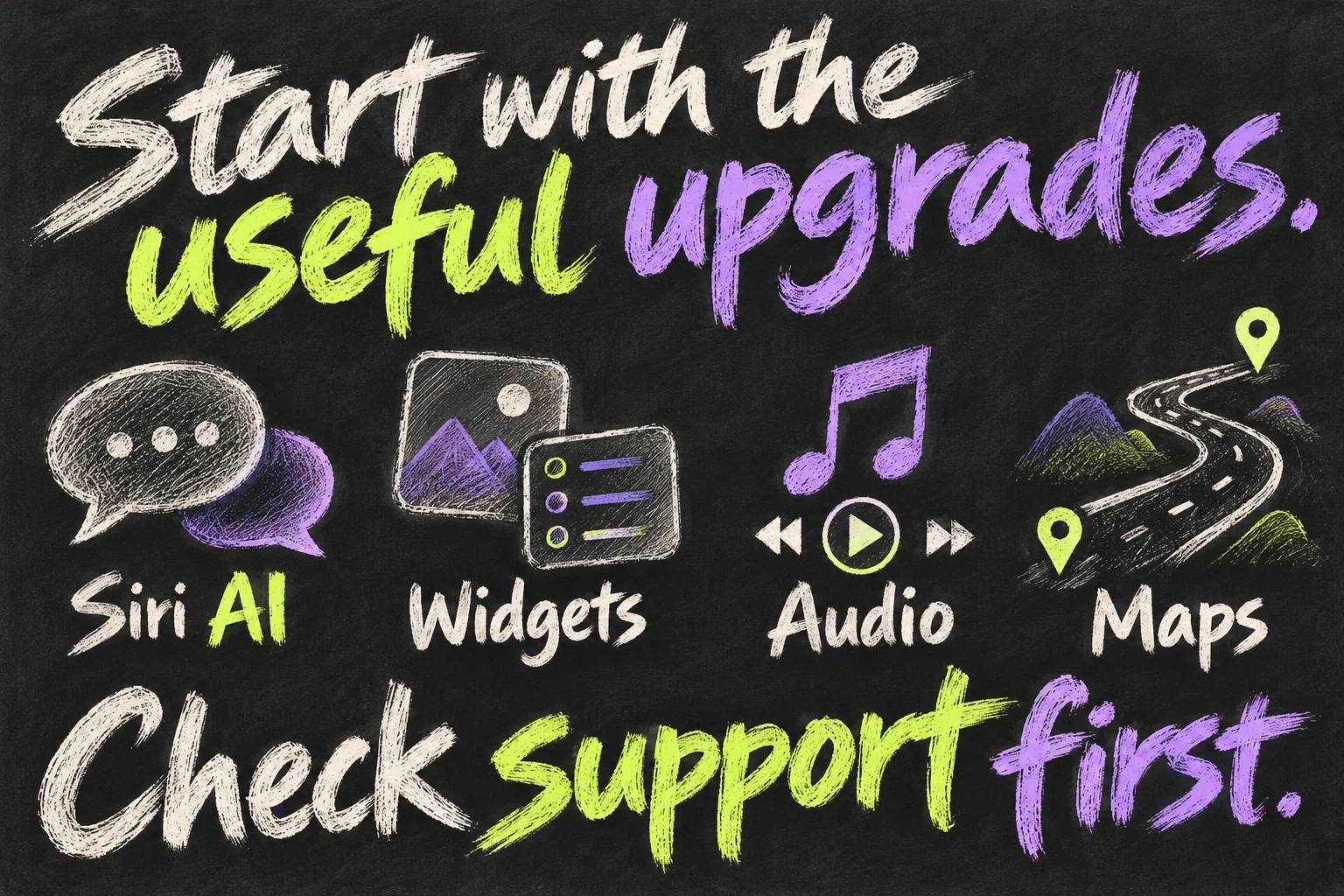
Apple’s CarPlay guide lists Siri AI as a beta feature on iOS 27 or later. It requires an Apple Intelligence-enabled iPhone 15 Pro, iPhone 15 Pro Max, or an iPhone 16 model or later, with Siri and the device set to a supported language. English is supported initially; availability and usage limits apply. The Siri AI app in CarPlay can provide information and resume earlier conversations.
That means a phone capable of running iOS 27 is not automatically eligible for every AI feature. Before assuming the car needs replacing, check the iPhone’s eligibility and Siri setup. Our Apple Intelligence and Siri AI guide covers the broader setup questions.
Try a short, low-stakes request while parked and check the result. A conversational answer is useful for reducing menu hunting, but an uncertain response should not become a reason to stare at the screen or make a last-second manoeuvre.
CarPlay widgets: keep only what helps your journey
CarPlay widgets let you choose information to see at a glance. To add them, open Settings → General → CarPlay → your car → Widgets → Add Widgets on the iPhone while you are not driving. Apple also provides controls for rearranging or removing widgets and for Smart Rotate or Widget Suggestions. The number of stacks depends on the vehicle’s display.
Start with one or two useful choices from the available list rather than filling every slot. Ask whether each item saves an interaction: an upcoming appointment may be useful, while another decorative tile may simply compete with the route. If the stack keeps showing something you do not need, review its order and rotation settings before adding more.
Do not read every feature roundup as a promise that all iPhone widgets are equally useful in a car. Check what the picker actually offers for your installed apps, and keep the result easy to read on your own screen.
Media controls: a small interface change can matter more
A new MiniPlayer gives supported media apps a compact playback view, with controls on larger displays. Developers can hide it. For the listener, the useful question is whether the current audio is easier to reach.
For a regular podcast listener, fewer changes of screen can be more valuable than a new wallpaper. Set up the episode or playlist before leaving, then use the vehicle’s steering-wheel controls or Siri for routine playback actions where supported. The availability and layout of app controls can vary, so check your actual app rather than expecting every promotional image to match your dashboard.
Maps: separate a better interface from deeper car integration
Navigation apps gain flexible panels. Optional Route sharing can coordinate navigation with supported vehicles, including charging-stop suggestions. It requires iOS 26.4 or later and driver approval, so it is not wholly new to iOS 27.
For an EV, ask the manufacturer whether your exact model, software and navigation app support the relevant integration. A generic CarPlay badge is not enough evidence to base a purchase on.
For an everyday petrol or hybrid commute, judge the update by whether your chosen app makes the next turn and relevant route information easier to understand. Avoid buying hardware solely because a developer demonstration shows a capability that has not been confirmed for your vehicle.
CarPlay video: parked playback is not automatic support
iOS 27 CarPlay adds dedicated video-app browsing on supported vehicles, beyond earlier AirPlay streaming. An iPhone update alone does not supply the required vehicle capability.
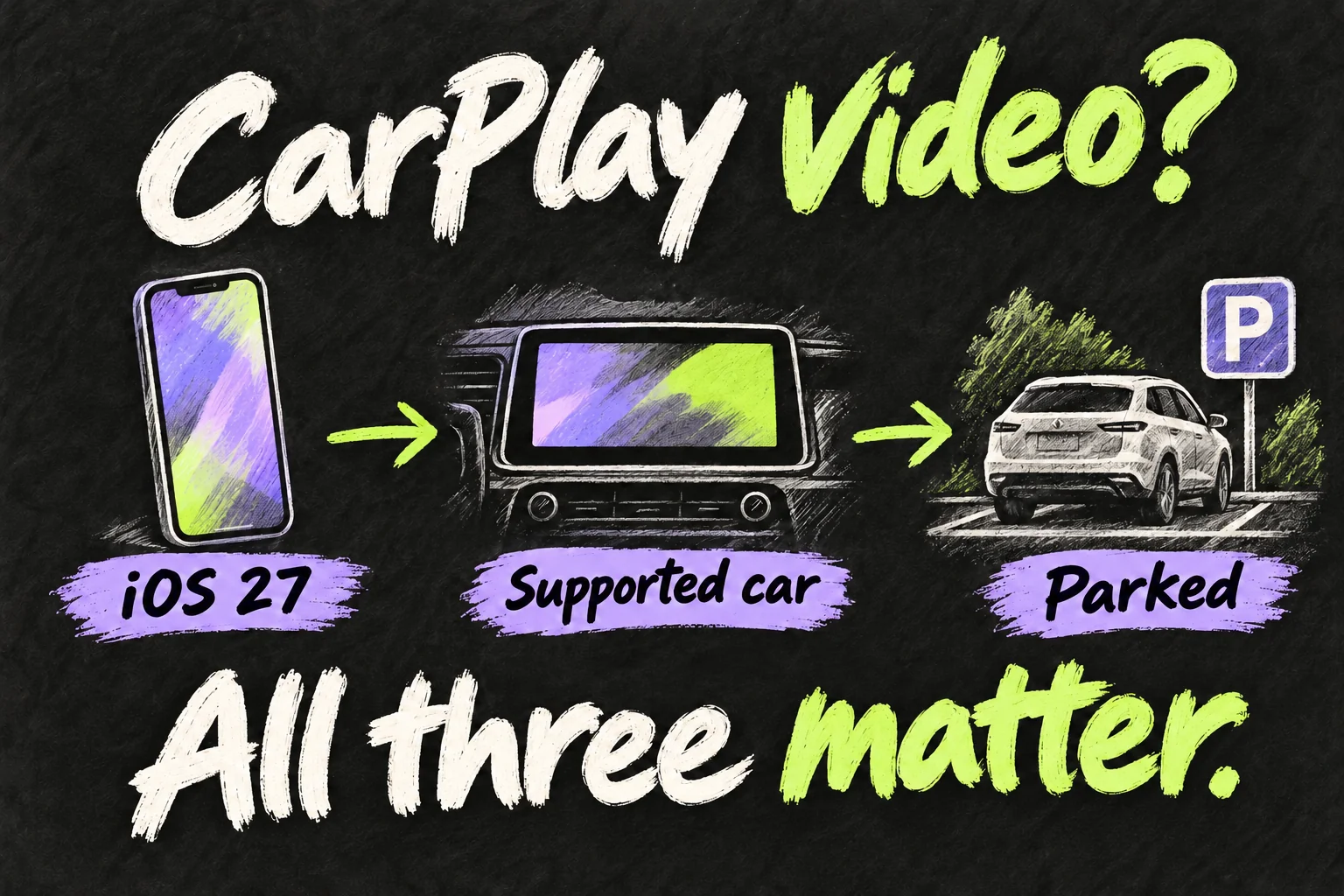
Apple’s user guide says to connect to CarPlay, start a video from a supported app or an app with AirPlay, then select the CarPlay display through AirPlay when you are not driving. When the vehicle indicates that video is unavailable, playback switches to audio only. A missing video app can therefore be a support limitation rather than a failed installation.
Treat CarPlay video as a parked convenience, such as during a charging stop. Do not assume a particular streaming service is available unless the app and vehicle confirm it, and do not use an adapter or workaround on the assumption that it removes the system’s restrictions.
A quick setup checklist before your next drive
Separate CarPlay on the car’s display from a Siri shortcut on your phone or watch. I use Tesla actions on iPhone and Apple Watch; that working setup does not establish a built-in CarPlay connection or unlock every new Siri AI function. Test any saved action while parked and use the linked Tesla guide for that separate workflow.
- Update the supported iPhone and relevant apps. Use the version available for your device rather than assuming an old app exposes every new control.
- Check Siri separately. Confirm eligibility and language settings for Siri AI; ordinary voice controls and AI features are different questions.
- Choose a simple widget stack. In the car’s CarPlay settings on the iPhone, add only useful choices and review rotation.
- Arrange the app order. Go to Settings → General → CarPlay → your car → Customise and put your regular apps where they are easy to find.
- Ask about vehicle-dependent features. Check the manufacturer’s support information for your exact head unit before expecting video or route integration.
If CarPlay stops connecting after an update, separate that problem from a missing feature. Apple recommends checking the connection, restarting the iPhone and car, confirming Siri is enabled and checking vehicle firmware. For wireless systems, verify Bluetooth and Wi-Fi; for wired systems, check the cable and port. Work through the relevant connection checks before resetting everything.

Frequently asked questions
Will iOS 27 CarPlay work in an older car?
An existing CarPlay connection can still provide the standard experience with a compatible iPhone. The age of the car alone does not tell you which new app features it supports. Separate ordinary app-interface updates from capabilities requiring additional vehicle integration.
Why is Siri AI missing even though CarPlay works?
Check the iPhone model, Apple Intelligence setup, language and regional availability. A working CarPlay connection does not prove eligibility for Siri AI beta. You can still evaluate the other supported features without treating AI as the test of whether the update installed correctly.
Can every CarPlay display show video after the update?
No. CarPlay video requires vehicle support and a suitable app, and playback is intended for when you are not driving. Check that support before spending money on accessories or repeatedly reinstalling apps.
Sources and Reading Notes
Apple Developer — Rev up your CarPlay app, WWDC26. Used for the MiniPlayer, navigation panels, route-sharing requirements and video-app framework. Apple Support — Use your vehicle’s built-in controls to control CarPlay; Customise widgets in CarPlay; Play videos with CarPlay; Use CarPlay with your iPhone; Play music with CarPlay; If you need help with CarPlay. Used for Siri AI eligibility, widget setup, playback limits, app arrangement and connection checks. Checked 17 October 2026.