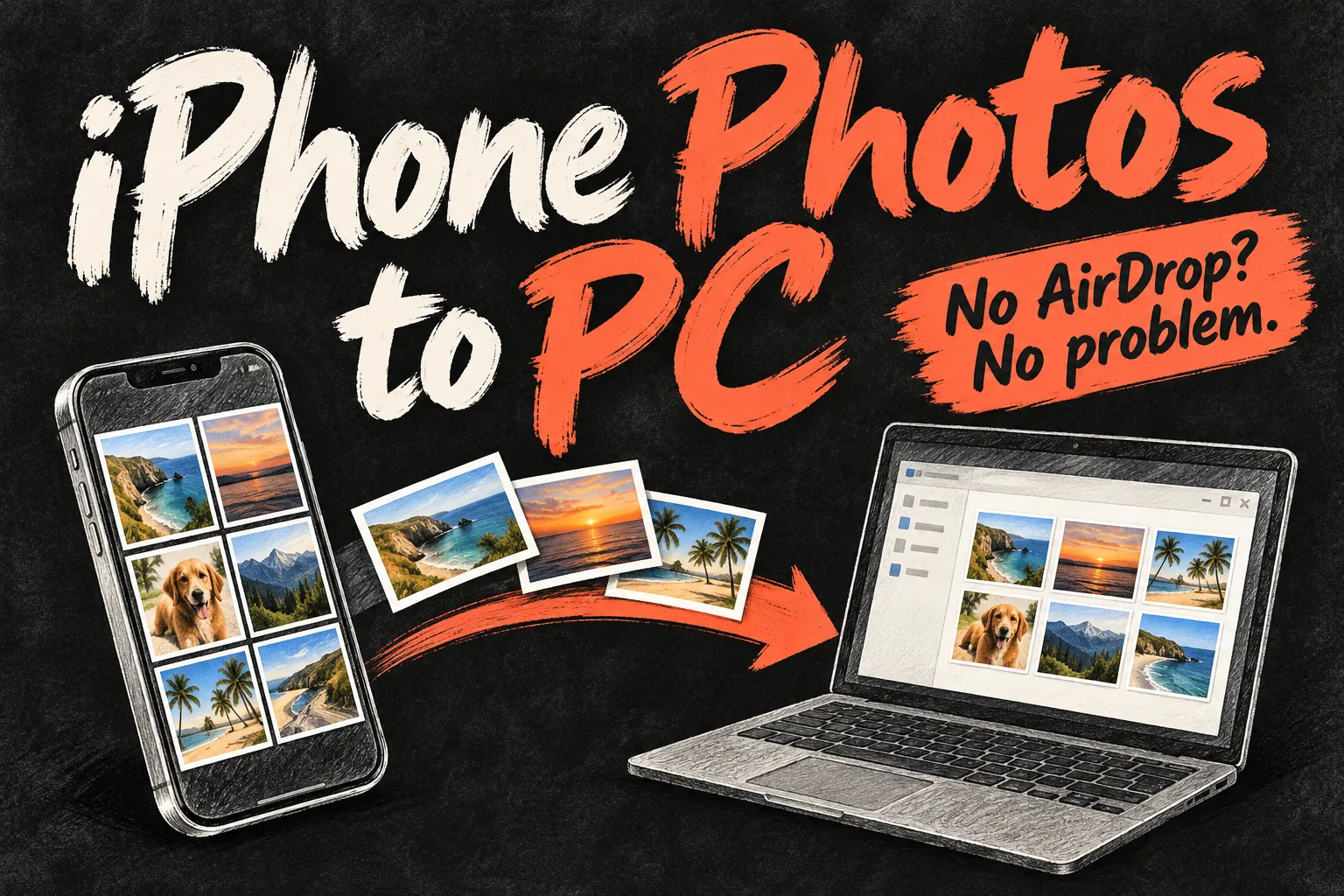
To transfer iPhone photos to PC, start with a USB cable and Microsoft Photos, or download them through iCloud. You do not need a Mac or a paid transfer app for these methods. Windows does not have Apple’s native AirDrop receiver, but that does not prevent you from copying your photos and videos.
The best route depends on where the originals are stored. USB is useful for files already on your phone; iCloud is more convenient when your library is already in the cloud. This guide focuses on Windows 11, explains the Mac alternative briefly, and covers the checks to make before deleting anything.
Which method should you choose?
| Your situation | Start here | Main consideration |
|---|---|---|
| Many photos already stored on the iPhone | USB + Microsoft Photos | Use a data cable and unlock the phone |
| You regularly want your iCloud library on a PC | iCloud for Windows | Sync is not an independent backup |
| You want selected cloud photos without installing an app | iCloud.com in a browser | Choose a download format |
| You are sending a few photos to a Mac | AirDrop | Both devices must be discoverable |
These are workflow choices, not a speed ranking. A large video collection can take time whichever route you choose. Cable capability, available storage and the location of the original files matter more than a promise of instant transfer.
1. Transfer iPhone photos to PC with USB
For this route, Apple directs Windows users to install Apple Devices from the Microsoft Store. Microsoft Photos handles the photo import; you are not looking for an AirDrop button in Apple Devices.
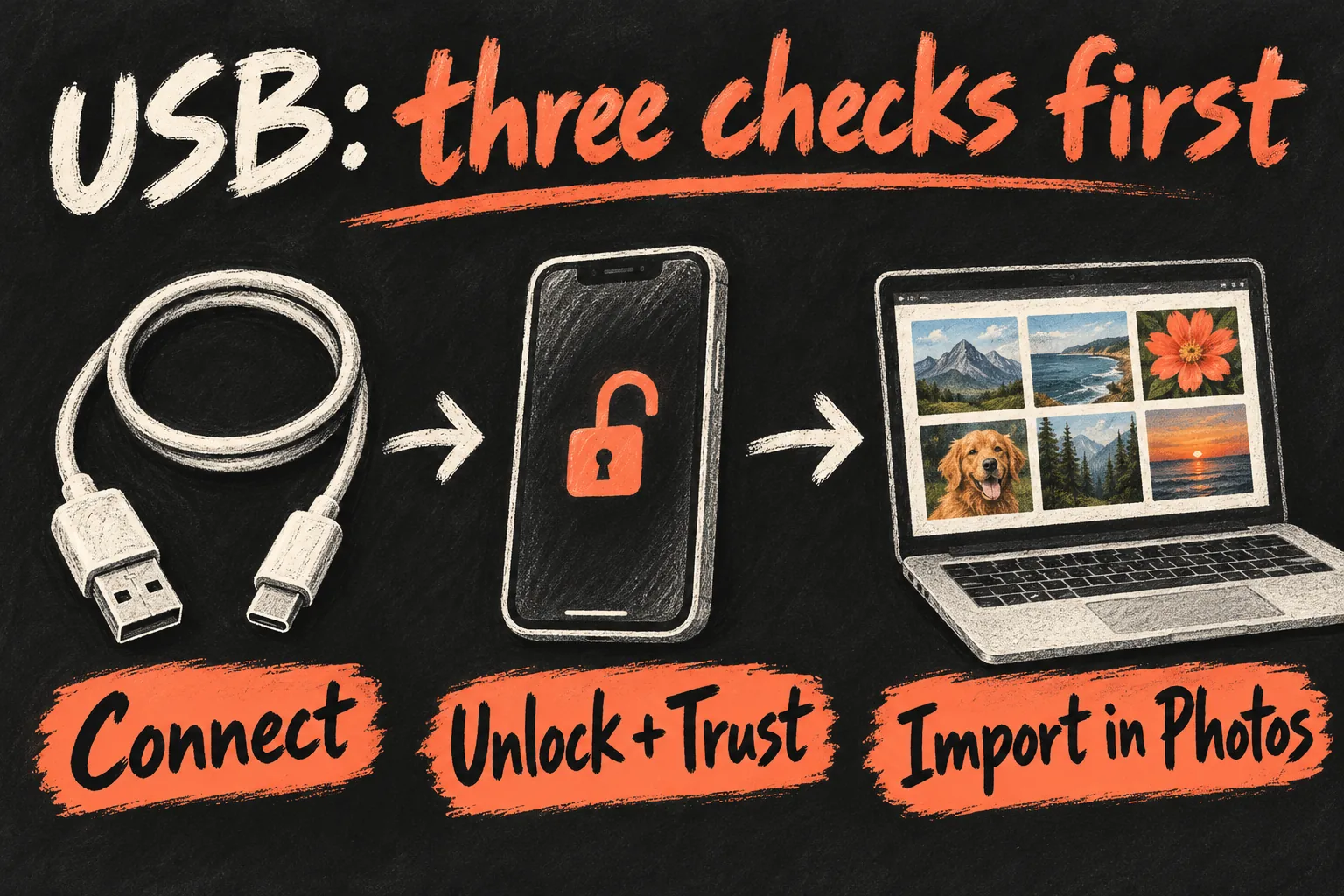
- Connect the iPhone to the PC with a cable that supports data transfer. A cable that charges the phone is not necessarily sufficient.
- Unlock the iPhone. If asked whether to trust the computer, tap Trust or Allow and complete the prompt.
- On Windows, open Microsoft Photos from Start. Select Import, then your connected iPhone. Menu wording can vary by app version.
- Choose the photos and videos, select a destination folder and start the import. Keep the connection in place until it finishes.
- Open a few imported photos and play a video from the destination folder. Check the newest items as well as older ones before treating the transfer as complete.
If iCloud Photos is enabled and originals are stored only in iCloud, USB may not offer the whole collection. Apple says the full-resolution originals must be downloaded to the iPhone before a PC import. When the phone lacks room for that, use one of the iCloud routes below instead.
2. Use iCloud for Windows for regular access
Already using iCloud Photos? Install iCloud for Windows, sign in with the same Apple Account and enable Photos. In File Explorer, open iCloud Photos; if it is not in the navigation pane, look under Pictures. Downloaded items can also be viewed in Microsoft Photos.
A thumbnail is not proof that the full file is on your drive. Apple says photos initially appear as thumbnails until downloaded; opening one downloads it. Check download status and available PC storage before relying on offline access.
Do not confuse this with a separate backup. Changes made through iCloud can propagate across devices. In iCloud for Windows 14.2 or later, moving or deleting an iCloud photo in Microsoft Photos can also affect devices using iCloud Photos. If you need an archive that survives later library deletions, download and copy files into a separate folder outside the synced library.
3. Download selected photos from iCloud.com
For a smaller selection, open iCloud.com in your PC browser, sign in and open Photos. Select the items you need, then use Download. Apple allows selection of up to 1,000 items at a time on a Mac or PC.
Under More Download Options, choose the output deliberately: Unmodified Originals keeps the captured or imported format; Most Compatible supplies JPEG or MP4/H.264 files. The highest-resolution option is different again and may use HEIC or H.265. Choose originals for an archive, or compatible copies when a particular Windows app cannot read the original.
If the browser downloads a ZIP file, extract it into your chosen folder before checking the contents. This route requires the photos to have reached iCloud already; it cannot retrieve an image that exists only on the phone. Large downloads also depend on your internet connection and available storage.
Can you send iPhone photos to Windows wirelessly?
Yes—both iCloud methods above avoid a cable. Microsoft also offers file sharing through Phone Link and the Link to Windows iPhone app on supported setups. Its current Start-menu documentation still describes a gradual rollout, so availability can vary; it is not Apple AirDrop.
Where file sharing is available and configured, select an item on the iPhone, open Share, choose Link to Windows and select the PC. If that option is missing, finish setup and check app updates, or use iCloud instead. Do not assume that pairing for calls and messages means your entire photo library is automatically imported.
For a one-off assignment or travel photo, a small file share is convenient. For a large archive, choose a method that lets you inspect the destination clearly and check the results in batches. Sending a picture through a messaging app may produce a compressed copy, depending on its settings.
Why are some iPhone photos missing on the PC?
Start by separating a connection problem from a cloud-storage problem. If Windows cannot see the phone at all, reconnect it unlocked, use a known data-capable cable, try another port and confirm the trust prompt. If only some photos are missing, check whether the originals are in iCloud rather than downloaded to the phone.
Avoid retrying the same huge selection repeatedly without checking the destination. Try a small batch containing one recent photo and one video. That makes it easier to tell whether the problem is the connection, a particular file or available storage. Keep a simple record of completed folders or date ranges to reduce accidental duplicates.
HEIC, JPEG and Keep Originals: which should you use?
A photo that copied successfully but will not open may have a format-compatibility problem rather than transfer damage. iPhones can capture HEIF images, commonly saved as HEIC files, and HEVC video. The Windows viewer or editor you use needs support for the particular format.
For USB transfers, open Settings → Apps → Photos on the iPhone and look for Transfer to Mac or PC. Automatic may convert media to a compatible format. Keep Originals avoids that conversion, but the receiving software still needs to read the files. Older iOS versions may place Photos directly in Settings.
For new captures, Settings → Camera → Formats → Most Compatible changes future photos and videos to JPEG and H.264 where supported. It does not retrospectively convert your existing library. Keep original files when archiving and make separate compatible copies if needed; do not overwrite the only original just to get a preview working.
Before deleting photos: make an independent copy
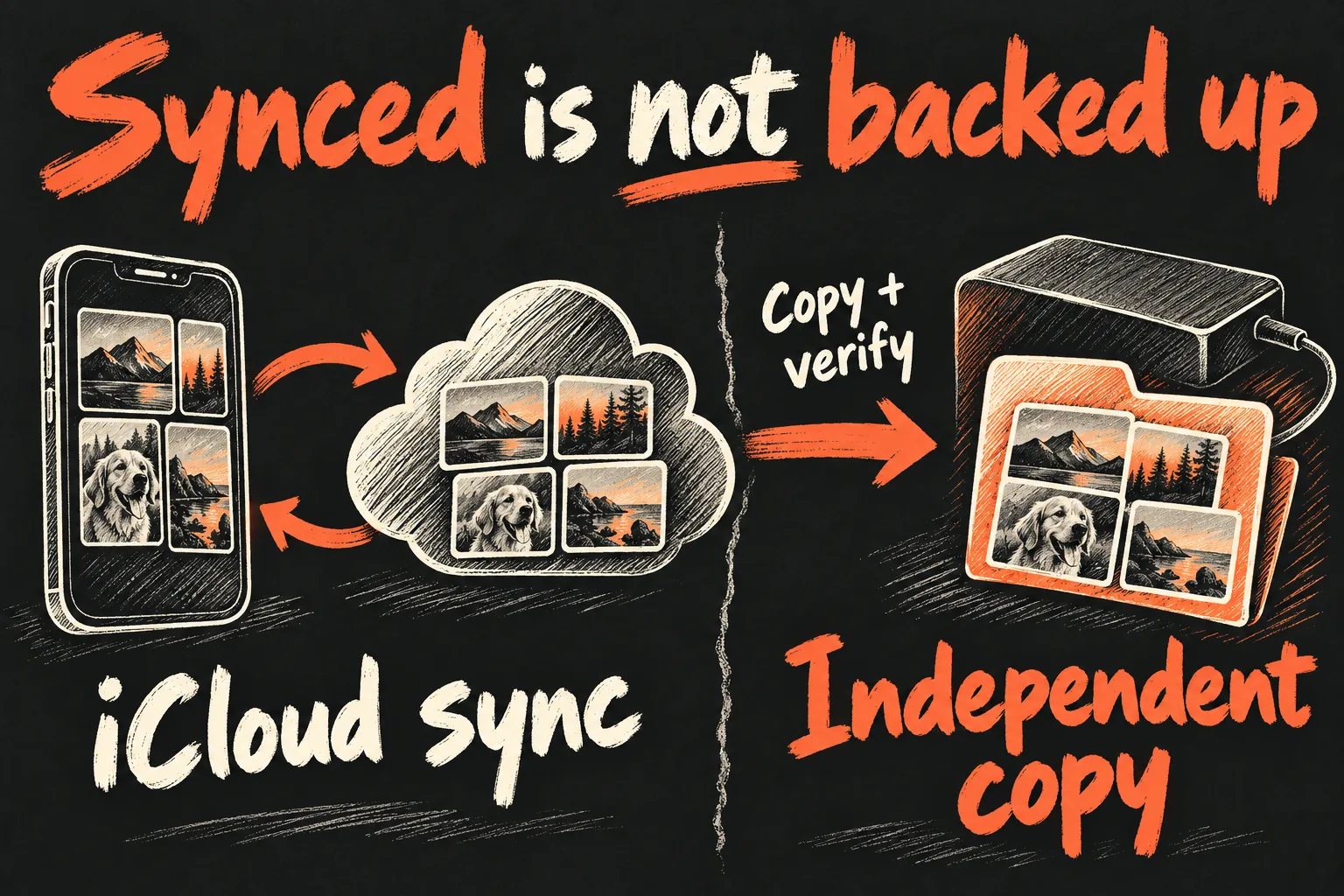
If your real goal is to free iPhone storage, the transfer is only half the job. Apple’s archive guidance recommends downloading photos and copying them elsewhere. Make a separate copy outside iCloud Photos, ideally with another copy on an external drive. A folder that remains part of the synced library is not the independent archive you are trying to create.
- Confirm the files have downloaded, rather than remaining cloud placeholders.
- Open a selection of photos at full size and play videos from the independent folder. Include important older and recent items.
- Compare date ranges and expected items. File counts can differ when motion-photo components or different exports are involved, so a matching number alone is not proof.
- Keep the phone originals until you are satisfied that your archive is complete and backed up. Only then decide how to manage the phone library.
If you are replacing the phone rather than just copying pictures, follow our new iPhone transfer checklist too. A photo export does not transfer your apps, messages, accounts or every other kind of phone data.
What if your computer is a Mac?
For a few pictures, select them in Photos on the iPhone, tap Share, choose AirDrop and select the Mac. Keep Wi-Fi and Bluetooth enabled, put the devices nearby and check the Mac’s receiving settings. For a larger collection, connect by USB and import in the Mac Photos app; Image Capture can import directly into a folder.
The underlying choice remains the same: use sharing for a small selection, importing for a deliberate local copy and iCloud for ongoing access. When you transfer iPhone photos to PC, the extra step is choosing the Windows route that matches where your originals actually live.
Frequently asked questions
Do I need to pay to transfer iPhone photos to PC?
No paid transfer app is required for USB import through Microsoft Photos. iCloud use depends on available account storage, and a larger library may require a storage plan.
Can I AirDrop directly to a Windows laptop?
Windows does not have Apple’s native AirDrop receiver. Use USB, iCloud or a supported cross-platform file-sharing option instead.
Will changing to Most Compatible fix existing HEIC files?
The camera setting affects new captures. For existing files, use an appropriate viewer or create a compatible export, preserving your original copy.
Can I delete the iPhone photos once they appear in iCloud on my PC?
Do not rely on that alone. iCloud Photos syncs the library, including deletions. Download and verify an independent copy outside that synced location first.
Sources and Reading Notes
Apple Support: Transfer photos and videos to Mac or PC; Using HEIF or HEVC media; Download iCloud photos and videos; iCloud for Windows user guide; Archive or make copies of iCloud information. Microsoft Support: Import photos and videos from phone to PC; mobile device in Start menu. Microsoft Windows Insider Blog: iPhone file-sharing workflow. Checked 20 October 2026.
This guide explains documented workflows; it does not claim a hands-on transfer-speed test. Interface labels and feature availability vary with software versions. Illustrations show concepts, not exact application screenshots.