Steam games on MacBook are possible, and Cyberpunk 2077 now has an official Mac version. The catch is that installing Steam does not make every Windows game compatible. Your exact chip, memory and the game’s Mac requirements determine whether you can play locally.
Before buying a game or a more expensive MacBook, work through these seven checks. You will know when a straightforward Mac install is enough, when an alternative is worth considering, and when a Windows gaming device makes more sense. This is a compatibility and setup guide, not a hands-on frame-rate test. Details were checked on 20 October 2026.
1. Steam games on MacBook: check each game’s support
Steam is the shop and launcher. The game is a separate piece of software. A working Mac Steam client cannot turn a Windows-only download into a macOS application. Start on the individual game’s store page and read the macOS system requirements, rather than stopping at an Apple icon or a general list of Mac games.
Also distinguish a Mac release from an Apple-silicon-native release. Some older Mac software was made for Intel processors and depends on translation on newer Macs. Very old 32-bit Mac games cannot run on macOS Catalina or later, even if their store listings still mention Mac support. Check recent developer notes for the exact release you intend to install.
- macOS requirements present: compare the listed OS, chip, memory and storage with your Mac.
- Windows requirements only: the ordinary Mac Steam client cannot install a supported Mac version that does not exist.
- A Mac version exists elsewhere: verify the storefront. Availability on the Mac App Store does not prove that the Steam purchase includes the same Mac release.
This is the most useful first filter for Steam games on MacBook. It prevents spending time adjusting graphics settings when the actual problem is an unsupported operating system.
2. Can you play Cyberpunk 2077 on Mac? Yes, with these limits
The title is Cyberpunk 2077. CD PROJEKT RED released its Mac Ultimate Edition on 17 July 2025, including availability through Steam. This is an official Mac release, so a supported Mac does not need CrossOver just to run it.
| Official Mac tier | Chip and memory | Published target |
|---|---|---|
| Minimum | M1; 16GB unified memory | 900p-class output; 30 FPS |
| Recommended | M3 Pro; 18GB unified memory | 1080p-class output; 60 FPS |
CD PROJEKT RED requires macOS 15.5 or later and an SSD. Its current guidance lists 92GB for the Steam/GOG/Epic download and 159GB for the App Store version with all voiceovers. Leave additional room for installation and updates. These are published requirements and targets, not frame rates measured by Aussie Oppa.
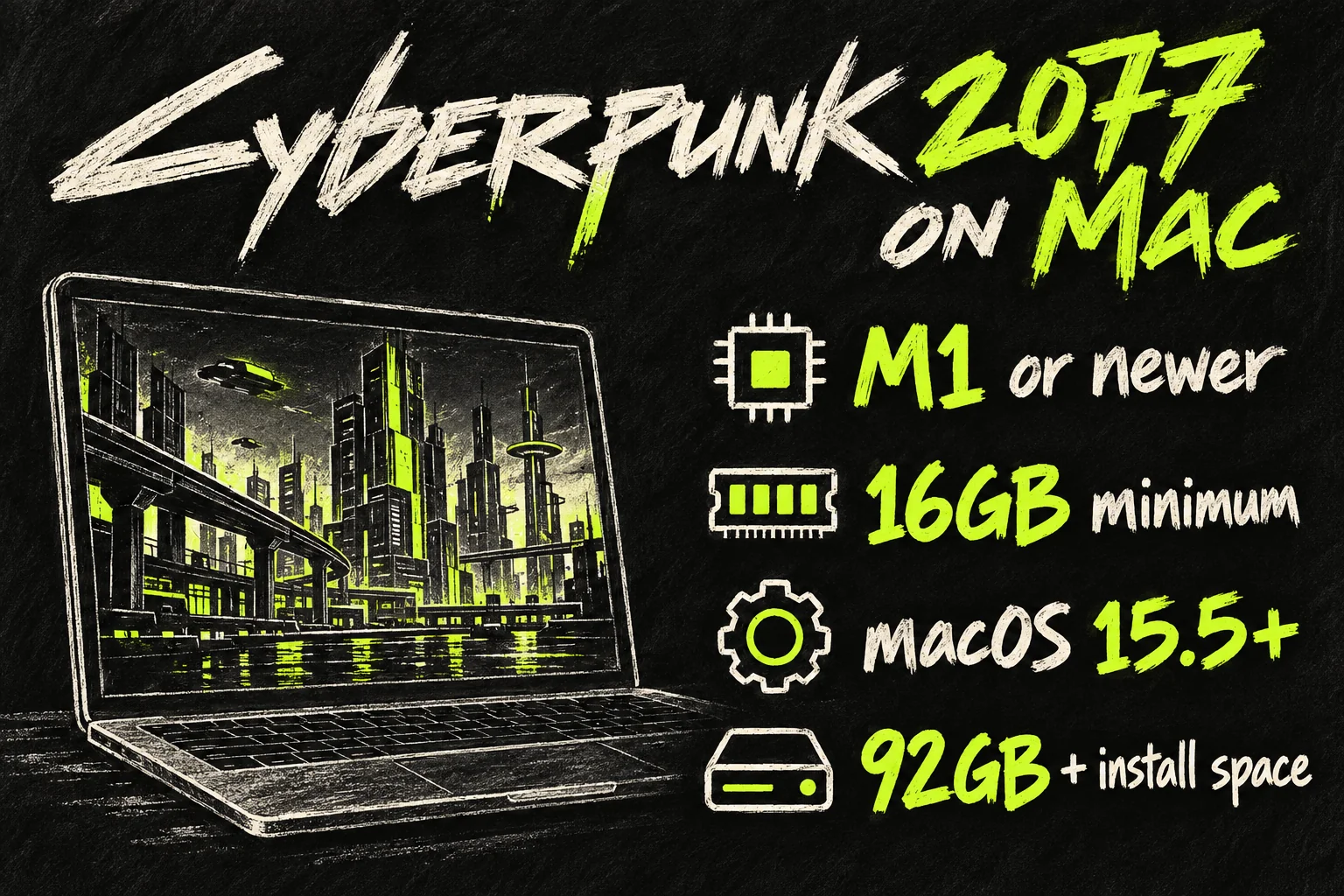
Start with the game’s For This Mac preset. It selects a hardware-appropriate balance of resolution and detail; ray tracing is off in that preset. Raising output resolution can substantially reduce performance. An 8GB Mac falls below the published 16GB minimum, even if its chip is newer than M1.
Before buying again, check your existing Steam library and the edition or DLC you own. A Mac release on Steam is not a reason to assume that an unrelated storefront purchase transfers across, or that a base-game licence includes every expansion.
3. Match your MacBook Air or Pro to the games you want
Choose Apple menu → About This Mac and note the chip, memory and macOS version. Then check available storage in System Settings. A model name alone is not enough: two people saying they have a MacBook Air can have very different memory and graphics configurations.
MacBook Air’s fanless design suits quiet everyday use. For demanding games, it also means you should assess performance after a sustained session rather than judging only the first minute. MacBook Pro models have active cooling, but cooling does not fix missing Mac support or make every Pro configuration equally fast.
| Your situation | Sensible starting point |
|---|---|
| An existing 8GB Air | Lighter games whose own requirements fit; avoid treating Cyberpunk as a supported target. |
| An Air with at least 16GB | Check each game and begin with modest graphics settings; memory alone is not an FPS guarantee. |
| A Pro for work and regular gaming | Compare the exact chip/GPU, memory and game benchmarks before paying for an upgrade. |
| Gaming is the main reason for buying a laptop | List your must-play games first; compare their Windows support and total hardware cost. |
For the broader work-and-study decision, our MacBook Air vs Pro buying guide explains how to judge the extra cost. For gaming, add one further requirement: the games you care about must actually support your chosen setup.
4. Install one compatible game before building a library
Download the Mac installer from Steam’s official website, install the client and sign in to your own account. Use the store’s macOS filter to narrow the results, then open each game’s requirements. The filter is a starting point, not a guarantee that an old port works on your current macOS.
Two useful examples show why a single blanket specification is misleading. Stardew Valley has Mac requirements and a much lighter storage footprint. Baldur’s Gate 3 also has a Mac release, but its Steam listing asks for 150GB of space on an SSD. Check its current Mac requirements separately from the Windows tab.
Start with a game you genuinely want, not several large downloads at once. Confirm that it launches, saves correctly and supports the controls you plan to use. A controller icon does not mean every controller feature works identically across all games. Test your actual controller or keyboard setup before investing in accessories.
Steam games on MacBook can also take a significant share of a smaller SSD. Count the game, update space and the files you need for work. A download that just fits today can leave too little room for the next patch.
5. Understand Windows-only alternatives before paying
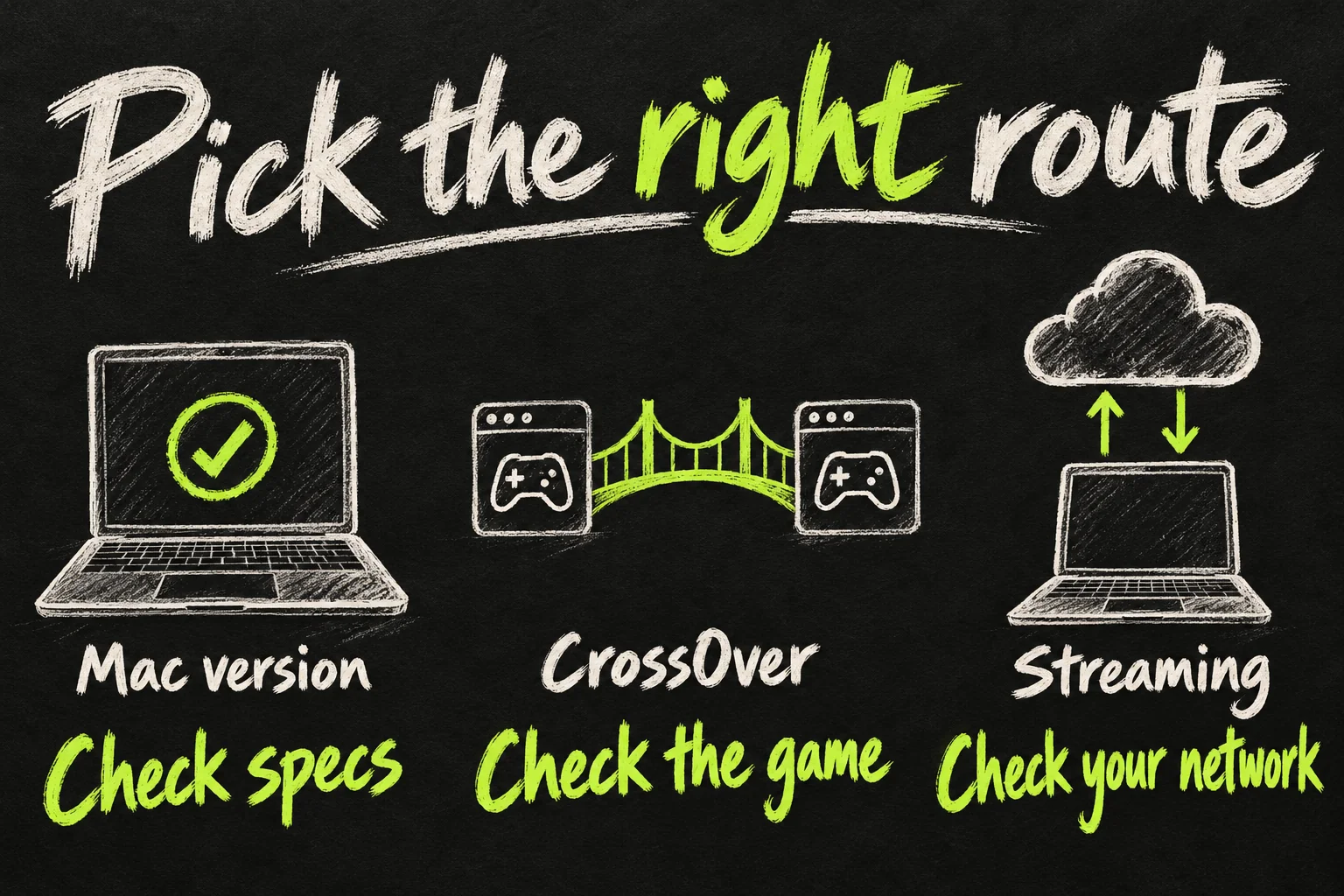
If the game has no suitable Mac build, there are alternatives, but none unlocks the entire Steam catalogue. Choose based on the exact game and your tolerance for setup, subscriptions and network dependence.
- CrossOver: runs selected Windows software through a compatibility layer. Check CodeWeavers’ current compatibility record for the exact title, version and launcher. Use any available trial to test your configuration before committing.
- Cloud streaming: the game runs on a remote computer and video is streamed to your Mac. In Australia, GeForce NOW is offered through CloudGG. Only supported games and supported store versions are eligible; owning a Steam game does not automatically make it streamable.
- Streaming from your own gaming PC: a remote-play setup can leave the demanding work on that PC. You still need the host computer available and a network suitable for responsive play.
Cloud gaming is worth testing at the time you normally play. For a Melbourne reader, an evening test on the actual home connection is more informative than a headline download speed. Check latency, picture stability, queues, session limits and the current Australian subscription terms. The service fee and the game purchase may be separate costs.
Competitive multiplayer can be the decisive obstacle. CodeWeavers explains that many low-level Windows anti-cheat systems are incompatible with CrossOver. A game opening a menu is not proof that online matches work. A Steam Deck compatibility report also does not establish Mac compatibility: it is a different platform.
Boot Camp is an Intel-Mac option, not a way to install Windows directly on an M-series Mac. Virtual machines and developer porting tools have their own limitations. They should not be your default buying assumption for a must-play Windows game.
6. Tune settings for a stable session
For supported Steam games on MacBook, begin with the game’s recommended preset. On a high-resolution laptop display, rendering at the panel’s full resolution may be much more demanding than necessary. Lower the game’s rendering resolution or use its supported upscaling option before assuming the Mac cannot run it.
- Plug in the power adapter and use a firm surface with ventilation clear. Close heavy background tasks.
- Try a consistent frame-rate cap rather than chasing a fluctuating maximum. The appropriate target depends on the game and your hardware.
- Reduce demanding effects such as shadows and reflections one at a time. Keep track of which change actually helps.
- On Apple-silicon Macs running macOS Sonoma 14 or later, Game Mode can prioritise game resources during supported full-screen play. It does not add missing platform support.
- Play a representative demanding section. A quiet menu or opening scene may not reveal stutter during the rest of the game.
When comparing someone else’s benchmark, match the chip, GPU configuration, memory, game patch, resolution, preset and upscaling settings. A high number from a Max chip at reduced rendering resolution is not a prediction for a base Air. We have not tested the listed games on every MacBook configuration.
7. Check the purchase and refund terms early
Before checkout, confirm your Australian account’s currency, the edition and the DLC included. Sale prices change, so a compatibility guide should not persuade you to buy an unsuitable version just because a discount timer is running.
Steam’s standard refund offer for eligible store games is within 14 days of purchase and with less than two hours of playtime. Check the current policy and any exceptions. Test promptly if compatibility is uncertain; leaving the game running while troubleshooting can consume that playtime. Third-party key purchases are not refunded by Valve under that store policy.
The best way to approach Steam games on MacBook is to start with your own shortlist. If your favourite titles have suitable Mac versions, you may already own enough hardware. If they depend on unreliable workarounds, a more expensive MacBook may leave the main problem unresolved.
Frequently asked questions
Can a MacBook run all Steam games?
No. The Steam client and each game have separate compatibility requirements. Windows-only titles need another supported route, if one exists.
Can an 8GB M1 MacBook Air run Cyberpunk 2077 officially?
It does not meet the published Mac minimum. The requirement includes 16GB of unified memory, not just an M1 chip.
Do I need CrossOver for Cyberpunk 2077 on Mac?
No, if you use the official Mac build on hardware and macOS that meet its requirements. Start with that version rather than an old Windows-porting tutorial.
Should I buy a MacBook just for Steam gaming?
Only after checking your must-play titles and comparing alternatives. A MacBook can be a useful work computer that also plays supported games; that does not guarantee it is the best-value gaming purchase for your library.
Sources and Reading Notes
CD PROJEKT RED: Cyberpunk 2077 Mac launch announcement and Mac system requirements. Valve/Steam: platform compatibility support, Stardew Valley and Baldur’s Gate 3 store requirements, Steam Refunds. Apple: MacBook Air product information, Boot Camp guide and Use Game Mode. CodeWeavers: CrossOver documentation and anti-cheat compatibility. CloudGG: Australian service and supported-library information. Checked 20 October 2026.
This guide uses publisher requirements and documented support information. Buying and setup suggestions are editorial judgement, not claims of personal benchmark testing. The illustrations are original AI-generated sketches; they are not official product photographs, game screenshots or evidence of measured performance.
Prefer reading about Apple in Korean?
 Apple-worldApple news, tips and buying guides in Korean.blog.naver.com/apple-world ↗