The iOS 27.2 features to watch are practical app changes, including Messages controls, TV profiles and podcast navigation, alongside broader Siri language testing. But there is an important catch: Apple currently lists a release candidate, and its redesigned Health app is absent from that RC. An early beta screenshot is not a promise of what your next public update will contain.
This guide was checked on 22 October 2026 for Australian readers. It separates Apple’s official RC information from first-hand beta observations published by Beta Profiles, then explains what to check on your own phone. It is a research-based preview, not a claim that we installed or measured this build.
Before you dive in
iOS 27.2 release date: is it available yet?
Apple’s developer release list shows iOS 27.2 RC, build 24B115, dated 19 October 2026. RC means release candidate: a build being evaluated ahead of a public release. Its name does not establish that the ordinary Software Update channel already offers it to everyone.
At this check, the official release entry we verified is an RC entry. We are therefore not treating a predicted late-October date as a confirmed Australian launch day. To see what is actually offered to you, open Settings → General → Software Update and read the version and release notes shown there.
An announcement dated in the United States can fall on the following Australian calendar day. Rather than promise a Melbourne download time from a rumoured timetable, use the version offered on your device. If your phone has a public update available by the time you read this, its final notes take priority over this dated preview.
iOS 27.2 features: what deserves your attention?
Here are five areas worth checking. The first four refer to beta observations; the Health limitation comes directly from Apple’s RC developer notes. The examples below describe how a change could help, rather than suggesting every reader already has it.
1. Messages: control the suggestions you see
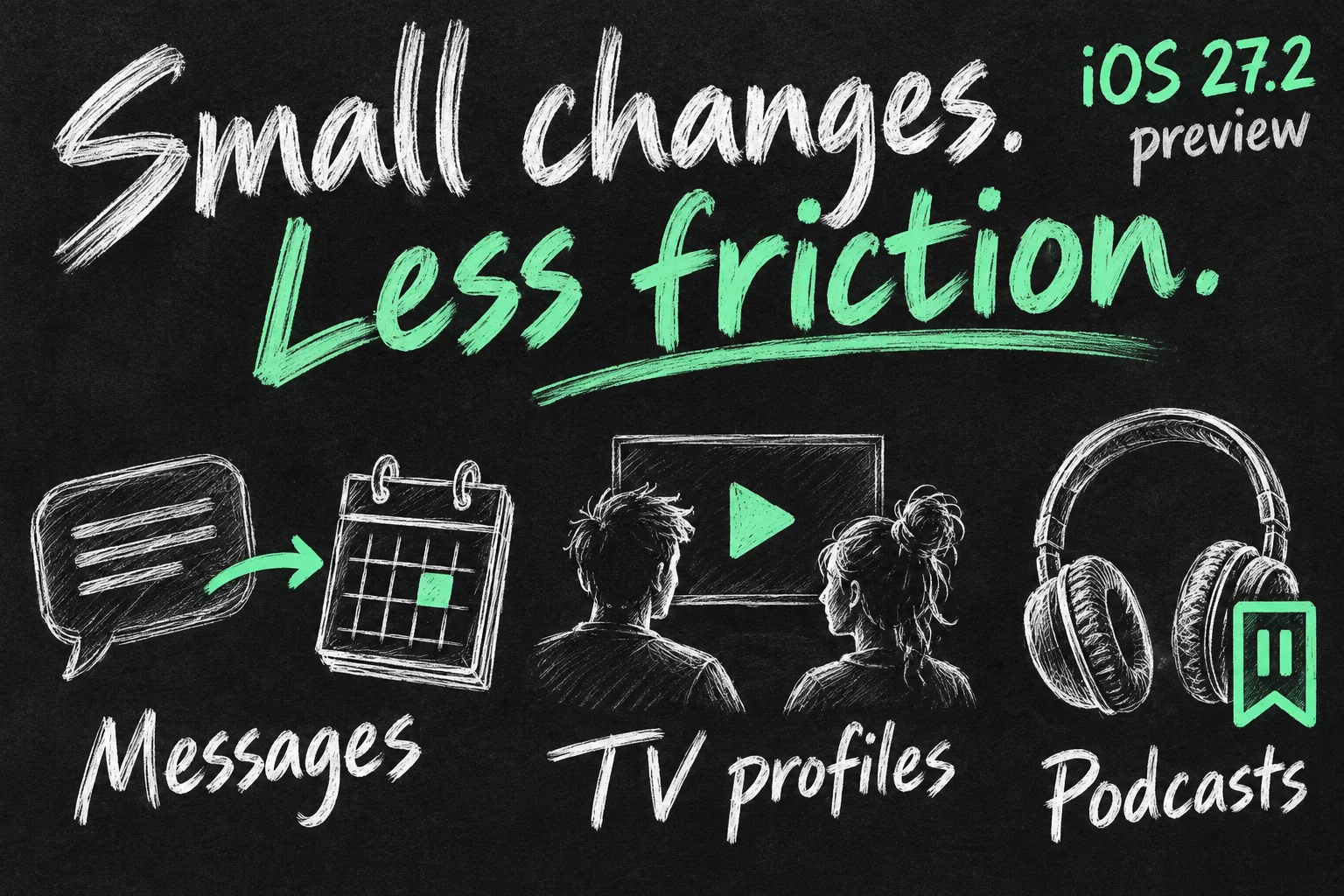
Beta Profiles documents Settings → Apps → Messages → Suggested Actions, with controls for Calendar, Reminders, Notes, Maps, and Flights and Packages suggestions.
For a practical check after updating, use an ordinary conversation about a meeting or a place. If a suggested action appears, review the proposed details before accepting it. A time mentioned in a message can refer to a deadline, a different time zone or an event somebody has cancelled; an assistant’s suggestion still needs your judgement.
If your screen feels busy, begin by keeping only suggestions that save you repeated work. Someone organising classes might value calendar actions, while someone coordinating deliveries might prioritise package information. The useful question is whether a suggestion reduces a real task, not whether every available switch is enabled.
2. Apple TV: separate viewing with profiles
The beta adds personal profiles in the iPhone TV app, with separate viewing history, watchlists and recommendations, plus child-content controls.
If you regularly hand your phone to a child to watch something, check the profile and its restrictions before handing over the device. Keeping viewing choices separate can be helpful, but do not assume a profile creates another paid subscription, changes content availability or replaces the rest of your parental controls.
For someone who always watches alone, this may be a small convenience rather than a reason to install test software. Choose the profile arrangement that fits your household instead of treating a new selection screen as something you must interact with every time.
3. Podcasts: find unfinished listening more easily
The beta’s Podcasts introduction distinguishes New Episodes from Continue Playing, separating fresh releases from episodes you have already started.
For a commute, that distinction is useful to test: can you quickly resume the discussion you stopped halfway through, without being distracted by every new upload? Try it with an episode you recognise and inspect the playback position. A cleaner queue is valuable only if it helps you find the programme you wanted.
This is a navigation change, not evidence of cheaper mobile data or better audio. Review your download and streaming preferences separately if you listen on the train or outside Wi-Fi. Moving an episode into a different area of the app does not by itself tell you whether it is stored offline.
4. Siri languages: check the rollout, not just the version
Beta testing includes French, Japanese, Korean, Portuguese and Spanish Siri AI. Apple’s live Australian availability page still lists Siri AI in English at this check, so beta support is not a public Australian availability guarantee.
That difference matters if you live in Australia and prefer speaking Korean at home. Before changing your setup, check Apple’s current feature-availability information and what your phone actually offers. A language supported by standard Siri is not automatically supported by every Siri AI capability.
Device support is another separate gate. Apple’s iOS 27 notes list Siri AI for iPhone 15 Pro and Pro Max and all iPhone 16 models and later. Being able to install an operating-system update does not mean every older phone gains its AI features. Check the particular feature, not just whether the number 27.2 appears.
Our iOS 27 features guide provides wider context. Keep that broader operating-system overview separate from the changes being tested in this smaller update.
5. Health: the redesign is not in the current RC
Apple explicitly says the redesigned Health app is not included in the current test build. It appeared in earlier betas for testing, and Apple says it will be available again in an upcoming iOS beta. That statement does not confirm a particular future public version or an Australian release date.
Apple also says earlier-beta Health data remains on the device and can be viewed in Settings. Its notes still list possible problems generating personalised Insights summaries. These are reasons to distinguish a test programme from a finished feature, rather than reasons to describe an unreleased redesign as ready for everyday use.
If the new Health presentation is the main reason you are interested in iOS 27.2, reset that expectation before installing anything. Do not buy extra hardware solely because an early beta article showed a feature that is absent from the current RC. Wait for the actual availability announcement relevant to your device and region.
What Australian users should check separately
- Language and device: confirm both for any AI feature. A global headline can combine capabilities that have different requirements.
- Regional changes: Apple’s RC notes describe an expanded App Tracking Transparency prompt and yearly re-prompting for EU users, with requirements in five named European countries. This is not an announcement of the same prompt for Australia.
- Known issues: Apple lists a possible failure in Describe a Shortcut. An RC should not be described as bug-free simply because its release is close.
- Your essential apps: check your work, university, banking and transport apps before choosing a test build for the phone you depend on. This is a planning recommendation, not a report that those apps are broken.
Do not read developer testing fixes as promises about ordinary app performance. For example, a correction to StoreKit testing in Xcode concerns the developer’s test environment; it does not establish that every real subscription issue has been resolved. Similarly, a redesigned battery icon is not a battery-life measurement.
Should you install the iOS 27.2 update immediately?
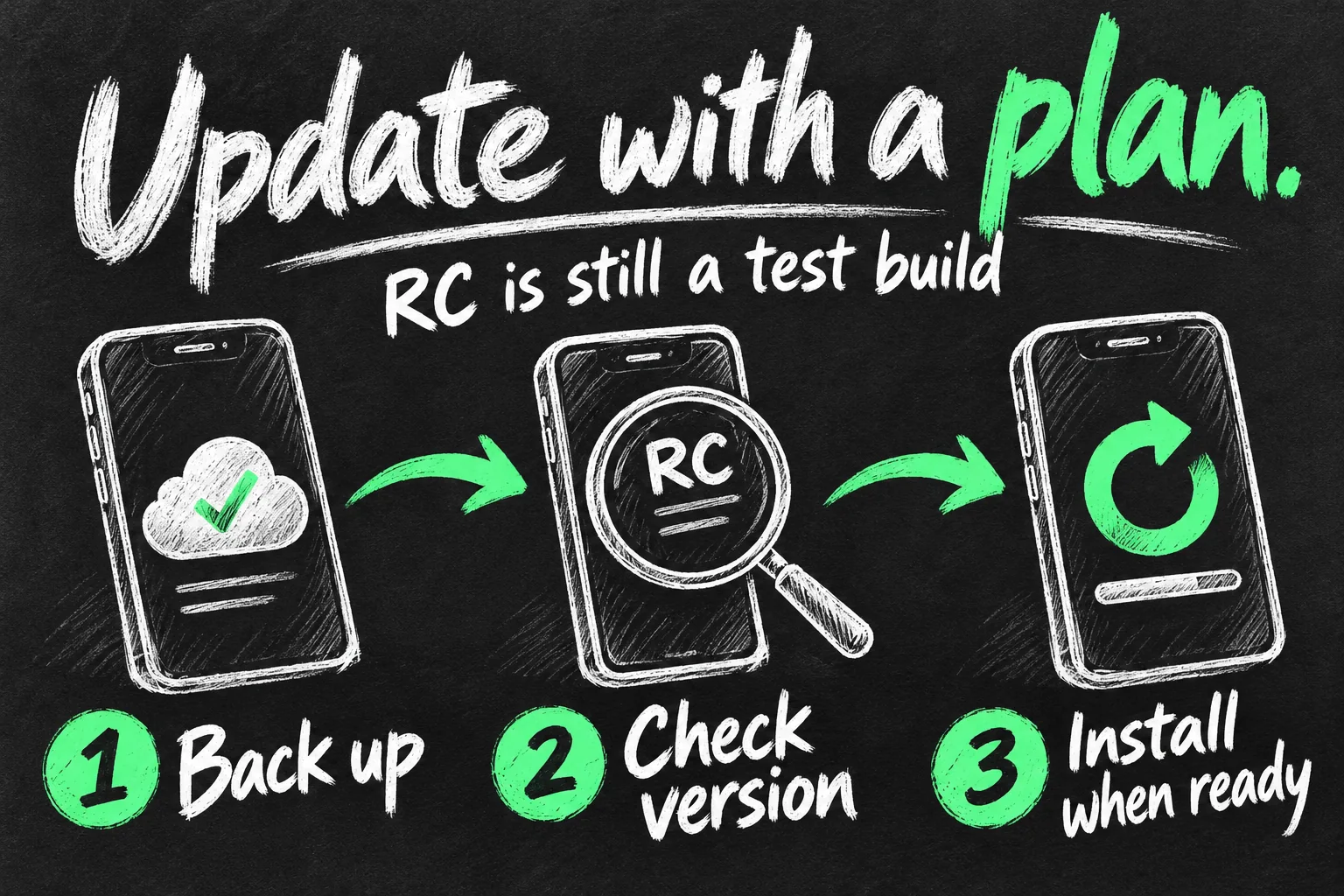
For an everyday phone, our recommendation is to use the normal public update channel rather than join beta testing just for these app changes. Once Apple offers the public release, read its final notes and security information, back up and choose a suitable installation window. This is not a recommendation to ignore security updates indefinitely.
There is no measured battery or speed result in this guide. Individual beta reports can help identify something to investigate, but they do not prove that your phone will run cooler or last longer. Avoid a percentage-based improvement claim without a controlled test on the relevant hardware and build.
A simple installation checklist
- Make a current backup. Use iCloud or your computer and check that the backup completed before proceeding.
- Read the exact version. In Settings → General → Software Update, distinguish a public release from an RC or beta. Read the notes for the version actually offered.
- Prepare power and Wi-Fi. Follow Apple’s update instructions and allow time for installation. Avoid starting immediately before you need your phone for travel or an important call.
- Install through Software Update. Use the on-screen Download and Install instructions when an update is available; do not use an unsolicited update link from a message.
- Check your normal tasks afterwards. Confirm calling, messaging, your essential apps and the specific new settings you wanted. A new feature list does not replace checking that your usual workflow still works.
If you are moving to a new phone as well, keep that as a separate task. Our new iPhone transfer checklist covers checks before erasing the old device. Do not confuse finishing an update with confirming that all your data has transferred.
Frequently asked questions
Is iOS 27.2 officially released?
The official listing checked for this guide shows the RC dated 19 October 2026. Check Software Update for the version currently available to your phone; an RC listing alone does not prove public availability.
Will every iPhone get all iOS 27.2 features?
No. Feature requirements can depend on hardware, language and region. Siri AI has narrower hardware requirements than simply running an iOS version.
Does iOS 27.2 include the new Health app?
Not in the current RC. Apple says the redesigned app was present earlier for testing and will return in an upcoming beta; do not turn that into a guaranteed public release date.
Will it fix battery drain?
We have not measured this build. Use final release notes and device-specific evidence rather than a universal battery-improvement promise.
Sources and Reading Notes
Apple Developer: Releases, 19 October 2026; iOS & iPadOS 27.2 RC Release Notes. Apple Support: About iOS 27 Updates; Update your iPhone or iPad. Apple Australia: iOS and iPadOS 27 Feature Availability. Beta Profiles: What’s New in iOS 27.2, original beta observations and screenshots, 21 October 2026. Checked 22 October 2026.
This is a dated preview based on published documentation and beta observations. Workflow examples and the public-channel recommendation are our editorial guidance. The illustrations are original AI-generated concepts, not screenshots, official promotional images or evidence of hands-on testing.