A Victorian digital licence can be used on your iPhone through myVicRoads or Service Victoria, rather than the driver-licence feature in Apple Wallet. If you have been searching the Wallet app for a Victorian issuing authority, start with one of those official apps instead. Buying a newer iPhone or changing a region setting is not the missing step.
Open myVicRoads and look for My licence or the Licence tab. The digital licence stays in the official app; it is separate from a card in Apple Wallet.
Before you dive in
Can you add a Victorian digital licence to Apple Wallet?
Not through the supported Victorian setup routes at this check. Apple’s Australian-language help page for adding a driver licence describes eligibility for participating US states or territories. The language or country suffix on a support page does not mean a Victorian licence is supported. The licence-issuing authority must participate in that particular service.
This distinction also explains why an overseas tutorial may show a Driver’s License or ID Cards option that does not solve your problem. Do not scan a Victorian card into an unrelated app because its icon resembles a wallet. An Apple Wallet licence and a digital licence inside a government app are separate arrangements.
| What you want | Where to start | What it does not mean |
|---|---|---|
| Your Victorian driver licence on iPhone | myVicRoads or Service Victoria | Not a bank-card pass in Apple Wallet. |
| A licence issued by a participating Apple Wallet authority | Apple’s supported ID setup for that authority | Not permission to add any Australian licence. |
| Pay for Melbourne public transport with iPhone | An eligible payment card and local contactless rules | Not identity verification or a digital driver licence. |
For the transport question, our Apple Pay in Melbourne guide covers the separate payment setup. Keeping these jobs separate is more useful than trying to fit every card into the same app.
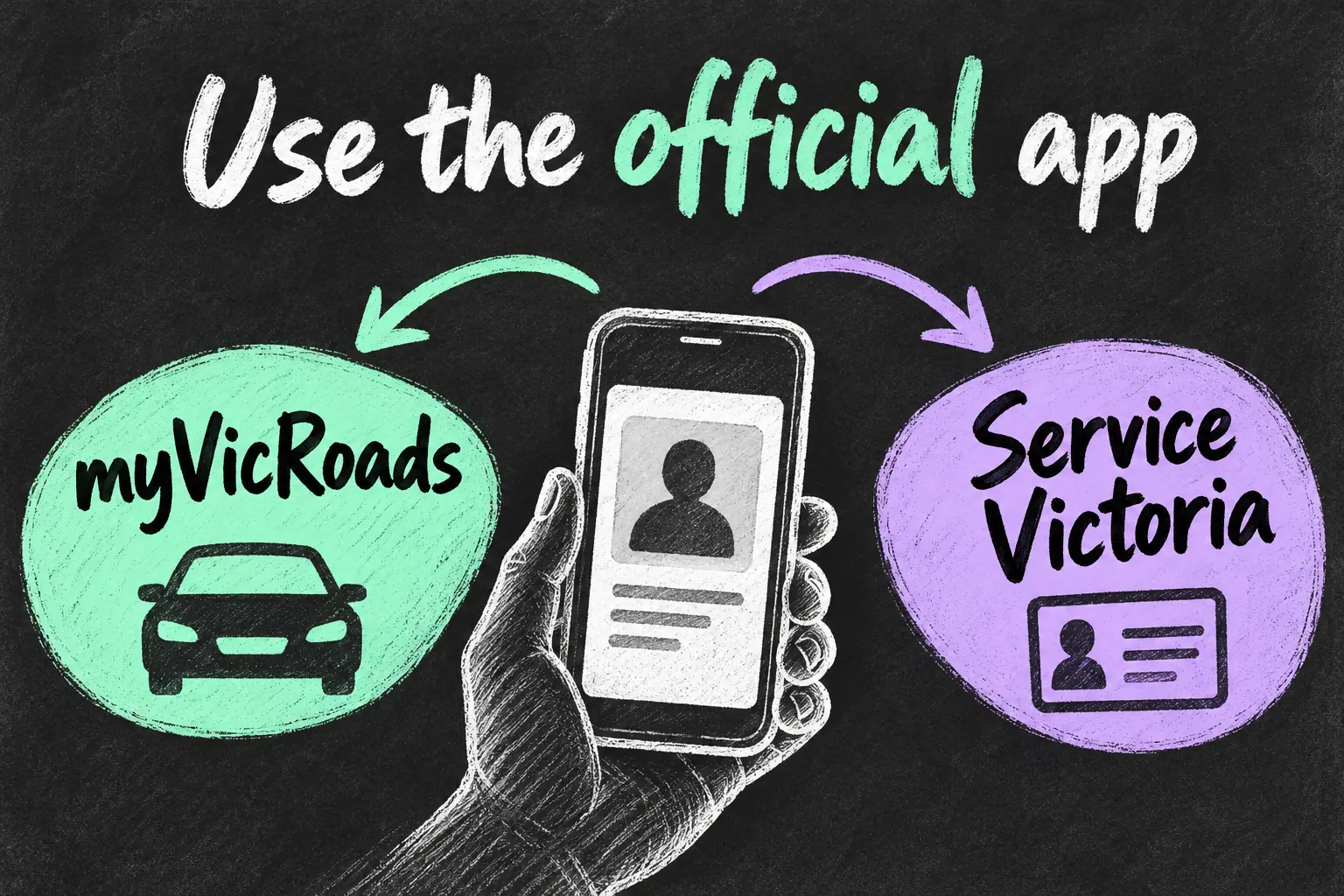
Which official app should you choose?
If you already manage your licence through myVicRoads, that is a practical starting point. VicRoads also identifies Service Victoria as another route. You do not need to move a licence from one app into Apple Wallet to make the digital version useful.
Choose the account you can access reliably. For example, someone who already uses myVicRoads for vehicle administration may prefer that route, while someone familiar with Service Victoria’s digital wallet may prefer keeping supported state cards there. This is a workflow choice, not a claim that one app is faster or more secure than the other.
Find the official app
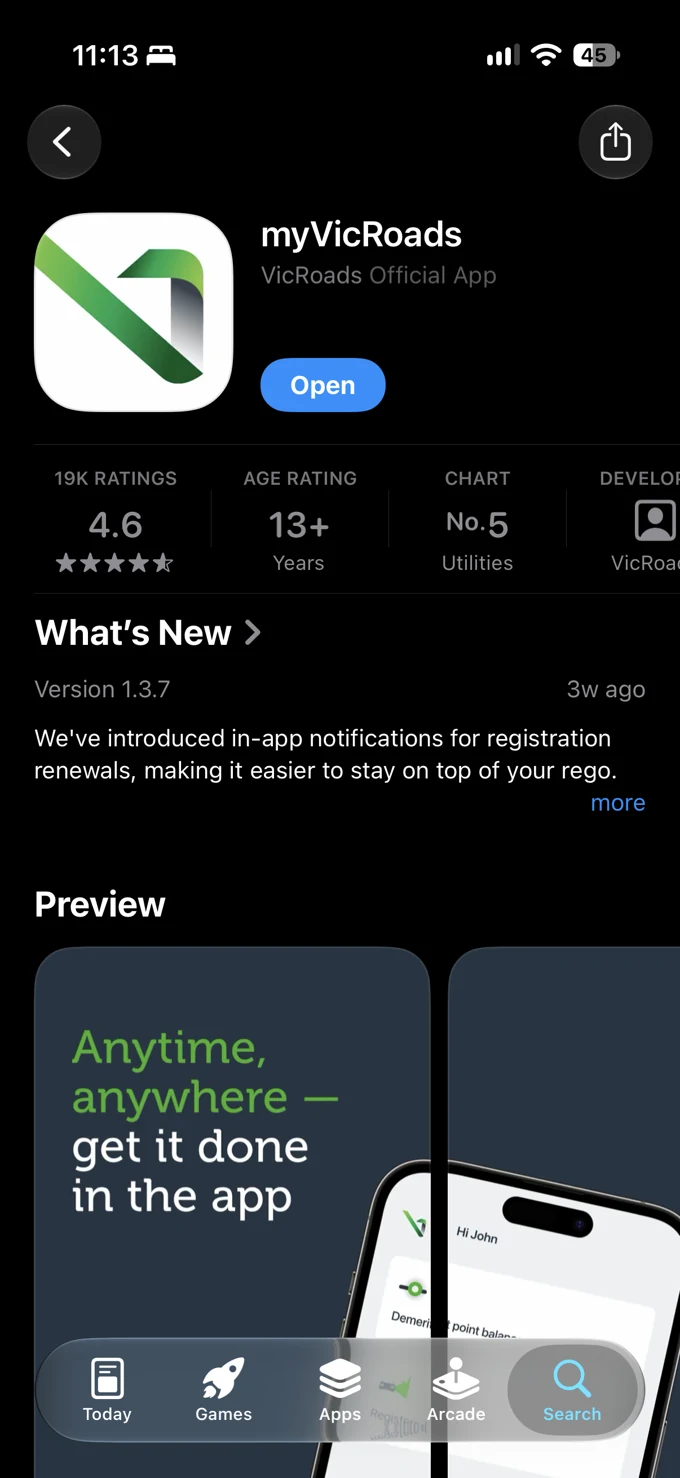
Look for myVicRoads, labelled VicRoads Official App in the App Store. Open launches an installed copy of the app.
Set up a digital driver licence on iPhone
Use the current App Store listing linked by VicRoads or Service Victoria and check its iOS requirement on your device. We have not specified one minimum iOS number for both apps because their requirements can change independently. Installing an app is only the start: check that your licence actually appears.
- myVicRoads route: download the official myVicRoads app, sign in with your myVicRoads account and follow the prompts for two-step verification. Open the licence area and confirm the details.
- Service Victoria route: download the official Service Victoria app, sign in or create its account, open the in-app wallet and choose Driver licence from the add-card screen.
- Match your official record: enter the requested details exactly as they appear on your plastic licence. If the record cannot be matched, use the official support route rather than repeatedly creating accounts.
- Check the result: open the digital licence again and make sure it is yours and the information is current. Do this at home, with time to resolve a sign-in issue.
Open your licence in myVicRoads
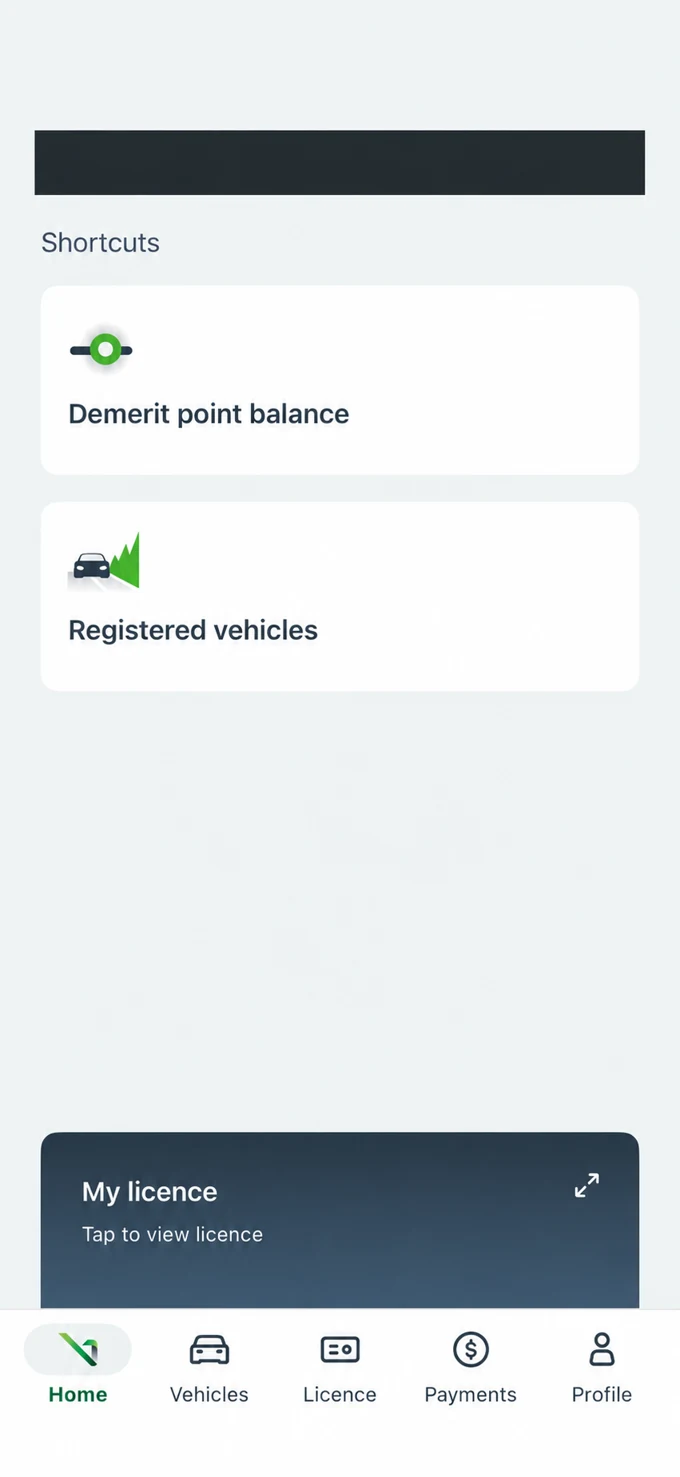
On the Home screen, choose My licence → Tap to view licence. The Licence tab in the bottom navigation is another entry point.
A useful first check is to close the app, reopen it normally and locate the licence without searching through settings. That small rehearsal is about preparation; it is not proof of acceptance by a particular business. Keep your account recovery method usable when you change phones.
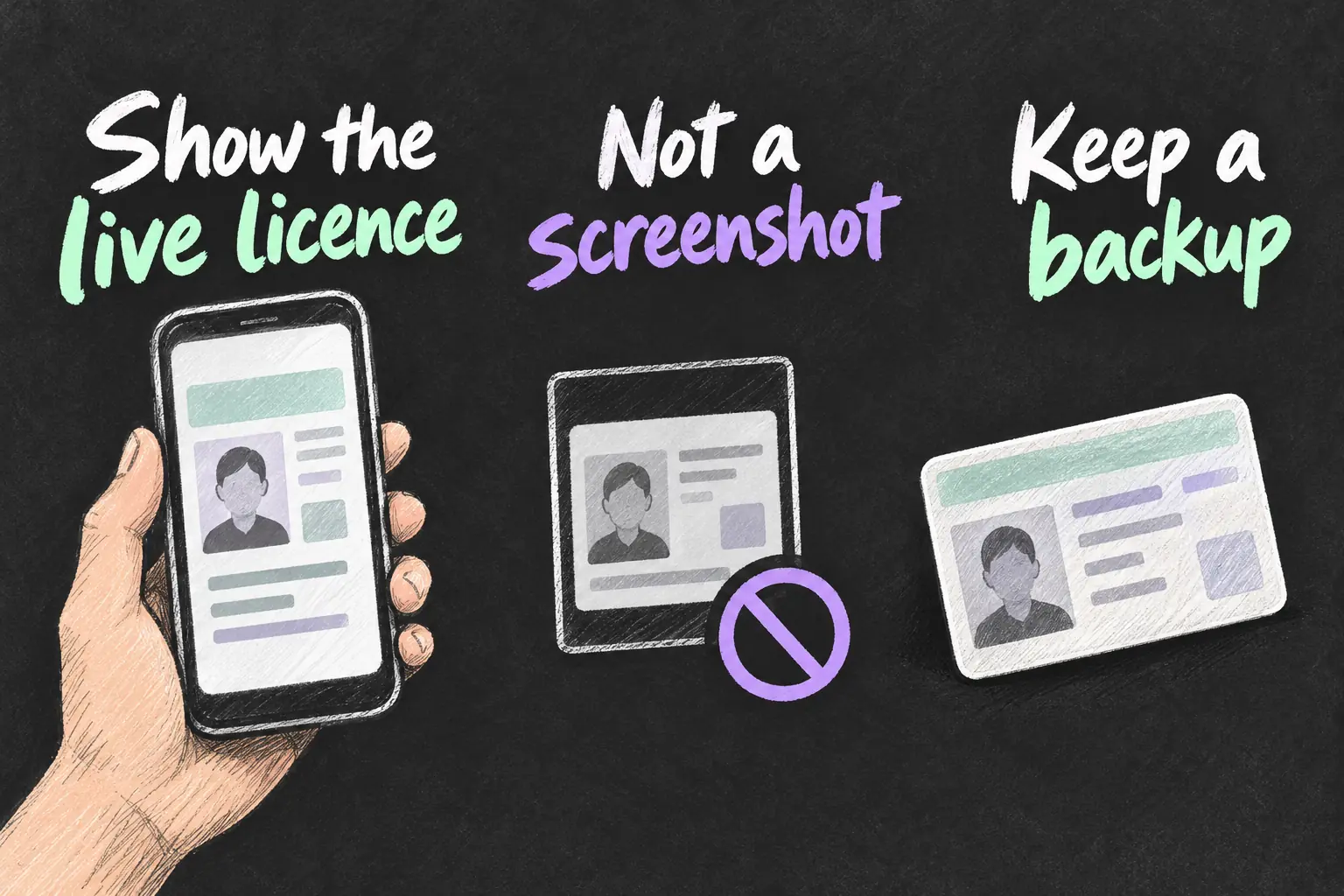
Show the live licence, not a screenshot
The official licence-checking guidance uses the live app and its verification features, including a QR code. A photo of your plastic card or screenshot of a digital screen is not the same verification process. The checker may need a fresh code or a view of the relevant licence details.
Open the licence when asked and follow the checker’s instructions. The official checking guide says the checker should not need to handle your phone. Let them see or scan the relevant screen while you retain control of the device. Avoid offering an entire photo library when a live licence check is what was requested.
For an ordinary proof-of-age interaction, ask what information the checker needs rather than assuming every identity detail must be displayed. Do not upload licence images to third-party card-making websites to create a substitute pass. Such a pass would not create a supported Apple Wallet licence.
Do you still need your plastic licence?
Do not rely on an old article’s rule without checking its date. Transport Victoria’s current licence-conditions page says that, from 3 April 2025, a digital driver licence is considered the same as a licence card for the listed carry requirements. Those listed groups include learners, probationary drivers and drivers under 26, among others. This differs from some earlier rollout advice about always carrying the plastic version.
That does not make a flat phone useful. Our practical recommendation is to carry the plastic card when access may be unreliable, and check the current rules for your licence and journey. VicRoads advises carrying it when travelling interstate and as a backup for internet or battery concerns. Do not read Victorian recognition as universal acceptance by every overseas organisation.
Think of a regional weekend trip: an app that opened on your home Wi-Fi may be less convenient when your phone is nearly flat or you have trouble signing in. Keeping the card available costs little effort and avoids turning an account problem into an identity problem. We are not promising offline access in every app or situation.
If the licence will not appear or the app will not open
- Check the job you are attempting. If you are in Apple Wallet’s add-ID flow, return to the relevant Victorian government app.
- Check software and account access. Install supported updates and confirm you can access the official account and its verification method.
- Check the entered details. Match the licence record rather than guessing a different name format or number.
- Use the official support channel. Describe the error without posting your licence number, card number or verification code in a public forum.
- Use a suitable backup. Resolve the app issue before planning to depend on it for a journey or identification check.
If you are replacing an iPhone, treat access to the licence app as a task to verify on the new device. An app icon arriving during a transfer is not evidence that its account and identity checks are complete. Test the live licence before putting the old phone away.
Frequently asked questions
Is Service Victoria’s wallet the same as Apple Wallet?
No. The wallet inside the Service Victoria app is part of that state service. Its supported cards do not automatically become Apple Wallet cards.
Will changing my iPhone region make a Victorian licence eligible?
A device setting does not turn Victoria into a participating Apple Wallet licence issuer. Use the documented local app route.
Can I use Apple Watch instead of the licence app?
Do not assume the Apple Watch option in Apple’s overseas licence instructions applies to Victoria. This guide’s Victorian setup routes are the official iPhone apps, not a watch pass.
Is the digital licence compulsory?
VicRoads describes digital use as optional. Set it up if it helps your routine, while keeping a workable way to prove the relevant entitlement.
Is a screenshot enough if I lose reception?
Do not substitute a screenshot for a live digital-licence check. Plan for access issues and carry an appropriate backup instead.
Sources and Reading Notes
VicRoads: Digital driver licence; VicRoads mobile apps; and Victorian Digital Driver Licence checking guides. Service Victoria: Getting started with a digital driver licence. Transport Victoria: Licence conditions. Apple Support Australia: Add your driver licence to Apple Wallet. Checked 23 October 2026.
Screenshots: Aussie Oppa. App interfaces: VicRoads and Apple. Setup and acceptance conditions follow the official sources above; the explanatory sketches are AI-generated.