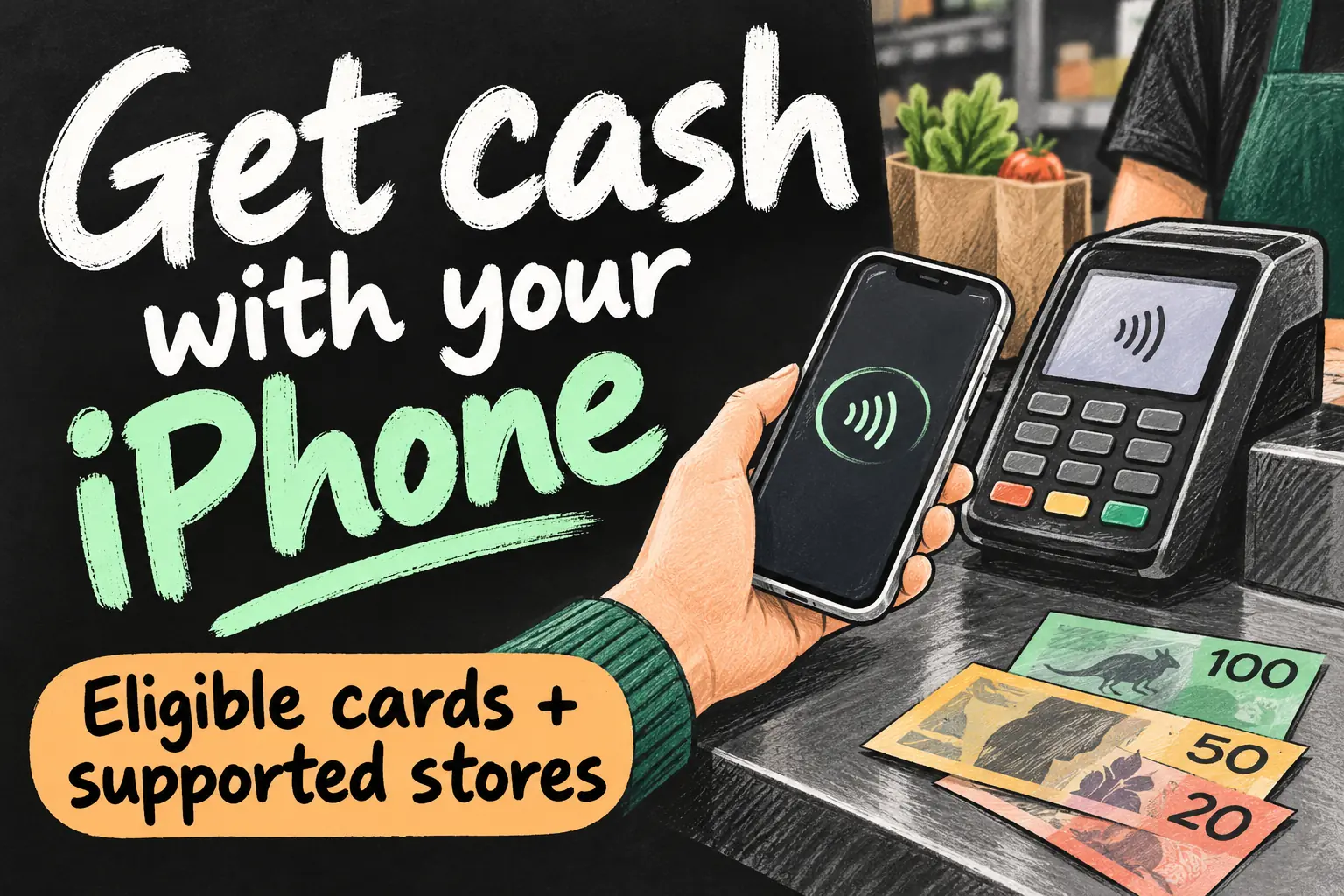
Apple Pay cash out is available with eligible debit cards at supported Australian stores. If your card and checkout support it, you can request cash, authorise the transaction with your iPhone and collect the money without inserting a plastic card. The useful first step is checking your particular debit card and the store, rather than assuming any Apple Pay purchase also supports cash out.
Westpac, Ubank and ME publish guidance for this use case. This guide turns that documented route into five practical steps, checked on 23 October 2026. It is based on provider information, not a checkout test or a guarantee about a particular supermarket branch.
Before you dive in
Start with a supported debit card
Three providers explicitly describe Apple Pay cash out in their published guidance. These are examples to check against a card you already hold, not a ranking of bank accounts or a reason to switch banks for one feature.
| Provider guidance checked | Documented route |
|---|---|
| Westpac | Eligible debit card at an enabled merchant; its cash-out FAQ specifies eftpos SAV or eftpos CHQ for Mastercard Debit holders. |
| Ubank | Apple Pay cash withdrawal at supported merchants using eftpos SAV or eftpos CHQ before payment. |
| ME | Eligible Mastercard debit card at selected merchants using the supported Savings/eftpos route. |
A debit card appearing in Wallet is only the starting point. Check the bank’s current cash-out instructions for that exact card. Use a debit account with enough available money for the purchase and the requested cash; this guide is not a method for taking a credit-card cash advance.
Five steps for Apple Pay cash out
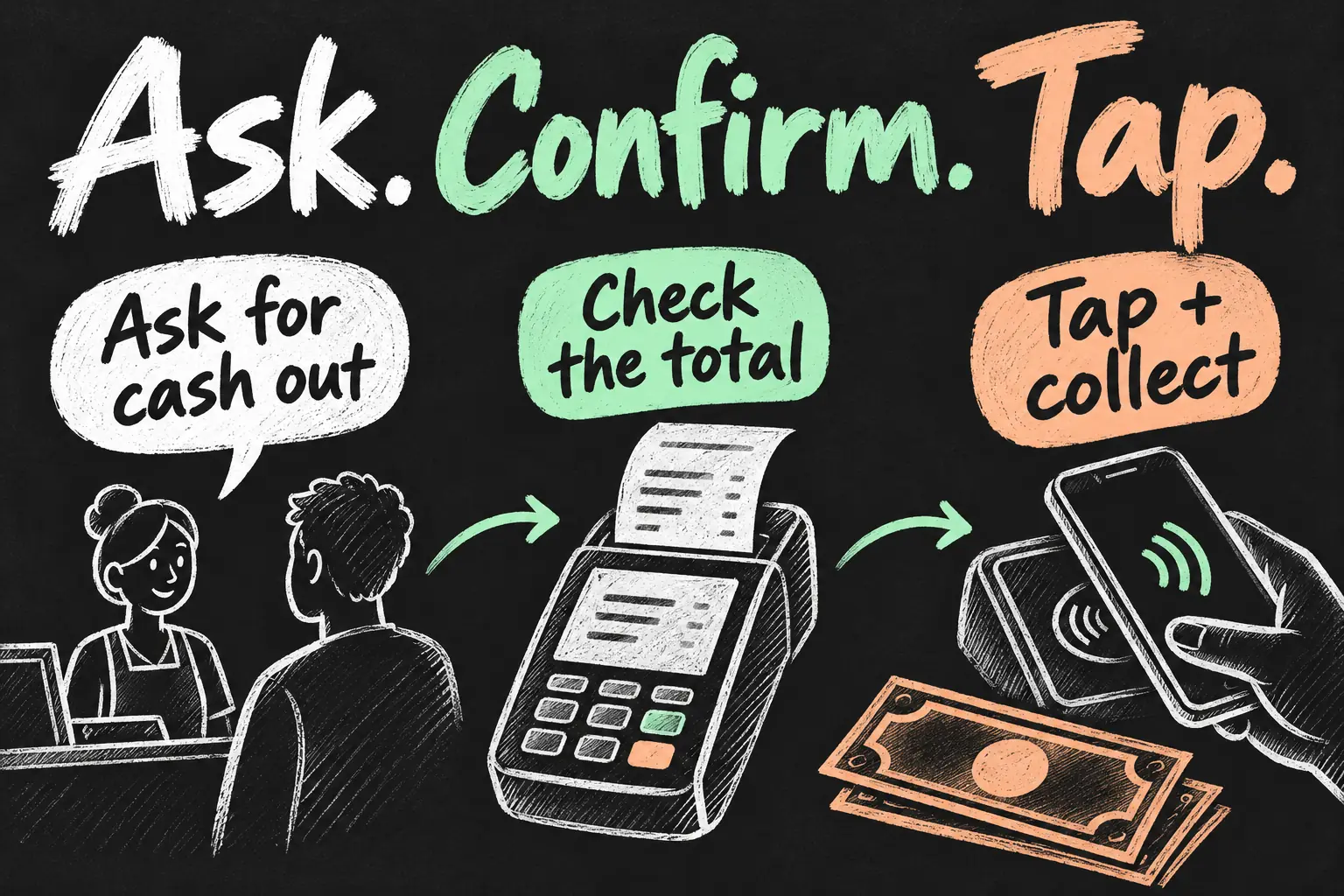
- Ask before the transaction starts. Tell the cashier you want cash out using an eligible debit card in Apple Pay, and say how much. Confirm that the store and checkout support it, whether a purchase is required, and any limit or charge.
- Choose the correct card in Wallet. Open the debit card your bank supports for cash out. Check its available payment options before the cashier starts the payment request.
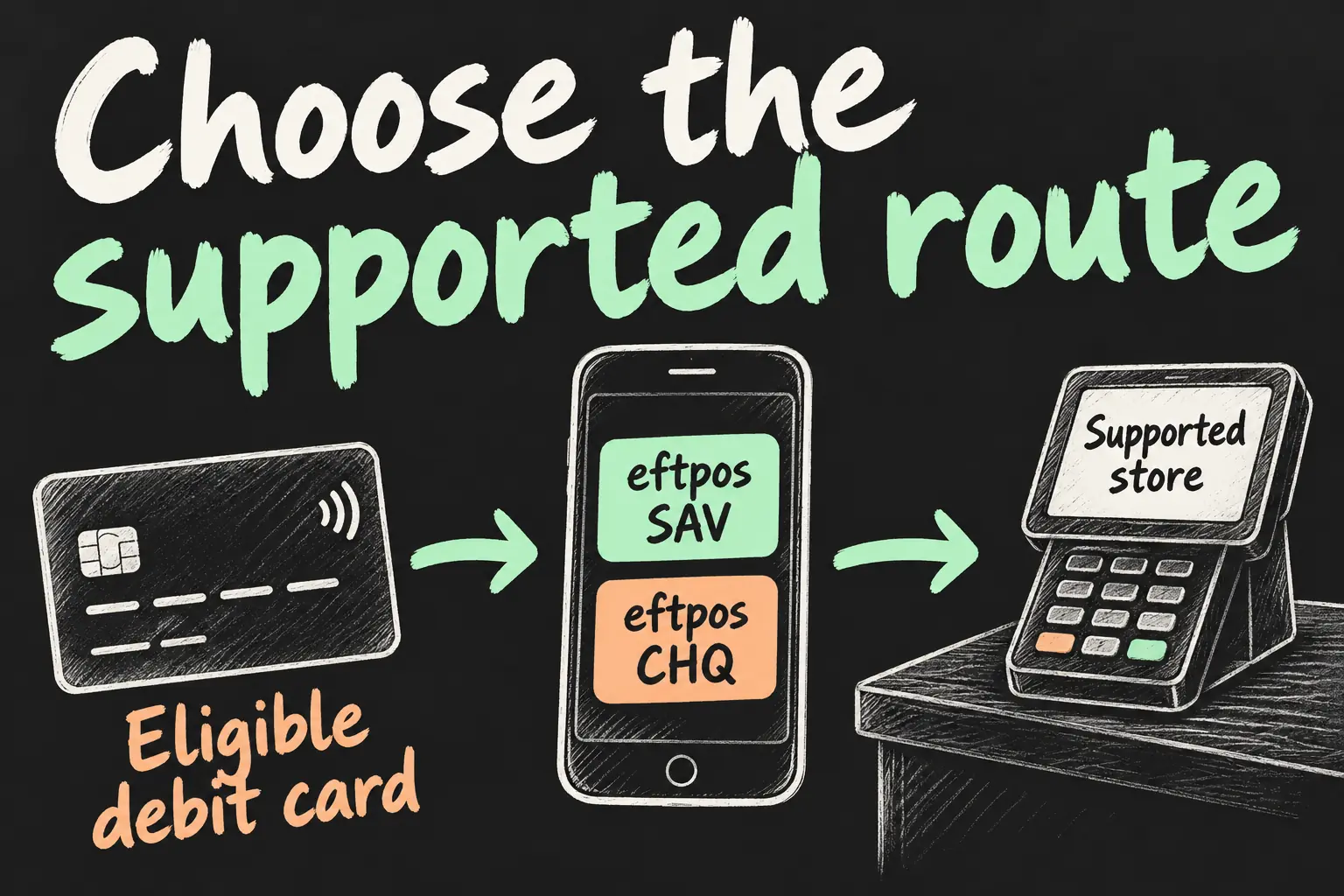
- Use the supported payment route. If your card exposes network selection, choose eftpos SAV or eftpos CHQ as directed by its issuer. For Westpac’s selectable-card interface, the bank describes the three-dot menu and Payment Option section. Newer cards may have a different experience, explained below.
- Confirm the amount and authorise. Check the purchase amount, cash requested and any charge on the terminal. Authenticate Apple Pay using your device’s normal method, hold the iPhone to the reader and enter your card PIN at the terminal if requested.
- Collect the cash and receipt. Confirm the terminal approved the transaction, check the cash received and keep the receipt. Review the matching transaction in your banking app if needed.
For example, A$18 of groceries plus A$40 cash is A$58 before any separately disclosed charge. That is an illustration of what to check, not a published store limit or a tested transaction. If the amount differs, ask the cashier to correct it before you authorise.
Find the right eftpos setting for your card
The selectable-network route is straightforward when the option is present: choose the supported debit card, find Payment Option, and select the issuer’s supported Savings or Cheque route. The labels commonly shown in the checked guidance are eftpos SAV and eftpos CHQ. Choosing a payment card and choosing its payment network are different actions.
There is an important current interface change. Westpac says that, on iOS 18 and watchOS 11 or later, merchants choose routing for debit cards added after the software update. Cards already in Wallet at the update can retain manual network selection. A missing selector therefore does not automatically mean you set up Wallet incorrectly.
If your card has the selectable route, follow the five steps above. If it does not, ask your issuer how cash out works for that card’s current Wallet configuration, then confirm the checkout can process it. Do not downgrade iOS or repeatedly remove a working card to force an old menu to appear. Ubank mentions re-adding a card as a possible step in its own guidance, but that is not a universal fix for other banks or merchant-selected routing.
Using this at Woolworths, Coles or a local shop
Make the checkout conversation specific: ask whether this terminal supports cash out through Apple Pay with your debit card. General contactless acceptance answers a different question. A store can accept your phone for groceries while applying separate rules to cash withdrawals.
The bank pages checked here establish support at selected or enabled merchants. They do not establish a universal Woolworths or Coles policy for every branch and terminal, so this guide does not name either chain as a guaranteed location. A staffed checkout is a useful place to ask about the available process before shopping around a cash-out assumption.
If you regularly need small amounts of cash in Melbourne, first confirm the combination at a shop you already use. Note the card, checkout and any stated conditions that worked for you. Do not assume another branch, a self-service terminal or a replacement card will behave identically.
Complete the transaction and check the record
Keep the card PIN available: Westpac and ME both say some terminals request it for cash out. This is the payment card’s PIN, not a request to tell the cashier your iPhone passcode. Enter it yourself at the terminal and check the payment result before leaving.
Use your banking app or internet banking for the account record. ME notes that its eftpos transactions made with Apple Pay appear there rather than in Wallet’s recent transaction list. A missing Wallet entry by itself is therefore not enough to decide whether cash was withdrawn.
If the terminal shows a decline, ask the cashier to confirm the outcome before trying again. ME’s troubleshooting guidance identifies an inactive or blocked card, insufficient funds and terminal support as possible issues. If the bank shows a debit but you did not receive the expected cash, keep the receipt and contact the retailer and issuer with the time and amount.
Keep checkout cash out separate from transport and ATMs
This method concerns a participating retail checkout. Cardless ATM withdrawals use the bank’s separate ATM service and instructions; an Apple Pay symbol or contactless reader is not enough evidence that an ATM supports this procedure. Check the bank’s ATM instructions if that is where you need to withdraw money.
Likewise, a bank card working for transport does not establish checkout cash-out support. Our Apple Pay in Melbourne guide covers the separate ticketing rules. Treat each use case as its own supported service rather than a feature shared by every terminal.
Frequently asked questions
What should I ask at the checkout?
Ask whether you can get cash out through Apple Pay with your debit card, state the amount, and confirm any purchase requirement, limit or charge before payment.
Which option do I select if my card shows a network choice?
Use the route documented by your issuer. The checked guides describe eftpos SAV or eftpos CHQ; ME’s debit instructions specifically use its Savings route.
Why does my new iPhone have different options?
Westpac documents merchant-selected routing for newly added debit cards on newer software. Check the current issuer instructions for your card instead of following an old screenshot.
Where do I check the withdrawal afterwards?
Start with the receipt and banking app. ME says eftpos transactions made with Apple Pay are shown in its banking channels rather than Wallet’s recent list.
A practical way to use less plastic
If you already hold a supported debit card and have a participating checkout nearby, cash out with an iPhone can be a useful addition to everyday shopping. Check the card’s current route once, ask the store before payment and confirm the total. That gives you a repeatable process rather than relying on a generic claim that every phone payment can dispense cash.
Sources and Reading Notes
Checked on 23 October 2026. Westpac: retail cash-out eligibility, payment-network selection and the newer Wallet routing interface. Ubank: Visa Debit and Apple Pay cash withdrawal instructions. ME: cash out, card PIN requirements, payment approval and transaction records. These sources describe provider-specific support; no in-store trial, universal retailer policy or fee-free guarantee is claimed. Official source URLs are retained in the editorial record. Illustrations are original AI-generated concepts.