You can scan documents on iPhone, add a signature and send a PDF using Apple’s built-in apps. For an occasional form, receipt or signed page, start with Notes, Files or Preview before paying for another scanner subscription.
The useful outcome is a complete file the recipient can open, not merely a photo of some paper. This research-based guide takes you from choosing an app to checking the final PDF, with a specific warning about exporting multipage scans from Notes.
In 3 Points
Choose where you want the finished PDF
| Start here | Best fit | Result to check |
|---|---|---|
| Notes | A receipt or document kept with related notes. | A scanned PDF attachment inside the note. |
| Files | A document you want in a named folder for uploading. | A PDF saved to your chosen location. |
| Preview | Scanning, filling and signing a PDF on recent iOS. | A PDF you can open and edit in one app. |
Preview is included with iOS 26 and later; older supported iPhones can use the Notes and Files workflows instead. There is no need to learn every route. If a website asks you to upload a PDF from a folder, starting in Files or Preview can save an export step.

Scan documents on iPhone and capture every page
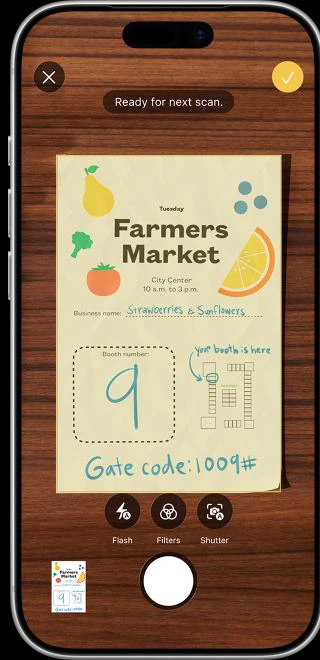
For Notes, create or open a note, tap the attachment button and choose Scan Documents. For Files, open the intended location, use the More menu and choose Scan Documents. In Preview, choose Scan Documents from the start screen. Menu wording and button positions vary with software versions.
- Place the paper flat on a contrasting surface with even light. Keep fingers and the phone’s shadow off the text.
- Position the whole page within the camera view. Automatic capture can detect the edges; use manual capture if it keeps choosing the wrong area.
- Check the crop and adjust the corners. Retake a blurred page instead of hoping a filter will recover missing detail.
- Capture the remaining pages in the same scan, then finish with Done or Save as shown in the app.
Apple’s Notes guide distinguishes Scan Documents from Scan Text: the first preserves pages as a PDF, while the second recognises words and inserts them into the note. If a form’s layout matters, the PDF route is normally the more useful starting point.
For a two-sided form, scan both sides that contain information and check their order. Keep colour when colour communicates something important. A black-and-white filter can improve a plain text page, but it can also hide faint writing or coloured annotations.
A three-page application check
For a form plus two supporting pages, count three pages in the finished PDF, not just three captures in the scanner. Open the saved file, check that each page is upright and that all four edges are visible, then give it a useful name such as Application-November.pdf. If the recipient has a file-size limit, check the exported file against that limit before attaching it; sending a smaller preview image is not the same as sending the complete PDF.
Fill the form and sign a PDF
In Notes, open the scanned document, choose Markup, then use Add → Signature to place a saved or new signature. Resize and position it without covering the instructions. You can also draw with your finger, but a separate signature object is easier to reposition.
In Preview, open the PDF and choose the form-filling control. Select recognised fields for typed information, or use the Add control for a signature or text box. A scanned paper form is not guaranteed to contain interactive fields, so a text box may be needed for names or dates.
Zoom out after editing and make sure the result still reads naturally. The signature should sit on its intended line, and typed text should not overlap printed labels. Check the recipient’s submission instructions: being able to add a signature in an app does not establish that their organisation accepts that format.
Save the actual PDF, not just the surrounding note
When using Notes, open the scanned attachment itself and use its sharing controls to send a copy or choose Save to Files. Give the file a recognisable name and choose a folder you can find again. If it is already in Files or Preview, save or export the PDF to the intended location.
There is an easy multipage trap: exporting an entire note as a PDF is not the same as sharing its scanned PDF attachment. Apple says a note export containing a multipage PDF or scan includes only the first page of that attachment. Open and share the document itself, then verify the result.
For example, a three-page application should produce a PDF with all three pages. If it becomes a one-page file with a large blank area, stop and return to the attachment’s own sharing controls. Repeating the same whole-note export will not fix the missing pages.
Open, check and send the finished file
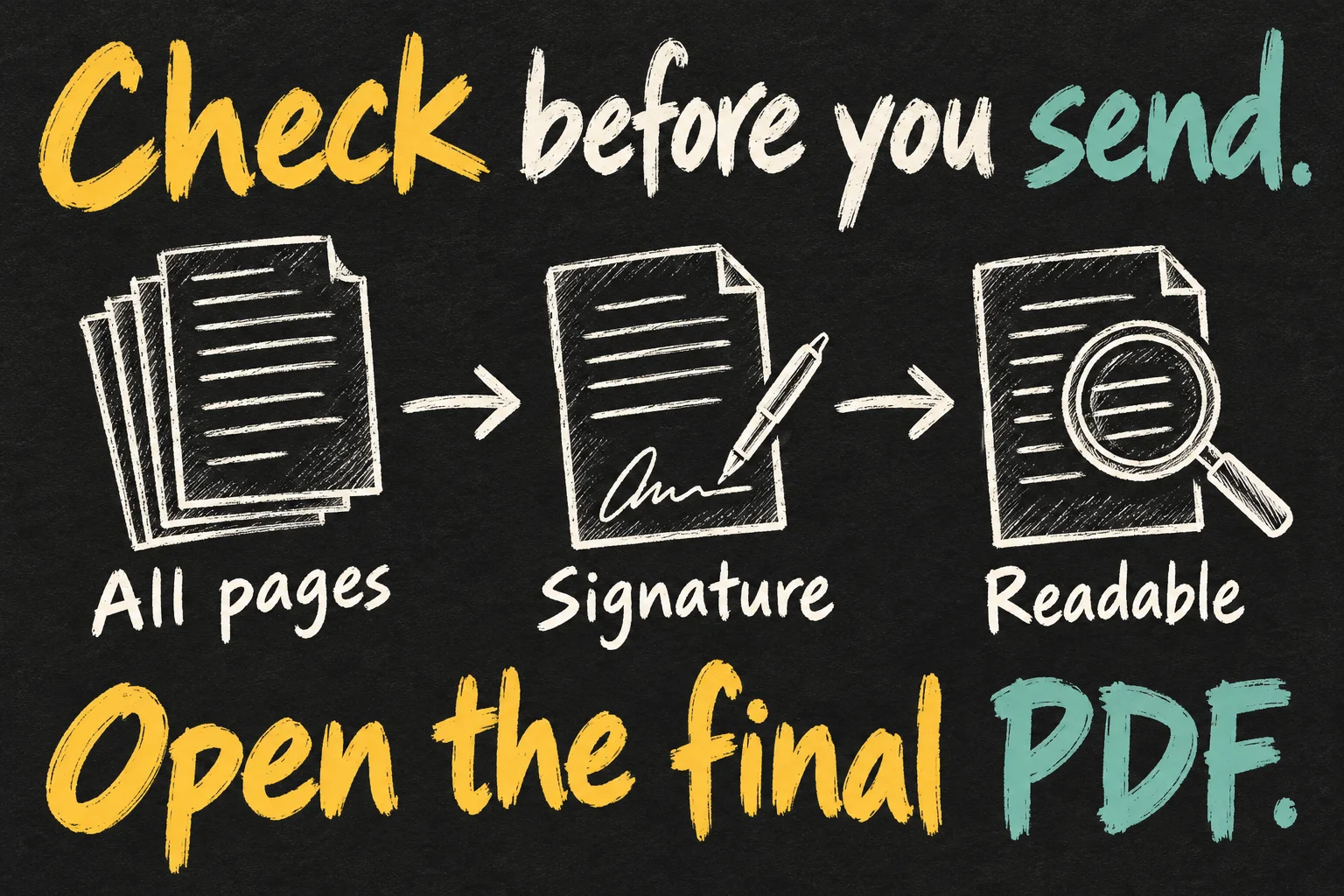
- Open the file from its saved folder, not only the scan preview in Notes.
- Count the pages, check the order and rotate any sideways pages.
- Zoom in on small text, dates and signatures to confirm they remain readable.
- Use Share to send a copy, or select the saved PDF from the receiving website’s upload picker.
- Check the recipient and file before confirming the send or upload.
If an upload has a size limit, Preview offers export options that can reduce image detail for screen viewing. Keep PDF selected when a PDF is required, preserve the original and compare the smaller version at a readable zoom. A file that fits under the limit but has illegible text is not a successful submission.
Use a clear filename such as application-signed.pdf rather than an unexplained sequence of scan dates. Keep the original paper until the task is complete. For personal information, use the recipient’s intended submission channel instead of creating a public sharing link simply because it is convenient.
When a separate scanner app is worth considering
Built-in scanning is a good starting point for occasional documents. A specialist app may be useful if you regularly need bulk processing, a particular document-management workflow or another feature you have confirmed is missing. Judge it by that unmet task rather than an App Store prompt suggesting that every scan needs a subscription.
For a university workflow, decide whether the PDF belongs with your lecture notes or in a submission folder. A scanner captures the page; a clear filename and sensible storage location help you retrieve it when a deadline arrives.
FAQ
Can I scan documents on iPhone without installing an app?
Yes. Notes and Files provide built-in scanning, and Preview is another option on recent iOS. Check which Apple apps and software version your phone currently has.
Does a scan have editable text?
A PDF of a page and recognised editable words are different outputs. Use Scan Text when you want words inserted into a note. Do not assume every PDF preserves accurate OCR or editable form fields.
Why did only one page get sent?
Check whether you exported the entire note rather than the multipage document attached inside it. Share the attachment itself, use Save to Files if helpful, and reopen the saved file to confirm the page count.
Sources and Reading Notes
Checked 25 October 2026. Apple Support and iPhone User Guide: document scanning; Scan Text versus Scan Documents; Preview introduction; PDF form filling and signatures; PDF export and compression; sharing PDFs; and exporting notes. This is a research-based workflow, not a claim that every receiving organisation accepts electronic signatures.
Revision check, 1 November 2026: Apple Support, How to scan documents on your iPhone or iPad.