
iPhone Mirroring on Mac lets you use your iPhone’s apps from the computer while the phone stays locked nearby. Start with compatibility, the same Apple Account and a locked phone; if those conditions are wrong, repeatedly opening the app will not solve the connection.
It is especially useful when a task lives in an iPhone app but you are already working at your Mac. This research-based guide explains the setup and a sensible troubleshooting order, without confusing Mirroring with AirPlay or an iPad second display.
In 3 Points
Choose iPhone Mirroring on Mac for the right job
| What you want | Use | What it does |
|---|---|---|
| Open an iPhone app using the Mac keyboard and pointer | iPhone Mirroring | Interact with the iPhone inside a Mac window. |
| Show video, photos or a phone screen on a receiver | AirPlay | Stream or mirror content to a compatible display or Mac. |
| Give your Mac another desktop display using iPad | Sidecar | Extend or mirror the Mac desktop onto the iPad. |
The names sound similar, but the direction of the task matters. Mirroring does not install an iPhone app as a native Mac app. AirPlay does not offer the same interactive phone-control workflow. Sidecar turns an iPad into a Mac display, rather than putting an iPhone inside a window.

If your actual goal is extra desktop space, our iPad second-monitor guide is the better starting point. Apple also says the Mac cannot actively use AirPlay or Sidecar while using iPhone Mirroring, so stop the competing session before testing.
Check compatibility and the account
Apple requires macOS Sequoia 15 or later on a Mac with Apple silicon or an Apple T2 Security Chip, plus an iPhone running iOS 18 or later with a passcode. Check the exact Mac model rather than assuming that any Intel Mac qualifies. Later features may have additional software requirements.
- Confirm that both devices use the same Apple Account and that two-factor authentication is enabled. Family Sharing membership is not the same as one account on both devices.
- Turn on Wi-Fi and Bluetooth on each device and keep the devices close together.
- Lock the iPhone and leave it near the Mac. It can charge or use StandBy while you work.
- Stop Mac Internet Sharing, AirPlay and Sidecar before connecting.
For readers in Australia, this is a supported-feature setup rather than a reason to change account regions. If travelling, check current regional availability: Apple still lists a European Union restriction in its support article. A software update alone does not remove a regional limit.
Connect and use the phone from the Mac
- Open iPhone Mirroring from Applications, the Dock or Spotlight on the Mac.
- Follow the first-connection prompts, including entering the iPhone passcode on the phone if requested. Lock it again when the setup asks you to.
- Choose the notification and authentication preferences appropriate for your Mac.
- When the phone screen appears, click and type using the Mac. Quit the app or unlock the iPhone to end the session.
Try one ordinary task first, such as opening a familiar app and navigating back to its main screen. That confirms basic interaction before you depend on a more complex workflow. Protected video, hardware-specific features and individual apps can have restrictions, so not every phone task belongs in the mirrored window.
Apple specifically excludes access to the iPhone camera and microphone through Mirroring. It is not a way to turn the phone into a webcam or perform Face ID on the Mac. Those jobs use different capabilities and should not be diagnosed as a broken mirrored connection.
If iPhone Mirroring is not connecting, check these first
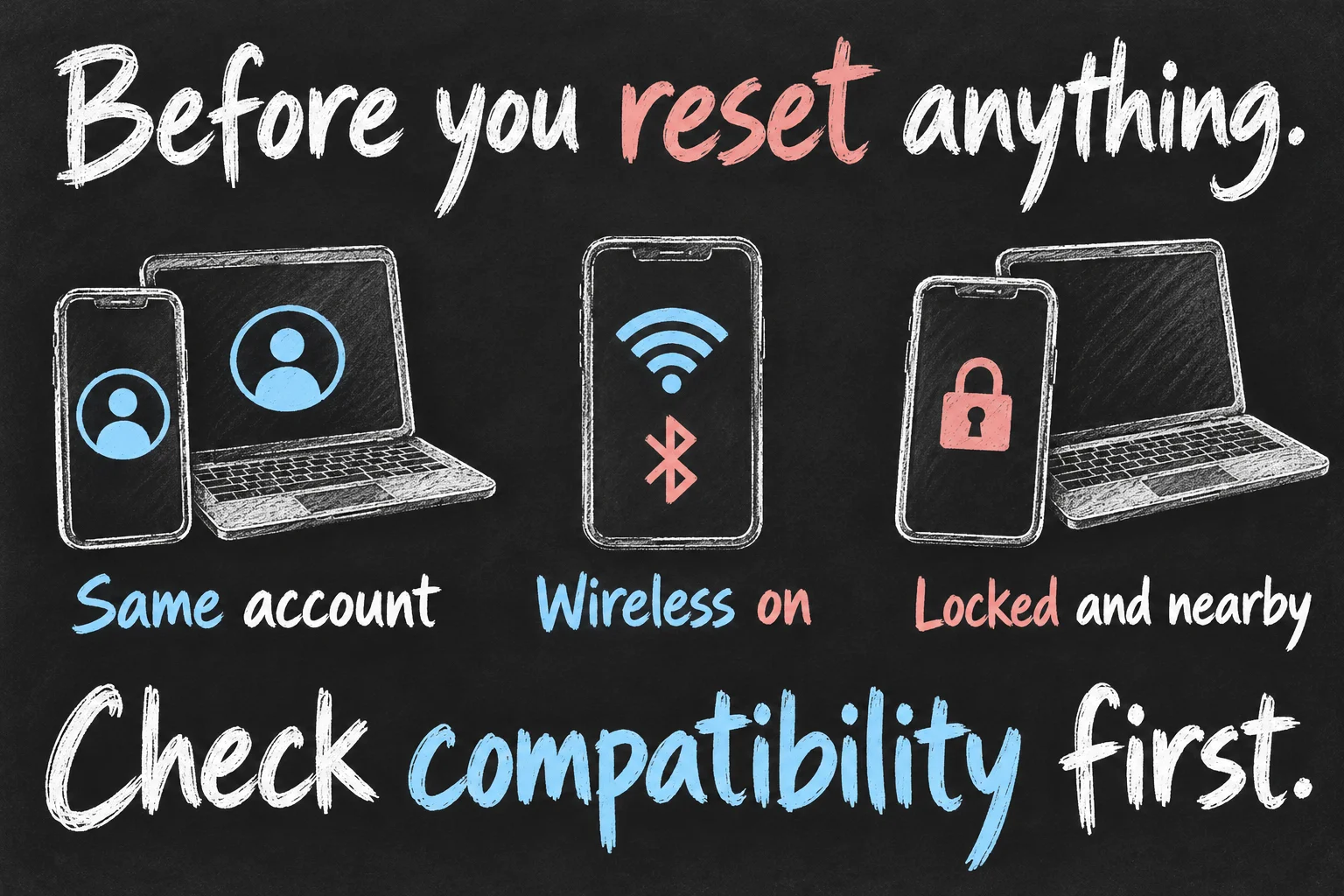
Read the actual error in the app, then compare it with the requirement list. Check the phone has not been unlocked, that you have selected the intended iPhone if more than one is available, and that both devices still have their wireless connections on.
For an intermittent connection, stop competing wireless streaming and try again nearby. Install current compatible updates and restart both devices when practical. Test after one change, rather than changing several unrelated settings and losing track of what mattered.
VPN or third-party security settings can prevent local device communication. Check whether the configuration permits local networking; on a managed work Mac, ask the administrator rather than weakening security. A firewall set to block all incoming connections is another configuration to review with the person responsible for the device.
If the conditions are correct but access still fails, use iPhone Mirroring → Settings on the Mac to revoke the existing phone access, then pair the feature again. Understand that this removes that connection permission and requires setup again. It is more targeted than erasing the phone.
Make notifications and file transfers useful
Choose whether iPhone notifications should appear on the Mac during setup, then refine individual apps in the Mac’s notification settings. On a shared screen, consider what message previews or app names you want other people to see. Convenience is most useful when it matches the way you actually work.
Current Apple guides support dragging files between the Mac and supported apps in the mirrored iPhone window. Some older launch guides say this was unavailable because they describe an earlier release. Test with an ordinary non-sensitive file and check the destination app; do not assume every app accepts the same drop action.
If you only want to copy a few photos to a computer, use the appropriate transfer workflow rather than troubleshooting Mirroring unnecessarily. Our iPhone photo transfer guide covers the Windows case, where this Mac-only feature is not the right tool.
Choose authentication for a shared workspace
When setting up iPhone Mirroring on a Mac that other people can access, consider Ask Every Time rather than automatic authentication. Review the mirrored notification settings too: controlling the phone and allowing its notifications on the Mac are separate privacy decisions. The iPhone camera and microphone are not available through iPhone Mirroring, so use the Mac’s own camera and microphone for a video meeting rather than treating the mirrored phone as a webcam.

FAQ
Does the iPhone have to stay unlocked?
No. It should remain locked while you interact from the Mac. Unlocking the physical phone stops the mirrored session, which is expected behaviour.
Does the phone need to be nearby?
Yes, for the interactive Mirroring connection. Do not treat it as general remote control of a phone left in another building. Notification delivery has its own conditions and is not proof of an active interactive session.
Should I sign out of my Apple Account first?
Start with the targeted checks above. Signing out affects account-dependent services and is a later step in Apple’s troubleshooting, not a routine prerequisite. Seek support if you are unsure about its impact on synced data.
Sources and Reading Notes
Checked 25 October 2026. Apple Support: iPhone Mirroring requirements and troubleshooting; iPhone and Mac User Guides for interactive control; AirPlay screen streaming; and Sidecar. Research-based guide with no hands-on connection or performance test claimed. Features and app behaviour vary with software versions.
Revision check, 1 November 2026: Apple iPhone User Guide, Control your iPhone from your Mac.
