You can schedule an iMessage on iPhone up to 14 days ahead with Send Later. Open the conversation, tap + → Send Later, choose the time, write the message and send it into the queue. This built-in route requires iMessage; it is not a general scheduler for SMS or RCS conversations.
Use it when you remember a message late at night but want it delivered at a better time. The steps below cover the built-in feature introduced with iOS 18, how to edit or cancel a queued message and a manual-reminder fallback when Send Later is unavailable.
In 3 Points
Check the conversation before scheduling
Messages is the app; iMessage, RCS and SMS/MMS are different ways its messages can travel. Blue bubbles indicate iMessage, while green bubbles indicate RCS or SMS/MMS. An iPhone contact can still be in a non-iMessage conversation, so the device they own is not a sufficient check by itself.
On recent iOS, iMessage settings are under Settings → Apps → Messages. Update to compatible software if your phone predates Send Later. Check the actual conversation and available controls rather than buying a scheduling app because an old tutorial says iPhone has no built-in option.
| Your situation | Best first action |
|---|---|
| A normal iMessage chat with Send Later available | Use the built-in steps below. |
| A green-bubble conversation | Do not assume the iMessage scheduler applies; use a reminder to send manually if needed. |
| A date more than 14 days away | Create a reminder for nearer the date instead of assuming a long-term queue. |
| An urgent or time-critical message | Contact the person directly and verify receipt; scheduling is not a guaranteed alerting system. |
Schedule a text on iPhone with Send Later
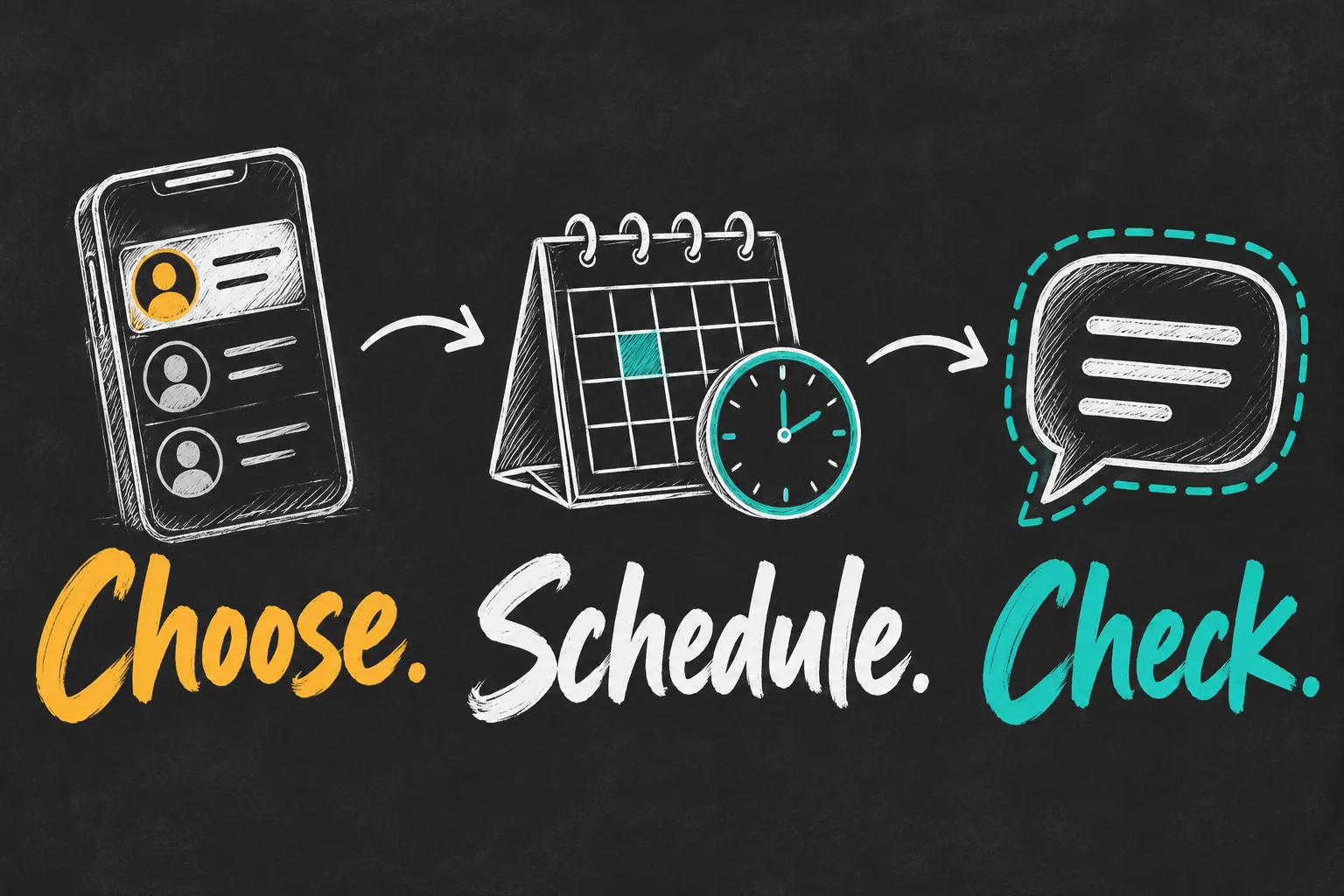
- Open Messages and select the intended iMessage conversation, or start a new one.
- Tap the plus button beside the message field and choose Send Later; scroll through the menu if needed.
- Tap the displayed time and choose a date and time within the available window.
- Enter your message and tap the send arrow to add it to the queue.
- Look for the dashed message bubble and the displayed scheduled time in the conversation.
Before you leave, read the message as its recipient would: is the request clear, is the name right and will it still make sense at the chosen time? For a university group reminder, include the actual meeting date rather than only saying tomorrow. For a birthday message, double-check that you picked the correct day instead of accepting a suggested time.
A good first attempt is a harmless message to a willing contact a few minutes ahead. Check what the queued bubble looks like and how the edit control behaves. This familiarisation suggestion is not a claim that we ran a delivery test or measured its reliability.
Choose a sensible time for the recipient
The reason to schedule is usually courtesy or remembering a task, not automation for its own sake. A message about tomorrow’s class may be more useful before the person leaves home than at midnight. A non-urgent question for a colleague is often better during their normal working hours.
If you are in Australia and the recipient is interstate or overseas, check their local time in World Clock before selecting the delivery time. Do not assume that all Australian cities share the same clock or daylight-saving arrangements. Read the scheduler’s displayed time carefully, particularly if you are travelling or changing time zones; verify behaviour before relying on it for a critical appointment.
Make the wording independent of when you wrote it. For example, state the date and requested action instead of relying on right now or tonight. If the information could change, set yourself a reminder to review it before delivery. A thoughtfully timed message can still be confusing if its contents are stale.
Edit, reschedule or cancel before it sends
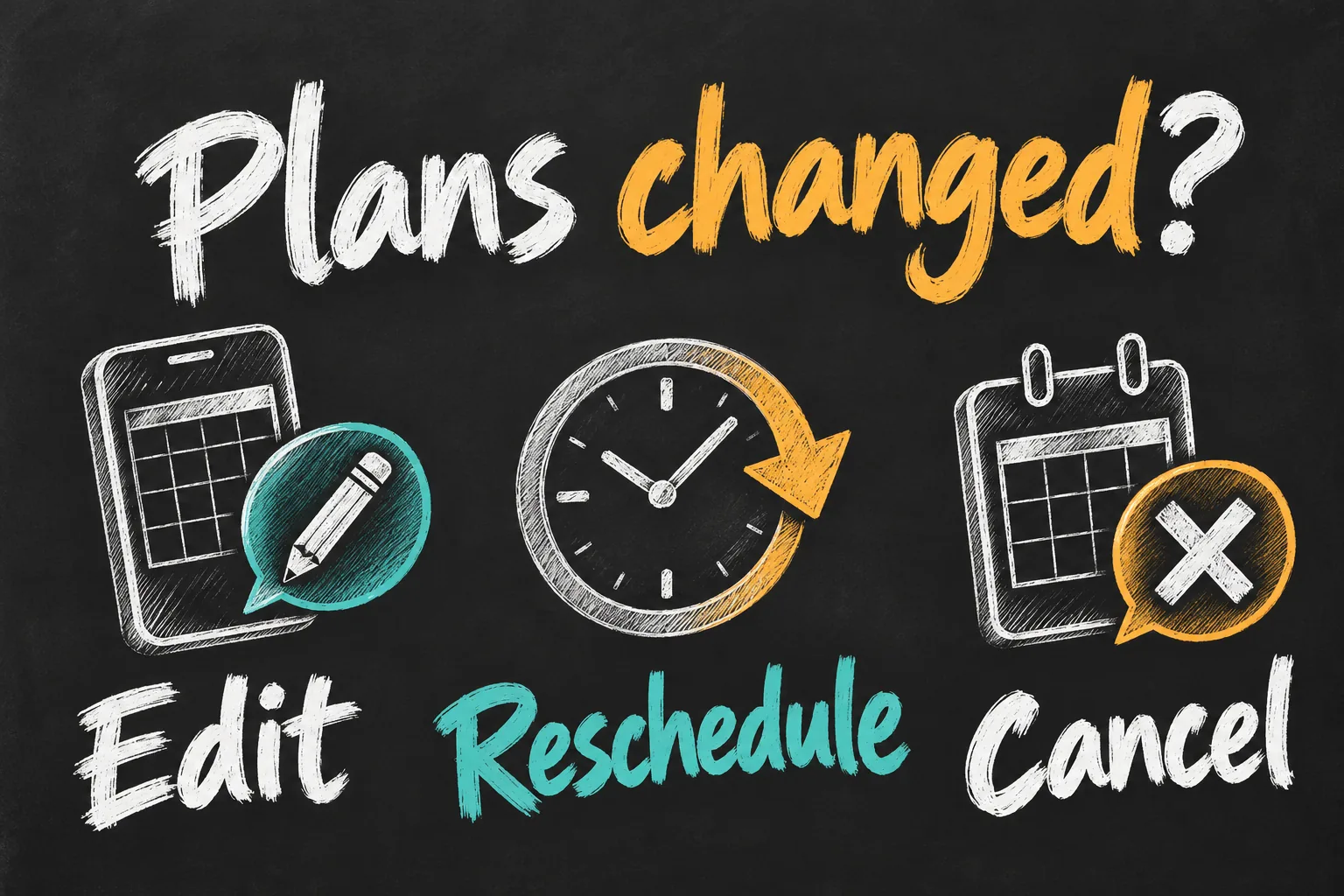
Go back to the conversation and find the queued message near the bottom. Apple provides editing, rescheduling, immediate-send and deletion controls before delivery. Touch and hold the queued bubble to edit its text or delete it; use Edit beside its scheduled date to change the time or send immediately. Deleting it before delivery cancels that queued message.
You need to be online to make these changes. Once successfully queued, the message is stored encrypted on Apple’s servers until it sends; it can be delivered even when your devices are offline. This is why switching your phone off is not a dependable way to cancel it. Use the cancellation control and confirm that the queued message is gone.
Keep cancellation simple: if the meeting is called off, find and remove the original reminder rather than leaving it queued and hoping a second message explains everything. For sensitive messages, reread the final version after editing. Scheduled sending should reduce mistakes, not hide an unfinished draft from your attention.
If Send Later is missing, use the right fallback
First check the software version, conversation type and plus menu. If the conversation is not eligible, a dated reminder is a straightforward alternative: put the recipient and draft wording in Reminders, then send it yourself when alerted. That is a prompt to act, not automatic delivery.
Shortcuts automations and third-party services are different workflows with their own execution, privacy and subscription conditions. Do not assume a repeating automation is a one-off message, or that an app reminder sends anything without you. For an ordinary personal message, the simplest supported method is often the easiest to check and cancel.
Scheduling also does not prove the person received or read your message. For something that needs a reply by a deadline, ask for confirmation and have another contact method available. If your next task is sending photos to an Android contact, our iPhone-to-Samsung file-sharing guide covers that separate workflow.
A scheduled message is not a repeating reminder
After setting the time, look for the scheduled message in the conversation rather than leaving unsent text in the composer. Check the recipient and scheduled date once more. Send Later schedules that individual message; do not assume it will repeat next week or next month. If the real task is to remind yourself to contact someone regularly, create a recurring reminder and compose the message when it is due.
Frequently asked questions
Can I schedule a message to an Android phone this way?
This guide covers iMessage Send Later. Do not treat it as a universal SMS or RCS scheduling feature; check the conversation and use the manual-reminder fallback if it is unavailable.
Can I schedule a message every week?
The built-in method here schedules a particular message for a chosen time. A recurring automation is a separate task; do not assume Send Later repeats it.
Will the recipient know I scheduled it?
Apple says the recipient will not know it was scheduled. That does not change the need to choose a sensible time and write a clear message.
Sources and reading notes
Apple iPhone User Guide: Schedule a text message on iPhone to send later; Apple Support: Use iMessage apps, Why are my iPhone messages green? and What is the difference between iMessage, RCS and SMS/MMS? Reviewed 27 October 2026. Benchmark reading compared iPhone Life, 9to5Mac and Twilio’s setup and fallback coverage. This is a research-based guide, not a timed delivery test. Illustrations are conceptual AI-generated sketches, not screenshots.
Revision check, 1 November 2026: Apple iPhone User Guide, Schedule a message with Send Later.