iPhone Back Tap lets you trigger an action by tapping the back of your phone twice or three times. To set it up, open Settings → Accessibility → Touch → Back Tap and assign an action. To turn it off completely, set both Double Tap and Triple Tap to None.
The clever part is choosing a job that saves effort without interrupting your day. A screenshot shortcut can be convenient until unwanted captures fill Photos. This guide covers five practical uses, a simple starting setup and what to check when the gesture misses or fires unexpectedly. It follows Apple’s published instructions; these recommendations are not personal reliability-test results.
Before you dive in
How to turn on iPhone Back Tap
Back Tap is built into iPhone accessibility settings. You do not need a paid utility or an extra accessory to assign its built-in actions. Apple’s support page lists iPhone 8 or later with iOS 14 or later; use the latest compatible software available for your particular phone.
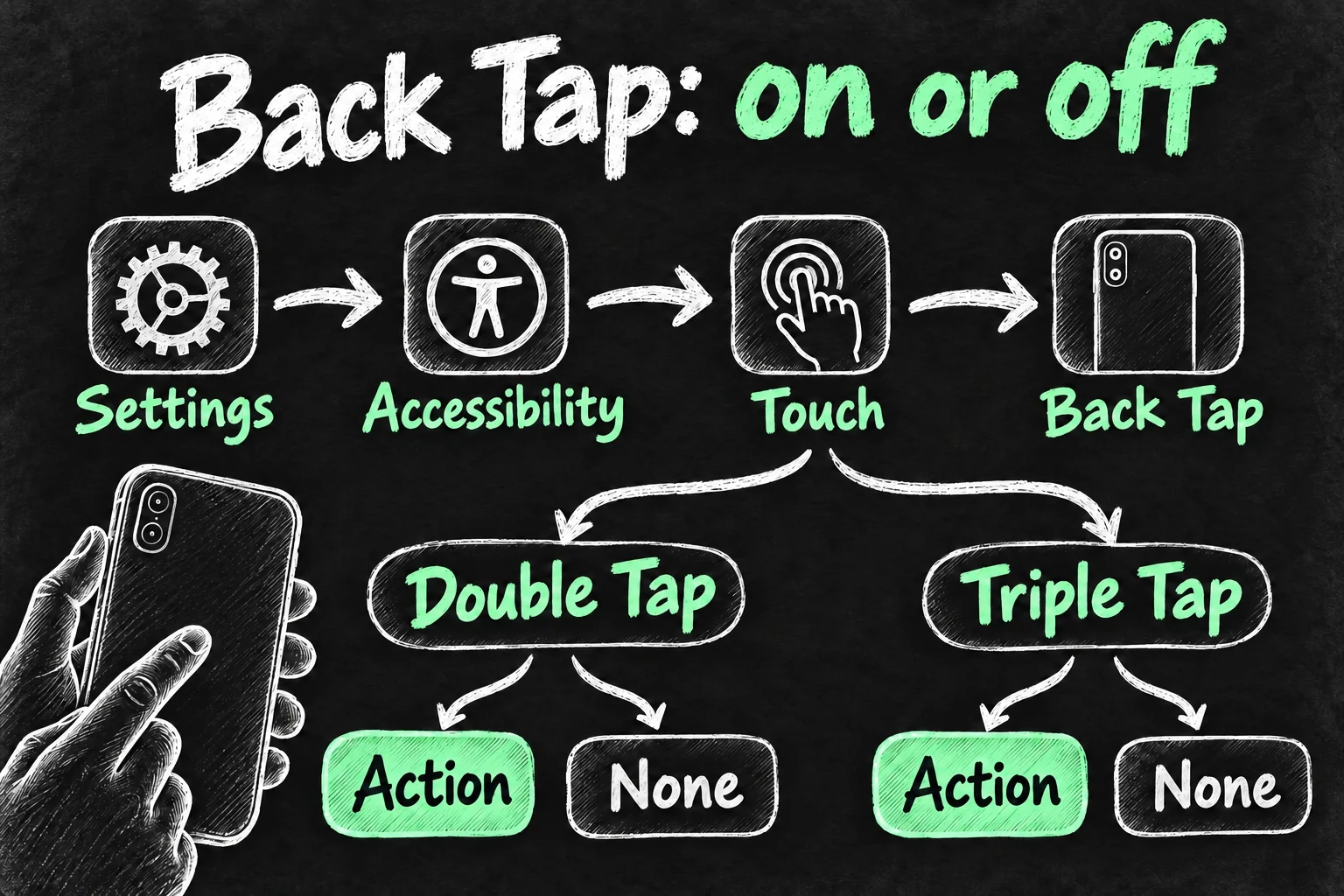
- Open Settings → Accessibility → Touch.
- Scroll to Back Tap.
- Choose Double Tap or Triple Tap.
- Select one action, such as Screenshot, then return to the Back Tap screen.
- Hold the phone securely and perform the assigned two- or three-tap gesture on its rear to check the result.
You do not have to fill both slots. My suggested first setup is Double Tap: None and Triple Tap: Screenshot or Control Centre, depending on which you use more. Treat that as a starting experiment, not a universal best setting. If three taps feel awkward, try Double Tap and judge whether the convenience outweighs unwanted triggers.
The Apple logo is not a separate button that needs pressing. The gesture is tapping the rear of the device, rather than touching an on-screen control. Use a secure grip and a comfortable rhythm; hitting the phone harder is not the goal. Menu wording can differ with the language and version installed on your phone.
How to turn off Back Tap completely
If you want to turn off Back Tap, return to Settings → Accessibility → Touch → Back Tap. Open Double Tap and select None, then return and do the same for Triple Tap. Check the two assignments on the main Back Tap screen before leaving Settings.
You can also disable just the gesture that bothers you. For example, clearing Double Tap while keeping a useful Triple Tap assignment is a reasonable compromise. Turning off an assignment is different from deleting a shortcut: the shortcut can remain available in the Shortcuts app even when Back Tap no longer launches it.
5 smart uses for iPhone Back Tap
Choose an action that removes a repeated inconvenience. The useful question is not how many features you can attach to the back of the phone, but which action you would appreciate having within reach several times a week.
- Take a screenshot without the button combination. Assign Screenshot if reaching the usual buttons is uncomfortable. It suits saving a confirmation or an error message while already holding the phone. Check what is on screen before sharing the capture, and move the assignment or clear it if unwanted images become common.
- Open Control Centre with your existing grip. This can be useful when reaching the top corner is awkward. Pick it if you repeatedly need the controls collected there. It is a less consequential starting experiment than a shortcut that changes several settings or contacts another person.
- Bring up Magnifier when small print gets in the way. Apple lists Magnifier among the accessibility features reachable through the shortcut system. Set up the feature first, then use the option offered on your phone. It is a practical choice for a menu, label or equipment serial number.
- Identify a song through a shortcut. Apple’s Shazam guide describes assigning a saved shortcut to Back Tap. Add a suitable song-identification shortcut to your collection, run it normally first and then select it under Shortcuts in the Back Tap menu. Check requested permissions before relying on it.
- Run a small shortcut you already trust. A routine with a clear, visible outcome is easier to judge than a complicated chain. Start with a shortcut you use successfully from the Shortcuts app. Do not build an elaborate automation just to justify using the gesture.
For a reader who mostly wants easier one-handed navigation, a system control may be the better choice. For someone who regularly uses Shortcuts, the saved routine may provide more value. Keep the first experiment small enough that you can immediately tell whether it worked.
How to connect an existing shortcut
- Open the Shortcuts app and make sure the routine is in your own collection.
- Run it there first, checking its result and any permission prompts.
- Return to Settings → Accessibility → Touch → Back Tap.
- Choose a gesture, scroll to the Shortcuts section and select the saved routine.
- Return to Back Tap, perform the gesture and compare the result with running the routine directly.
Only choosing the gesture does not create the routine. If your intended shortcut is absent, check that it has actually been added to your collection. If tapping seems to work but the routine fails, testing it inside Shortcuts helps separate a gesture problem from a problem with the routine itself.
I would avoid making a first Back Tap experiment send a message, spend money or trigger a multi-step household routine. A gesture should reduce friction, while consequential actions still deserve a deliberate check. Review unfamiliar shortcuts before adding them, particularly those that request access to personal information.
Accidental screenshots? Change the assignment before changing everything else
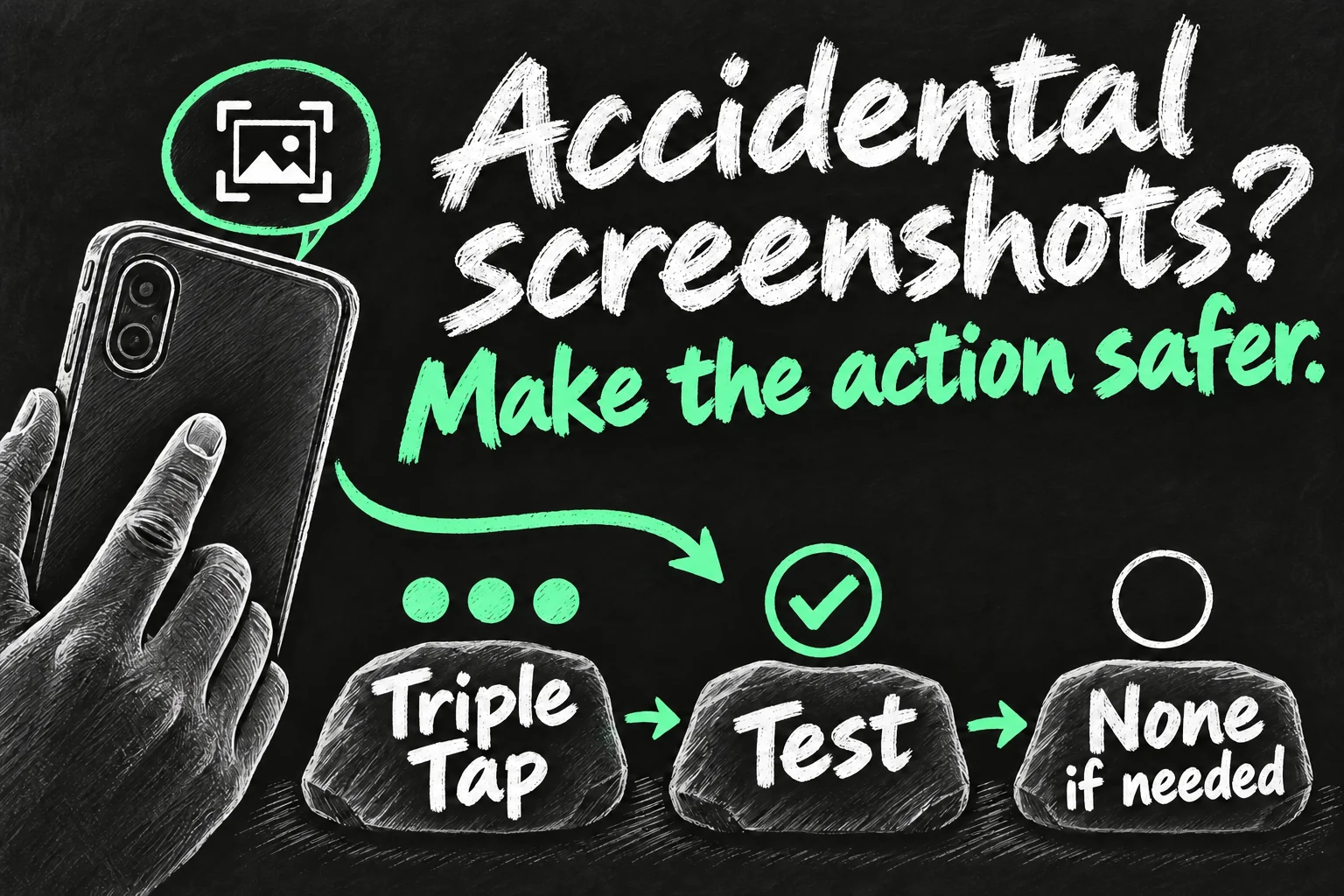
First check that Screenshot is assigned to a Back Tap gesture. If it is, set that gesture to None and use the phone normally. This is a simple way to investigate the source of unwanted captures without resetting unrelated settings. If screenshots continue, investigate another trigger instead of assuming every capture comes from Back Tap.
If you still want the feature, try moving the action from Double Tap to Triple Tap. You may find that a more deliberate gesture better suits your grip, but it is not a guarantee against false activation. Apple’s documented setup provides action assignments; this recommendation is not an adjustment to sensor sensitivity.
Give the revised setup an ordinary day of use. A feature that saves one reach but causes repeated interruptions is not earning its place. Leaving both gestures on None is a perfectly sensible result, particularly if the regular buttons or an on-screen alternative suit you better.
Back Tap not working: a short troubleshooting order
When you find Back Tap not working, establish which part fails before changing several things at once. Use an unlocked, awake phone and a simple built-in action for the first test so there are fewer variables. That is a controlled test setup, not a promise that every action behaves identically in every lock-screen state.
- Check the assignment and gesture. Confirm the chosen slot is not None. A Triple Tap assignment needs three taps, not two.
- Separate detection from the shortcut. Temporarily assign a simple built-in action, then test the routine directly inside Shortcuts if only that routine fails.
- Compare the same test without the case. If it becomes more consistent, the case or how you hold the phone may be contributing. Do not buy a replacement case based on one successful tap.
- Restart and check compatible updates. If the simple test still fails, restart normally and check Software Update. Keep the test action the same so you can judge whether the behaviour changes.
For persistent problems, keep a short note of the iPhone model, iOS version, assigned action and what happens with and without the case. That is more useful for support than a general report that the gesture never works. A factory reset is not a sensible first step for a convenience feature.
If you are setting up a new device, our new iPhone transfer checklist helps you check the rest of the phone before erasing the old one. For more starting settings, see our day-one iPhone settings guide.
Frequently asked questions
Do I need an iPhone with an Action button?
No. Apple’s listed Back Tap requirements start with iPhone 8 and iOS 14. The Action button is a separate control, rather than a requirement for the rear-tapping gesture.
Can Double Tap and Triple Tap do different things?
Yes. Each has its own assignment, so you can keep one useful action, use two different actions or set both to None.
Does turning off Back Tap turn off all accessibility features?
You are clearing the gesture assignment, not globally disabling accessibility. Check the particular accessibility feature separately if you also want to change its state.
Does Back Tap work through every case?
Do not assume that it will. Try the same simple action with and without your own case before deciding whether it suits your setup.
Is it worth enabling?
Try one low-consequence action that solves a repeated inconvenience. Keep it if it is comfortable and reliable enough for your routine; clear it if it becomes an interruption.
Sources and Reading Notes
Apple Support Australia: Use Back Tap on your iPhone; iPhone User Guide, Tap the back of iPhone to perform actions or shortcuts; Shortcuts User Guide, Run shortcuts by tapping the back of your iPhone. Apple Shazam User Guide: Identify a song using the Shortcuts app on Apple devices. Documentation checked 22 October 2026. Actions and labels can vary by installed software.
MacRumors, Tom’s Guide and iDownloadBlog were benchmark reading for setup flow and common reader questions. This guide prioritises disabling both gestures, choosing a low-interruption starting setup and separating shortcut failures from missed taps. Recommendations are editorial judgement. Illustrations are original AI-generated sketches, not actual Settings screens or evidence of hands-on testing.